> ## Documentation Index
> Fetch the complete documentation index at: https://docs.encord.com/llms.txt
> Use this file to discover all available pages before exploring further.
# Pre Classification of Images using GPT 4o
This comprehensive guide demonstrates how to create a pre-classification custom Agent that uses GPT-4 to automatically classify images and route them to specific annotation stages based on their classification. This approach is particularly useful when you have specialized annotators. Images with uncertain classifications are automatically added to the Archive for further review.
```mermaid theme={"dark"}
sequenceDiagram
participant AWS as AWS (Image Storage)
participant Encord as Encord (Project)
participant Agent as Agent Node (In Encord)
participant Server as Your Server
participant OpenAI as OpenAI
AWS->>Encord: Send Signed Image URLs
Encord->>Agent: Add Signed Image URL to Agent node
Agent->>Server: Send Signed Image URL
Server->>OpenAI: Send Image Data + Prompt
OpenAI-->>Server: Return Classification
Server->>Server: Transform Classification to Encord label structure
Server->>Agent: Save Labels to Encord
Agent->>Encord: Classification Saved to Label Row
Encord->>Encord: Task Moved to Annotation Stage
```
This guide makes the following assumptions:
* You have an active OpenAI subscription with an API key.
* Your images are stored in AWS.
## STEP 1: Import your Images
Before you can do anything with the Encord platform and cloud storage, you need to configure your cloud storage to work with Encord. Once the integration between Encord and your cloud storage is complete, you can then use your data in Encord.
In order to integrate with AWS S3, you need to:
1. Create a permission policy for your resources that allows appropriate access to Encord.
2. Create a role for Encord and attach the policy so that Encord can access those resources.
3. Activate Cross-origin resource sharing which allows Encord to access those resources from a web browser.
4. Test the integration to make sure it works.
See our [AWS integration documentation](/platform-documentation/General/annotate-data-integrations/annotate-aws-integration) for a detailed explanation of setting up AWS to work with Encord.
You have the following options to integrate AWS and Encord:
Create an S3 bucket to store your files if you haven't already. Your S3 bucket permissions should be set to be blocking all public access.
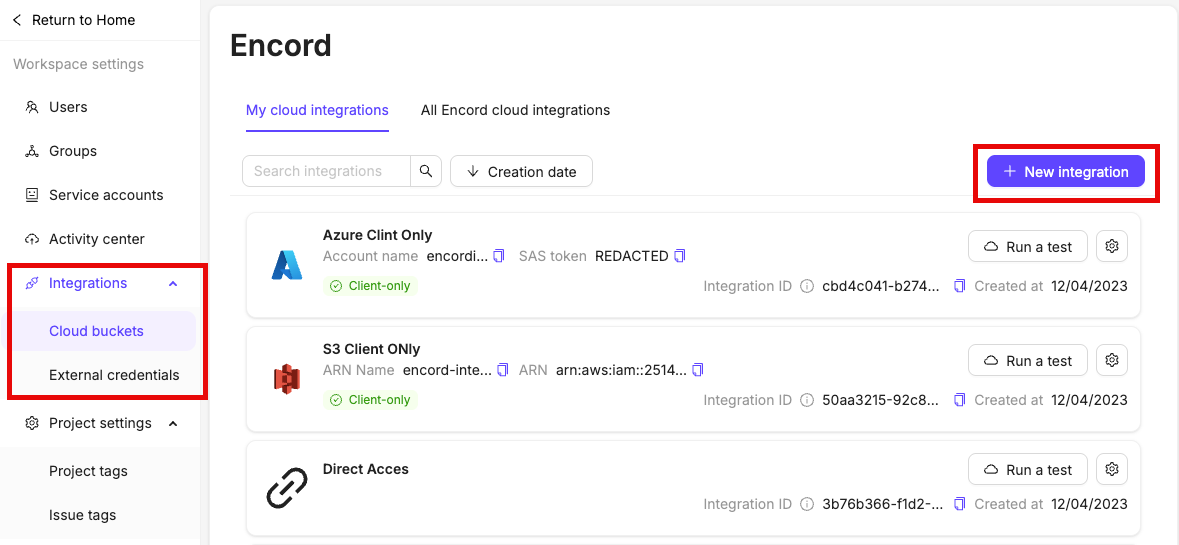
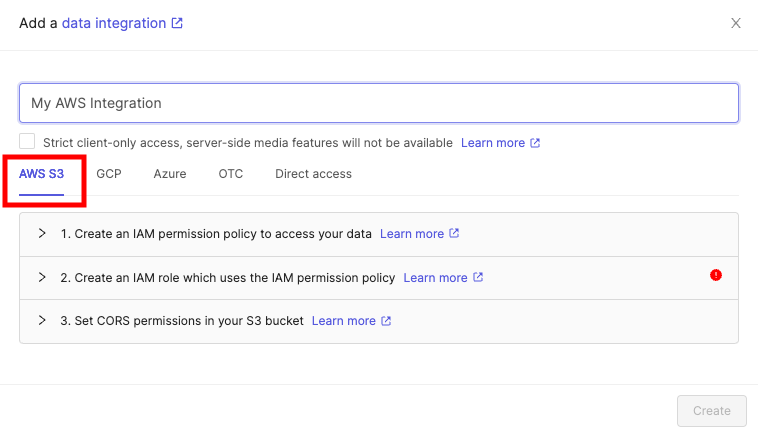
In the *Integrations* section of the Encord platform, click **+New integration** to create a new integration.
Select *AWS S3* at the top of the chooser.
It is essential you do not close this tab or window until you have finished the whole integration process. If you use the AWS UI for integration, we advise opening the AWS console in a separate tab.
See our [AWS integration documentation](/platform-documentation/General/annotate-data-integrations/annotate-aws-integration) for a detailed explanation of how to set up the AWS integration.
See our [documentation on JSON registration files](/platform-documentation/Curate/add-files/index-register-cloud-data#json-format) for more comprehensive information
Create a JSON file based on the templates provided below. `imageMetadata` is optional unless you are using a [client-only access integration](/platform-documentation/General/annotate-data-integrations#strict-client-only-access).
The `title` field is optional. If omitted, the image file path and name are used as the default title. For example, if the file is located at `https://encord-solutions-bucket.s3.eu-west-2.amazonaws.com/path/to/my/bucket/image23.mp4`, the title defaults to `/path/to/my/bucket/image23.jpg`.
| Key or Flag | Required? | Default value |
| ---------------- | --------- | ----------------------- |
| "objectUrl" | Yes | |
| "title" | No | The file's path + title |
| "imageMetadata" | No | |
| "clientMetadata" | No | |
| "createVideo" | No | false |
`imageMetadata` must be specified when a [Strict client-only access](/platform-documentation/General/annotate-data-integrations#strict-client-only-access) integration is used. In all other cases, `imageMetadata` is optional, but including it significantly reduces import times.
Keys / Flags that are not required can be omitted from the JSON file entirely.
```json Standard integration theme={"dark"}
{
"images": [
{
"objectUrl": "/path/to/my/bucket/cat.jpg",
"imageMetadata": {
"mimeType": "image/jpg",
"fileSize": 124,
"width": 640,
"height": 480
},
"clientMetadata": {"colour": "black and white"}
},
{
"objectUrl": "/path/to/my/bucket/dog.jpg",
"imageMetadata": {
"mimeType": "image/jpg",
"fileSize": 124,
"width": 640,
"height": 480
},
"clientMetadata": {"colour": "brown"}
}
]
}
```
```json Multi-region access point (AWS) theme={"dark"}
{
"images": [
{
"objectUrl": "Multi-Region-Access-Point-ARN + /path/to/my/bucket/cat.jpg",
"imageMetadata": {
"mimeType": "image/jpg",
"fileSize": 124,
"width": 640,
"height": 480
},
"clientMetadata": {
"colour": "black and white"
}
},
{
"objectUrl": "Multi-Region-Access-Point-ARN + /path/to/my/bucket/dog.jpg",
"imageMetadata": {
"mimeType": "image/jpg",
"fileSize": 124,
"width": 640,
"height": 480
},
"clientMetadata": {
"colour": "brown"
}
}
],
"skip_duplicate_urls": true
}
```
```json MRAP Example theme={"dark"}
{
"images": [
{
"objectUrl": "https://arn:aws:s3::123123123:accesspoint/frf28frarf9.mrap.s3-accesspoint.amazonaws.com/Images/2022/cat_0.jpg",
"imageMetadata": {
"mimeType": "image/jpg",
"fileSize": 124,
"width": 640,
"height": 480
},
"clientMetadata": {
"colour": "black and white"
}
},
{
"objectUrl": "https://arn:aws:s3::123123123:accesspoint/frf28frarf9.mrap.s3-accesspoint.amazonaws.com/Images/2022/dog_0.jpg",
"imageMetadata": {
"mimeType": "image/jpg",
"fileSize": 124,
"width": 640,
"height": 480
},
"clientMetadata": {
"colour": "brown"
}
}
],
"skip_duplicate_urls": true
}
```
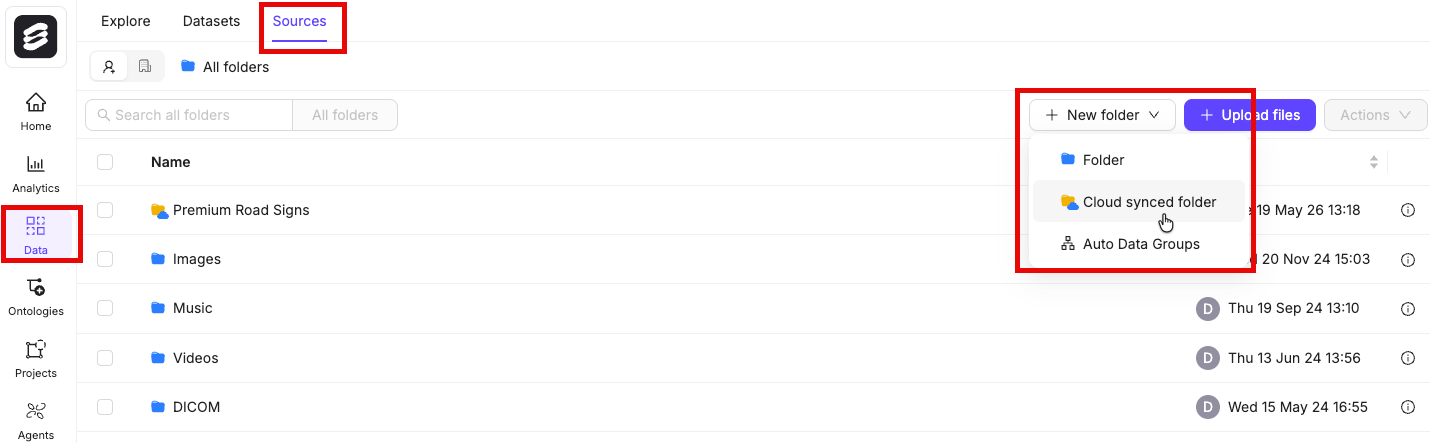
All files in Encord must be stored within folders. Therefore, you need to create a folder before registering any data with Encord. To create a folder:
1. Navigate to **Data** > **Files & Folders**
2. Click the **+ New folder** button to create a new folder. Select the type of folder you want to create.
3. Give the folder a meaningful name and description.
4. Click **Create** to create the folder.
The folder is listed in **Files & Folders**.
To ensure smoother uploads and faster completion times, and avoid hitting absolute file limits, we recommend adding smaller batches of data. Limit uploads to 100 videos or up to 1,000 images at a time. You can also create multiple Datasets, all of which can be linked to a single Project. Familiarize yourself with our [limits and best practices for data import/registration](/platform-documentation/General/best-practices#import-into-encord) before adding data to Encord.
1. Navigate to **Data** > **Files & Folders** in the Encord platform.
2. Click **+ Upload files**.
A dialog appears.
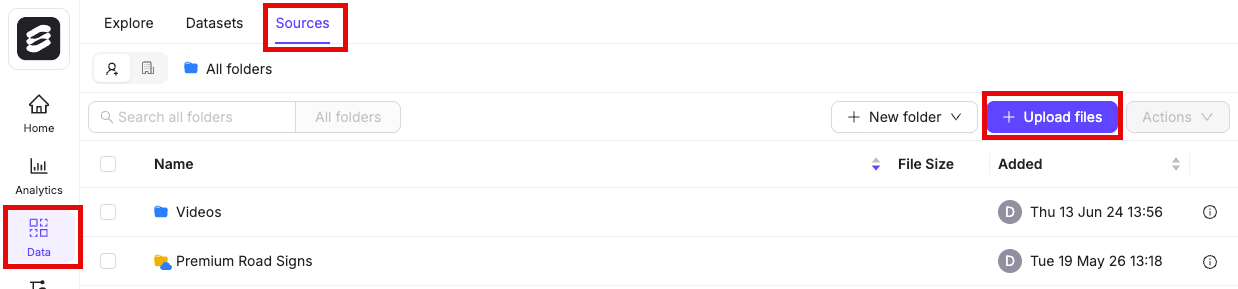 3. Select the folder you previously created.
4. Click the **Import from private cloud** option.
5. Select the integration you previously created to add your cloud data.
We recommend turning on the **Ignore individual file errors** feature. This ensures that individual file errors do not lead to the whole upload process being aborted.
6. Click **Add JSON or CSV files** to add a [JSON](/platform-documentation/Curate/add-files/index-register-cloud-data#json-format) or [CSV](/platform-documentation/Curate/add-files/index-register-cloud-data#csv-format) file specifying cloud data that is to be added.
3. Select the folder you previously created.
4. Click the **Import from private cloud** option.
5. Select the integration you previously created to add your cloud data.
We recommend turning on the **Ignore individual file errors** feature. This ensures that individual file errors do not lead to the whole upload process being aborted.
6. Click **Add JSON or CSV files** to add a [JSON](/platform-documentation/Curate/add-files/index-register-cloud-data#json-format) or [CSV](/platform-documentation/Curate/add-files/index-register-cloud-data#csv-format) file specifying cloud data that is to be added.
 ## STEP 2: Set Up Your Project
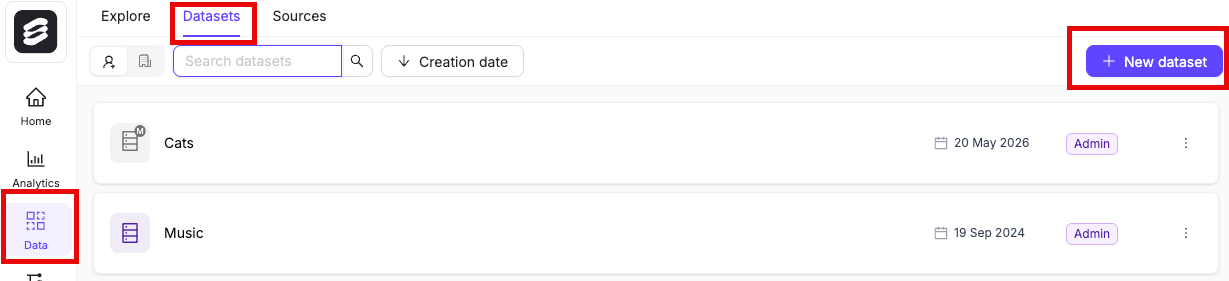
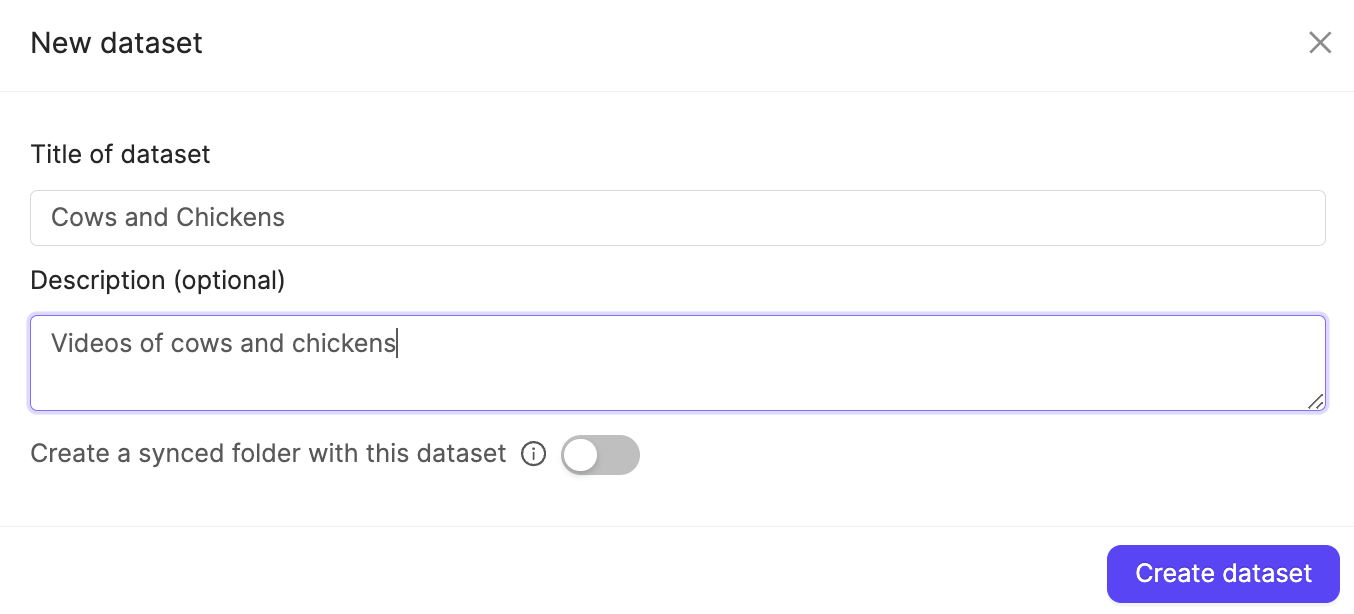
1. Click the **New dataset** button in the *Datasets* section in *Annotate*.
2. Give your Dataset a meaningful title and description. A clear title and description keeps your data organized.
Toggle **Looking to create a mirrored dataset?** to create a [Mirrored Dataset](/platform-documentation/Annotate/annotate-datasets/annotate-datasets#mirrored-datasets).
3. Click **Create dataset** to create the Dataset.
### Attach files
[You can add data to Datasets from the **Files & Folders** or the *Datasets* screens](/platform-documentation/Curate/index-files#add-data-to-datasets).
To ensure smoother uploads and faster completion times, and avoid hitting absolute file limits, we recommend adding smaller batches of data. Limit uploads to 100 videos or up to 1,000 images at a time. You can also create multiple Datasets, all of which can be linked to a single Project. Familiarize yourself with our [limits and best practices for data import/registration](/platform-documentation/General/best-practices#import-into-encord) before adding data to Encord.
1. Navigate to the *Datasets* section under the *Annotate* heading.
2. Click the Dataset you want to attach data to.
3. Click **+Attach existing files**.
4. Select the folders containing the files you want to attach to the Dataset. To select individual files, double-click a folder to see its contents, and select the files you want to add to the Dataset.
5. Click **Attach data** to attach the selected files to the Dataset.
Learn how to create Ontologies [here](/platform-documentation/Annotate/annotate-ontologies/annotate-create-ontologies).
Create a new Ontology that includes:
1. A radio classification called "Animal" with two options: One called "Cat" the other called "Dog".
2. Any other Objects you want to include in your Ontology.
Learn how to create Workflow templates [here](/platform-documentation/Annotate/annotate-projects/annotate-workflows-and-templates#creating-templates).
Create the following Workflow template by dragging the necessary components onto the canvas. For instructions on creating Workflows [see our documentation here](/platform-documentation/Annotate/annotate-projects/annotate-workflows-and-templates#creating-workflows). Ensure your Agent node has the name "Agent 1"
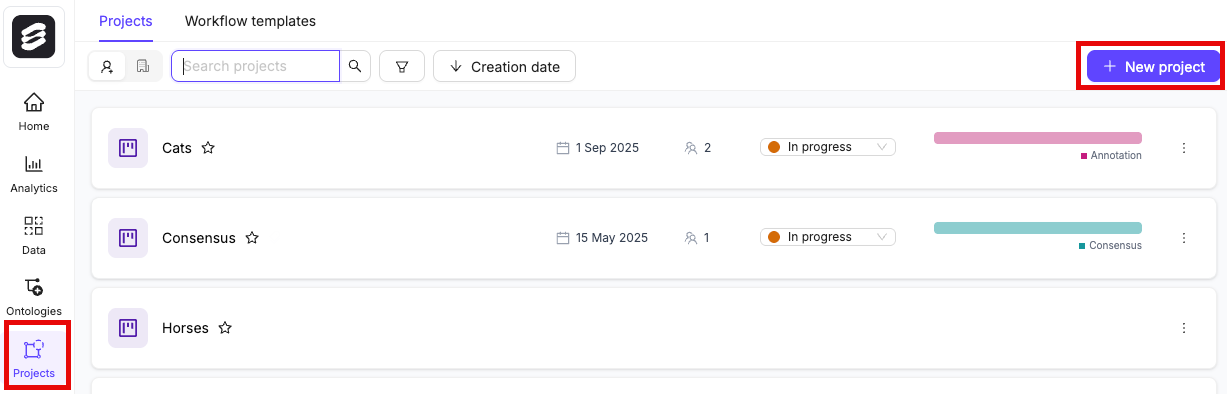
1. In the Encord platform, navigate to **Projects**.
2. Click the **+ New annotation project** button to create a new Project.
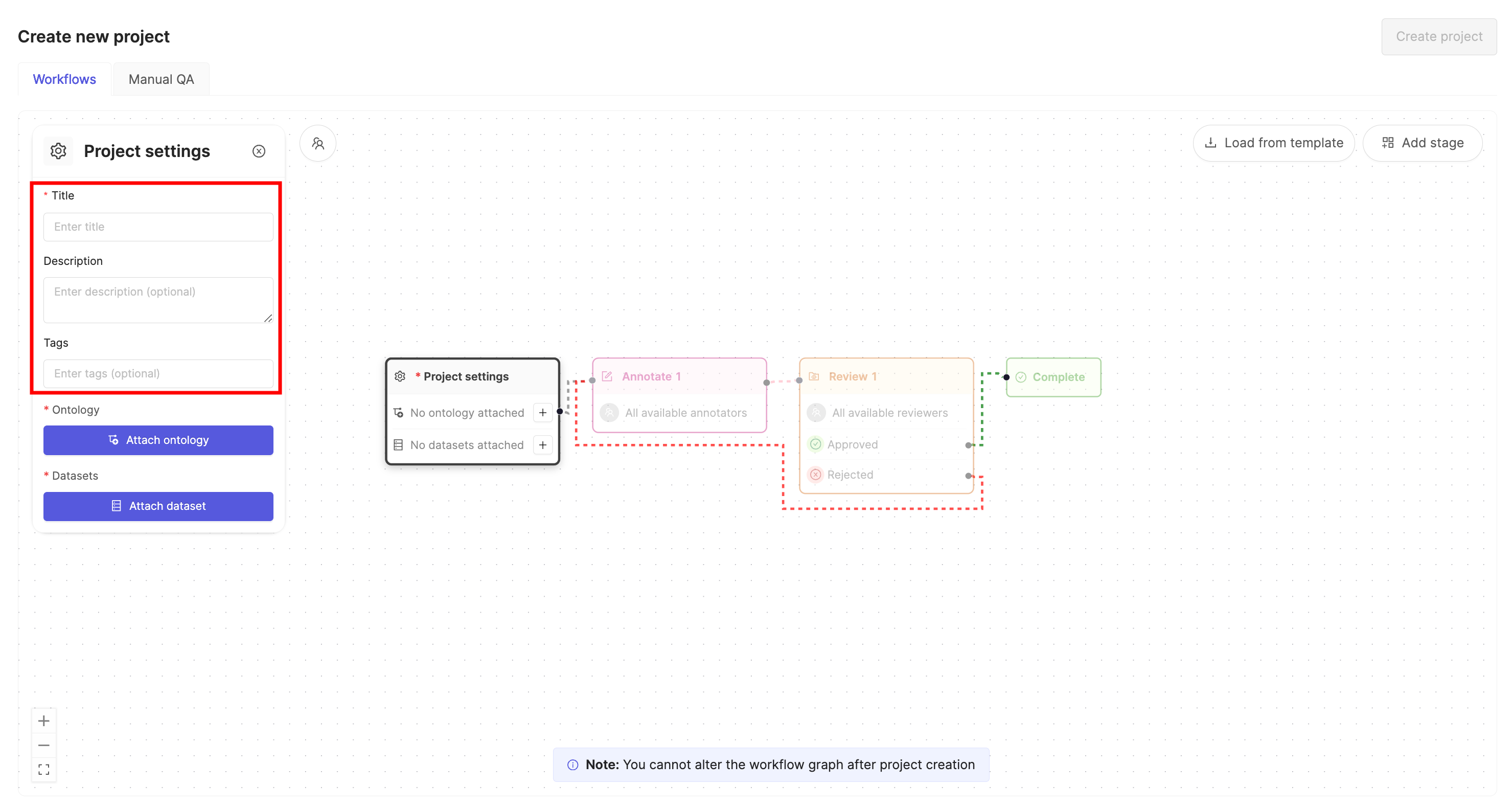
3. Give the Project a meaningful title and description.
If you are part of an [Workspace](/platform-documentation/General/general-workspace-settings), an optional [Project tags](/platform-documentation/Annotate/annotate-projects/annotate-project-settings#project-tags) drop-down is visible. Project tags are useful for categorizing and finding your Projects. Select as many tags as are relevant for your Project.
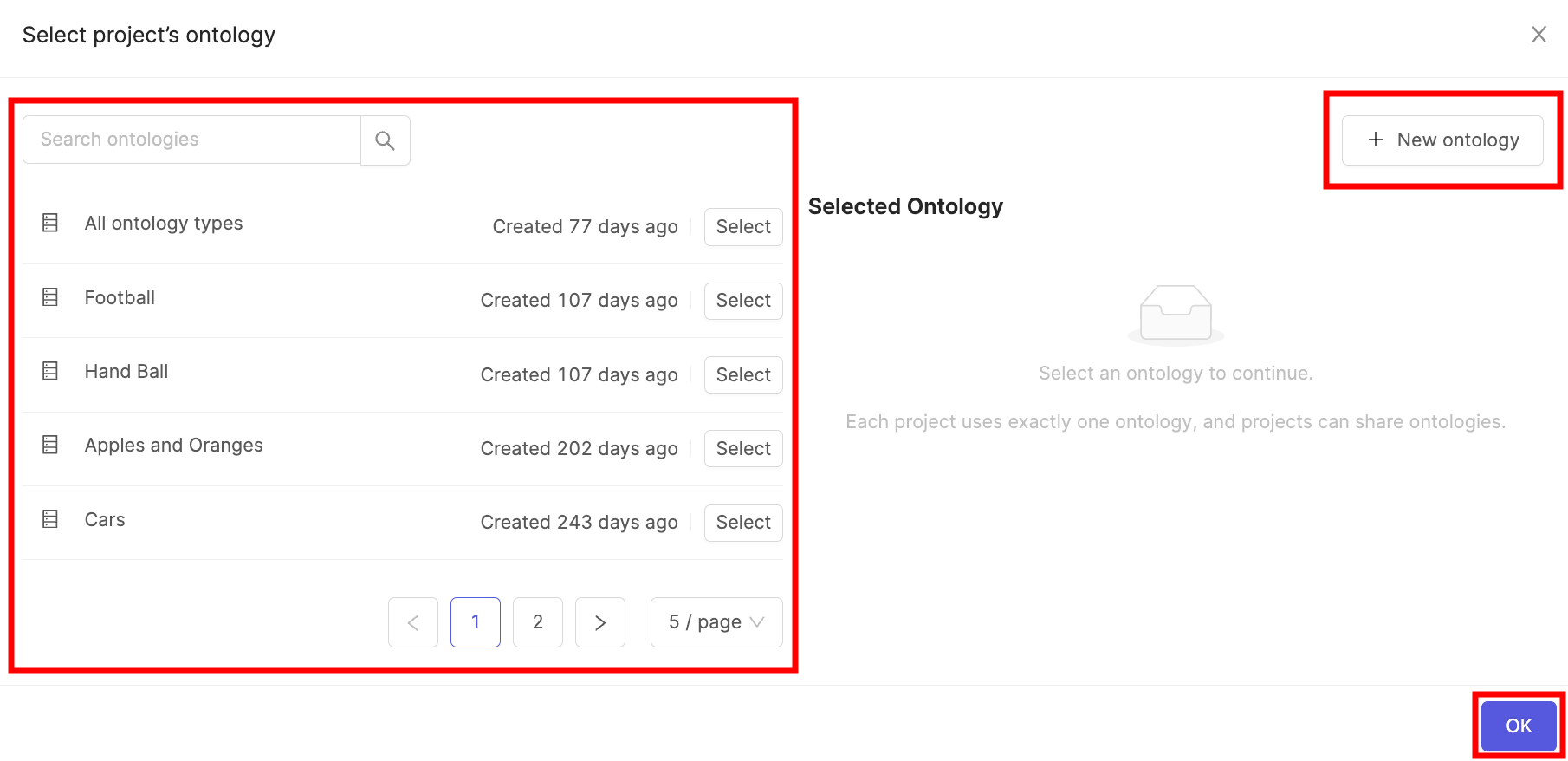
4. Click the **Attach ontology** button.
5. Select the [Ontology](/platform-documentation/Annotate/annotate-ontologies/annotate-ontologies) you created previously from the list using the **Select** button.
6. Click **OK** to attach the Ontology to the Project.
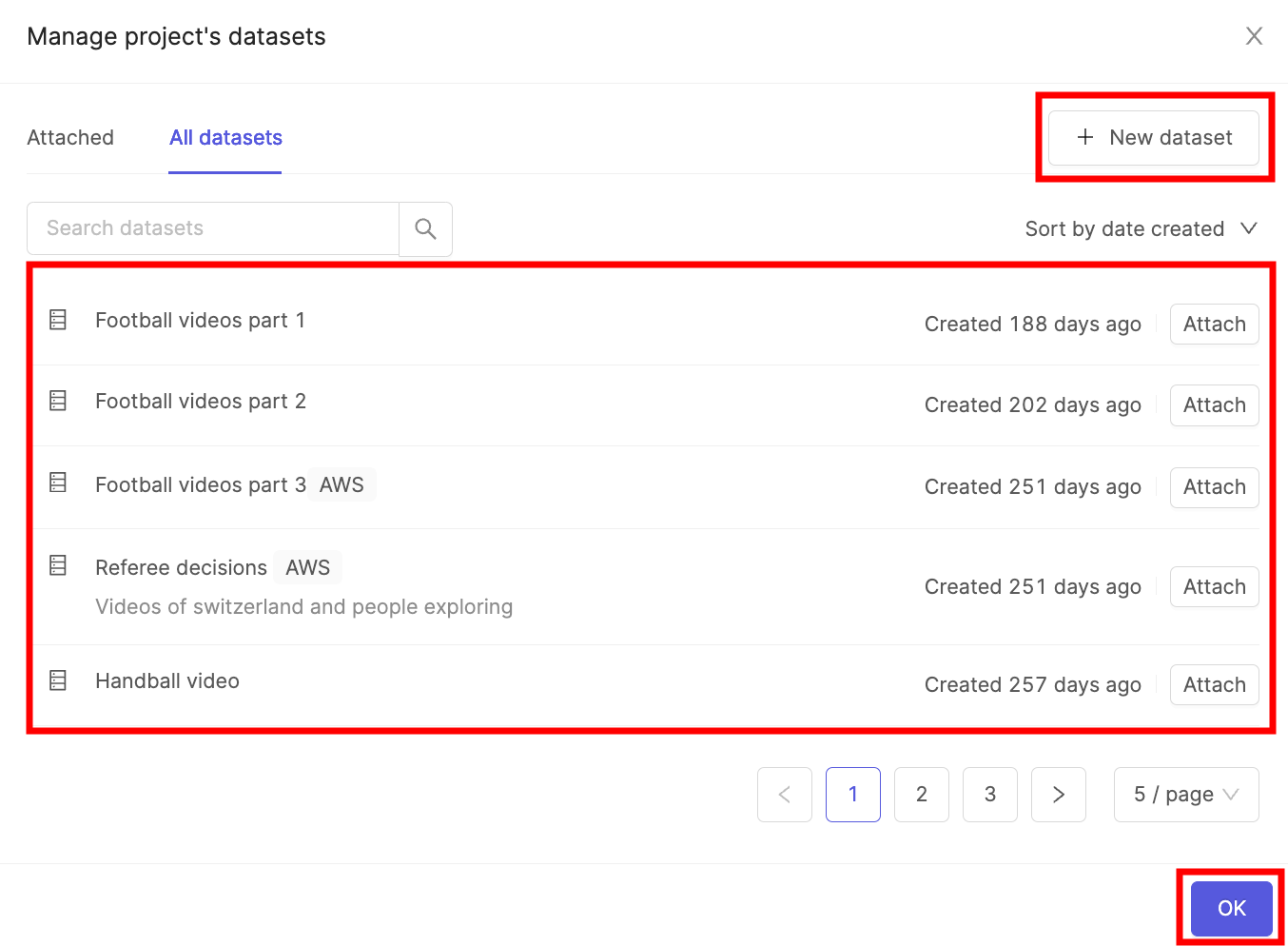
7. Click the **Attach datasets** button.
8. Select the [Dataset](/platform-documentation/Annotate/annotate-datasets/annotate-datasets) you created previously from the list using the **Attach** button.
9. Click **OK** to attach the Dataset(s) to the Project.
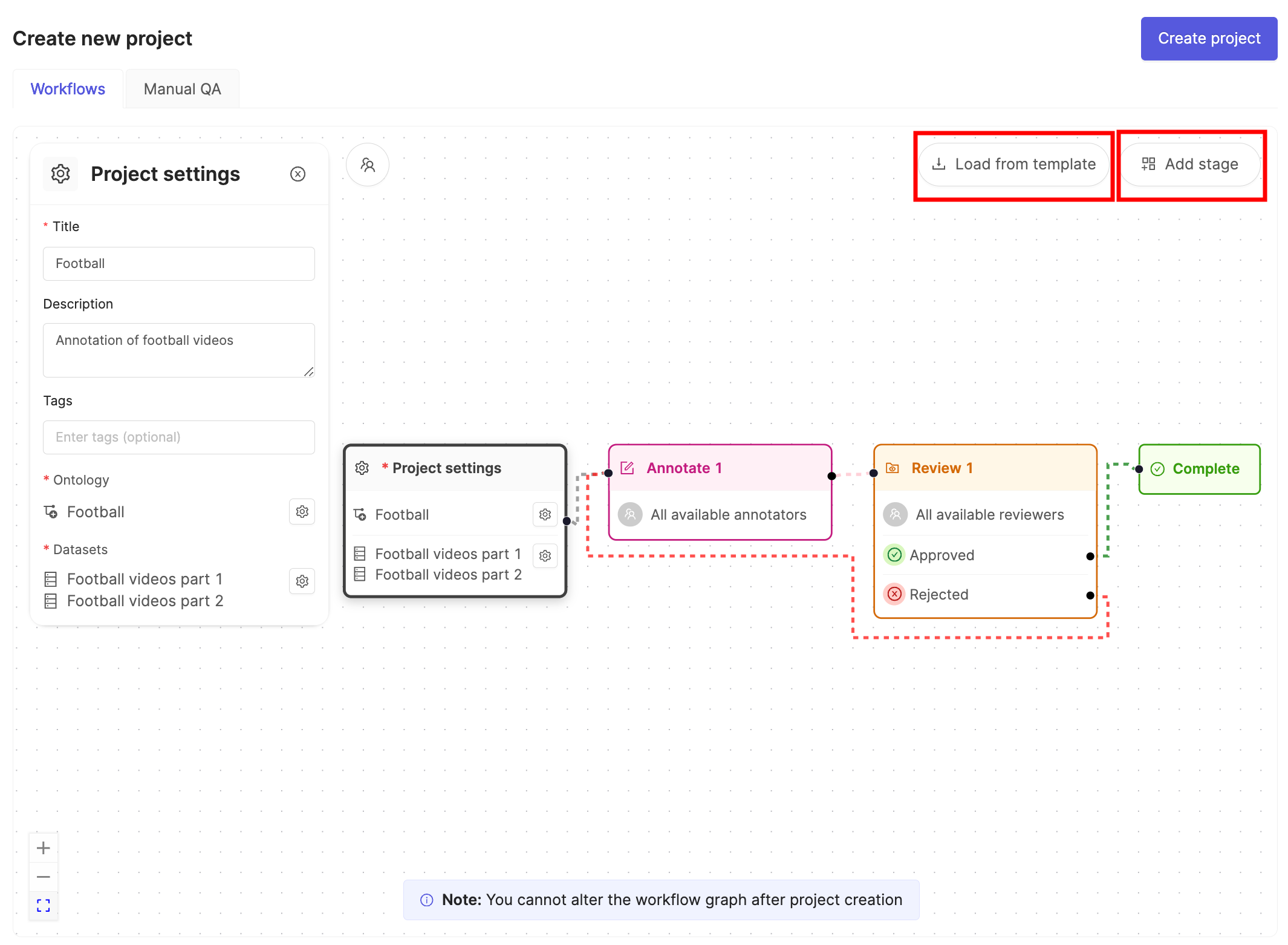
10. Click the **Load from template** button to use a [Workflow template](/platform-documentation/Annotate/annotate-projects/annotate-workflows-and-templates#templates).
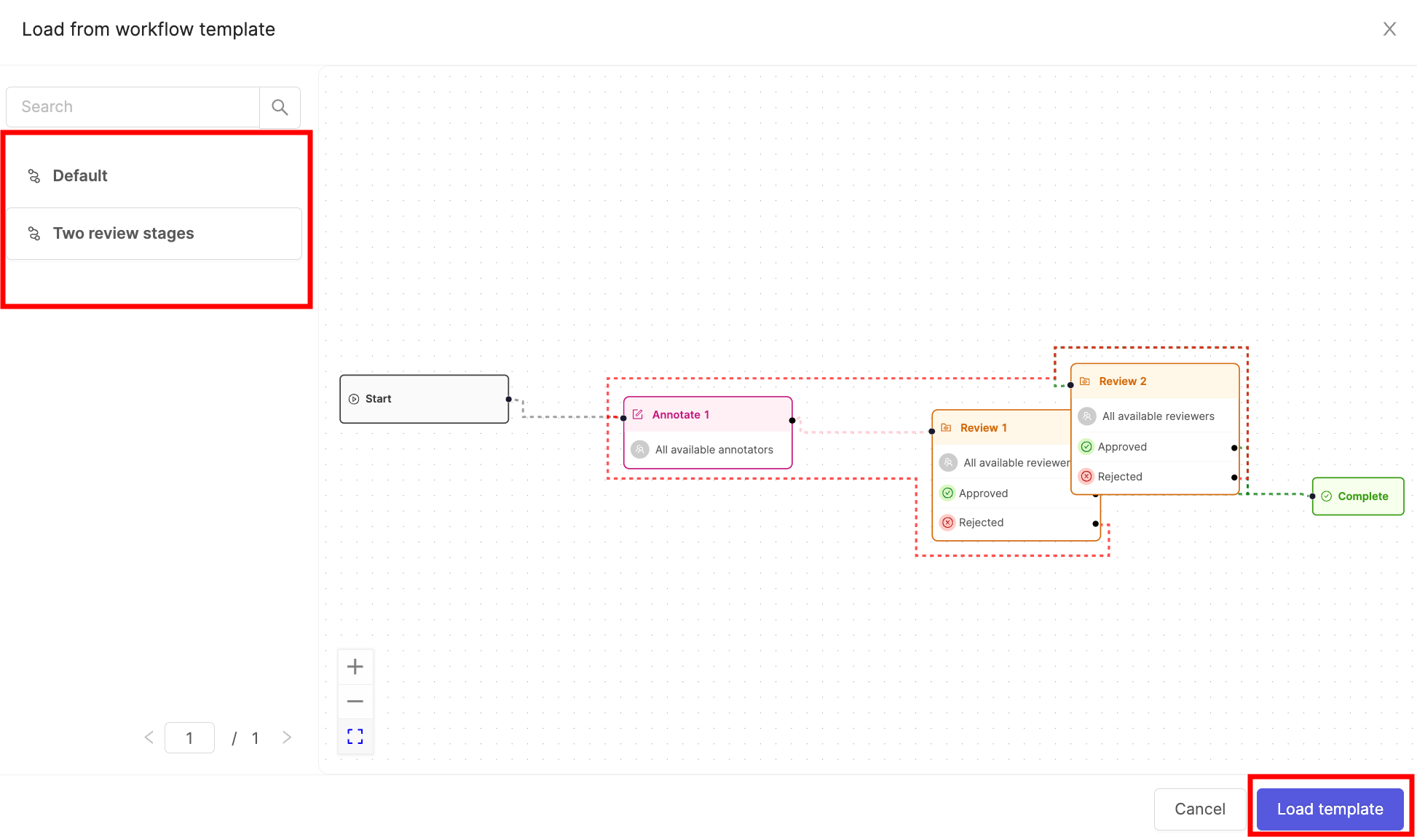
11. Select the template you want to use and click **Load template**.
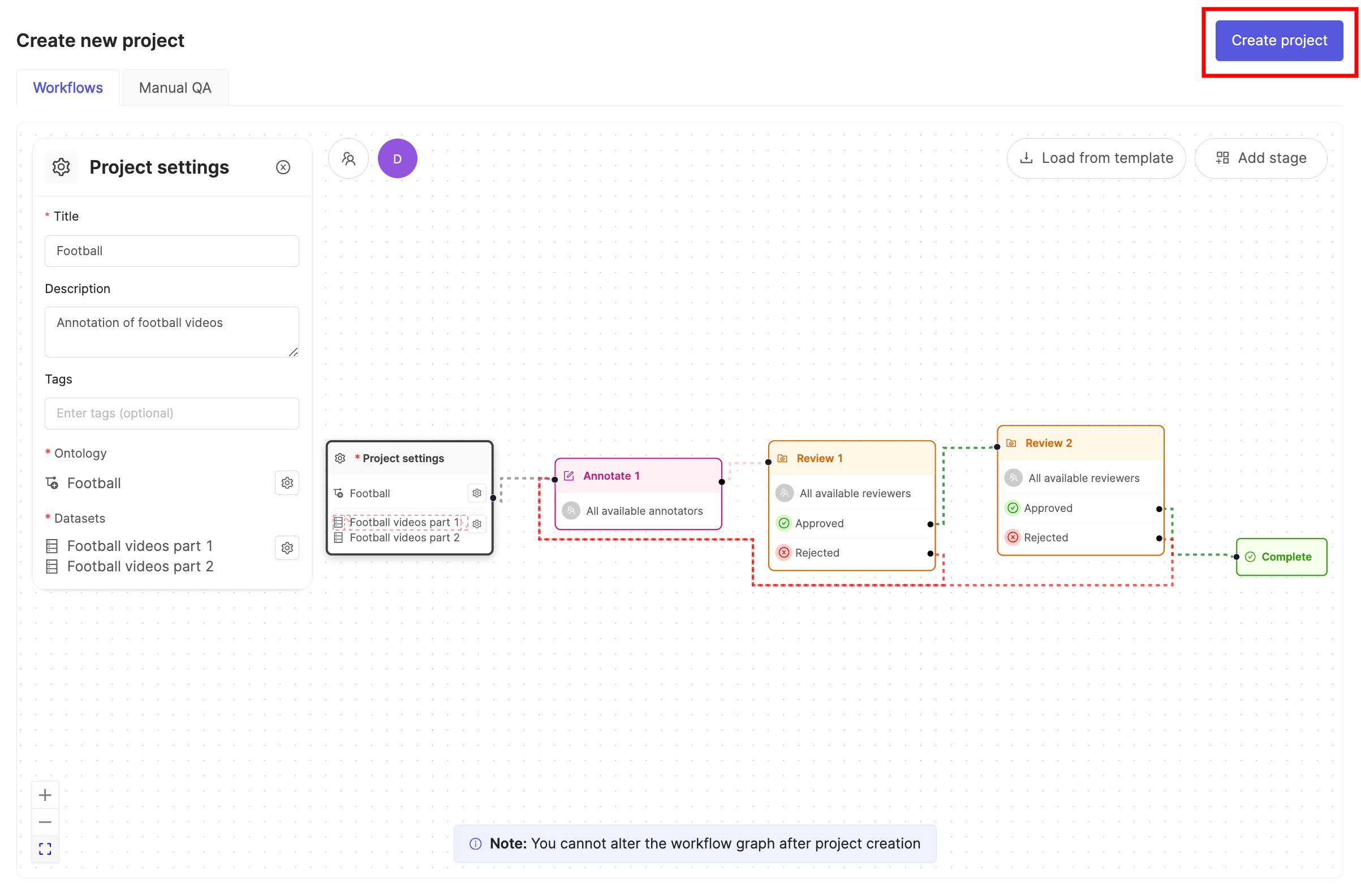
12. Click **Create project** to finish creating the Project.
## STEP 3: Configure Your Agent
1. Create a python file called `imagePreClassification.py`.
2. Paste the following script into `imagePreClassification.py` replacing:
* `` with your OpenAI API key.
* `` with the path to your private key.
* `` with the hash of the Project you created in [STEP 2](#step-2-set-up-your-project).
```python Pre-Classification for Images Example theme={"dark"}
# Import dependencies
from encord.user_client import EncordUserClient
from encord.workflow import AgentStage
import openai
import base64
import requests
import json
openai.api_key = ""
def get_classification_from_the_model(media_content):
"""
Example function that passes media to OpenAI's ChatGPT API along with the prompt
and parses the result.
"""
prompt = """
You are an image analysis expert. You're working on a project that includes annotation of different pets images.
Your task is to assign one of the following tags to the image: "Cat", "Dog", "Other".
Reply in JSON format of the following structure: { "classification": Cat|Dog|Other }
"""
completion = openai.ChatCompletion.create(
model="gpt-4o-mini",
messages=[
ChatCompletionSystemMessageParam(role="system", content=prompt),
ChatCompletionUserMessageParam(
role="user",
content=[
ChatCompletionContentPartImageParam(
image_url=ImageURL(url=f"data:image/jpeg;base64,{media_content}", detail="auto"),
type="image_url",
)
]
),
],
response_format=ResponseFormat(type="json_object"),
max_tokens=1000,
)
raw_text_completion = completion.choices[0].message.content
try:
parsed_result = json.loads(raw_text_completion)
return parsed_result["classification"].lower()
except Exception as e:
print(f"Failed to process the model response: {e}")
return None
# Authenticate using the path to your private key
user_client = EncordUserClient.create_with_ssh_private_key(
ssh_private_key_path=""
)
# Specify the Project that contains the agent. Replace with the hash of your Project
project = user_client.get_project("")
radio_classification = project.ontology_structure.get_child_by_title(
title="Animal",
type_=Classification,
)
cat_option = radio_ontology_classification.get_child_by_title(
title="Cat", type_=Option
)
dog_option = radio_ontology_classification.get_child_by_title(
title="Dog", type_=Option
)
# Specify the Agent
agent_stage = project.workflow.get_stage(name="Agent 1", type_=AgentStage)
for task in agent_stage.get_tasks():
# Got a task for the following data unit
print(f"{task.data_hash} -> {task.data_title}")
# Getting a label row for the data unit
label_row = project.list_label_rows_v2(data_hashes=[task.data_hash])[0]
label_row.initialise_labels(include_signed_url=True)
# Downloading the media:
media_response = requests.get(label_row.data_link)
media_content = base64.b64encode(media_response.content).decode("utf-8")
# Now we can send the media to OpenAI:
model_response = get_classification_from_the_model(media_content)
# Mapping the response to the appropriate answer and pathway
classification_mapping = {
"Cat": (cat_option, "Cat"),
"Dog": (dog_option, "Dog")
}
# Create a classification instance if response is either cat or dog
if model_response in classification_mapping:
answer_option, pathway = classification_mapping[model_response]
classification_instance = radio_ontology_classification.create_instance()
radio_classification_instance.set_answer(answer=answer_option)
label_row.add_classification_instance(radio_classification_instance)
label_row.save()
task.proceed(pathway_name=pathway)
else:
task.proceed(pathway_name="Other")
```
3. Save `imagePreClassification.py`.
## STEP 4: Run your Agent
Run `imagePreClassification.py`.
The script processes all images in the Dataset. If additional images are added, the script must be re-run to include them.
## STEP 5: Start Labeling
Now your annotators can start annotating images.
See our [guide on how to label here](/platform-documentation/GettingStarted/gettingstarted-labeling).
## Flow Diagram
```mermaid theme={"dark"}
flowchart TB
subgraph AWS
direction TB
style AWS fill:#add8e6,stroke:#333,stroke-width:2px %% Light Blue
A[Images stored in AWS]
end
subgraph Encord
direction TB
style Encord fill:#ffcc99,stroke:#333,stroke-width:2px %% Light Orange
B[Signed image URLs added to Project in Encord]
I[Task moved to annotation stage in Encord]
subgraph Agent_Node
direction TB
style Agent_Node fill:#9370db,stroke:#333,stroke-width:2px %% Purple
G[Signed image URLs advanced to Agent node]
H[Classification saved to label row in Encord]
end
end
subgraph Your_Server
direction TB
style Your_Server fill:#90ee90,stroke:#333,stroke-width:2px %% Light Green
C[Run SDK script:
Receive signed image URL from Agent node,
Send image data + prompt to OpenAI,
Receive classification from OpenAI,
Transform classification to Encord label structure]
end
subgraph OpenAI
direction TB
style OpenAI fill:#ffb6c1,stroke:#333,stroke-width:2px %% Light Pink
F[GPT 4o applies a Classification using prompt]
end
%% Unified color for steps
A --> |Signed Image URLs| B
B --> |Signed Image URL| G
G --> |Signed Image URL| C
C --> |Image data + Prompt| F
F --> |Classification| C
C --> |Transformed Classification| H
H --> I
%% Styling for steps
style A fill:#ffffff,stroke:#333,stroke-width:1px
style B fill:#ffffff,stroke:#333,stroke-width:1px
style G fill:#ffffff,stroke:#333,stroke-width:1px
style C fill:#ffffff,stroke:#333,stroke-width:1px
style F fill:#ffffff,stroke:#333,stroke-width:1px
style H fill:#ffffff,stroke:#333,stroke-width:1px
style I fill:#ffffff,stroke:#333,stroke-width:1px
```
## STEP 2: Set Up Your Project
1. Click the **New dataset** button in the *Datasets* section in *Annotate*.
2. Give your Dataset a meaningful title and description. A clear title and description keeps your data organized.
Toggle **Looking to create a mirrored dataset?** to create a [Mirrored Dataset](/platform-documentation/Annotate/annotate-datasets/annotate-datasets#mirrored-datasets).
3. Click **Create dataset** to create the Dataset.
### Attach files
[You can add data to Datasets from the **Files & Folders** or the *Datasets* screens](/platform-documentation/Curate/index-files#add-data-to-datasets).
To ensure smoother uploads and faster completion times, and avoid hitting absolute file limits, we recommend adding smaller batches of data. Limit uploads to 100 videos or up to 1,000 images at a time. You can also create multiple Datasets, all of which can be linked to a single Project. Familiarize yourself with our [limits and best practices for data import/registration](/platform-documentation/General/best-practices#import-into-encord) before adding data to Encord.
1. Navigate to the *Datasets* section under the *Annotate* heading.
2. Click the Dataset you want to attach data to.
3. Click **+Attach existing files**.
4. Select the folders containing the files you want to attach to the Dataset. To select individual files, double-click a folder to see its contents, and select the files you want to add to the Dataset.
5. Click **Attach data** to attach the selected files to the Dataset.
Learn how to create Ontologies [here](/platform-documentation/Annotate/annotate-ontologies/annotate-create-ontologies).
Create a new Ontology that includes:
1. A radio classification called "Animal" with two options: One called "Cat" the other called "Dog".
2. Any other Objects you want to include in your Ontology.
Learn how to create Workflow templates [here](/platform-documentation/Annotate/annotate-projects/annotate-workflows-and-templates#creating-templates).
Create the following Workflow template by dragging the necessary components onto the canvas. For instructions on creating Workflows [see our documentation here](/platform-documentation/Annotate/annotate-projects/annotate-workflows-and-templates#creating-workflows). Ensure your Agent node has the name "Agent 1"
1. In the Encord platform, navigate to **Projects**.
2. Click the **+ New annotation project** button to create a new Project.
3. Give the Project a meaningful title and description.
If you are part of an [Workspace](/platform-documentation/General/general-workspace-settings), an optional [Project tags](/platform-documentation/Annotate/annotate-projects/annotate-project-settings#project-tags) drop-down is visible. Project tags are useful for categorizing and finding your Projects. Select as many tags as are relevant for your Project.
4. Click the **Attach ontology** button.
5. Select the [Ontology](/platform-documentation/Annotate/annotate-ontologies/annotate-ontologies) you created previously from the list using the **Select** button.
6. Click **OK** to attach the Ontology to the Project.
7. Click the **Attach datasets** button.
8. Select the [Dataset](/platform-documentation/Annotate/annotate-datasets/annotate-datasets) you created previously from the list using the **Attach** button.
9. Click **OK** to attach the Dataset(s) to the Project.
10. Click the **Load from template** button to use a [Workflow template](/platform-documentation/Annotate/annotate-projects/annotate-workflows-and-templates#templates).
11. Select the template you want to use and click **Load template**.
12. Click **Create project** to finish creating the Project.
## STEP 3: Configure Your Agent
1. Create a python file called `imagePreClassification.py`.
2. Paste the following script into `imagePreClassification.py` replacing:
* `` with your OpenAI API key.
* `` with the path to your private key.
* `` with the hash of the Project you created in [STEP 2](#step-2-set-up-your-project).
```python Pre-Classification for Images Example theme={"dark"}
# Import dependencies
from encord.user_client import EncordUserClient
from encord.workflow import AgentStage
import openai
import base64
import requests
import json
openai.api_key = ""
def get_classification_from_the_model(media_content):
"""
Example function that passes media to OpenAI's ChatGPT API along with the prompt
and parses the result.
"""
prompt = """
You are an image analysis expert. You're working on a project that includes annotation of different pets images.
Your task is to assign one of the following tags to the image: "Cat", "Dog", "Other".
Reply in JSON format of the following structure: { "classification": Cat|Dog|Other }
"""
completion = openai.ChatCompletion.create(
model="gpt-4o-mini",
messages=[
ChatCompletionSystemMessageParam(role="system", content=prompt),
ChatCompletionUserMessageParam(
role="user",
content=[
ChatCompletionContentPartImageParam(
image_url=ImageURL(url=f"data:image/jpeg;base64,{media_content}", detail="auto"),
type="image_url",
)
]
),
],
response_format=ResponseFormat(type="json_object"),
max_tokens=1000,
)
raw_text_completion = completion.choices[0].message.content
try:
parsed_result = json.loads(raw_text_completion)
return parsed_result["classification"].lower()
except Exception as e:
print(f"Failed to process the model response: {e}")
return None
# Authenticate using the path to your private key
user_client = EncordUserClient.create_with_ssh_private_key(
ssh_private_key_path=""
)
# Specify the Project that contains the agent. Replace with the hash of your Project
project = user_client.get_project("")
radio_classification = project.ontology_structure.get_child_by_title(
title="Animal",
type_=Classification,
)
cat_option = radio_ontology_classification.get_child_by_title(
title="Cat", type_=Option
)
dog_option = radio_ontology_classification.get_child_by_title(
title="Dog", type_=Option
)
# Specify the Agent
agent_stage = project.workflow.get_stage(name="Agent 1", type_=AgentStage)
for task in agent_stage.get_tasks():
# Got a task for the following data unit
print(f"{task.data_hash} -> {task.data_title}")
# Getting a label row for the data unit
label_row = project.list_label_rows_v2(data_hashes=[task.data_hash])[0]
label_row.initialise_labels(include_signed_url=True)
# Downloading the media:
media_response = requests.get(label_row.data_link)
media_content = base64.b64encode(media_response.content).decode("utf-8")
# Now we can send the media to OpenAI:
model_response = get_classification_from_the_model(media_content)
# Mapping the response to the appropriate answer and pathway
classification_mapping = {
"Cat": (cat_option, "Cat"),
"Dog": (dog_option, "Dog")
}
# Create a classification instance if response is either cat or dog
if model_response in classification_mapping:
answer_option, pathway = classification_mapping[model_response]
classification_instance = radio_ontology_classification.create_instance()
radio_classification_instance.set_answer(answer=answer_option)
label_row.add_classification_instance(radio_classification_instance)
label_row.save()
task.proceed(pathway_name=pathway)
else:
task.proceed(pathway_name="Other")
```
3. Save `imagePreClassification.py`.
## STEP 4: Run your Agent
Run `imagePreClassification.py`.
The script processes all images in the Dataset. If additional images are added, the script must be re-run to include them.
## STEP 5: Start Labeling
Now your annotators can start annotating images.
See our [guide on how to label here](/platform-documentation/GettingStarted/gettingstarted-labeling).
## Flow Diagram
```mermaid theme={"dark"}
flowchart TB
subgraph AWS
direction TB
style AWS fill:#add8e6,stroke:#333,stroke-width:2px %% Light Blue
A[Images stored in AWS]
end
subgraph Encord
direction TB
style Encord fill:#ffcc99,stroke:#333,stroke-width:2px %% Light Orange
B[Signed image URLs added to Project in Encord]
I[Task moved to annotation stage in Encord]
subgraph Agent_Node
direction TB
style Agent_Node fill:#9370db,stroke:#333,stroke-width:2px %% Purple
G[Signed image URLs advanced to Agent node]
H[Classification saved to label row in Encord]
end
end
subgraph Your_Server
direction TB
style Your_Server fill:#90ee90,stroke:#333,stroke-width:2px %% Light Green
C[Run SDK script:
Receive signed image URL from Agent node,
Send image data + prompt to OpenAI,
Receive classification from OpenAI,
Transform classification to Encord label structure]
end
subgraph OpenAI
direction TB
style OpenAI fill:#ffb6c1,stroke:#333,stroke-width:2px %% Light Pink
F[GPT 4o applies a Classification using prompt]
end
%% Unified color for steps
A --> |Signed Image URLs| B
B --> |Signed Image URL| G
G --> |Signed Image URL| C
C --> |Image data + Prompt| F
F --> |Classification| C
C --> |Transformed Classification| H
H --> I
%% Styling for steps
style A fill:#ffffff,stroke:#333,stroke-width:1px
style B fill:#ffffff,stroke:#333,stroke-width:1px
style G fill:#ffffff,stroke:#333,stroke-width:1px
style C fill:#ffffff,stroke:#333,stroke-width:1px
style F fill:#ffffff,stroke:#333,stroke-width:1px
style H fill:#ffffff,stroke:#333,stroke-width:1px
style I fill:#ffffff,stroke:#333,stroke-width:1px
```