> ## Documentation Index
> Fetch the complete documentation index at: https://docs.encord.com/llms.txt
> Use this file to discover all available pages before exploring further.
# Issues
## Issues End-to-End Guide
This guide explains how to use the *Issues* feature in Encord. Each step in the process is intended for a specific user role, which is indicated in the heading of that step.
This guide assumes you have already added data into Encord and set up your annotation Projects.
### STEP 1: \[Workspace Admin] Create Issue Tags
Issue tags can be created in the Workspace Settings by Workspace admins, or the Project Settings by Project admins.
For more information, refer to our [Issue Tags documentation](/platform-documentation/General/general-workspace-settings#issue-tags).
[Issue tags](/platform-documentation/General/general-workspace-settings#issue-tags) serve as a system to categorize, group, and filter issues within Projects.
1. Click **Settings** in the **My workspace** section.
The Users page appears.
2. Navigate to the **Issue Tags** tab.
The *Issue Tags* page appears.
3. Click **+ New issue tag** to create a new issue tag for your Workspace.
4. Give your Issue Tag a meaningful name and press ENTER to create the Issue Tag.
5. Repeat Steps 3 and 4 to create as many Issue Tags as necessary.
#### Delete Issue Tags
You can delete issue tags individually or in bulk:
**To delete a single issue tag:**
1. Click the delete icon next to the issue tag you want to remove.
2. Confirm the deletion when prompted.
**To delete multiple issue tags:**
1. Select the checkboxes next to the issue tags you want to delete.
2. Click the **Delete selected** button that appears.
3. Confirm the bulk deletion when prompted.
Deleting issue tags is permanent and cannot be undone. Ensure you no longer need these tags before proceeding.
### STEP 2: \[Admin] Add Issue Tags
1. Navigate to your annotation Project.
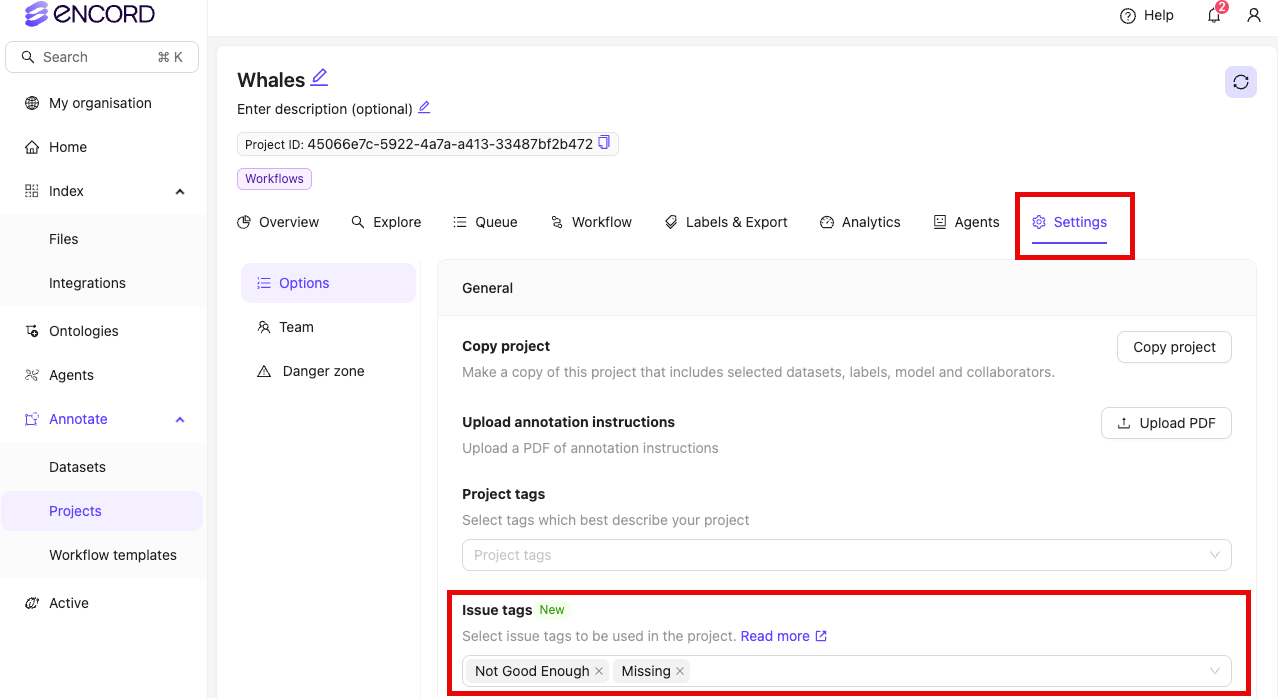
2. Navigate to the *Settings* tab.
3. Click the dropdown in the *Issue tags* section.
4. Select, or type the name of, the issue tag you want to add to the Project.
### STEP 3: \[Annotator / Reviewer] Create Issues
For more information, refer to the [Issues documentation](/platform-documentation/Annotate/annotate-label-editor/annotate-label-editor-annotate#issues-and-comments).
Issues cannot be created in a Consensus annotate stage.
### Tile Selection for Data Groups
For Data Groups with multiple tiles, the Issues panel includes a tile selector that allows you to:
* View issues specific to each tile
* Create issues that apply to a particular tile
* See validation warnings for missing required annotations across all tiles
The tile selector displays a badge showing the number of issues for each tile, helping you quickly identify which tiles need attention.
1. Open a review task from the *Queue* tab of your annotation Project.
2. Reject a label.
The *Issues* pane opens.
3. Select any [Issue Tags](/platform-documentation/General/general-workspace-settings#issue-tags) you want to apply to the issue.
4. Add a comment explaining why the label is being rejected.
5. Click **Reject** to create the label rejection Issue.
6. Click **Reject task** to reject the task.
1. Open a task from the *Queue* tab of your annotation Project.
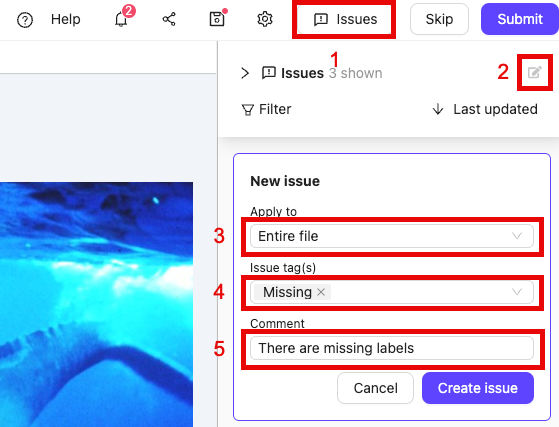
2. Open the *Issues* pane by clicking the *Issues* icon.
3. For data groups with multiple tiles, select the specific tile the issue applies to using the tile selector dropdown.
4. Click the *New issue* icon (or keyboard shortcut Ctrl+N).
5. Click the *Apply to* dropdown to select the type of issue you want to create.
6. Select any [Issue Tags](/platform-documentation/General/general-workspace-settings#issue-tags) you want to apply to the issue.
7. Add a comment to the issue.
8. If you selected 'Pin on canvas' in Step 5, click the desired location on the canvas.
9. Click **Create issue**.
### Multi-Tile Validation
For Data Groups with multiple tiles, Encord validates that required annotations are present on each individual tile, not just at the Data Group level.
When working with Data Groups containing multiple tiles, the Issues panel provides enhanced validation:
* **Per-tile validation**: Required classifications and attributes are checked on each tile separately
* **Visual indicators**: The Issues panel shows which tiles have missing required annotations
* **Tile-specific issues**: Missing annotation issues are created for the specific tile where they're absent
This ensures comprehensive annotation coverage across all tiles in a data group, maintaining annotation quality and completeness.
## STEP 4: \[Annotator / Reviewer] Resolve Issues
More information can be found in the [Issues documentation](/platform-documentation/Annotate/annotate-label-editor/annotate-label-editor-annotate#issues-and-comments).
### Filter Issues
You can filter issues in the Issues pane to focus on specific types or categories:
1. Open the *Issues* pane by clicking the *Issues* icon.
2. Click the **Filter** button to access filtering options.
3. Use the available filters:
* **Resolution status**: Filter by resolved, unresolved, or all issues
* **Issue types**: Filter by specific issue types (data unit, frame, annotation, etc.)
* **Issue tags**: Filter by specific issue tags (if any are configured for your project)
* **Object class**: Filter by specific object or classification classes from your ontology
* **Comment keyword**: Search for specific text within issue comments
4. Select your desired filter criteria. The issues list updates automatically to show only matching issues.
5. To clear all filters, click **Clear filters** or use the **Clear filters** button that appears when no issues match your current filter.
The issue tag filter only appears if your project has issue tags configured. The object class filter shows all object and classification classes from your project's ontology. If no issues match your current filter, you'll see a message with an option to clear all filters.
### Resolve Issues
1. Open a task from the *Queue* tab of your annotation Project. Rejected tasks
The Label Editor with the *Issues* pane already opened appears.
2. Address the problem raised by the Issue.
3. Add a reply to the Issue acknowledging the issue has been addressed.
4. Resolve the Issue by clicking the *tick* icon on the thread.
### STEP 5: \[Project Admin / Team Manager] Issue Analytics
The number of issue actions taken by each Project collaborator can be viewed in the **Collaborators** tab.
1. Navigate to the **Analytics** tab of your Project.
2. Navigate to the *Issues* section.
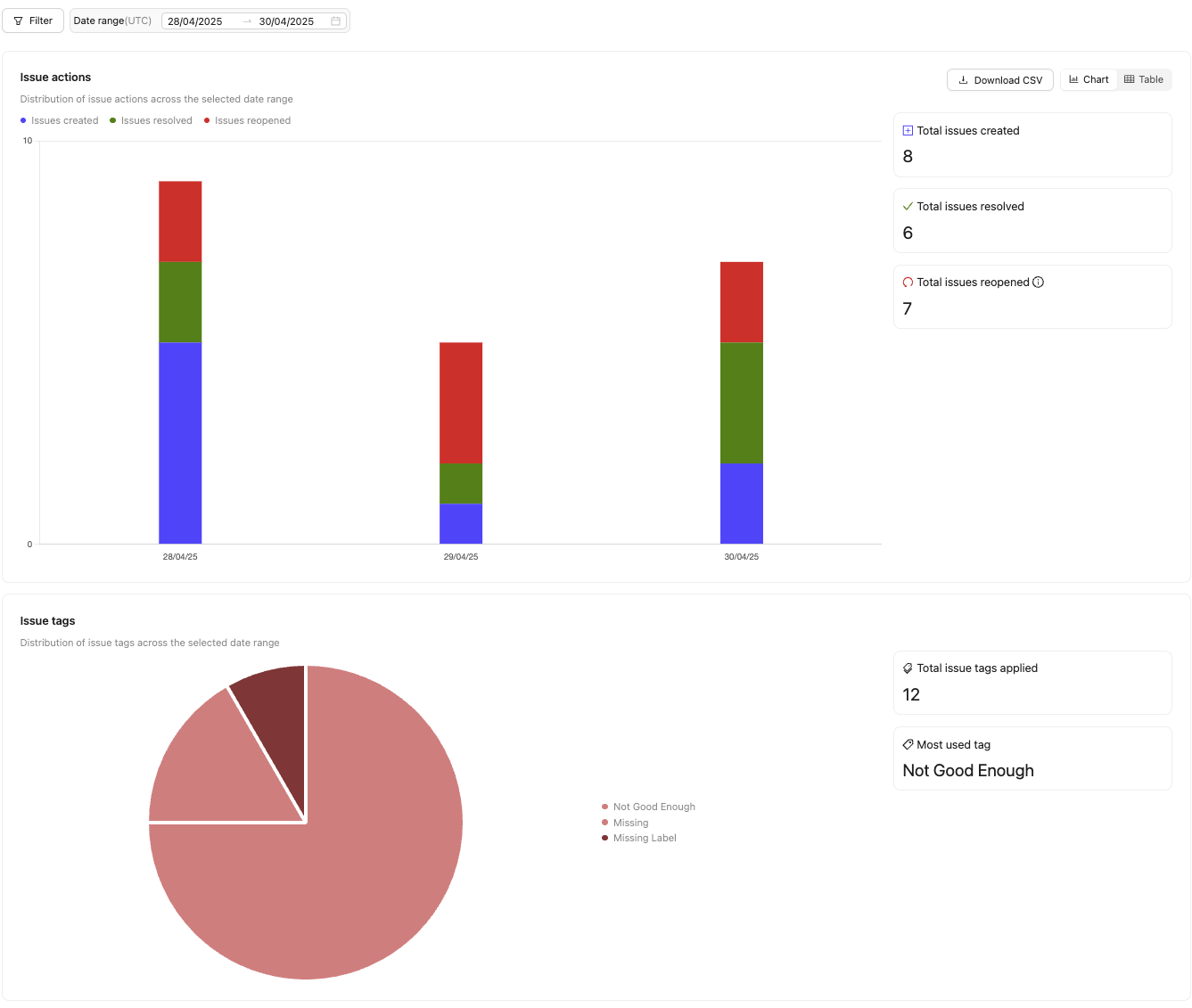
Analytics pertaining to Issues appear.
| **Chart** | **Description** |
| ----------------------------- | ---------------------------------------------------------------------------- |
| Issue actions | Shows the number of issues created, resolved, and opened. |
| Issue tag occurrence | Shows the count of all issue tags used within the chosen timeframe. |
| Issue tag occurrence by class | Shows the actions taken for all objects and classifications in the Ontology. |
The **Issue actions** chart shows the following:
* **Total issues created**: The total number of issues created.
* **Total issues resolved**: The number of issues marked as resolved.
* **Total issues reopened**: The number of issues that were reopened.
**Example - How to Understand Issue Analytics**:
If your **Issue actions** chart shows:
* Total issues created = 19
* Total issues resolved = 20
* Total issues reopened = 2
This means that:
* 19 issues were created.
* All 19 issues were resolved.
* 2 resolved issues were reopened. (This includes manually reopening an issue and re-rejections of labels)
* 1 of the reopened issues was resolved.
* There is one remaining open issue.
## Creating Issues With Agents
Issues can be created inside an [Agent Workflow Stage](/sdk-documentation/projects-sdk/sdk-workflows-stages#workflow-basics). The following example shows how to list all issues, and create file-level, frame-level, and coordinate-level issues on tasks within an Agent stage.
```python theme={"dark"}
from encord import EncordUserClient
from encord.workflow import AgentStage
# User input
SSH_PATH = "" # Replace with the file path to your SSH private key
PROJECT_ID = "" # Replace with the unique Project ID
AGENT_STAGE_NAME = "" # Replace with the name of your Agent stage
# --- Connect to Encord ---
user_client = EncordUserClient.create_with_ssh_private_key(
ssh_private_key_path=SSH_PATH,
# For US platform users use "https://api.us.encord.com"
domain="https://api.encord.com",
)
# Get Project and Workflow
project = user_client.get_project(PROJECT_ID)
workflow = project.workflow
# Get the Agent stage and iterate over its tasks
agent_stage = workflow.get_stage(name=AGENT_STAGE_NAME, type_=AgentStage)
for task in agent_stage.get_tasks():
# List all existing issues on the task
existing_issues = list(task.issues.list())
print(f"Task {task.uuid} has {len(existing_issues)} existing issue(s)")
# Add a file-level issue (applies to the entire data unit)
task.issues.add_file_issue(
description="File is corrupted or unreadable",
)
# Add a frame-level issue (applies to a specific frame)
task.issues.add_frame_issue(
frame=0,
description="Motion blur makes annotation impossible on this frame",
)
# Add a coordinate-level issue (applies to a specific location within a frame)
task.issues.add_coordinate_issue(
frame=0,
x=0.5,
y=0.5,
description="Ambiguous object boundary at this location",
)
print(f"Issues added to task {task.uuid}")
```