> ## Documentation Index
> Fetch the complete documentation index at: https://docs.encord.com/llms.txt
> Use this file to discover all available pages before exploring further.
# Managing External Workforces
The Workforce Manager user role is designed so your 3rd-party workforces can self-organize without the need for admin involvement. This feature allows Workforce Managers to view all users in a Workspace.
You can prevent multiple different Workforce Managers from seeing other users in a Workspace. The Workforce Managers can be restricted to seeing only members of their 3rd party workforce members. Contact us at [support@encord.com](mailto:support@encord.com) if you want to restrict who Workforce Managers see in Workspaces.
This guide assumes you have already added data into Encord and set up your annotation Projects.
## TL;DR
**Key Features and Usage:**
* **Upgrade to Workforce Manager:** Workspace Admins can add members with the **Workforce Manager** role to the [Workspace](/platform-documentation/General/general-workspace-settings#user-roles).
* **Workspace Visibility:** Workforce Managers can view all users in a Workspace.
* **Group Creation:** Workforce Managers can create user groups.
* **Group Membership Management:** Within a group, Workforce Managers can:
* Add and remove any Workspace member.
* Add other Workforce Managers or Admins as administrators or viewers of the group.
* **Project Group Assignment:** When added to a Project as a Workforce Manager, you can add groups you manage (or are an admin of) to that Project.
* **Centralized User Management:**
* When a group is added to a Project only group members are added. Group Managers are not.
* Once a group is added to a Project, the Workforce Manager can on/off-board users from the group. These changes automatically apply to all Projects where that group has been added.
**Benefits:**
* Simplifies user management for workforce members involved in multiple Projects.
* Allows designated Workforce Managers to control team membership across Projects in one central location.
* Efficiently on/off-board users (for example: when a member joins or leaves the workforce), automatically updating their Project access by removing them from the group.
## STEP 1: \[Workspace Admin] Add Workforce Managers to Your Workspace and Project
Repeat this step for each Workforce Manager.
**To add Workforce Managers, as a Workspace admin:**
1. Click **Settings** in the **My workspace** section.
The *Users* page appears.
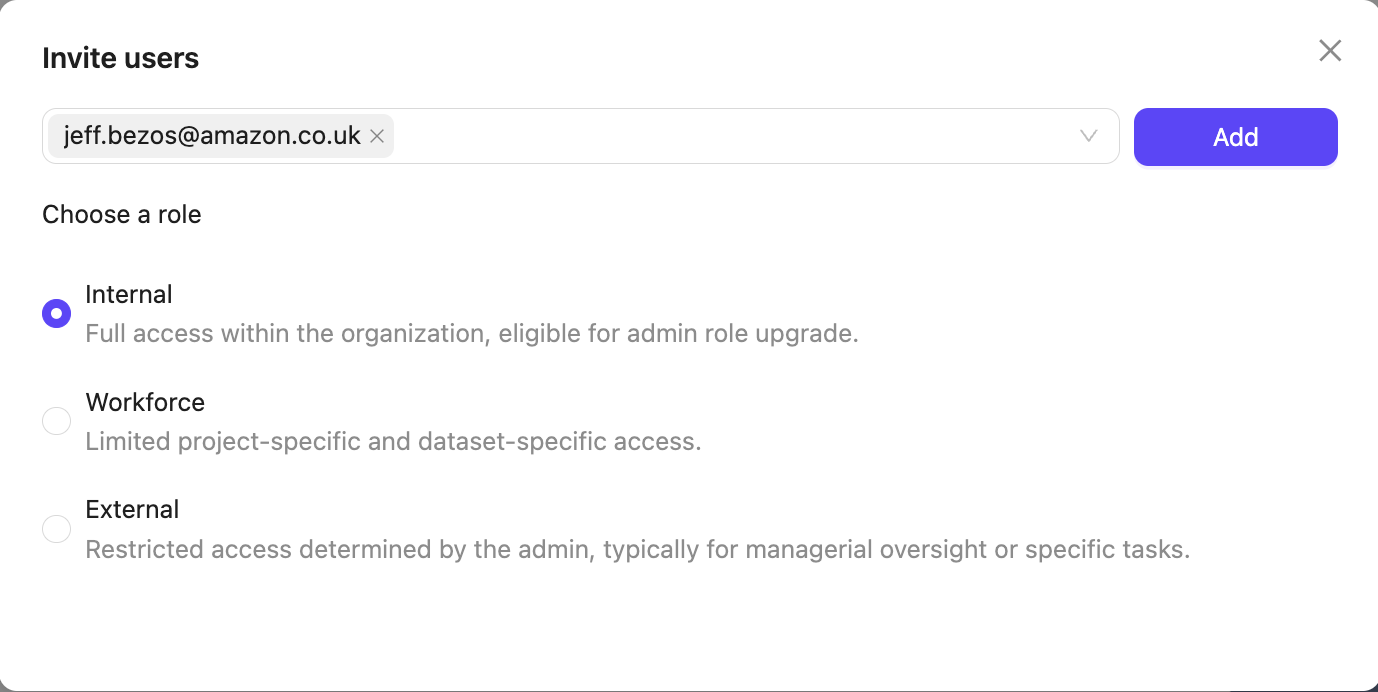
2. Click the **+ Add user** button.
A dialog appears.
3. Type the email addresses of the users you want to add.
4. Select the *Workforce manager* role.
5. Click **Add** to add the users to your Workspace.
6. Find the user you added in the list of Users.
7. Click the *Ellipsis* icon.
8. Click the dropdown
9. Select the *Workforce Manager* role.
The Workforce Manager must be added to all Projects they are expected to manage.
Alternatively, Workforce Managers can create Projects themselves if you prefer.
10. Navigate to the Project you want the Workforce Manager to manage.
11. Navigate to the **Settings** tab.
12. Navigate to **Team**.
13. Click **+ Invite collaborators**.
14. Type the Workforce Manager's email address.
15. Select the *Team Manager* user role.
16. Click **Add**.
Repeat this for as many Projects as necessary.
## STEP 2: \[Workspace Admin] Add Workforce Members to Your Workspace
Repeat this step for each Workforce member.
To add Workforce members, as a Workspace admin:
1. Click **Settings** in the **My workspace** section.
The *Users* page appears.
2. Click the **+ Add user** button.
A dialog appears.
3. Type the email addresses of the users you want to add.
4. Select the *Workforce* role.
5. Click **Add** to add the users to your Workspace.
## STEP 3: \[Workforce Manager] Add Workforce to User Groups
The Workforce Manager can add their workforce to user groups, such as 'Annotators' and 'Reviewers'. Users added to groups by the Workforce Manager **are not** added to the Workspace but can be added to Projects, Datasets, and Ontologies.
When creating groups, keep in mind that all members of a user group are assigned the same role when added to a Project.
1. Click **Settings** in the **My workspace** section.
The *Users* page appears.
2. Click the **Groups** tab.
The Groups section appears.
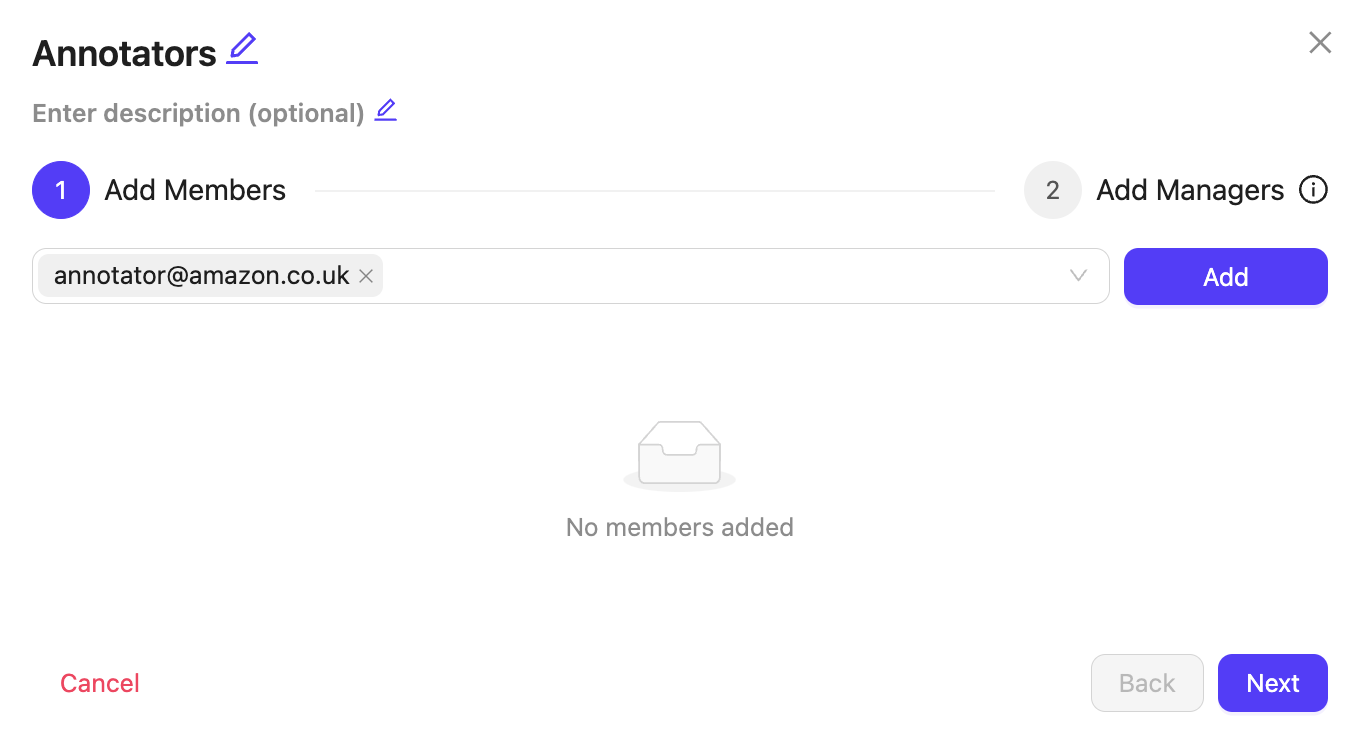
3. Click the **+ Create group** button.
A dialog appears.
4. Give the group a meaningful name, for example 'Annotators'.
5. Type the email addresses of all workforce members.
6. Click **Add**.
7. Click **Next**
8. Type your own email address to add yourself as the group's manager.
9. Click **Add**.
10. Click **Create group**.
Repeat this step for as many groups as necessary.
## STEP 4: \[Workforce Manager] Add Groups to Project
This step should be done by the Project Admin
The Workforce Manager must be added to all Projects they are expected to manage.
Alternatively the Workforce Manager can create the Project themselves if you prefer
1. Navigate to the Project you want the Workforce Manager to manage.
2. Navigate to the **Settings** tab.
3. Navigate to **Team**.
4. Click **+ Invite collaborators**.
5. Type the Workforce Manager's email address.
6. Select the *Team Manager* user role.
7. Click **Add**.
Repeat this Step for as many Projects as necessary.