> ## Documentation Index
> Fetch the complete documentation index at: https://docs.encord.com/llms.txt
> Use this file to discover all available pages before exploring further.
# Documents
## Label Editor Document Support
The Label Editor supports the following document file types:
* PDF (.pdf)
### Document Label Support
Documents support the following label types:
* Bounding boxes
* Rotatable bounding boxes
* Polylines
* Object primitives
* Keypoint
* Polygons
Polygons support the **PDF text** option on text attributes in your Ontology. This feature automatically populates the text attribute with the text specified by the polygon.
* Classifications
Bitmasks are not available for PDF files.
* We recommend adding attributes to your label types when creating your Ontology for labeling documents.
* The color you specify for each object label in your Ontology can make a big difference in the ease and effectiveness of labeling items. For example, lighter colors are more difficult to see on a white background.
## Label Documents
**Label display** settings can help provide a better labeling experience for each annotator.
Press and hold the SHIFT key while using your mouse/trackpad to move around each page of a document.
### Label PDFs
Annotate supports the following label types for PDFs:
* Bounding boxes
* Rotatable bounding boxes
* Polylines
* Object primitives
* Keypoint
* Polygons
Polygons support the **PDF text** option on text attributes in your Ontology. This feature automatically populates the text attribute with the text specified by the polygon.
* Classifications
- Classifications support being applied on a range of pages in a PDF.
Use the **Show text outline** feature when labeling documents to streamline your annotation process. When used with object label hotkeys, labeling becomes a smooth efficient process.
#### Polygons
Polygons support the **PDF text** option on text attributes in your Ontology. This feature automatically populates the text attribute with the text specified by the polygon.
1. Click the **Show text outline** button to enable the feature.
2. Highlight the text you want selected for annotation.
3. Press the hotkey for the polygon object label.
The polygon appears automatically around the highlighted text.
Enabling the *PDF text* feature on a Text attribute on the Polygon object, automatically populates the Text attribute when the label applies.
4. Continue annotating the PDF.
5. Click **Submit** when you finish annotating the PDF.
#### Bounding Boxes
1. Click the **Show text outline** button to enable the feature.
2. Highlight the text you want selected for annotation.
3. Press the hotkey for the bounding box object label.
The bounding box appears automatically around the highlighted text.
4. Continue annotating the PDF.
5. Click **Submit** when you finish annotating the PDF.
### Using Relation Text Attributes - PDFs
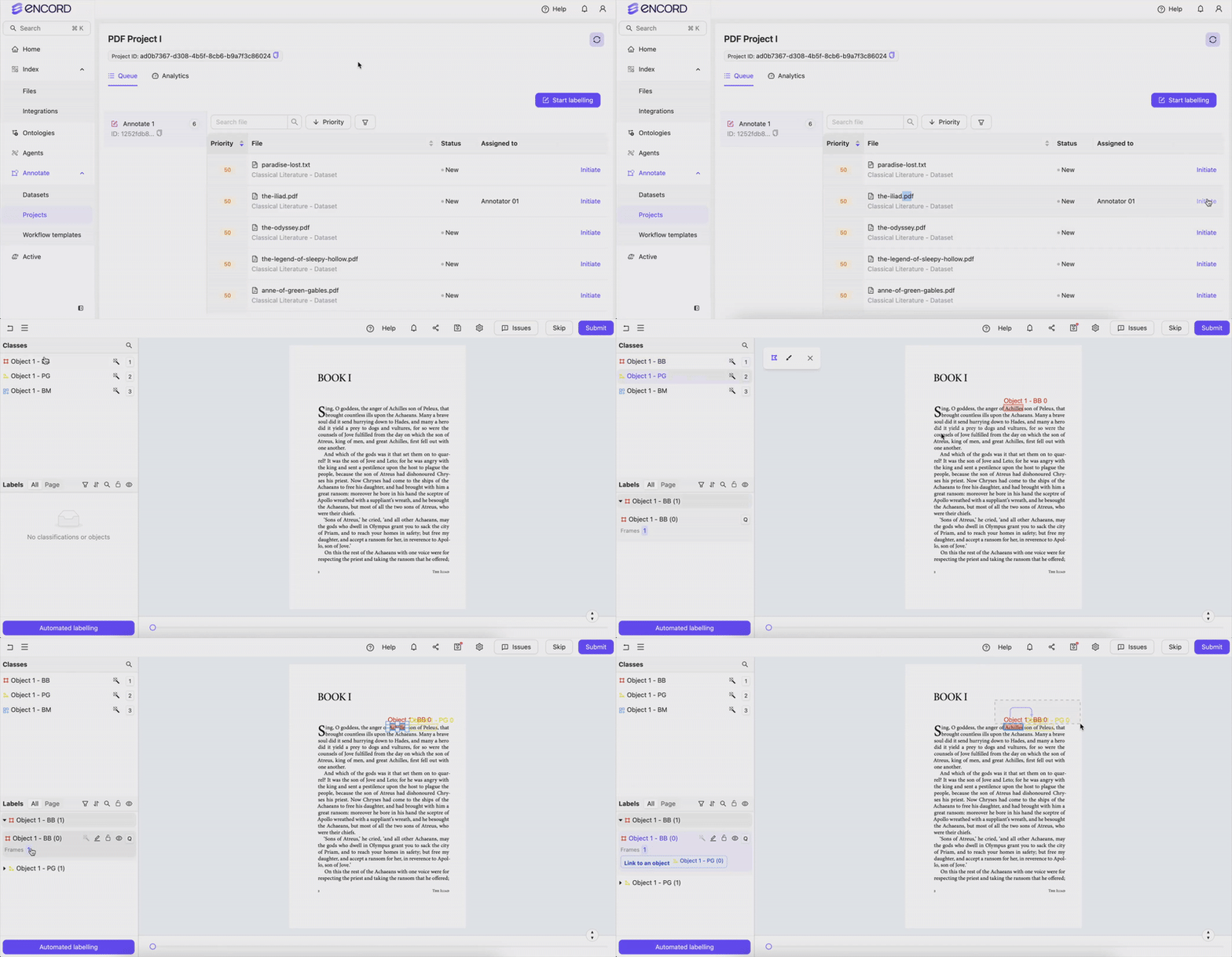
Relation text attributes link an object to another object. In images or videos this could be linking a chicken's body to its wing. In PDFs or text documents (text or HTML files) this could be linking words with measurements, or linking words with other words.
Your Ontology must MUST contain text attributes with the Relation feature enabled if you want to use relation text attributes.
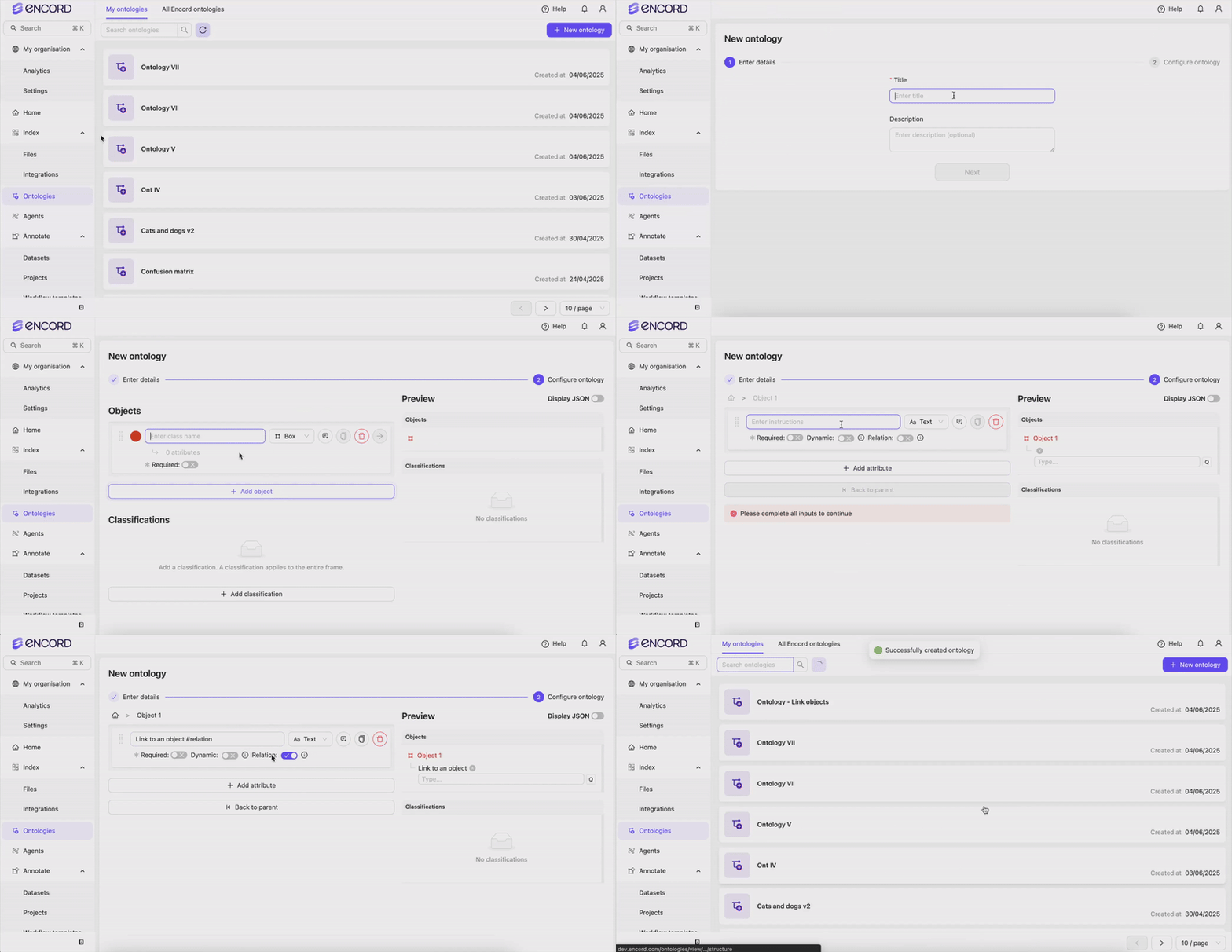
While annotating, you can create a relationship between any object with a relation text attribute and any other object. After you create a relation between objects a workflow arrow points from the object with the relation text attribute to the other object.
### Using PDF Text Attribute - PDFs
The **PDF text** automatically populates the **text attribute** with the text specified in the **polygon**.
Your Ontology must have the following to use the **PDF text** feature:
* Polygon
* Text attribute on the polygon