> ## Documentation Index
> Fetch the complete documentation index at: https://docs.encord.com/llms.txt
> Use this file to discover all available pages before exploring further.
# Label Editor - Annotation
To ensure seamless data loading in Encord, allowlist [https://app.encord.com/](https://app.encord.com/) or [https://app.us.encord.com/](https://app.us.encord.com/) in any 3rd party VPNs, firewalls, or URL isolators. This helps to prevent potential issues with opening your data in Encord.
This documentation provides a comprehensive guide to using the Label Editor for annotation, covering its components, features, and the display of various elements.
For information on how to label, see our [documentation here](/platform-documentation/GettingStarted/gettingstarted-labeling).
## Annotation Mode
### Introductory Video Tutorials
The following video goes through the basics of annotating images in the Label Editor.
The following video goes through the basics of annotating videos in the Label Editor.
Check out our [Video Tutorials page](/platform-documentation/General/video-tutorials) for more introductory videos!
***
**Annotation mode components**:
* **A**. [Editor menu](#editor-menu)
* **B**. [Quick toolbar](#quick-toolbar)
* **C**. [Classes](#classes)
* **D**. [Instances and Frame labels](#instances-and-frame-labels)
* **E**. [Automated labeling](#automated-labeling)
* **F**. [Editor timeline (for videos and image sequences only)](/platform-documentation/Annotate/annotate-label-editor/annotate-videos#editor-timeline)
* **G**. Annotation canvas: displays the media asset and provides interface for drawing and editing labels.
* **H**. [Editor header](#editor-header)
* **I**. [Skip or Submit](#skip-or-submit-labels)
***
### Copy / Paste Labels & Instances
Using the copy and paste features in the Label Editor can significantly save time and effort. Here's how you can efficiently use these features:
* **Copy**: To copy both the label and the instance, use the keyboard shortcut CMD + C on Mac or Ctrl + C on Windows.
* **Paste instance**: To paste the copied instance, use CMD + V on Mac or Ctrl + V on Windows. Instances can only be pasted onto a different frame from where they were copied.
* **Paste Label**: To paste just the label / shape, use CMD + Shift + V on Mac or Ctrl + Shift + V on Windows. Labels can be pasted onto any frame.
* **Clear Cuboid**: To clear a copied 3D cuboid, use CMD + Shift + C on Mac or Ctrl + Shift + C on Windows with nothing selected.
***
### Bulk Label Operations
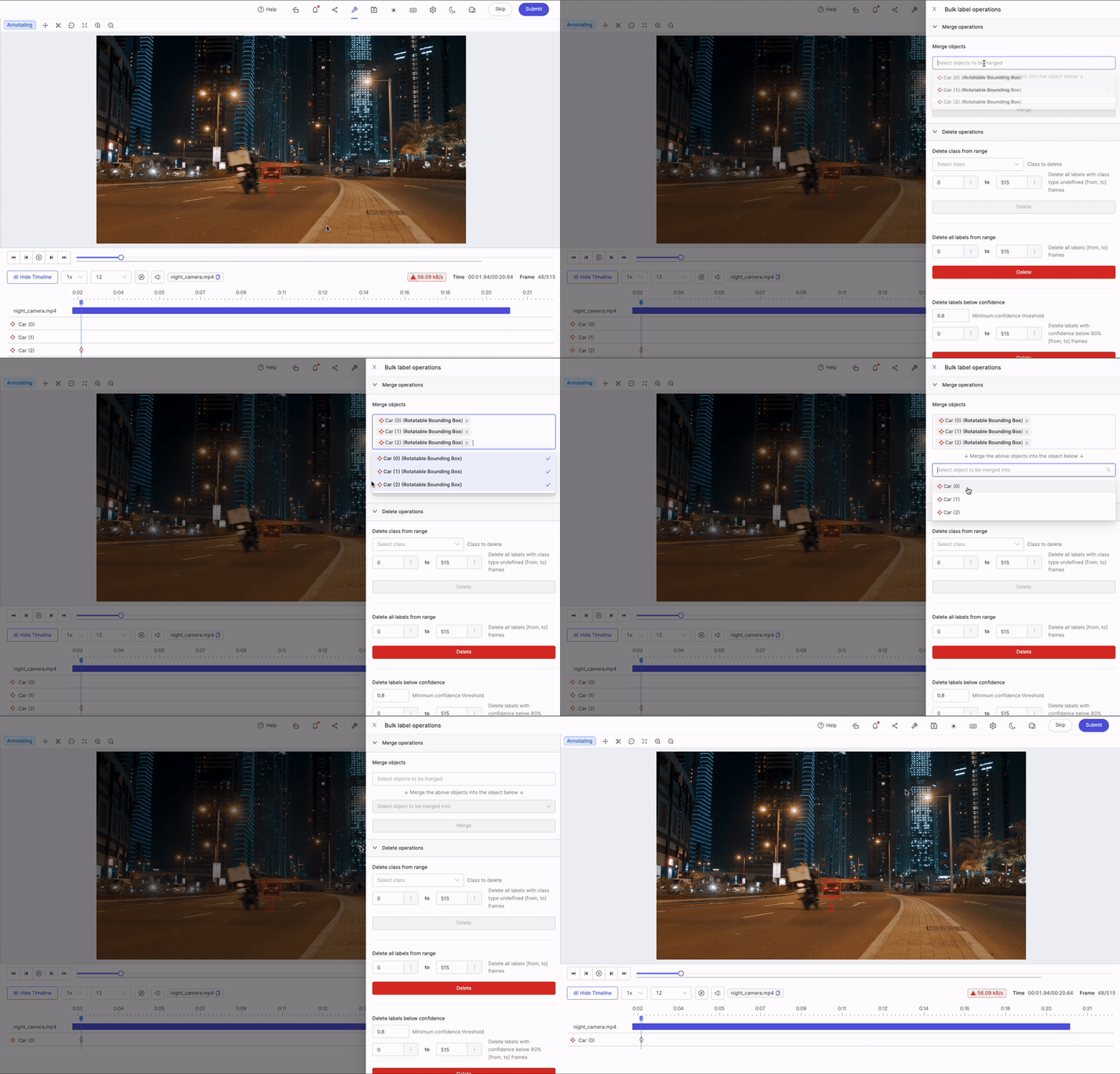
Fixing incorrect labels is an important step in producing high-quality datasets. With bulk label operations, annotators can merge labels which should really be one instance, or efficiently delete multiple labels in bulk.
Bulk label operations are accessed in the [editor menu](#editor-menu).
**Merge operations**
Merge one or more label objects into a single object.
1. Select all objects to be merged in the *Select objects to be merged* drop-down menu.
2. Select the target object in the *Select objects to be merged into* field.
3. Click **Merge**.
**Delete operations**
Encord lets you perform bulk delete operations as follows:
**Remove labels of a specific class**:
1. Select a class to delete from the *Select class menu*.
2. Specify the frame range.
3. Click the **Delete** button.
**Delete all labels within a frame range**:
1. Navigate to the *Delete all labels from range* section.
2. Set a range to delete labels from.
3. Click **Delete**.
**Delete labels below a specified confidence level**:
1. Navigate to the *Delete labels below confidence* section.
2. Set the minimum confidence threshold. All labels with a [confidence value](#confidence-score) below this threshold are deleted.
3. Specify a range of frames to delete the specified labels from.
4. Click **Delete**.
***
### Classes
In annotation mode, the *Classes* section of the Label Editor shows you the available Ontology classes, both objects and classifications. You can create a new instance by either clicking the desired class, or by using the indicated instantiation hotkeys. Learn more about Ontologies in general [here](/platform-documentation/Annotate/annotate-ontologies/annotate-ontologies) or learn more about the details of [Ontology structure on Encord](/platform-documentation/Annotate/annotate-ontologies/annotate-ontologies#ontology-structure).
***
### Instances and Frame labels
The canvas is your labeling area to annotate the *instances* of the Ontology classes.
* An instance is a specific occurrence of a class. For example, if you have a class called "Car", an instance of this class could be "Car(0)", which might represent a specific black sedan. This single instance can appear in a single frame or a range of frames, and therefore, instances may contain multiple labels across frames. You can think of an instance as a unique object that belongs to a certain class.
* A frame label is a frame-specific annotation of an instance. For example, the annotation of "Car(0)" on frame 201 is a label. Labels are used to annotate instances in specific frames, providing more detailed information about the instance in the context of that frame.
You can group instances of the same class together using the *Group by class* button.
***
### Skip or Submit labels
**Submit tasks**
Labels are applied in the Label Editor. Click the **Submit** button to submit your labels for [review](#review-mode).
All [issues need to be resolved](#resolving-issues) before a task can be submitted.
**Skip tasks**
Users have the option to skip tasks in cases where, for example, the file is blurred, or if they suspect the task was erroneously added.
Skipping a task automatically creates an [Issue](https://docs.encord.com/platform-documentation/Annotate/annotate-label-editor/annotate-label-editor-review#issues-and-comments) and is therefore counted in the [Issue Analytics](https://docs.encord.com/platform-documentation/Annotate/annotate-projects/annotate-project-analytics#issues).
When a user skips a task, it is automatically unassigned from them, and the task's status is updated to *Skipped*. If another task is available, it automatically opens in the Label Editor and is assigned to the user.
1. Click the **Skip** button to skip an annotation task.
2. A dialog appears. Enter a reason for skipping the task - the reason is added as an [issue](/platform-documentation/Annotate/annotate-label-editor/annotate-label-editor-annotate#issues-and-comments) to the task that annotators and reviewers can see. If no reason is entered "This task was skipped" is added by default.
***
### Turbo mode
Turbo mode simplifies the standard annotation workflow, enabling annotators to rapidly assign or confirm attributes. Activate turbo mode and choose an instance from the top-left dropdown menu to set the instance and its relevant attributes.
In turbo mode, the auto-zoom feature automatically focuses the point of view on the active instance as you browse through them. You can adjust the zoom manually to get a better view of the instance's context. The view auto-zooms again when moving to another instance.
**Enable turbo mode:**
1. Open the [editor settings](#editor-settings).
2. Use the search bar to search for *Turbo mode*.
3. Enable the *Turbo mode* toggle.
***
### View Annotator Instructions
The **Annotator instructions** button is available in the top-left corner of the Label Editor if annotation instructions are provided by the Admin or Team Manager.
To learn how to upload annotation instructions click [here](/platform-documentation/Annotate/annotate-projects/annotate-project-settings#upload-annotation-instructions)
***
### Confidence Score
Each instance or label is assigned a confidence score (denoted with the symbol α) that appears next to the label name.
The confidence score is a measure of a machine learning model's certainty that a given prediction is accurate. The higher the confidence score, the more certain a model is about its prediction.
Manual labels are always assigned α = 100%, while label predictions created using models and automated methods such as interpolation have a confidence score below 100% (α \< 100%).
***
### Labels pane
The *Labels* pane shows all the instantiated objects and classifications for a data unit. Objects are grouped first by class, and sorted by creation time within each class, with earlier objects on top. They are named in an "ABC (0)" format, where ABC is the Ontology class and 0 is the first instance annotation.
* **A**: Toggle between showing displaying all labels, or only labels in the current frame.
* **B**: Show / Hide details for this instance.
* **C**: The range of frames the instances appears on.
* **D**: Attributes the object has and the frames they appear on.
* **E**: Filter by frame range.
* **F**: Sort label instances.
* **G**: Search for an instance.
* **H**: Show / Hide labels.
* **I**: Show / Hide labels for this instance.
* **J**: Additional actions. Described below.
* **K**: Keyboard shortcut to create a label for this instance.
* **L**:[Edit attributes](#attributes) for this instance.
* **M**: Add a new label for this instance.
* **N**: Toggle auto-annotation for [SAM](/platform-documentation/Annotate/automated-labeling/annotate-sam).
**Click the *three dots* icon to access additional actions:**
**Copy URL**: Copies the URL for the particular object.
**Copy identifier**: Each object instance is automatically assigned a unique alphanumeric ID, which can be used to identify it within the project. This ID is sometimes known alternately as a *feature hash*, *instance hash*, or *instance identifier*. For objects and classifications, it may also be known as the *object hash* or *classification hash*. Use this button to copy the *instance identifier* to your clipboard -- which may help in workflows using specific instances in source code or for other purposes.
**Track from this frame**: Initiates single object tracking using SAM 2. This type of automated labeling creates labels for the specified object from the current frame, according to the [Single object tracking settings](#single-object-tracking-settings) section in the [editor settings](#editor-settings).
**Interpolate**: Interpolates this object's location for a range between specified frames. See our [documentation on interpolation](/platform-documentation/Annotate/automated-labeling/annotate-interpolation) for more details.
**Go to object**: Navigate to the specified object in the data asset. If it is present in more than one frame, the first frame the object appears is shown.
**Split object track**: In some cases, particularly when many objects overlap, labels may be associated with the correct instance in several frames, but later become associated with a different instance. In those cases, use the *Split object track* feature, which will split the labels from one instance into two at the frame specified.
**Change class**: Use the drop-down in the modal to change the current class of an instance. You can only switch within classes of the same [annotation type](/platform-documentation/Annotate/annotate-ontologies#objects). For example, you cannot switch from a bounding box to a polygon.
You can select multiple labels and bulk-change their classes by right-clicking and choosing **Change Class**.
**Delete object**: Delete an object from a single frame or a range of frames. To delete labels between frame ranges, move the frame slider to the desired frames, or input the *From* and *To* (exclusive) values in the relevant form.
### Attributes
The details pane allows you to modify attributes efficiently. For [dynamic attributes](/platform-documentation/Annotate/annotate-label-editor/annotate-videos#dynamic-attributes), use the 'Preserve chosen state' feature. When this feature is toggled 'ON', any subsequent labels for that instance automatically inherit the same dynamic attribute value as the frame where 'Preserve chosen state' was enabled.
See our [tutorial on adding attributes](/platform-documentation/GettingStarted/gettingstarted-labeling#adding-attributes) for a detailed guide
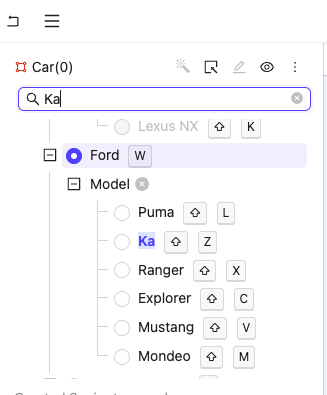
If you have numerous attributes, use the search bar to quickly find specific attributes or attribute values.
***
### Editor Timeline
The Editor Timeline is only available for videos, image sequences, PCD scenes, and audio files.
The Editor timeline visualizes when objects and instances appear throughout videos, scenes, and audio files. The cursor tracks playback in real time, always reflecting the current frame. The timeline is shown by default and can be resized or hidden by dragging it up or down. Double-clicking a range on the timeline plays the corresponding section of the video, scene, or audio file.
#### Bulk Actions
Labels and ranges can be multi selected on the timeline using Shift + click. Selected regions are shown in the left side of the editor.
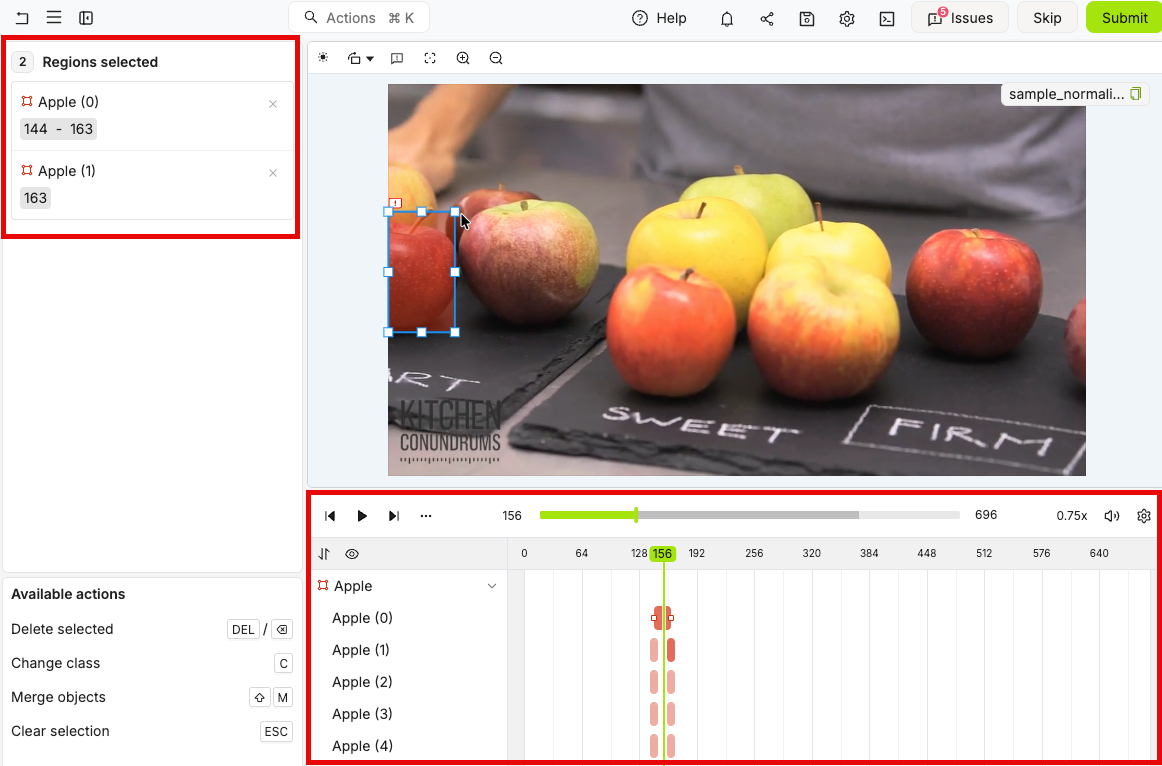
The following actions can be performed:
* **Merge ranges**: Merge the selected ranges into a single range.
* **Play range(s)**: Selecting a range allows you to play the file for just that range. If multiple ranges are selected, the file will play for all of the selected ranges in chronological order.
* **Change class**: Change the class for all labels within the selected range(s).
***
### Automated Labeling
Automated labeling includes several techniques to quickly create labels automatically.
* [Interpolation](/platform-documentation/Annotate/automated-labeling/annotate-interpolation) do not require set up or training, and are always available.
* [SAM 2 Segmentation](/platform-documentation/Annotate/automated-labeling/annotate-sam) creates labels by clicking parts of your frame or image.
* [SAM 2 tracking](/platform-documentation/Annotate/automated-labeling/annotate-sam#sam-2-tracking) tracks objects across a range of frames using the \[SAM 2] model.
1. Click the **Automated labeling** button to open the *Automated labeling* panel.
2. Select the type of automated labeling you want to use.
3. Run automated labeling for the selected objects.
***
### Edit Polygons and Polylines
Encord provides multiple tools to edit polygon and polyline labels after they have been created. See our tutorial video for an quick introduction on working with polygons in Encord.
**To move vertices**:
Click and drag a vertex to move it to a new location.
**To add a vertex**:
You can add more vertices to a polygon after it has been created.
1. Click the polygon you want to add a vertex to
2. Click the position along the edge of the polygon you want to add a vertex. Repeat to add as many vertices as necessary.
**To remove a vertex**:
You can remove the last vertex by pressing the Backspace key while still in *draw* mode.
1. Click the polygon you want to remove vertices from
2. Right-click a vertex to delete it
Use the polygon freehand tool to modify the edge of a polygon or polyline in a free-hand manner and create complex polygons.
**To use the freehand tool**:
1. Right-click the polygon you would like to edit.
2. Click **Edit with brush** or press the J hotkey.
A floating brush tool menu appears.
3. Adjust the brush size to suit your needs.
4. Mouse over location you would like to start editing from, and click and hold to start the edit process.
5. Drag the cursor freely to draw out the new polygon edge let go of mouse to finish editing.
Use the eraser tool to remove any part of a polygon in a free-hand manner.
**To use the eraser tool**:
1. Right-click the polygon you would like to edit.
2. Click **Edit with brush** or press the G hotkey.
A floating brush tool menu appears.
3. Select the eraser tool.
4. Adjust the brush size to suit your needs.
5. Mouse over location you would like to start editing from, and click and hold to start the edit process.
6. Drag the cursor freely to draw out the new polygon edge let go of mouse to finish editing.
Merging polygons combines two polygons into a single polygon
**To merge Polygons**:
1. Right-click the polygon you would like to edit.
2. Click **Merge with another polygon**.
3. Click the polygon you want to merge with.
The polygons have been merged.
Subtracting polygons removes the area one polygon from that of another.
**To subtract polygons**:
1. Right-click the polygon you would like to edit.
2. Click **Subtract another polygon**.
3. Click the polygon you want to subtract from your selected polygon.
The part of the second polygon that intersected the first is now removed from the first polygon.
The Polygon brush allows you to create polygons in the same manner that bitmasks can be created with the brush tool.
**To create polygons with the brush:**
1. Click the polygon object from the left pane.
The polygon tool dialog appears.
2. Press F or click the **Brush** icon.
3. Adjust the size and shape of the brush.
4. Draw the polygon you need on the data unit in the Label Editor.
5. Press ENTER to complete the polygon.
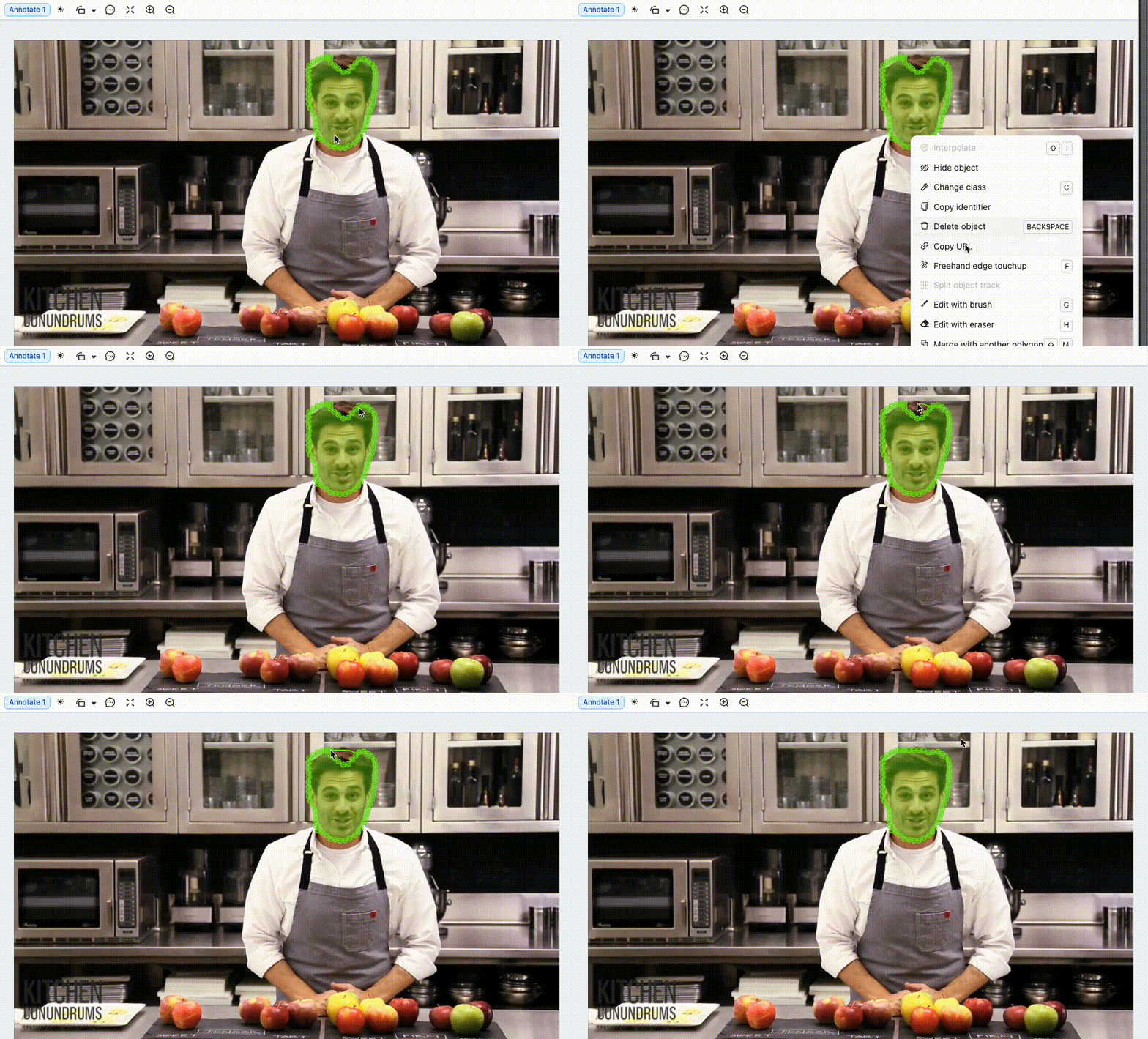
Freehand edge touchup lets you refine a polygon by drawing a new edge between two vertices to adjust and close its shape.
**To use freehand edge touchup**:
1. Right-click the polygon you want to edit.
2. Select **Freehand edge touchup** or press the F hotkey.
3. Click the starting vertex for your new edge.
4. Move the cursor to the target vertex where you want to close the shape.
5. Click to finalize the edit.
### Editor Canvas Interactions
**Shape-specific interactions**:
| Shape | Interactions | Modalities |
| -------- | ----------------------------------------------------------------------------------------------------- | -------------------------------------------- |
| Bitmask | Ability to move (one or multiple) | Video / Image Group / Image Sequence / DICOM |
| | Ability to ‘select multiple’ with Shift + click | Video / Image Group / Image Sequence / DICOM |
| | Draw using polygon ‘pen’ | Video / Image Group / Image Sequence / DICOM |
| | [Panoptic mode](/platform-documentation/Annotate/annotate-label-editor/annotate-videos#panoptic-mode) | Video / Image Group / Image Sequence / DICOM |
| Polygon | | Video / Image Group / Image Sequence / DICOM |
| | Add vertex with left-click | Video / Image Group / Image Sequence / DICOM |
| | Remove vertex with right-click | Video / Image Group / Image Sequence / DICOM |
| | Use the Brush tool by pressing F | Video / Image Group / Image Sequence / DICOM |
| Polyline | | Video / Image Group / Image Sequence / DICOM |
| | Add vertex with left-click | Video / Image Group / Image Sequence / DICOM |
| | Remove vertex with right-click | Video / Image Group / Image Sequence / DICOM |
**Right-click interactions**:
| Shape | Right-click Interactions | Modalities |
| ---------------------- | ------------------------------- | ---------------------------------------------- |
| Bounding Box | Track from this frame | Videos, image groups, and image sequences only |
| Bounding Box | Interpolate | Videos, image groups, and image sequences only |
| Bounding Box | Split object track | All |
| Bounding Box | Change class | All |
| Bounding Box | Copy identifier | All |
| Bounding Box | Delete object | All |
| Bounding Box | Copy URL | All |
| Rotatable Bounding Box | Track from this frame | Videos, image groups, and image sequences only |
| Rotatable Bounding Box | Interpolate | Videos, image groups, and image sequences only |
| Rotatable Bounding Box | Split object track | All |
| Rotatable Bounding Box | Change class | All |
| Rotatable Bounding Box | Copy identifier | All |
| Rotatable Bounding Box | Delete object | All |
| Rotatable Bounding Box | Copy URL | All |
| Polygon | Interpolate | All |
| Polygon | Split object track | All |
| Polygon | Change class | All |
| Polygon | Copy identifier | All |
| Polygon | Delete object | All |
| Polygon | Copy URL | All |
| Polygon | Track from this frame | Videos |
| Polygon | Edit with brush | All |
| Polygon | Freehand edge touchup | All |
| Polygon | Merge with another polygon | All |
| Polygon | Subtract another polygon | All |
| Polyline | Track from this frame | Videos, image groups, and image sequences only |
| Polyline | Interpolate | Videos, image groups, and image sequences only |
| Polyline | Split object track | All |
| Polyline | Change class | All |
| Polyline | Copy identifier | All |
| Polyline | Delete object | All |
| Polyline | Copy URL | All |
| Polyline | Freehand edge touchup | All |
| Keypoint | Track from this frame | Videos, image groups, and image sequences only |
| Keypoint | Interpolate | Videos, image groups, and image sequences only |
| Keypoint | Split object track | All |
| Keypoint | Change class | All |
| Keypoint | Copy identifier | All |
| Keypoint | Delete object | All |
| Keypoint | Copy URL | All |
| Bitmask | Interpolate | Videos, image groups, and image sequences only |
| Bitmask | Change class | All |
| Bitmask | Copy identifier | All |
| Bitmask | Delete object | All |
| Bitmask | Copy URL | All |
| Bitmask | Select more bitmasks to combine | All |
| Bitmask | Track from this frame | Videos |
| Object Primitive | Track from this frame | Videos, image groups, and image sequences only |
| Object Primitive | Interpolate | Videos, image groups, and image sequences only |
| Object Primitive | Change class | All |
| Object Primitive | Copy identifier | All |
| Object Primitive | Delete object | All |
| Object Primitive | Copy URL | All |
***
## Multi-Select Panel
When you select multiple annotations in the Label Editor, a specialized multi-select panel appears in the left sidebar. This panel provides a streamlined interface for managing multiple selected objects and classifications simultaneously.
### Overview
The multi-select panel displays when you have two or more annotations selected and offers:
* A count of selected items displayed in a pill badge
* A list of all selected objects and classifications with their names
* Individual deselection controls for each item
* Bulk actions that can be applied to all selected annotations
### Using the Multi-Select Panel
Hold **Shift** and click on multiple objects or classifications in the canvas or labels pane to select them.
The multi-select panel automatically appears in the left sidebar, showing the count of selected items and listing each annotation by name.
Click the **X** button next to any annotation name to remove it from the selection.
Use the available bulk actions to perform operations on all selected annotations at once.
The multi-select panel is available for both objects (bounding boxes, polygons, etc.) and classifications, allowing you to work with mixed selections efficiently.
### Multi-Select Panel Features
**Selected item display**: Each selected annotation appears as a row showing:
* The annotation name and type
* Frame range information where the annotation appears
* A close button to deselect individual items
**Bulk operations**: When multiple items are selected, you can perform actions like:
* Bulk deletion
* Class changes
* Attribute modifications
The multi-select panel makes it easy to manage complex annotations by providing a clear overview of your current selection and quick access to bulk editing tools.
## Multi-Tile Label Operations
In Projects with multiple data tiles, label operations (tracking, interpolation, and deletion) now target the specific tile where the label is located, ensuring accurate operations across different data sources.
When working with Projects that contain multiple data tiles, the Label Editor automatically handles label operations based on the tile context. This means:
* **Tracking operations** apply to objects within their specific tile
* **Interpolation** works within the correct tile's frame range
* **Label deletion** removes labels from the appropriate tile
* **Navigation** automatically switches to the correct tile when needed
This tile-aware behavior ensures that your annotations remain accurate and operations are performed on the intended data, even when working with complex multi-tile projects.
***
## Controls Common To Both Modes
### Editor Timeline
The Editor timeline visualizes when objects and instances appear throughout videos, scenes, and audio files. The cursor tracks playback in real time, always reflecting the current frame. The timeline is shown by default and can be resized or hidden by dragging it up or down.
***
### Editor Menu
Open the editor menu by clicking the menu icon in the top left corner of the Label Editor.
The editor menu contains the following controls:
* **Return to Project** - Returns the user to the Project navigation.
* **Save changes** - Saves the current state of all labels.
* **View** - Allows users to change what information is displayed next to all labels.
* [**Bulk label operations**](/platform-documentation/Annotate/annotate-label-editor/annotate-label-editor-annotate#bulk-label-operations) (annotation mode only) - Allows the user to perform actions on many labels at once.
* [**Automated labeling**](/platform-documentation/Annotate/annotate-label-editor/annotate-label-editor-annotate#automated-labeling) (annotation mode only) - Lets the user choose between several automated labeling techniques.
* **Dark mode** - Toggle dark mode on and off.
* **Keyboard shortcuts** - Displays a full list of keyboard shortcuts.
* [**Editor settings**](/platform-documentation/Annotate/annotate-label-editor/annotate-label-editor-settings-shortcuts) - Opens the Editor settings.
### Editor Header
The Editor header at the top-right of the navigation bar contains buttons and menu items to perform labeling activities as well as manage general app settings and notifications.
| **Icon** | **Name** | **Description** |
| ---------------------------------------------------------------------------------------------------------------------------------------------- | --------------------- | -------------------------------------------------------------------------------------------------------------------------------------------------- |
|  | Help | Links to the: quick start guide, documentation, learning hub, and Encord support team. |
|
| Help | Links to the: quick start guide, documentation, learning hub, and Encord support team. |
|  | Notifications | Shows the current status and history of actions taken in the application. This includes uploading datasets, training models, and exporting labels. |
|
| Notifications | Shows the current status and history of actions taken in the application. This includes uploading datasets, training models, and exporting labels. |
|  | Share | Copies the URL of the asset currently being labeled or reviewed. |
|
| Share | Copies the URL of the asset currently being labeled or reviewed. |
|  | Save labels | Manually saves labels on the Encord server. |
|
| Save labels | Manually saves labels on the Encord server. |
|  | Label Editor settings | Settings controlling your labeling and reviewing experience. |
|
| Label Editor settings | Settings controlling your labeling and reviewing experience. |
|  | Issues | Shows any issues and comments for the current task, such as any objects or classifications marked as *Required*, or comments added by other users. |
***
### Quick Toolbar
A toolbar with handy tools to:
* [Rotate the label editor](#rotate-the-label-editor).
* Adjust filters; contrast, brightness, gamma, [pixelated scaling](#pixelated-scaling), and [grayscaling](#grayscale-filter).
* Remove polygon vertices.
* [Add comments or issues to a frame or image](/platform-documentation/Annotate/annotate-label-editor/annotate-label-editor-annotate#issues-and-comments).
* Quickly center an image.
* Zoom in and out.
Remove polygon vertices (the scissors tool) is currently not available in review or review-edit mode.
Click the zoom icon again to disable zoom.
***
### Rotate the Label Editor
Click the *Rotate toolbar* icon on the [quick toolbar](#quick-toolbar) to bring up a pop-up that enables you to rotate the label editor by using the slider, as shown below.
Click the *Rotate 90 degrees* icon to rotate the editor in increments of 90 degrees.
***
### Pixelated Scaling
The *Pixelated scaling* feature enhances the visibility of individual pixels in an image or frame by disabling the browser's automatic edge smoothing. This increased pixel clarity aids annotators in creating precise, pixel-perfect annotations, thereby improving their annotation accuracy, especially when zooming into an image.
| *Pixelated Scaling* turned on | *Pixelated Scaling* turned off |
| ------------------------------------------------------------------------------------------------------------------ | ------------------------------------------------------------------------------------------------------------------- |
|
| Issues | Shows any issues and comments for the current task, such as any objects or classifications marked as *Required*, or comments added by other users. |
***
### Quick Toolbar
A toolbar with handy tools to:
* [Rotate the label editor](#rotate-the-label-editor).
* Adjust filters; contrast, brightness, gamma, [pixelated scaling](#pixelated-scaling), and [grayscaling](#grayscale-filter).
* Remove polygon vertices.
* [Add comments or issues to a frame or image](/platform-documentation/Annotate/annotate-label-editor/annotate-label-editor-annotate#issues-and-comments).
* Quickly center an image.
* Zoom in and out.
Remove polygon vertices (the scissors tool) is currently not available in review or review-edit mode.
Click the zoom icon again to disable zoom.
***
### Rotate the Label Editor
Click the *Rotate toolbar* icon on the [quick toolbar](#quick-toolbar) to bring up a pop-up that enables you to rotate the label editor by using the slider, as shown below.
Click the *Rotate 90 degrees* icon to rotate the editor in increments of 90 degrees.
***
### Pixelated Scaling
The *Pixelated scaling* feature enhances the visibility of individual pixels in an image or frame by disabling the browser's automatic edge smoothing. This increased pixel clarity aids annotators in creating precise, pixel-perfect annotations, thereby improving their annotation accuracy, especially when zooming into an image.
| *Pixelated Scaling* turned on | *Pixelated Scaling* turned off |
| ------------------------------------------------------------------------------------------------------------------ | ------------------------------------------------------------------------------------------------------------------- |
|  |
|  |
Enable *Pixelated scaling* by selecting the *Adjust filters* icon (
|
Enable *Pixelated scaling* by selecting the *Adjust filters* icon ( )in the [Quick toolbar](#quick-toolbar) and enabling the *Pixelated scaling* checkbox, as shown below.
*Pixelated scaling* is a browser-specific feature. The table below shows which types of files *Pixelated scaling* works for Firefox and Chrome.
| File type | Chrome | Firefox |
| -------------- | ------ | ------- |
| Image | ✅ | ✅ |
| Image group | ✅ | ✅ |
| Video | ❌ | ✅ |
| Image sequence | ❌ | ✅ |
***
### Grayscale Filter
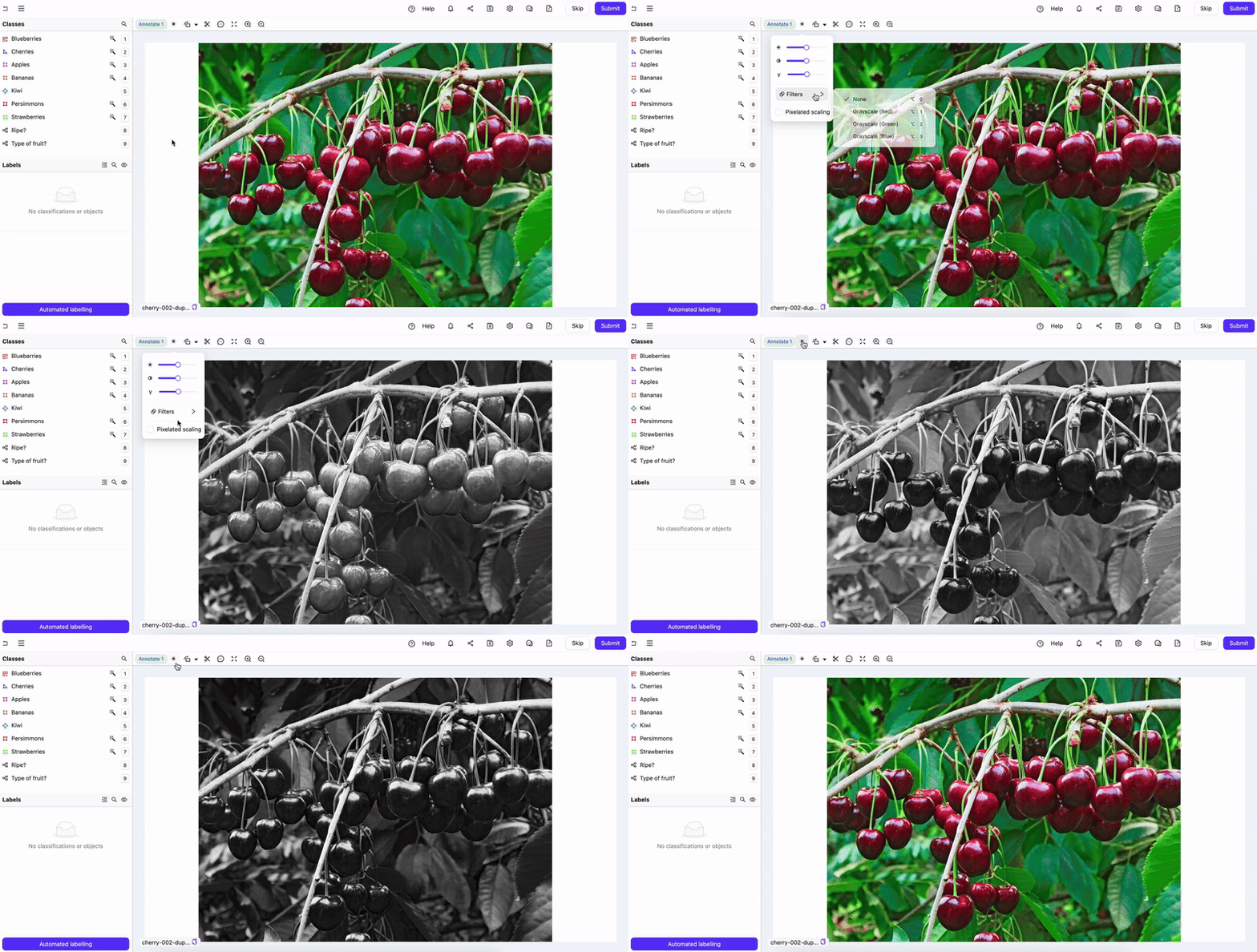
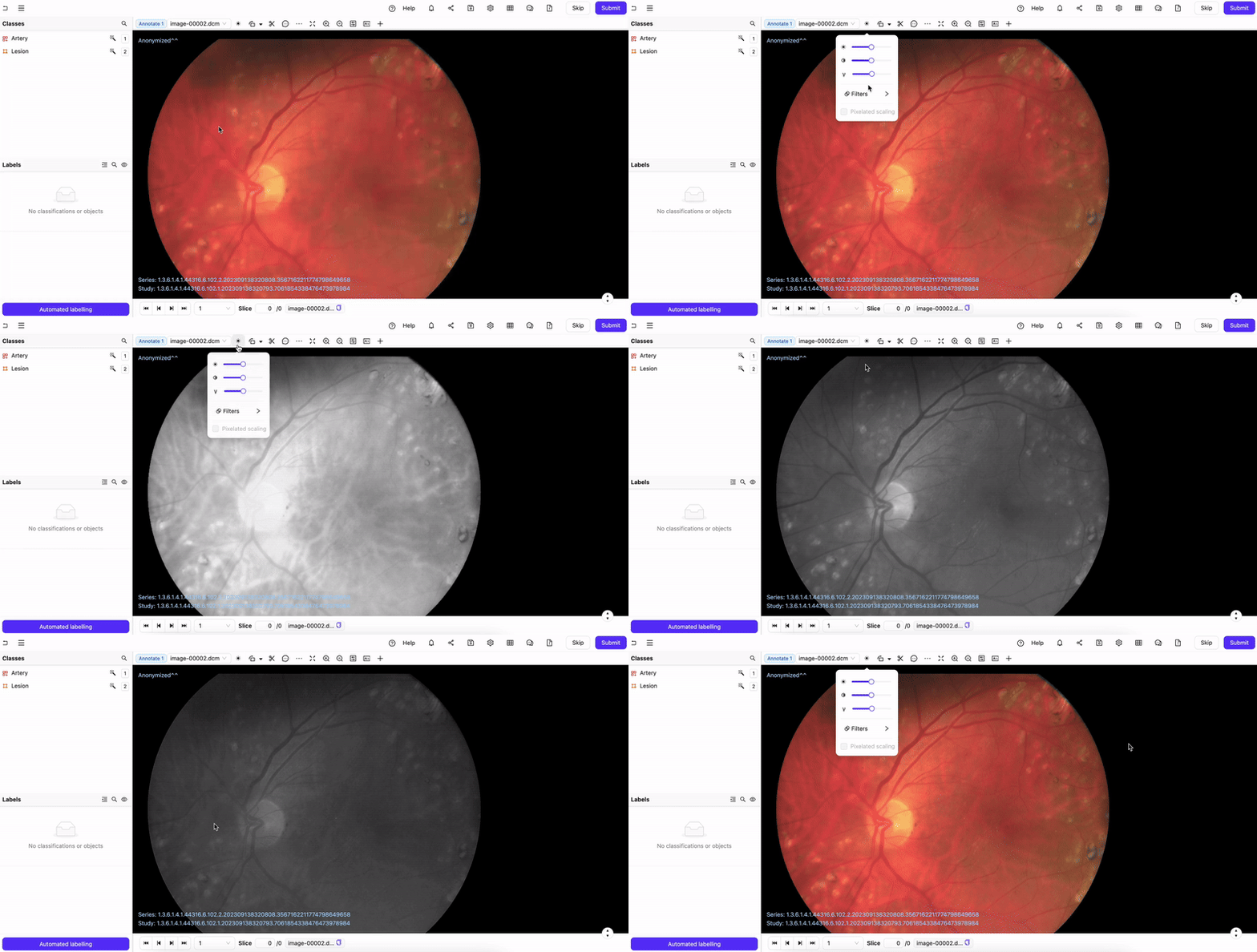
The *Grayscale filter* feature enhances the visibility across an image or frame by applying an RGB grayscale to the image/frame. The filter applies across the pixels of an image/frame using the value for Red, Green, or Blue as a base then converting to grayscale.
You can use the Grayscale filter on images, videos, and DICOM (DICOM and NIfTi) series.
**Grayscale Image/Frame**
**Grayscale DICOM/NIfTi**
### Media Navigation Controls
The video frame slider lets you quickly scroll through frames in a video asset. Below the frame slider are a range of controls to let you play, skip and navigate through media. Notice that the navigation controls are not displayed in single images files, as well as any media with only 1 frame.
**Icon descriptions**:
The *Time* and *Frame rate* information for each frame is displayed in the far lower right corner.
***
### Issues and Comments
* Add [Issue Tags](https://docs.encord.com/platform-documentation/Annotate/annotate-projects/annotate-project-settings#issue-tags) to a Project to flexibly categorize and group your issues.
* Use the [Issues tab of your Project Analytics](https://docs.encord.com/platform-documentation/Annotate/annotate-projects/annotate-project-analytics#issues) to learn about issues in your Project.
A complete walkthrough of all things Issues and Comments related can be found [here](https://docs.encord.com/end-to-end/Features/issues-e2e).
Issues can be added to annotation and review tasks to communicate with other users. All issues contain comment threads relating to the entire task or specific sections of the task. A small notification badge on the *Issues* icon displays the number of unresolved issues in a task.
)in the [Quick toolbar](#quick-toolbar) and enabling the *Pixelated scaling* checkbox, as shown below.
*Pixelated scaling* is a browser-specific feature. The table below shows which types of files *Pixelated scaling* works for Firefox and Chrome.
| File type | Chrome | Firefox |
| -------------- | ------ | ------- |
| Image | ✅ | ✅ |
| Image group | ✅ | ✅ |
| Video | ❌ | ✅ |
| Image sequence | ❌ | ✅ |
***
### Grayscale Filter
The *Grayscale filter* feature enhances the visibility across an image or frame by applying an RGB grayscale to the image/frame. The filter applies across the pixels of an image/frame using the value for Red, Green, or Blue as a base then converting to grayscale.
You can use the Grayscale filter on images, videos, and DICOM (DICOM and NIfTi) series.
**Grayscale Image/Frame**

**Grayscale DICOM/NIfTi**

### Media Navigation Controls
The video frame slider lets you quickly scroll through frames in a video asset. Below the frame slider are a range of controls to let you play, skip and navigate through media. Notice that the navigation controls are not displayed in single images files, as well as any media with only 1 frame.
**Icon descriptions**:
The *Time* and *Frame rate* information for each frame is displayed in the far lower right corner.
***
### Issues and Comments
* Add [Issue Tags](https://docs.encord.com/platform-documentation/Annotate/annotate-projects/annotate-project-settings#issue-tags) to a Project to flexibly categorize and group your issues.
* Use the [Issues tab of your Project Analytics](https://docs.encord.com/platform-documentation/Annotate/annotate-projects/annotate-project-analytics#issues) to learn about issues in your Project.
A complete walkthrough of all things Issues and Comments related can be found [here](https://docs.encord.com/end-to-end/Features/issues-e2e).
Issues can be added to annotation and review tasks to communicate with other users. All issues contain comment threads relating to the entire task or specific sections of the task. A small notification badge on the *Issues* icon displays the number of unresolved issues in a task.
**Types of Issues**:
* **Label rejection**: Created when a reviewer rejects labels. The reviewer is prompted to provide a reason for the rejection in the form of a comment. If all instances in a frame or image are rejected, a separate rejection issue is created for each label. Labels with rejection issues display a red Issues icon next to the instance name, which turns green once the issue is resolved.
* **File**: Apply to the entire file and can be created at any stage within the Label Editor.
* **Pinned**: Apply to a specific part of the file or frame and can be created at any stage within the Label Editor. Red *Pin* icons indicate unresolved issues and remain red until they are marked as resolved.
* **Frame**: Apply to a specific frame and can be created at any stage within the Label Editor. Frame issues can only be created when multiple frames are present; such as in a video, image sequence, or DICOM volume.
* **Frame range**: Apply to a range of frames and can be created at any stage within the Label Editor. Frame range issues can only be created when multiple frames are present; such as in a video, image sequence, or DICOM volume. Frame range issues can only be [created during label validation](https://docs.encord.com/platform-documentation/Validation/active-basics/active-comments).
* **Task requirement**: Are created for each object or classification [marked *Required* in the Ontology](https://docs.encord.com/platform-documentation/Annotate/annotate-ontologies/annotate-ontologies#required-attributes). The issue is resolved when the required object or classification is applied. Task requirement issues are the only issues visible in a Consensus annotate stage.
- Selecting an issue card highlights the associated label. If a frame number is present, clicking it navigates directly to the corresponding frame.
- Issue threads can be filtered by *Resolved* and *Unresolved* issues.
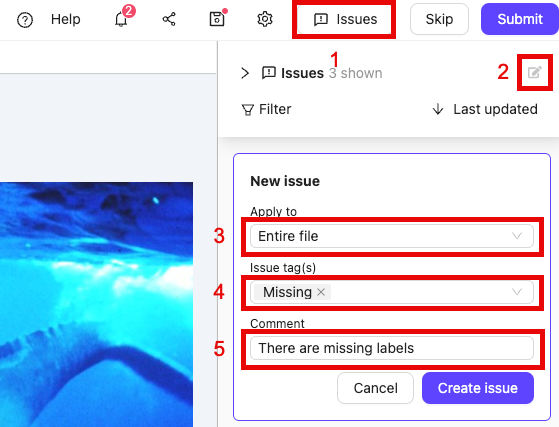
**To Create a new Issue**:
Issues cannot be created in a Consensus annotate stage.
1. Open the *Issues* pane by clicking the *Issues* icon.
2. Click the *New issue* icon (or keyboard shortcut Ctrl+N).
3. Click the *Apply to* dropdown to select the type of issue you want to create.
4. Select any [Issue Tags](https://docs.encord.com/platform-documentation/General/general-workspace-settings#issue-tags) you want to apply to the issue.
5. Add a comment to the issue.
6. If you selected 'Pin on canvas' in Step 3, click the desired location on the canvas.
7. Click **Create issue**.
**To Resolve an Issue:**
1. Open the *Issues* pane by clicking the *Issues* icon.
2. Click the *tick* to mark a thread as resolved.
Resolved issues remain visible but can be filtered out. All users can resolve issues.
**To Delete an Issue Thread:**
Deleted threads are NOT counted in the [Issues analytics](https://docs.encord.com/platform-documentation/Annotate/annotate-projects/annotate-project-analytics#issues).
1. Open the *Issues* pane by clicking the *Issues* icon.
2. Click the *Ellipsis* icon to show more options.
3. Click **Delete thread**.
Users can only delete issues that they created. **Label rejections cannot be deleted, only resolved**.
**To Reopen an Issue Thread:**
1. Open the *Issues* pane by clicking the *Issues* icon.
2. Click *Reopen* on an issue that was previously resolved.
**Use Cases**:
* **Ask questions**: Annotators and reviewers can ask questions about the task. Admins can use this feedback to improve guidance.
* **Explain task rejection**: Reviewers can provide reasons for rejection, helping annotators avoid repeating mistakes.
* **Track unresolved issues**: Keep a record of open discussions that need follow-up before finalizing annotations.
***
### Editor Lock
The 'Editor lock' is a safety feature we implemented to prevent several people making changes to the same file - annotators labeling, or reviewers reviewing the same data unit.
A warning is triggered in two cases:
1. When you have the same task open in two different tabs or browser windows:
2. When a different user is editing the same task:
***
## WACOM Tablet Support
Our [Label Editor](/platform-documentation/Annotate/annotate-label-editor) fully supports Wacom tablets and pens. You get the best experience if you enable [freehand drawing mode](/platform-documentation/Annotate/annotate-label-editor#freehand-drawing--polygon-coarseness).