> ## Documentation Index
> Fetch the complete documentation index at: https://docs.encord.com/llms.txt
> Use this file to discover all available pages before exploring further.
# Point Cloud Data
We strongly recommend enabling [graphics acceleration](https://www.howtogeek.com/412738/how-to-turn-hardware-acceleration-on-and-off-in-chrome/#:~:text=In%20the%20Settings%20menu%2C%20expand,Relaunch%E2%80%9D%20to%20apply%20the%20changes) in Chrome when working with PCD Scenes.
## Label & Review PCD
We strongly recommend that Taskers use a mouse when annotating or reviewing Scenes. Using a mouse makes annotating or reviewing Scenes significantly easier.
1. Click **Start task** or **Initiate** to annotate a PCD data unit.
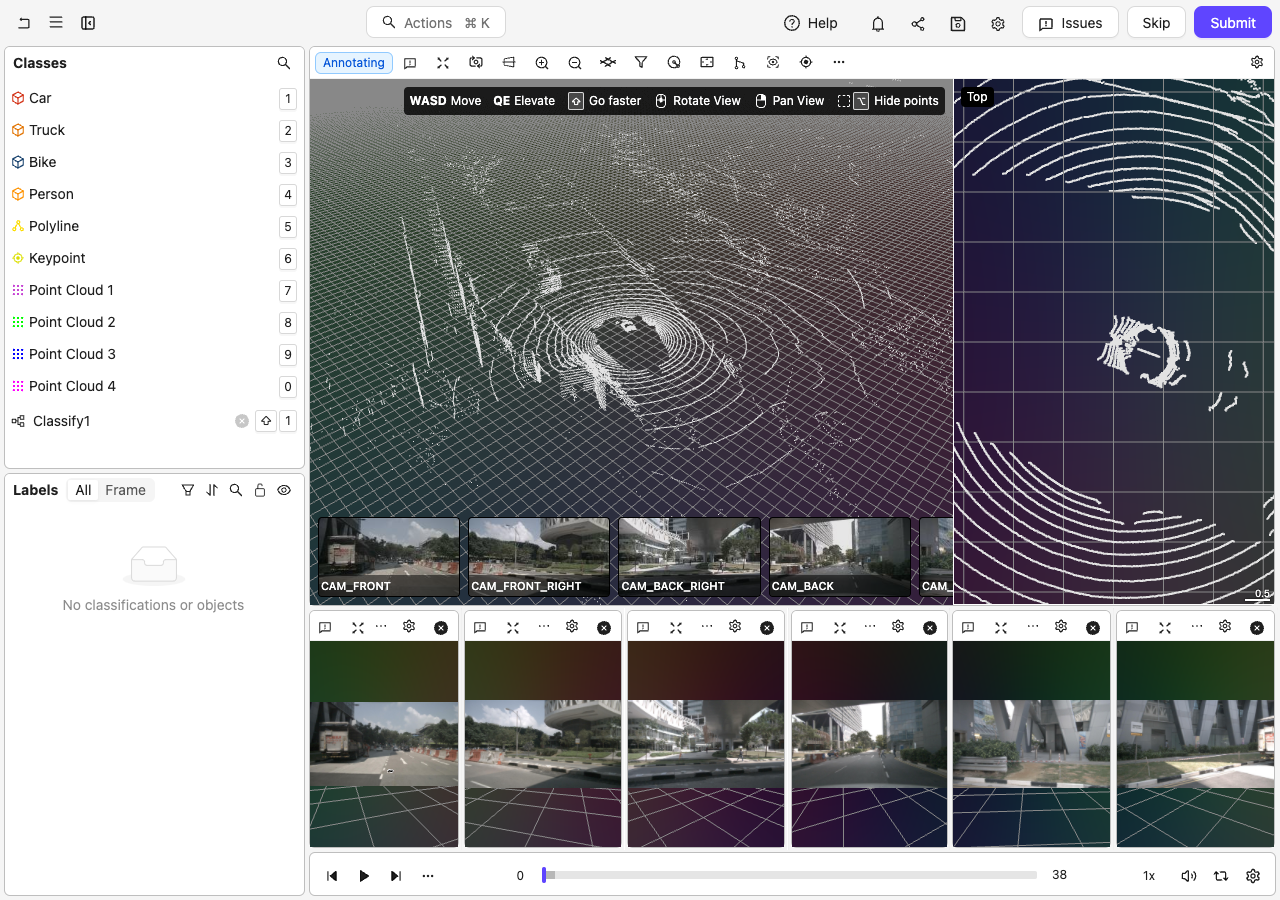
The Label Editor opens with a PCD data unit ready for annotation.
2. Use the Editor controls and Toolbar buttons to navigate the PCD workspace.
3. Use the *General Settings* to customize and streamline the PCD workspace.
4. Select an object label from the left-hand menu and begin annotating the PCD data unit.
5. Use your input device (mouse or trackpad) to create a label in the PCD workspace.
6. Select the label and adjust the label from the right-hand space and from the Toolbar.
* Copy labels from one frame to another using Command + C and Command + V on Mac, or Ctrl + C and Ctrl + V on Windows.
* Copy labels from within the same frame using Command + C and Command + Shift + V on Mac, or Ctrl + C and Ctrl + Shift + V on Windows.
* After copying a cuboid, a ghost preview follows your cursor. Press Shift + Click to place the copied cuboid. Press Command + C (Mac) or Ctrl + C (Windows) again (with nothing selected) to clear the clipboard and dismiss the preview.
* To clear a copied 3D cuboid, use CMD + Shift + C on Mac or Ctrl + Shift + C on Windows with nothing selected.
## Bulk Copy and Paste Cuboids
You can select multiple cuboids, copy them as a group, and paste them all at once onto any frame. The copied group moves together as a rigid preview that follows your cursor, preserving each cuboid's relative position and orientation. The entire bulk paste counts as a single undo step.
Only cuboid objects are included in a bulk copy/paste. If your multi-selection includes non-cuboid objects (such as polygons or polylines), those objects are not copied.
### Bulk copy/paste keyboard shortcuts
| Action | Windows | Mac |
| --------------------------------- | ---------------------------------------------- | ------------------------------------------------- |
| Select all cuboids | Ctrl + A | Command + A |
| Copy selected cuboids | Ctrl + C | Command + C |
| Place copied group | Shift + Click | Shift + Click |
| Yaw-rotate group before placement | R | R |
| Undo bulk paste | Ctrl + Z | Command + Z |
| Clear clipboard | Ctrl + Shift + C (nothing selected) | Command + Shift + C (nothing selected) |
## Toolbar
Hot key: Shift + C
Brings the POV to origin. When you have an object selected (cuboid, keypoint, or polyline), this command centers the camera on that object instead of the origin.
Hot key: ALT/OPTION + T
Brings the POV to the "tiles" listed in the drop-down that appears.
Hot key: Shift + up arrow
Zooms into the workspace.
Hot key: Shift + down arrow
Zooms out of the workspace.
Sets the position and rotation of the ground plane in the workspace. The ground plane is used for navigation (see "pan along ground" setting) as well as determining the initial position of cuboids.
Click the ground plane icon in the toolbar to open the ground height controls:
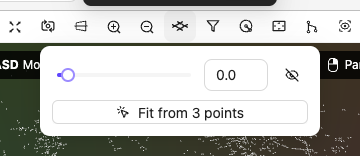 * **Slider**: Drag to adjust the ground height. The range spans from the lowest to the highest point in the point cloud along the up axis.
* **Visibility toggle**: Show or hide the ground grid overlay in the 3D view.
* **Fit from 3 points**: Select 3 points on any point cloud to automatically fit the ground plane. This is useful when the ground is not flat or is at an angle.
You can also enter "Fit from 3 points" mode directly using the keyboard shortcut Option + G (Mac) or Alt + G (Windows), without opening the popover first.
When fitting mode is active, the toolbar button changes to show how many points remain to be picked:
* **Slider**: Drag to adjust the ground height. The range spans from the lowest to the highest point in the point cloud along the up axis.
* **Visibility toggle**: Show or hide the ground grid overlay in the 3D view.
* **Fit from 3 points**: Select 3 points on any point cloud to automatically fit the ground plane. This is useful when the ground is not flat or is at an angle.
You can also enter "Fit from 3 points" mode directly using the keyboard shortcut Option + G (Mac) or Alt + G (Windows), without opening the popover first.
When fitting mode is active, the toolbar button changes to show how many points remain to be picked:
 Click 3 points on the point cloud surface to define the ground plane. The counter updates as each point is picked. Click the **x** on the button or press Escape to cancel.
When the ground plane is rotated (tilted), rotation information is displayed in the controls. Use the **Reset rotation** button to return the ground plane to flat.
When the ground grid is visible, it is displayed as a grid in the scene:
Click 3 points on the point cloud surface to define the ground plane. The counter updates as each point is picked. Click the **x** on the button or press Escape to cancel.
When the ground plane is rotated (tilted), rotation information is displayed in the controls. Use the **Reset rotation** button to return the ground plane to flat.
When the ground grid is visible, it is displayed as a grid in the scene:
 Hot key: Option + R
Radius indicators are useful guides when annotating in 3D space. For example, you might only want to annotate anything that comes within 3 meters of your object (vehicle, robot, drone). You would then use a radius of three and only annotate anything within that radius.
* `ON`: Displays one or more radii centered on the object (vehicle, robot, drone) that captured PCD. You can select the color used for all radii.
* `OFF`: Hides all the radii.
Specify custom or use "tile" coordinates as the Scene origin.
Use this feature together with `Center content`.
* `ON`: All points in the PCD workspace (on all axis) are averaged. Using *Center content* brings the POV to the center of all axis in the workspace.
* `OFF`: Using *Center content* brings to POV to the object that captured the PCD.
Hot key: ALT/OPTION + M
Displays point cloud data from multiple frames simultaneously in the workspace. When enabled, you can use the frame range controls to specify which frames to merge.
* `ON`: Displays PCD from multiple frames at once. Click the dropdown arrow next to the button to access the controls.
* `OFF`: Displays the PCD for the current frame only.
By default, all frames in the scene are included when merged view is enabled.
Hot key: ALT/OPTION + I
Displays point cloud data in 2D images.
Hot key: CONTROL + ALT/OPTION+ C
Specify the camera target on a single point in the PCD data.
Use this feature with *Center camera on orign*.
Display or hide various elements in the PCD space.
* `Show top view`: Displays view from the top in the right hand work area.
* `Show left view`: Displays view from the left in the right hand work area.
* `Show right view`: Displays view from the right in the right hand work area.
* `Show control hints`: Displays context-sensitive keyboard shortcut hints in the top-right corner.
* `Show camera switcher`: Displays video views for the Scene.
* `Show zoom indicator`: Displays zoom level information.
* `Show size rulers`: Displays a scale ruler in the orthographic side views showing world unit measurements.
## Editor Actions
Click into the PCD workspace to use the following editor actions. Context-sensitive keyboard hints display in the top-right corner of the 3D view.
Use the WASD keys to move along the X axis in the workspace.
Use the QE keys to move along the Y axis in the workspace.
Hold down the scroll wheel and move your mouse to rotate in the workspace.
Hold down the right mouse button and move your mouse to pan around the workspace.
Hold Shift while using the WASD, QE, or camera movement keys to move faster through the workspace.
The Scene slicer is a planar point cloud data selection guard. Place a Scene slicer to confine point cloud data selection. Point cloud data on the outside of the Scene slicer area cannot be selected for annotation.
Use the left-click button on your mouse to select an area in the PCD workspace. Use the Alt/Option key to hide all point data outside the selected area.
You can change the "front face" of a cuboid by hovering over any side of the cuboid, clicking ALT/OPTION, and then left-clicking.
***
## Editor Settings - Scene
**Input Device**
Specify using a `mouse` or `trackpad` to rotate or pan in the workspace.
We **STRONGLY** recommend using a mouse to rotate or pan in the workspace.
**Pre-load data**
Pre-load data in the background for smoother navigation. Enabling this setting can improve performance when annotating or reviewing point cloud data.
***
**Face**
Shows/Hides the "face" of cuboids in the PCD workspace.
*Setting the front face:*
You can designate any face of a cuboid as its front face using `Alt`+click. This works whether the cuboid is currently selected or unselected — you do not need to deselect the cuboid first.
When you hold `Alt`, the drag-handle controls are hidden and the cuboid body becomes the click target, making face selection unambiguous. Click any visible face while holding `Alt` to set it as the front face.
When working with multi-frame cuboid tracks, setting the front face only modifies keyframes. Interpolated frames are rotated in place without being promoted to keyframes, so your keyframe structure remains intact.
Use `Alt`+click to quickly reassign the front face mid-annotation without interrupting your workflow — no need to deselect the cuboid first.
**Orientation**
Shows/Hides the orientation of cuboids in the PCD workspace.
**Ground**
Shows/Hides the "ground" plane as a grid in the PCD workspace.
**Axis**
Shows/Hides the axis of the point of origin in the PCD workspace.
**Cameras**
Shows/Hides camera helper lines to aid in annotating PCD.
**Background**
Shows/Hides the background in the PCD workspace.
**Color settings**
You can change the color of point cloud data in the PCD workspace. Here are the options:
* **Solid**: Displays points with a single uniform color.
* **Origin**: Displays points in colors based on the distance from the world origin point.
* **Camera**: Displays points in colors based on the distance from the camera position.
* **Height**: Displays points in colors based on the distance from the "ground" plane.
You can adjust the "ground" plane using the [ground height]() feature on the Editor toolbar.
* **Provided**: Displays points in colors based on how they were originally captured and recorded.
* **Image**: Displays points in colors by projecting camera image data onto the points.
* **Sensor**: Displays points colored by the sensor that captured them, making it easy to visually identify which sensor contributed which points in a multi-sensor setup.
- When you enable **Color by sensor** mode, points from different sensors are automatically assigned distinct colors from a fixed palette of 20 maximally distinct colors.
- Sensor colors are assigned consistently based on the sensor's stream ID, so the same sensor is always use the same color across different frames and sessions.
**PCD display settings**
You can change the display settings of point cloud data in the PCD workspace. Here are the options:
* Show: Displays point cloud data in the PCD workspace.
* Merge: Displays all point cloud data across time in the PCD workspace.
* Uniform size: Displays all point cloud data in a uniform size in the PCD workspace.
* Hide segmented: Hides all point cloud data that is behind segmented objects in the PCD workspace.
Only segmented objects that are set to be hidden hide all point cloud data behind them.
Specify the size of cloud data points in the PCD workspace.
Specifies the opacity of PCD in 2D views.
The default value is 0. PCD does not display in 2D views with a value of 0.
Specifies the opacity of data points that fade into the background. For example, all data points outside of a Scene slice.
Controls whether points that fall inside cuboids are highlighted with special coloring to make them more visible. This setting overrides the normal point coloring mode for points contained within cuboid annotations.
| Option | Description |
| ----------------- | -------------------------------------------------------------------- |
| **All cuboids** | Highlights points inside every cuboid annotation (default behavior). |
| **Selected only** | Only highlights points inside the currently selected cuboid. |
| **None** | Disables cuboid point highlighting entirely. |
Use "Selected only" mode when working with many overlapping cuboids to focus on the cuboid you're currently editing.
Controls how 3D labels are colored during workflow review and consensus review tasks. This setting applies to all 3D label types: cuboids, spheres, polylines, and keypoints/points.
This setting only takes effect when you are in a workflow review stage or consensus review stage. It has no effect outside of review tasks.
**By review status**
When you set **Label color mode (review)** to **By review status**, all 3D labels in the point cloud viewport are recolored according to their current review state:
| Review state | Color |
| ------------ | ------ |
| Pending | Orange |
| Approved | Green |
| Rejected | Red |
Labels you action (approve or reject) during the current review session fade to the opacity configured in **Reviewed label opacity**, reducing visual clutter as you work through the scene.
The opacity fade applies only to filled shapes — cuboids and spheres. Polylines and keypoints/points are recolored by review status but do not fade.
Selected 3D labels retain their review-status fill color when selected. Only the selection outline switches to the selection highlight color, matching the behavior in 2D review tasks.
Specifies the opacity applied to 3D labels that you have actioned (approved or rejected) during the current review session. Reducing this value fades reviewed labels into the background, making it easier to focus on labels that still require review.
The opacity fade applies only to filled shapes — cuboids and spheres. Polylines and keypoints/points are recolored by review status but are not affected by this opacity setting.
This setting only takes effect when **Label color mode (review)** is set to **By review status** and you are in a workflow review stage or consensus review stage.
Hot key: Option + R
Radius indicators are useful guides when annotating in 3D space. For example, you might only want to annotate anything that comes within 3 meters of your object (vehicle, robot, drone). You would then use a radius of three and only annotate anything within that radius.
* `ON`: Displays one or more radii centered on the object (vehicle, robot, drone) that captured PCD. You can select the color used for all radii.
* `OFF`: Hides all the radii.
Specify custom or use "tile" coordinates as the Scene origin.
Use this feature together with `Center content`.
* `ON`: All points in the PCD workspace (on all axis) are averaged. Using *Center content* brings the POV to the center of all axis in the workspace.
* `OFF`: Using *Center content* brings to POV to the object that captured the PCD.
Hot key: ALT/OPTION + M
Displays point cloud data from multiple frames simultaneously in the workspace. When enabled, you can use the frame range controls to specify which frames to merge.
* `ON`: Displays PCD from multiple frames at once. Click the dropdown arrow next to the button to access the controls.
* `OFF`: Displays the PCD for the current frame only.
By default, all frames in the scene are included when merged view is enabled.
Hot key: ALT/OPTION + I
Displays point cloud data in 2D images.
Hot key: CONTROL + ALT/OPTION+ C
Specify the camera target on a single point in the PCD data.
Use this feature with *Center camera on orign*.
Display or hide various elements in the PCD space.
* `Show top view`: Displays view from the top in the right hand work area.
* `Show left view`: Displays view from the left in the right hand work area.
* `Show right view`: Displays view from the right in the right hand work area.
* `Show control hints`: Displays context-sensitive keyboard shortcut hints in the top-right corner.
* `Show camera switcher`: Displays video views for the Scene.
* `Show zoom indicator`: Displays zoom level information.
* `Show size rulers`: Displays a scale ruler in the orthographic side views showing world unit measurements.
## Editor Actions
Click into the PCD workspace to use the following editor actions. Context-sensitive keyboard hints display in the top-right corner of the 3D view.
Use the WASD keys to move along the X axis in the workspace.
Use the QE keys to move along the Y axis in the workspace.
Hold down the scroll wheel and move your mouse to rotate in the workspace.
Hold down the right mouse button and move your mouse to pan around the workspace.
Hold Shift while using the WASD, QE, or camera movement keys to move faster through the workspace.
The Scene slicer is a planar point cloud data selection guard. Place a Scene slicer to confine point cloud data selection. Point cloud data on the outside of the Scene slicer area cannot be selected for annotation.
Use the left-click button on your mouse to select an area in the PCD workspace. Use the Alt/Option key to hide all point data outside the selected area.
You can change the "front face" of a cuboid by hovering over any side of the cuboid, clicking ALT/OPTION, and then left-clicking.
***
## Editor Settings - Scene
**Input Device**
Specify using a `mouse` or `trackpad` to rotate or pan in the workspace.
We **STRONGLY** recommend using a mouse to rotate or pan in the workspace.
**Pre-load data**
Pre-load data in the background for smoother navigation. Enabling this setting can improve performance when annotating or reviewing point cloud data.
***
**Face**
Shows/Hides the "face" of cuboids in the PCD workspace.
*Setting the front face:*
You can designate any face of a cuboid as its front face using `Alt`+click. This works whether the cuboid is currently selected or unselected — you do not need to deselect the cuboid first.
When you hold `Alt`, the drag-handle controls are hidden and the cuboid body becomes the click target, making face selection unambiguous. Click any visible face while holding `Alt` to set it as the front face.
When working with multi-frame cuboid tracks, setting the front face only modifies keyframes. Interpolated frames are rotated in place without being promoted to keyframes, so your keyframe structure remains intact.
Use `Alt`+click to quickly reassign the front face mid-annotation without interrupting your workflow — no need to deselect the cuboid first.
**Orientation**
Shows/Hides the orientation of cuboids in the PCD workspace.
**Ground**
Shows/Hides the "ground" plane as a grid in the PCD workspace.
**Axis**
Shows/Hides the axis of the point of origin in the PCD workspace.
**Cameras**
Shows/Hides camera helper lines to aid in annotating PCD.
**Background**
Shows/Hides the background in the PCD workspace.
**Color settings**
You can change the color of point cloud data in the PCD workspace. Here are the options:
* **Solid**: Displays points with a single uniform color.
* **Origin**: Displays points in colors based on the distance from the world origin point.
* **Camera**: Displays points in colors based on the distance from the camera position.
* **Height**: Displays points in colors based on the distance from the "ground" plane.
You can adjust the "ground" plane using the [ground height]() feature on the Editor toolbar.
* **Provided**: Displays points in colors based on how they were originally captured and recorded.
* **Image**: Displays points in colors by projecting camera image data onto the points.
* **Sensor**: Displays points colored by the sensor that captured them, making it easy to visually identify which sensor contributed which points in a multi-sensor setup.
- When you enable **Color by sensor** mode, points from different sensors are automatically assigned distinct colors from a fixed palette of 20 maximally distinct colors.
- Sensor colors are assigned consistently based on the sensor's stream ID, so the same sensor is always use the same color across different frames and sessions.
**PCD display settings**
You can change the display settings of point cloud data in the PCD workspace. Here are the options:
* Show: Displays point cloud data in the PCD workspace.
* Merge: Displays all point cloud data across time in the PCD workspace.
* Uniform size: Displays all point cloud data in a uniform size in the PCD workspace.
* Hide segmented: Hides all point cloud data that is behind segmented objects in the PCD workspace.
Only segmented objects that are set to be hidden hide all point cloud data behind them.
Specify the size of cloud data points in the PCD workspace.
Specifies the opacity of PCD in 2D views.
The default value is 0. PCD does not display in 2D views with a value of 0.
Specifies the opacity of data points that fade into the background. For example, all data points outside of a Scene slice.
Controls whether points that fall inside cuboids are highlighted with special coloring to make them more visible. This setting overrides the normal point coloring mode for points contained within cuboid annotations.
| Option | Description |
| ----------------- | -------------------------------------------------------------------- |
| **All cuboids** | Highlights points inside every cuboid annotation (default behavior). |
| **Selected only** | Only highlights points inside the currently selected cuboid. |
| **None** | Disables cuboid point highlighting entirely. |
Use "Selected only" mode when working with many overlapping cuboids to focus on the cuboid you're currently editing.
Controls how 3D labels are colored during workflow review and consensus review tasks. This setting applies to all 3D label types: cuboids, spheres, polylines, and keypoints/points.
This setting only takes effect when you are in a workflow review stage or consensus review stage. It has no effect outside of review tasks.
**By review status**
When you set **Label color mode (review)** to **By review status**, all 3D labels in the point cloud viewport are recolored according to their current review state:
| Review state | Color |
| ------------ | ------ |
| Pending | Orange |
| Approved | Green |
| Rejected | Red |
Labels you action (approve or reject) during the current review session fade to the opacity configured in **Reviewed label opacity**, reducing visual clutter as you work through the scene.
The opacity fade applies only to filled shapes — cuboids and spheres. Polylines and keypoints/points are recolored by review status but do not fade.
Selected 3D labels retain their review-status fill color when selected. Only the selection outline switches to the selection highlight color, matching the behavior in 2D review tasks.
Specifies the opacity applied to 3D labels that you have actioned (approved or rejected) during the current review session. Reducing this value fades reviewed labels into the background, making it easier to focus on labels that still require review.
The opacity fade applies only to filled shapes — cuboids and spheres. Polylines and keypoints/points are recolored by review status but are not affected by this opacity setting.
This setting only takes effect when **Label color mode (review)** is set to **By review status** and you are in a workflow review stage or consensus review stage.