> ## Documentation Index
> Fetch the complete documentation index at: https://docs.encord.com/llms.txt
> Use this file to discover all available pages before exploring further.

# Manage Annotation Projects

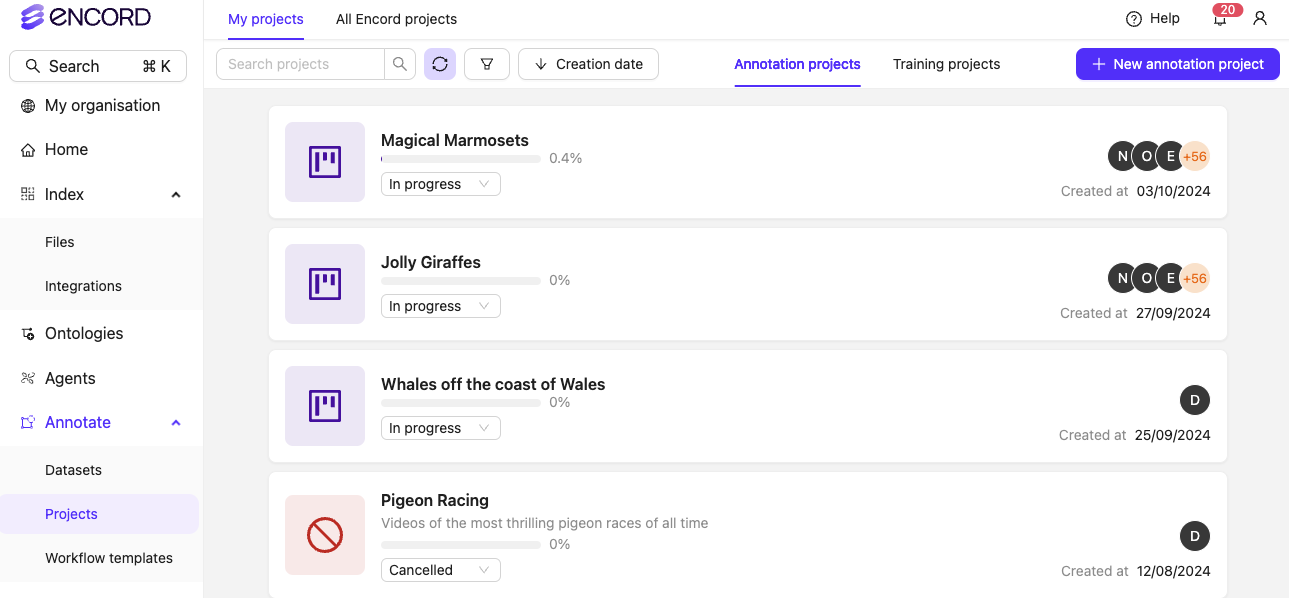
1. In the Encord platform, navigate to **Projects**.
2. Select the Project you want to Manage.

<div class="flex justify-center">
  <img src="https://storage.googleapis.com/docs-media.encord.com/static/img/projects-list.png" width="400" />
</div>

The dashboard is split into the following tabs:

* **[Project Overview](/platform-documentation/Annotate/annotate-projects/annotate-manage-annotation-projects#project-overview)**: High-level view of labeling and productivity statistics.
* **Explore**: Explore the distribution of instances and labels across data assets in the project.
* **[Queue](/platform-documentation/Annotate/annotate-projects/annotate-manage-annotation-projects#task-queue-%26-workflow)**: Shows all tasks in the Project by Workflow stage.
* **Workflow**: Graphically displays the path tasks follow through the Project Workflow.
* **[Analytics](/platform-documentation/Annotate/annotate-projects/annotate-manage-annotation-projects#analytics)**: Detailed Project analytics.
* **[Settings](/platform-documentation/Annotate/annotate-projects/annotate-project-settings)**: Manage your Project Settings, including copying Projects, managing Project tags, customizing editor layouts, and deleting Projects.

## Tab Visibility by Role

<Note>The *Analytics* and *Queue* tabs display different information based on the user's role. For more details, refer to the [Analytics dashboard documentation](#analytics).</Note>

<div class="flex justify-center">
  | **Tab**   | Annotator           | Reviewer           | Annotator + Reviewer            | Team Manager              | Admin                              |
  | --------- | ------------------- | ------------------ | ------------------------------- | ------------------------- | ---------------------------------- |
  | Summary   | ❌                   | ❌                  | ❌                               | ✅                         | ✅                                  |
  | Explore   | ❌                   | ❌                  | ❌                               | ✅                         | ✅                                  |
  | Queue     | *Annotate* tab only | *Review* tab only  | *Annotate* + *Review* tabs only | ✅                         | ✅                                  |
  | Workflow  | ❌                   | ❌                  | ❌                               | View only                 | ✅                                  |
  | Analytics | Personal analytics  | Personal analytics | Personal analytics              | Team analytics            | Team analytics                     |
  | Settings  | ❌                   | ❌                  | ❌                               | Add users (except Admins) | ✅ All settings and user management |
</div>

***

## Update Project Status

<div class="flex justify-center">
  <img src="https://storage.googleapis.com/docs-media.encord.com/static/img/project-statuses.png" width="600" />
</div>

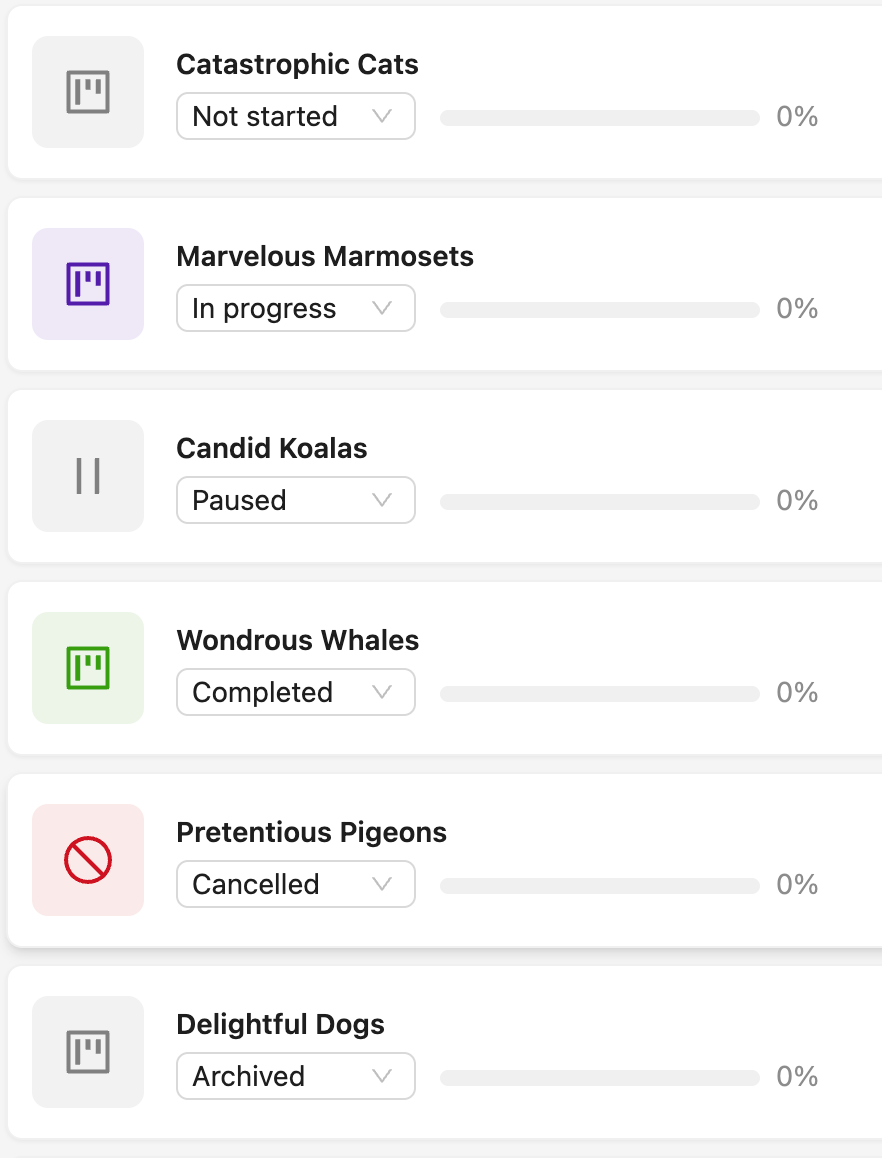
Admins and Team Managers can change the status of a Project to any of the following:

* Not started
* In progress
* Paused
* Completed
* Cancelled
* Archived

<Info>Updating the Project status changes the Project icon accordingly.</Info>

When the Project status is changed to either *Paused*, *Completed*, or *Cancelled* then Annotators, Reviewers, and Annotator + Reviewers are prevented from opening tasks, and the **Initiate** button is grayed out. Admins and Team Managers are able to annotate and review tasks as usual, regardless of the Project status.

<Note>
  Tasks can still be opened using back door access. For example if an Admin shares a specific URL of a task with an Annotator, Reviewer, or Annotator + Reviewer.
</Note>

***

## Project Overview

The Project Overview dashboard has the following components that provide an overview of the Project.

<table>
  <thead>
    <tr>
      <th>Component</th>
      <th>Description</th>
    </tr>
  </thead>

  <tbody>
    <tr>
      <td>**Instance labels created**</td>

      <td>
        Displays the total number of labels (object labels and classifications), in the Project, that have been submitted for review.

        <br />

        <Note>Labels on Text and HTML files are not counted.</Note>
      </td>
    </tr>

    <tr>
      <td>**Time spent**</td>
      <td>Displays the total amount of time, in the Project, spent by users in the Label Editor performing tasks. For example, time spent annotating, editing, and reviewing tasks, and making and resolving issues.</td>
    </tr>

    <tr>
      <td>**Open issues**</td>
      <td>Displays the total number of open issues in the Project.</td>
    </tr>

    <tr>
      <td>**Project task status**</td>
      <td>Displays the number of tasks that are in each stage of your Project. The number of stages and their names reflect the choices made during [workflow project selection/creation](/platform-documentation/Annotate/annotate-projects/annotate-workflows-and-templates#creating-workflows).</td>
    </tr>
  </tbody>
</table>

![Annotate Summary](https://storage.googleapis.com/docs-media.encord.com/static/img/annotate/annotate-summary-01.gif)

**Explore tab**

<Warning> The Explore tab is a legacy feature and will be discontinued. </Warning>

<Note>The *Explore* tab is only visible to project Admins and Team Managers.</Note>

The *Explore* tab helps you understand how project annotations are distributed among data assets, at both an instance and label level. It allows a deeper exploration through attributes on objects, as well as frame-level classifications.

* Instance statistics: Class distribution across data assets in the given project.
* Label statistics: Label distributions within data assets, objects and classifications.

![Annotate Explore](https://storage.googleapis.com/docs-media.encord.com/static/img/annotate/annotate-explore.gif)

**Instance statistics**

This section provides the total count of all instances across the datasets in your project.

* **Project total**: Shows total instances (both objects and classifications) across the project by default. To get instance statistics for individual data files, click the drop-down to select a data file.
* **Select class**: Shows the total instances for a particular class. This is a summary of how a given class is distributed across your project's data assets. The pie chart segments show a breakdown of how that class is split across the data assets.
* **Display timestamps**: Flip the toggle to switch between frame numbers and timestamps for the labels.

**Label statistics**

This is a summary of how your labels are distributed across the project. The pie chart shows a breakdown of how many labels there are for a given class.

* **Project total**: Shows the total number of labels across different datasets in the project. To get label stats for individual data files, click the drop-down to select a data file.
* **Objects**: Click on the pie chart segment of a class to see the total number of labels and its attributes (sometimes called nested attributes) if available for that class.
* **Classifications**: Shows the global classification at project or individual video level. For example, location, time of day, etc.

***

## Task Queue & Workflow

Use the *Queue* tab to assign, prioritize, and manage tasks, as well as to start labeling and reviewing for all users associated with a Project.

<Note>The order of data units (tasks) with the same priority in the Task Queue is complete random. However, each Tasker sees the same random order of tasks.</Note>

<div
  style={{
height: '0',
paddingBottom: '56.25%',
position: 'relative'
}}
>
  <iframe
    allowFullScreen
    frameBorder="0"
    mozallowfullscreen=""
    src="https://www.loom.com/embed/dc931d8a88554e3d96ee7ec147721581?sid=16fbd56e-62e1-41fd-a311-454ca6a9c1cb"
    style={{
  height: '100%',
  left: '0',
  position: 'absolute',
  top: '0',
  width: '100%'
}}
    webkitallowfullscreen=""
  />
</div>

The *Queue* tab's layout adapts based on user permissions.

<AccordionGroup>
  <Accordion title="Queue (Admin, Team Manager)">
    ### Queue (Admin, Team Manager)

    <div class="flex justify-center">
      <img src="https://storage.googleapis.com/docs-media.encord.com/static/img/admin-queue-2.png" width="700" />
    </div>

    * **A** - The list of Workflow stages displays the number of data units currently in each stage. Click on a stage to view its task queue.
    * **B** - Shows the task's priority number. Tasks are listed in descending order of priority by default.
    * **C** - Search file, sort queue, and filter the list of data units being displayed by task status by *Dataset*, *Assignee*, *Data Type*, *Status*, or *Issue status*.
    * **D** - Shows the task's Status (New, Reopened, Skipped).
    * **E** - Task Actions. Assign or release selected tasks, adjust their priority number, or move selected tasks to a different workflow stage.
    * **F** - Switch between List and Explorer view. Contact support for more information.
    * **G** - Use the **Start task** button to begin labeling or reviewing a task.
    * **H** - Clicking the **Initiate** button opens the task in the Label Editor.

    The *Queue* tab lists tasks in the same order they appear in the Label Editor.

    **Filters**

    * *Dataset* - Filtering by Dataset only displays data units belonging to the selected Dataset(s).
    * *Priority* - Displays Tasks in the Queue based on the values specified for Priority.
    * *Assignee* - Displays tasks assigned to a particular user.
    * *Last Actioned By* - Displays tasks last actioned by the selected user.
    * *Data Type* - Displays data units of a specific type.
    * *Status* - Displays Tasks based on status: **Skipped**, **Reopened**, **New**.
    * *Issue Status* - Displays tasks with Resolved or Unresolved issues.
    * *Object classes* - Displays Tasks with the specified Object class.
    * *Object count* - Displays Tasks with the specified number of object labels.

    **Sort by**

    You can sort the task queue by clicking **Sort by** next to the filter button. Select whether you want to sort the task queue by:

    * Task priority, or alphabetically by the name of the data unit.
    * In ascending or descending order.

    The default sorting is in descending order of task priority.

    **Task Status**

    The task Status indicates which actions had previously been taken on a task.

    * *New* - The task has not been worked on since being added to the Project.
    * *Reopened* - The task was rejected during the Review stage, and has been returned for re-labeling.
    * *Skipped* - The task was skipped by one or more annotators.

    #### View Tasks

    You can view tasks from any workflow stage. Viewing a task does not assign it to you.

    <div class="flex justify-center">
      <img src="https://storage.googleapis.com/docs-media.encord.com/static/img/view-task.png" />
    </div>

    To edit labels when viewing a task, click the **Edit** button or use the <kbd>Ctrl</kbd> + <kbd>E</kbd> keyboard shortcut. When you are finished, click **Save and return to view** button to return to view mode.

    <Tabs>
      <Tab title="View Mode">
        <div class="flex justify-center">
          <img src="https://storage.googleapis.com/docs-media.encord.com/static/img/change-to-edit.png" />
        </div>
      </Tab>

      <Tab title="Edit Mode">
        <div class="flex justify-center">
          <img src="https://storage.googleapis.com/docs-media.encord.com/static/img/edit-mode.png" />
        </div>
      </Tab>
    </Tabs>

    #### Task Actions

    <AccordionGroup>
      <Accordion title="Move Tasks">
        <Note>Only Workspace and Project Admins and Task Managers can move tasks.</Note>

        <div class="flex justify-center">
          <img src="https://storage.googleapis.com/docs-media.encord.com/static/img/move-tasks-2.gif" />
        </div>

        You can move selected tasks from their current stage directly to another stage of the Workflow.

        <Warning>
          * Moving tasks skips all intermediate Workflow stages, placing them immediately into the selected stage.
          * All labels (object and classification) are automatically approved when tasks move to a COMPLETE stage.
          * Webhooks do not fire when tasks teleport through a workflow.
        </Warning>

        <Note>
          * Tasks cannot be moved in to Consensus stages.
          * Tasks in the Consensus Annotate block cannot be moved to Consensus Review blocks.
          * The following analytics do not apply to teleported tasks: `Labels created`, `Approved labels`, `Rejected labels`.
        </Note>

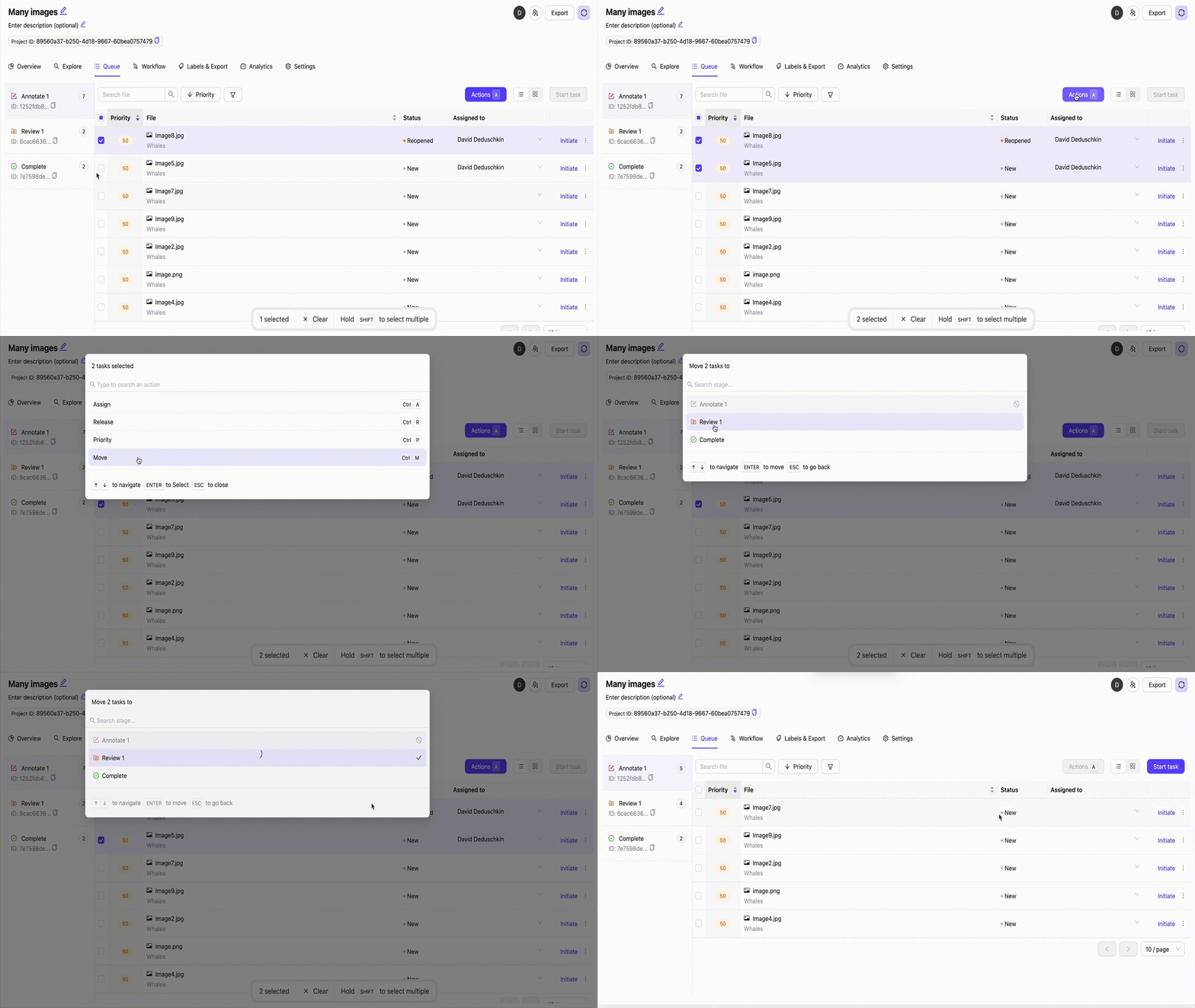
        **To move tasks**:

        1. Select the tasks you want to move.
        2. Click the **Actions** button or use the keyboard shortcut <kbd>A</kbd>.
        3. Click **Move** or use the keyboard shortcut <kbd>Ctrl</kbd> + <kbd>M</kbd>
        4. Select the stage you want to move the selected tasks to.

           Tasks move to the specified stage.
      </Accordion>

      <Accordion title="Assign and Release Tasks">
        <Note>Only Admins and Team Managers can assign and release tasks.</Note>

        <div class="flex justify-center">
          <img src="https://storage.googleapis.com/docs-media.encord.com/static/img/assign-tasks-2.gif" width="600" height="280" />
        </div>

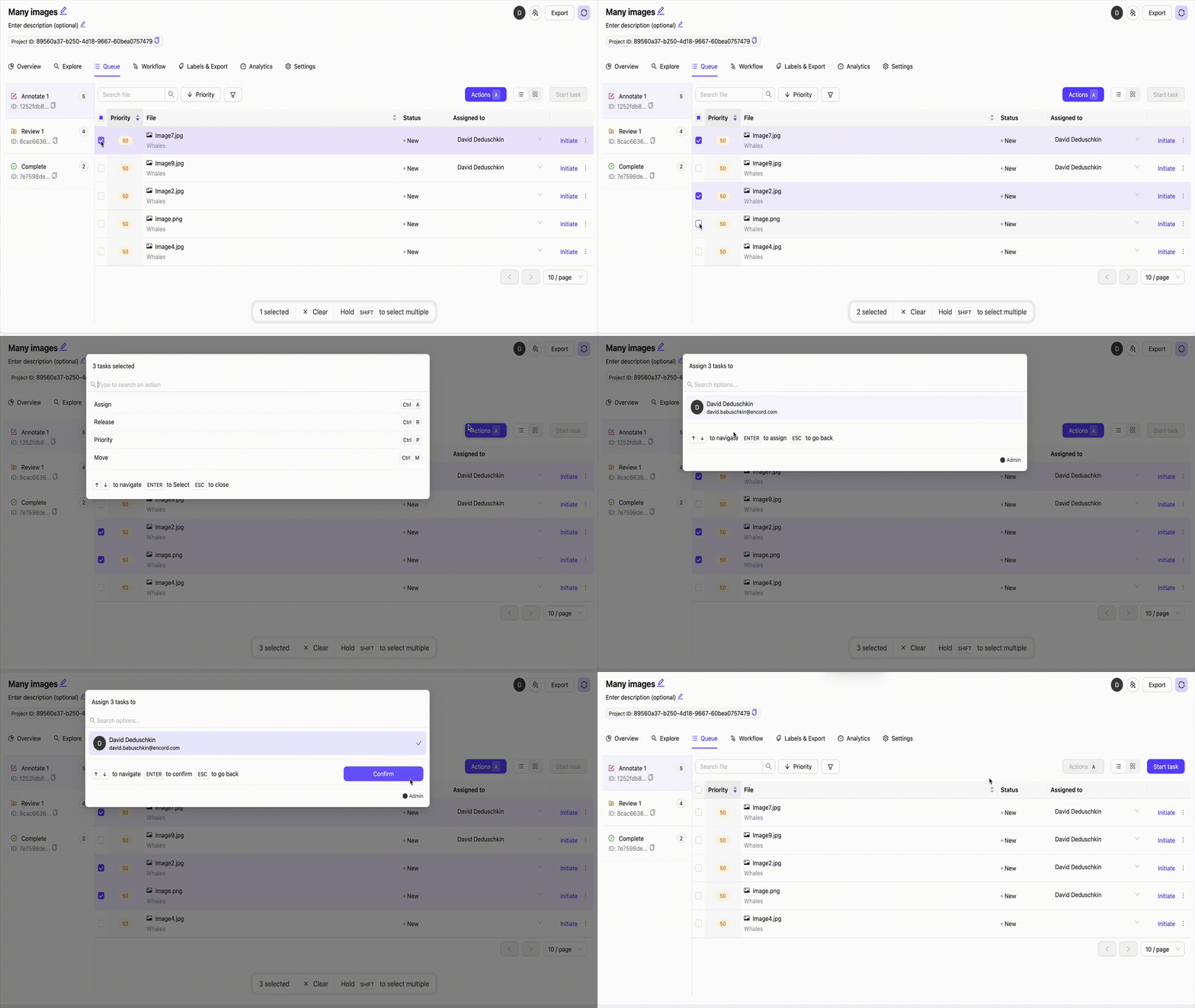
        **To assign tasks**:

        1. Select the tasks from the list.
        2. Click the **Actions** button or use the keyboard shortcut <kbd>A</kbd>.
        3. Click **Assign** or use the keyboard shortcut <kbd>Ctrl</kbd> + <kbd>A</kbd>.
        4. Select the Tasker you want to assign the tasks to.

        Alternatively, click the small arrow button in the *Assigned to* column to assign an individual data unit.

        <Note>
          * Tasks can only be assigned to collaborators who are part of a given Workflow stage. By default, all annotators are added to annotation stages and all reviewers are added to review stages.
          * Once a task is assigned, only the assigned user is able to open the task.
        </Note>

        Releasing a task is the opposite of assigning a task, and removes any user the task was assigned to.

        **To release tasks**:

        1. Select the tasks from the list.
        2. Click the **Actions** button or use the keyboard shortcut <kbd>A</kbd>.
        3. Click **Release** or use the keyboard shortcut <kbd>Ctrl</kbd> + <kbd>R</kbd>

        <Tip>Unassigned tasks can be initiated by all users.</Tip>
      </Accordion>

      <Accordion title="Task priority">
        <Note>Only Admins and Task Managers can set task priority.</Note>

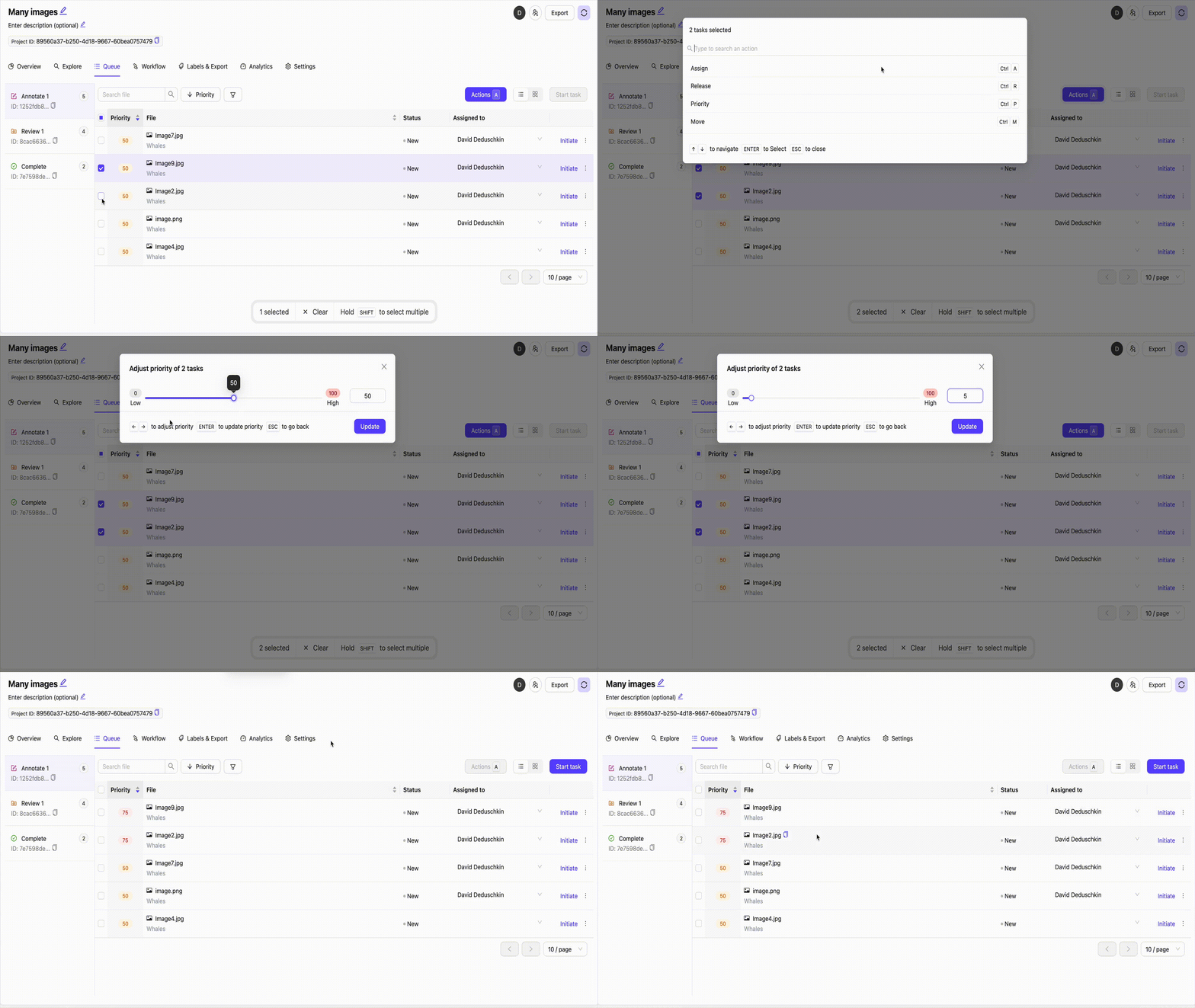
        Annotation and review tasks can be assigned a priority level from 0 to 100 to manage workflow efficiency. A default priority is set to 50, while a value of 100 indicates a high-priority task and 0 signifies a low-priority task. The label editor displays tasks in descending order of priority, ensuring that higher-priority tasks are addressed first.

        <div class="flex justify-center">
          <img src="https://storage.googleapis.com/docs-media.encord.com/static/img/update-priority.gif" width="600" />
        </div>

        **To change task priority**:

        1. Select the tasks from the list.
        2. Click the **Actions** button or use the keyboard shortcut <kbd>A</kbd>.
        3. Click **Priority** or use the keyboard shortcut <kbd>Ctrl</kbd> + <kbd>P</kbd>.
        4. Adjust the priority.
        5. Click **Update**.

        <Tip>
          Alternatively, click on a task's priority number and use the slider to update its priority.
        </Tip>
      </Accordion>
    </AccordionGroup>
  </Accordion>

  <Accordion title=" Queue (Annotators)">
    ### Queue (Annotators)

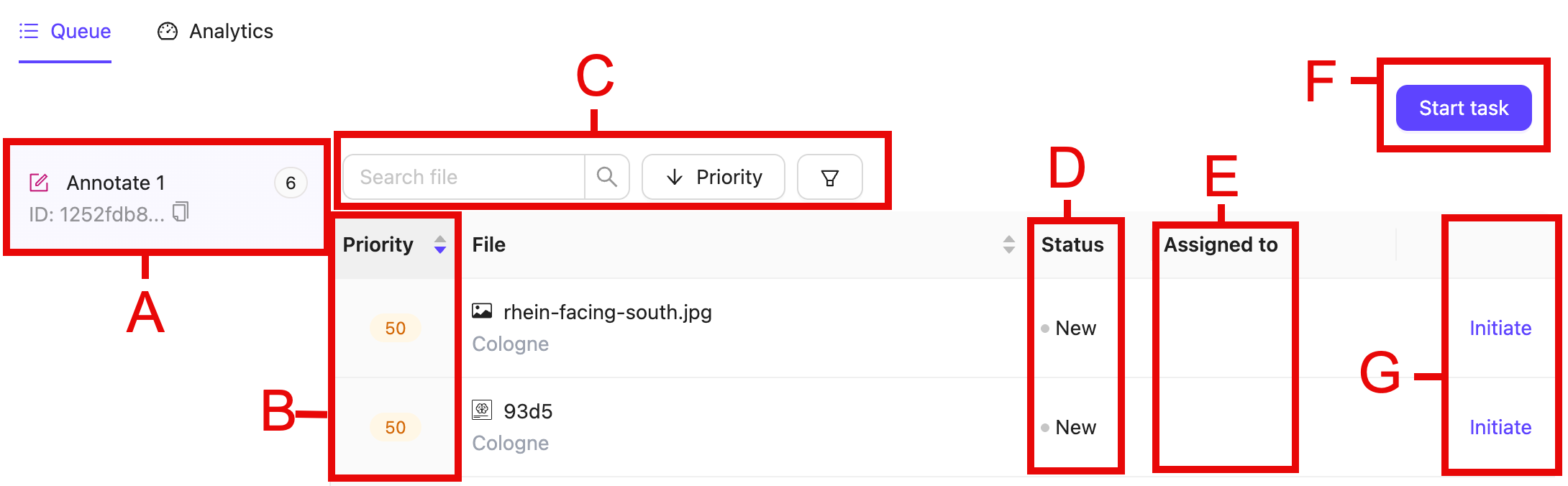
    Annotators are presented with the following *Queue* tab, from which they can manage their annotations.

    <div class="flex justify-center">
      <img src="https://storage.googleapis.com/docs-media.encord.com/static/img/annotator-queue.png" width="550" />
    </div>

    * **A** - The list of annotation stages shows how many data units each stage currently contains. If more than one stage is listed, clicking a stage lets you view the tasks it contains.
    * **B** - Shows the task's [priority](#task-priority) number. Tasks are listed in descending order of priority by default.
    * **C** - Search file, sort queue, and [filter](#filter) the list of data units being displayed by task status by *Dataset*, *Assignee*, *Data Type*, *Status*, or *Issue status*.
    * **D** - The task status.
    * **E** - The user a task is assigned to. A blank field indicates an unassigned task.
    * **F** - Click the **Initiate** button next to a task to start annotating the task.
    * **G** - The **Start task** button opens the Label Editor, starting with the highest priority task.

    The *Queue* tab lists tasks in the same order they appear in the Label Editor.

    <Note>Initiating an unassigned task automatically assigns the task to the Annotator.</Note>
  </Accordion>

  <Accordion title=" Queue (Reviewers)">
    ### Queue (Reviewers)

    <div class="flex justify-center">
      <img src="https://storage.googleapis.com/docs-media.encord.com/static/img/reviewer-queue.png" width="550" />
    </div>

    * **A** - The list of review stages shows how many data units each stage currently contains. If more than one stage is listed, clicking a stage lets you view the tasks it contains.
    * **B** - Shows the task's [priority](#task-priority) number. Tasks are listed in descending order of priority by default.
    * **C** - Search file, sort queue, and filter the list of data units being displayed by task status by *Dataset*, *Assignee*, *Data Type*, *Status*, or *Issue status*.
    * **D** - Shows who the task was last actioned by, and in which Workflow stage the action was taken.
    * **E** - The user a task is assigned to. A blank field indicates an unassigned task.
    * **F** - The **Start task** button opens the Label Editor, starting with the highest priority task.
    * **G** - Click the **Initiate** button next to a task to start reviewing the task.

    The *Queue* tab lists tasks in the same order they appear in the Label Editor.

    <Note>Initiating an unassigned task automatically assigns the task to the Reviewer.</Note>
  </Accordion>
</AccordionGroup>

**Workflow tab**:

<Note>The *Workflow* tab is only visible to project Admins and Team Managers.</Note>

The *Workflow* tab lets you view and edit the Project's Workflow. To begin editing the Workflow, click the **Edit** button on the canvas.

The *Data* tab provides a complete overview of all tasks in the project, and lets you see which workflow stage each task is in.

## Save Label Version

<iframe className="w-full aspect-video rounded-xl" src="https://www.loom.com/embed/85490afedca94838a98f505b736a7ade?sid=ca5c9102-76fc-4c1e-aed1-80d6f618544c" title="YouTube video player" frameBorder="0" allow="accelerometer; autoplay; clipboard-write; encrypted-media; gyroscope; picture-in-picture" allowFullScreen />

1. Click **Export** while in a Project.

   The *Export labels* dialog appears.

2. Specify the following:
   * **Format:** Specify the format to export the labels (JSON or COCO).
   * **Stage:** Specify the Workflow stage to export the labels from.
   * **Generate signed URLs:** Specify whether to generate signed URLs for the data units that have labels.
   <Note>
     Enabling this option can significantly increase export times.
   </Note>
   * **Save as new version:** Specify to version the labels.
     * Provide a meaningful name for the label version.
   * **Labels to include:** Specify the labels to include. You can export all labels or select specific object or classification labels to export.

3. Click **Export**.

   A *Labels export in progress* toast message appears.

4. Go to **Labels & Export > Versions**.

   The version of your labels appears in the *Versions* table.

Label versioning allows you to keep track of your label history over time by providing a snapshot of labels at a point in time. Label versions can be exported and analyzed to track annotation performance over time.

***

## Analytics

The *Analytics* tab of your Project shows event-based analytics for your Project's tasks, labels, and users. The *Analytics* tab has the following views:

* [**Tasks**](#tasks): View analytics on specific tasks in your Project.
* [**Labels**](#labels): View analytics of labels in your Project.
* [**Collaborators**](#collaborators): View collaborator performance in your Project.
* [**Issues**](#issues): View analytics relating to issues in your Project.
* \[**Agents**(#agents)]: View analytics relating to Agent stages in your Project.

<Info>
  The analytics available on the Analytics dashboard vary based on user roles:

  * **Admins and Team Managers** have access to the *Tasks*, *Labels*, and *Collaborators* views, offering a comprehensive overview of team performance.
  * **Annotators**, **Reviewers**, and **Annotator + Reviewer** roles can only view the *Task Actions*, *Time Spent*, and *Label Actions* tables, limited to their individual contributions.
</Info>

<Warning>
  Actions performed in the Label Editor or using the SDK are only tracked on the *Analytics* dashboard if they the tasks are actioned (submitted/rejected/approved).
</Warning>

Project Analytics have the following filters:

| **Filter**             | **Description**                                                                                   |
| ---------------------- | ------------------------------------------------------------------------------------------------- |
| **Collaborators**      | Filter by specific Project collaborators.                                                         |
| **Datasets**           | Filter tasks based on the dataset they belong to.                                                 |
| **File name includes** | Filter by file name. Regex is supported, allowing filtering by prefix or infix in the file title. |
| **Event source**       | Filter by the source of the event. Either SDK or UI.                                              |
| **Workflow stage**     | Filter tasks based on their current stage in the Workflow.                                        |
| **Class**              | Filter by Ontology class.                                                                         |

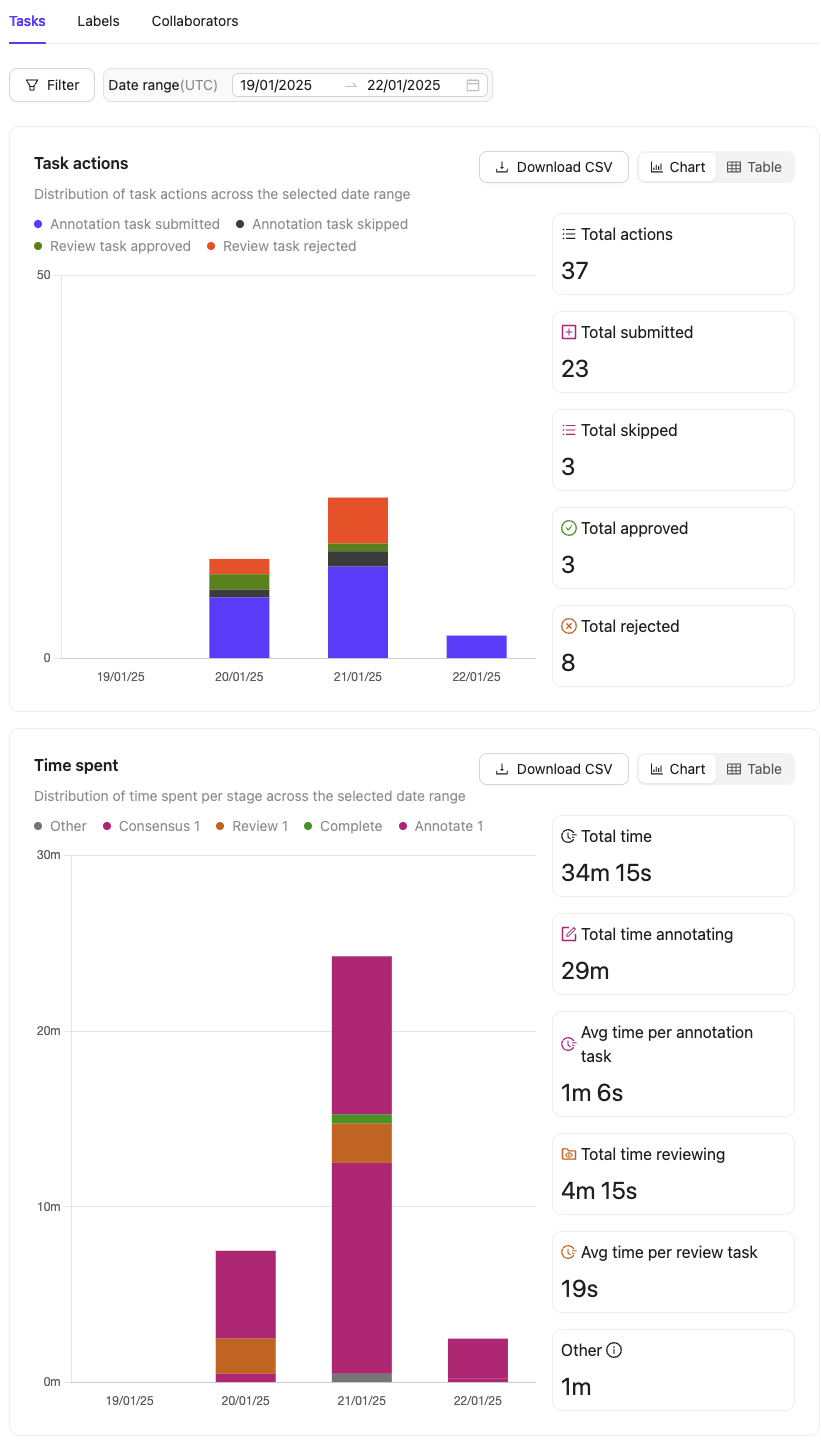
### Tasks

<div class="flex justify-center">
  <img src="https://storage.googleapis.com/docs-media.encord.com/static/img/task-analytics.png" width="700" />
</div>

The *Tasks* tab of the *Analytics* dashboard provides a detailed overview of task throughput, stage efficiency, and task timers. It can help answer questions such as:

1. **How productive was each collaborator in terms of labeling and reviewing tasks over the last week?**
   * By filtering the data by *Collaborators* and *Date time range*, you can see how many tasks each team member worked on and how much time they spent on labeling and reviewing.

2. **Which Dataset has the most labels added, edited, or deleted in a given Workflow stage?**
   * You can filter by *Datasets* and *Workflow stage* to see which Dataset is being worked on the most and how many labels are being modified at each stage of the process.

The following charts are visible in the Tasks view:

| **Chart**        | **Description**                                                                                                                          |
| ---------------- | ---------------------------------------------------------------------------------------------------------------------------------------- |
| Task actions     | Displays the number of annotation tasks submitted, skipped, review tasks approved, and review tasks rejected over a selected date range. |
| Time spent       | Shows the total time spent actively working in the Label Editor, providing insights into productivity.                                   |
| Task performance | Shows the actions taken for all tasks in the Project.                                                                                    |

The **Task performance** table includes the following columns:

* **File name**: The name of the file associated with the task.
* **Data type**: The type of file used in the task (example: image, video, DICOM).
* **Dataset**: The Dataset from which the task originates.
* **Total time**: The total time spent on the task.
* **Total created labels**: The number of labels created in the task.
* **Total edited labels**: The number of labels that were modified in the task.
* **Total deleted labels**: The number of labels that were removed in the task.
* **Time spent** - The amount of time spent in a specific Workflow stage.
* **Collaborators**	- The users who contributed to a specific Workflow stage.
* **Created labels** - The number of labels created in a specific Workflow stage.
* **Edited labels** - The number of labels modified in a specific Workflow stage. In review stages, this refers to [Edit Review](/platform-documentation/Annotate/annotate-label-editor/annotate-label-editor-review#edit-labels-during-review).
* **Deleted labels** - The number of labels removed in a specific Workflow stage.

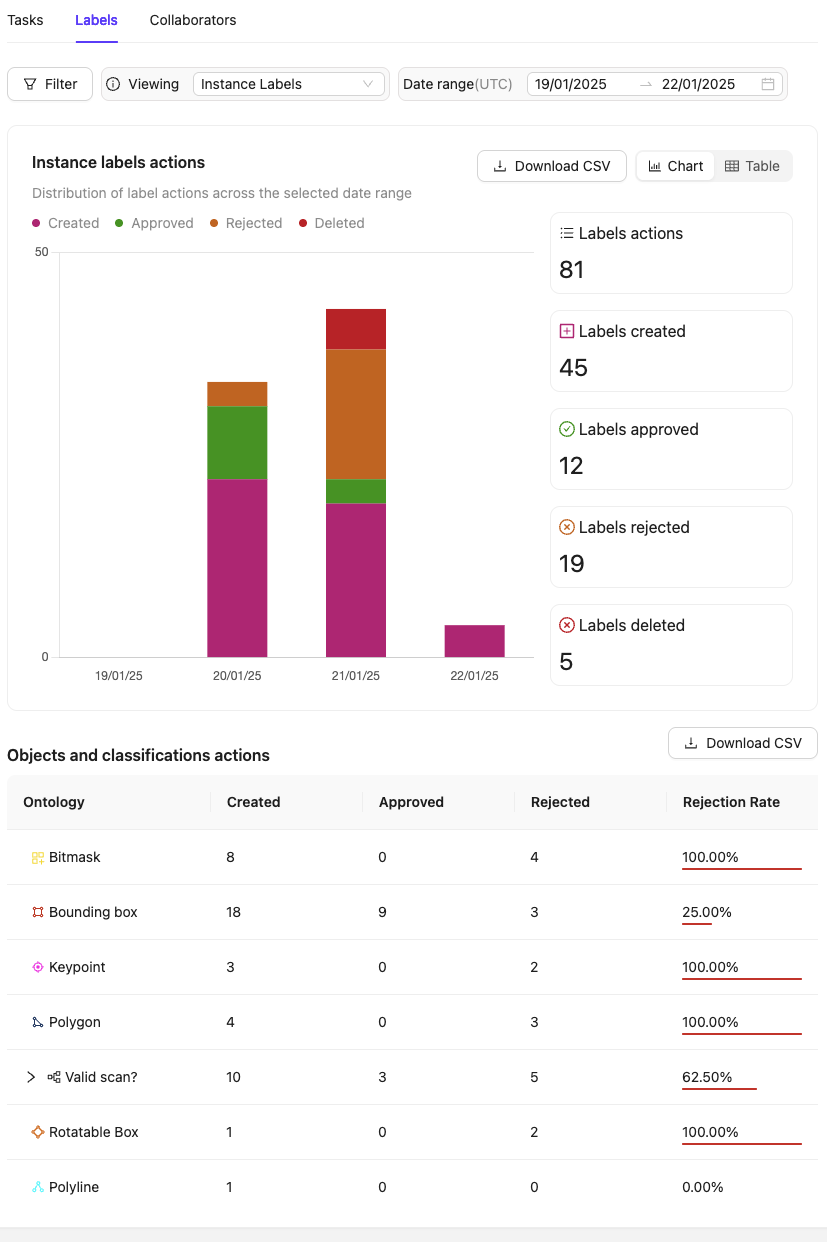
### Labels

<div class="flex justify-center">
  <img src="https://storage.googleapis.com/docs-media.encord.com/static/img/label-analytics.png" width="700" />
</div>

<Warning>
  Label analytics are not supported for Text and Audio modalities.
</Warning>

The *Labels* tab in the *Analytics* dashboard provides a detailed overview of your team's labeling, reviewing, and task productivity, including time spent. It can help answer questions such as:

1. **How many labels were submitted, approved, or rejected by the team over a given period?**
   * Use the *Label actions* chart and apply the *Date time range* filter to view the total number of labels submitted, approved, or rejected within the selected time frame.

2. **What actions have been taken for specific objects and classifications in the Ontology?**
   * Refer to the *Objects and classifications actions* chart and expand classifications within the Ontology column to see detailed statistics for each classification answer.

3. **How does the team's productivity in labeling compare across different objects or classifications? Do certain objects take more time to label than others?**

   * Analyze the Created, Approved, and Rejected columns in the *Objects and classifications actions* table to identify objects or classifications that might require additional review or clarification using their *Rejection rate*.
   * Compare the average time spent per object or classification by utilizing time-tracking metrics alongside these productivity statistics.

<Tip> All charts allow you to view instance labels or frame labels by selecting the appropriate option from the dropdown next to the filter button. </Tip>

| **Chart**                           | **Description**                                                              |
| ----------------------------------- | ---------------------------------------------------------------------------- |
| Label actions                       | Displays the number of labels submitted, approved, or rejected.              |
| Objects and classifications actions | Shows the actions taken for all objects and classifications in the Ontology. |

The **Objects and classifications actions** table includes the following columns:

* **Ontology**: Represents the Ontology class, encompassing both objects and classifications. For classifications, you can expand to view statistics for each classification answer.
* **Created**: Displays the total number of instances created for this Ontology class. Each instance is counted only once, ensuring that resubmissions of the same label are not double-counted.
* **Approved**: Displays the total number of instances of this Ontology class that have been approved. Approvals are counted multiple times if a label is approved in multiple review stages or if the task is reopened and reviewed again. Use stage-specific filters to see approvals per review stage.
* **Rejected**: Displays the number of instances of this Ontology class that have been rejected. Rejections are double-counted if a label is rejected in multiple review stages, rejected again within the same stage, or if the task is reopened and rejected again. Use stage-specific filters to see rejections per review stage.
* **Rejection Rate**: Calculates the rejection rate percentage of the given Ontology class by dividing the number of rejected labels by the total number of reviewed labels.

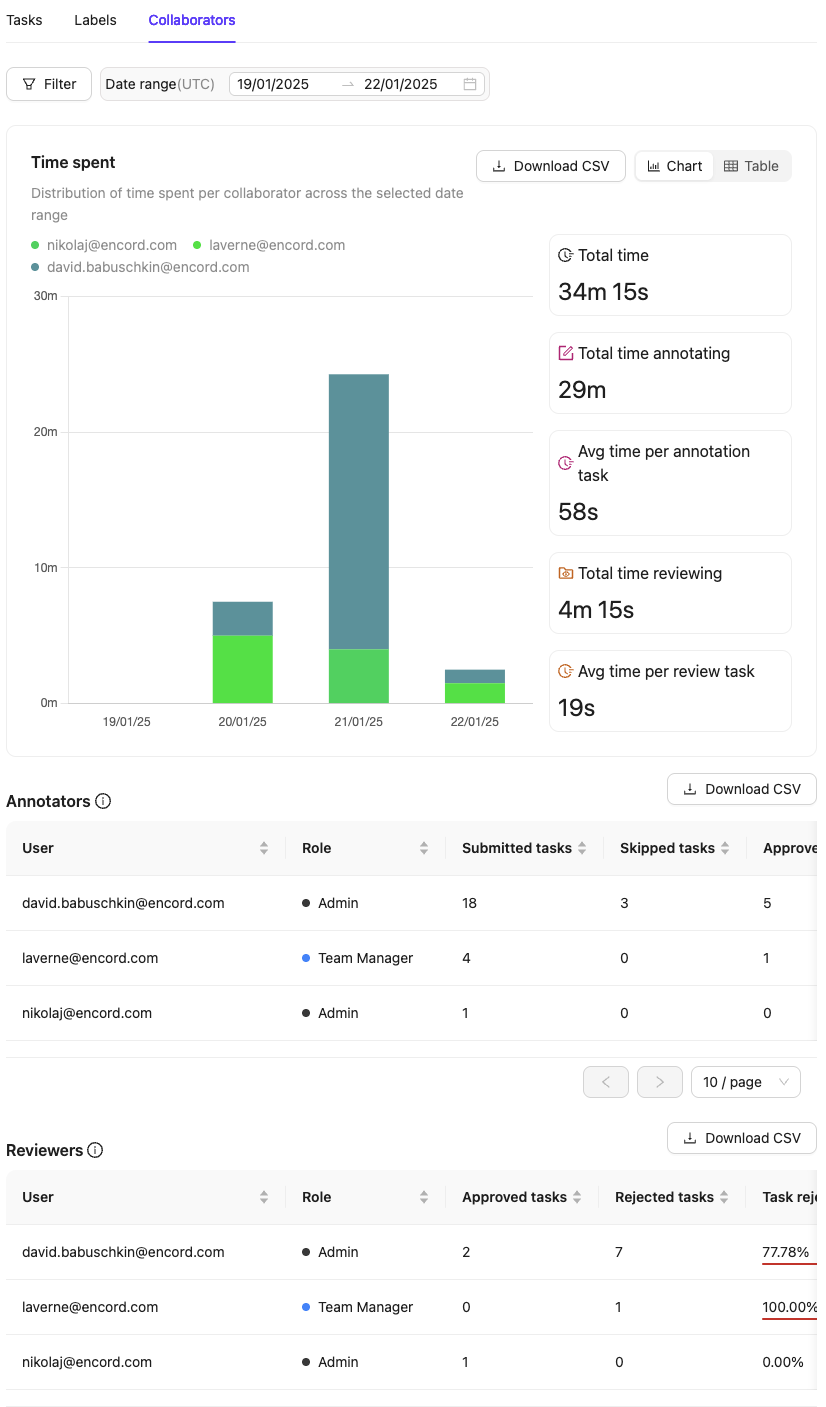
### Collaborators

<div class="flex justify-center">
  <img src="https://storage.googleapis.com/docs-media.encord.com/static/img/collaborator-analytics.png" width="700" />
</div>

The *Collaborators* in the *Analytics* dashboard provides a detailed view of time spent annotating and reviewing by Project collaborators. It can help answer questions such as:

1. **How much time did each collaborator spend on annotation / review tasks?**
   * Use the *Time spent* chart to see the time distribution for each collaborator across annotation and review tasks. The *Annotators* and *Reviewers* tables, which provide total and average times for each collaborator.
2. **Which collaborator spent the most time annotating or reviewing tasks in the Project?**
   * Analyze the *Time spent chart* to identify the collaborator with the highest time allocation.

| **Chart**  | **Description**                                                                                         |
| ---------- | ------------------------------------------------------------------------------------------------------- |
| Time spent | Displays the distribution of time spent per collaborator per day                                        |
| Annotators | Table view of all relevant task/label actions and timers for each collaborator in the Annotation stages |
| Reviewers  | Table view of all relevant task/label actions and timers for each collaborator in the Review stages     |

<Info>
  * Labels refer to objects and classifications.
  * Approve actions are are double counted if there are multiple review stages.
  * Review actions are double counted if multiple review stages are present or tasks get rejected again in the same review stage.
</Info>

<Note>
  Both tables and all CSV exports are filter-sensitive; they only display information within the selected filter conditions.
</Note>

The **Annotators** and **Reviewers** table columns vary depending on whether the *Instance labels* or *Frame labels* view is selected. They include the following columns.

<AccordionGroup>
  <Accordion title="Instance Labels">
    The **Annotators** table includes the following columns:

    * **Submitted tasks**: Total tasks submitted by the annotator.
    * **Skipped tasks**: Total tasks skipped by the annotator.
    * **Approved tasks**: Tasks submitted by the annotator that were approved in subsequent review stages.
    * **Rejected tasks**: Tasks submitted by the annotator that were rejected during review.
    * **Task rejection rate**: Percentage of the annotator's submitted tasks that were rejected. If multiple review stages are present, use workflow filters to view stage-specific rejections.
    * **Created labels**: Total new labels submitted by the annotator. Include any pre-labels imported using the SDK by admins.
    * **Edited labels**: Total existing labels edited by the annotator. This includes pre-labels from an Agent stage, or labels from a previous Annotate stage. Vertex / coordinate changes are not tracked.
    * **Deleted labels**: Total existing labels deleted by the annotator. This includes pre-labels from an Agent stage, or labels from a previous Annotate stage.
    * **Approved labels**: Labels submitted by the annotator that were approved during review.
    * **Rejected labels**: Labels submitted by the annotator that were rejected during review.
    * **Label rejection rate**: Percentage of the annotator's submitted labels that were rejected during review.
    * **Total annotation time**: Total active time spent annotating in the Label Editor, rounded to the nearest second.
    * **Avg time per task**: Average time spent on each submitted annotation task. Calculated using the total active time spent in the Annotate stage divided by the number of submitted tasks.
    * **Issue actions against user**: The number of [Issue](/platform-documentation/Annotate/annotate-label-editor/annotate-label-editor-review#issues-and-comments) actions taken against the user.

    The **Reviewers** table includes the following columns:

    * **Approved tasks**: Number of tasks approved by the reviewer.
    * **Rejected tasks**: Number of tasks rejected by the reviewer.
    * **Task rejection rate**: Percentage of reviewed tasks that were rejected by the reviewer.
    * **Created labels**: Total labels created by the reviewer using [Edit Review](/platform-documentation/Annotate/annotate-label-editor/annotate-label-editor-review#edit-labels-during-review).
    * **Edited labels**: Total labels edited by the reviewer using [Edit Review](/platform-documentation/Annotate/annotate-label-editor/annotate-label-editor-review#edit-labels-during-review).
    * **Deleted labels**: Total labels deleted by the reviewer using [Edit Review](/platform-documentation/Annotate/annotate-label-editor/annotate-label-editor-review#edit-labels-during-review).
    * **Approved labels**: Number of labels approved by the reviewer.
    * **Rejected labels**: Number of labels rejected by the reviewer.
    * **Total review time**: Total active time spent reviewing in the Label Editor, rounded to the nearest second.
    * **Avg time per label**: Average time spent on each reviewed label. Calculated using the total active time spent in the Review stage divided by the number of reviewed labels.
    * **Avg time per task**: Average time spent on each actioned review task. Calculated using the total active time spent in the Review stage divided by the number of actioned reviews.
    * **Issue actions by user**: The number of [Issue](/platform-documentation/Annotate/annotate-label-editor/annotate-label-editor-review#issues-and-comments) actions taken by the user.
  </Accordion>
</AccordionGroup>

<AccordionGroup>
  <Accordion title="Frame Labels">
    The **Annotators** table includes the following columns:

    * **Submitted tasks**: Total tasks submitted by the annotator.
    * **Skipped tasks**: Total tasks skipped by the annotator.
    * **Approved tasks**: Tasks submitted by the annotator that were approved in subsequent review stages.
    * **Rejected tasks**: Tasks submitted by the annotator that were rejected during review.
    * **Task rejection rate**: Percentage of the annotator's submitted tasks that were rejected. If multiple review stages are present, use workflow filters to view stage-specific rejections.
    * **Created frame labels**: Total new labels submitted by the annotator. Include any pre-labels imported using the SDK by admins.
    * **Edited frame labels**: Total existing labels edited by the annotator. This includes pre-labels from an Agent stage, or labels from a previous Annotate stage. Vertex / coordinate changes are not tracked.
    * **Deleted frame labels**: Total existing labels deleted by the annotator. This includes pre-labels from an Agent stage, or labels from a previous Annotate stage.
    * **Approved frame labels**: Labels submitted by the annotator that were approved during review.
    * **Rejected frame labels**: Labels submitted by the annotator that were rejected during review.
    * **Frame label rejection rate**: Percentage of the annotator's submitted labels that were rejected during review.
    * **Total annotation time**: Total active time spent annotating in the Label Editor, rounded to the nearest second.
    * **Avg time per task**: Average time spent on each submitted annotation task. Calculated using the total active time spent in the Annotate stage divided by the number of submitted tasks.

    The **Reviewers** table includes the following columns:

    * **Approved tasks**: Number of tasks approved by the reviewer.
    * **Rejected tasks**: Number of tasks rejected by the reviewer.
    * **Task rejection rate**: Percentage of reviewed tasks that were rejected by the reviewer.
    * **Created frame labels**: Total labels created by the reviewer using [Edit Review](/platform-documentation/Annotate/annotate-label-editor/annotate-label-editor-review#edit-labels-during-review).
    * **Edited frame labels**: Total labels edited by the reviewer using [Edit Review](/platform-documentation/Annotate/annotate-label-editor/annotate-label-editor-review#edit-labels-during-review).
    * **Deleted labels**: Total labels deleted by the reviewer using [Edit Review](/platform-documentation/Annotate/annotate-label-editor/annotate-label-editor-review#edit-labels-during-review).
    * **Approved frame labels**: Number of labels approved by the reviewer.
    * **Rejected frame labels**: Number of labels rejected by the reviewer.
    * **Total review time**: Total active time spent reviewing in the Label Editor, rounded to the nearest second.
    * **Avg time per frame label**: Average time spent on each reviewed label. Calculated using the total active time spent in the Review stage divided by the number of reviewed frame labels.
    * **Avg time per task**: Average time spent on each actioned review task. Calculated using the total active time spent in the Review stage divided by the number of actioned reviews.
  </Accordion>
</AccordionGroup>

You can choose which columns should be displayed and included in the CSV export using the *Columns* selector.

<div class="flex justify-center">
  <img src="https://storage.googleapis.com/docs-media.encord.com/static/img/columns-selector.png" />
</div>

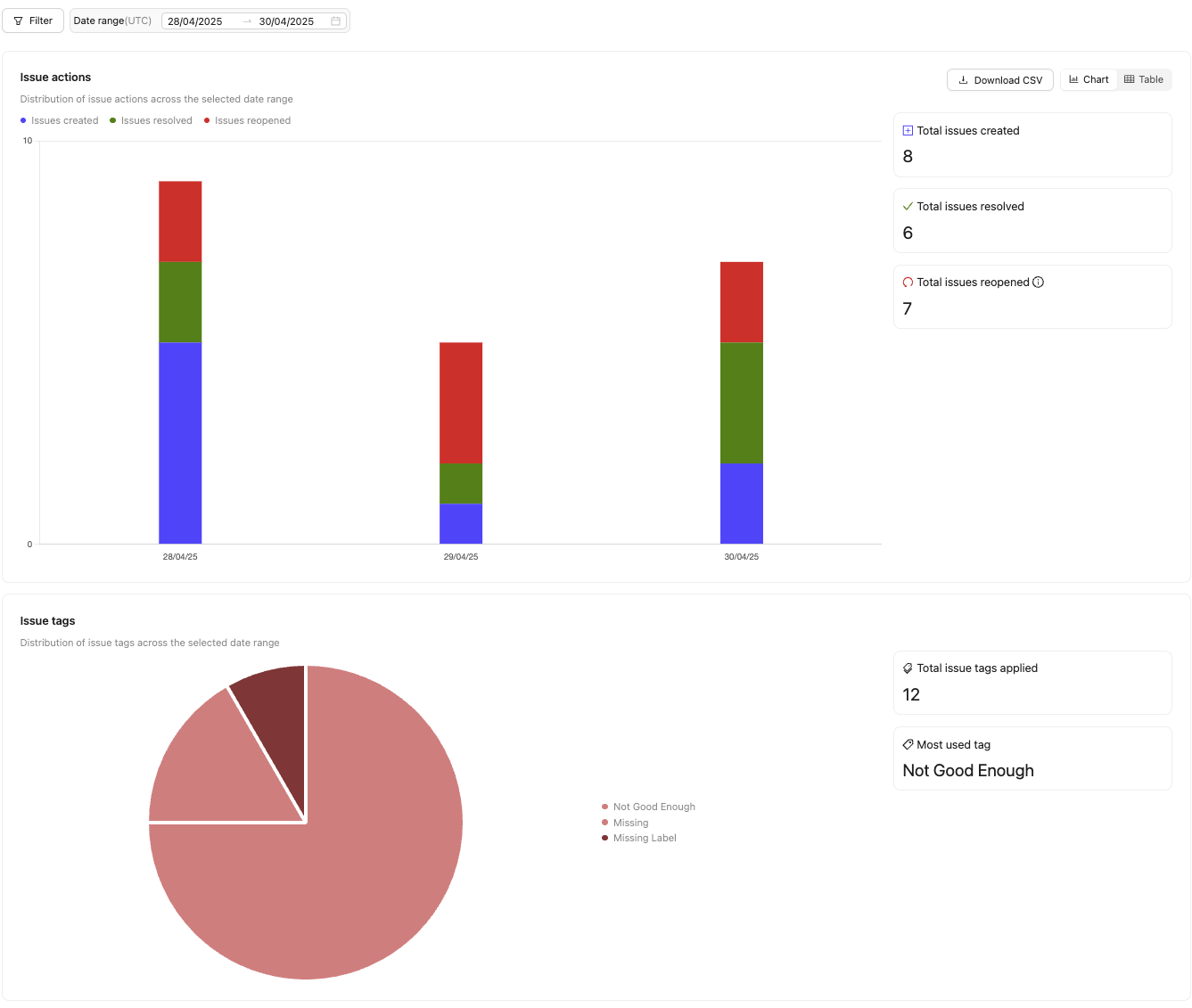
### Issues

The *Issues* tab in the *Analytics* dashboard provides a detailed view of all [issues](/platform-documentation/Annotate/annotate-label-editor/annotate-label-editor-annotate#issues-and-comments) created in the Project.

<div class="flex justify-center">
  <img src="https://storage.googleapis.com/docs-media.encord.com/static/img/issue-analytics.png" />
</div>

| **Chart**                     | **Description**                                                              |
| ----------------------------- | ---------------------------------------------------------------------------- |
| Issue actions                 | Shows the number of issues created, resolved, and opened.                    |
| Issue tag occurrence          | Shows the count of all issue tags used within the chosen timeframe.          |
| Issue tag occurrence by class | Shows the actions taken for all objects and classifications in the Ontology. |

The **Issue actions** chart shows the following:

* **Total issues created**: The total number of issues created.
* **Total issues resolved**: The number of issues marked as resolved.
* **Total issues reopened**: The number of issues that were reopened.

**Example - How to Understand Issue Analytics**:

If your **Issue actions** chart shows:

* Total issues created = 19
* Total issues resolved = 20
* Total issues reopened = 2

This means that:

* 19 issues were created.
* All 19 issues were resolved.
* 2 resolved issues were reopened. (This includes manually reopening an issue and re-rejections of labels)
* 1 of the reopened issues was resolved.
* There is one remaining open issue.

### Agents

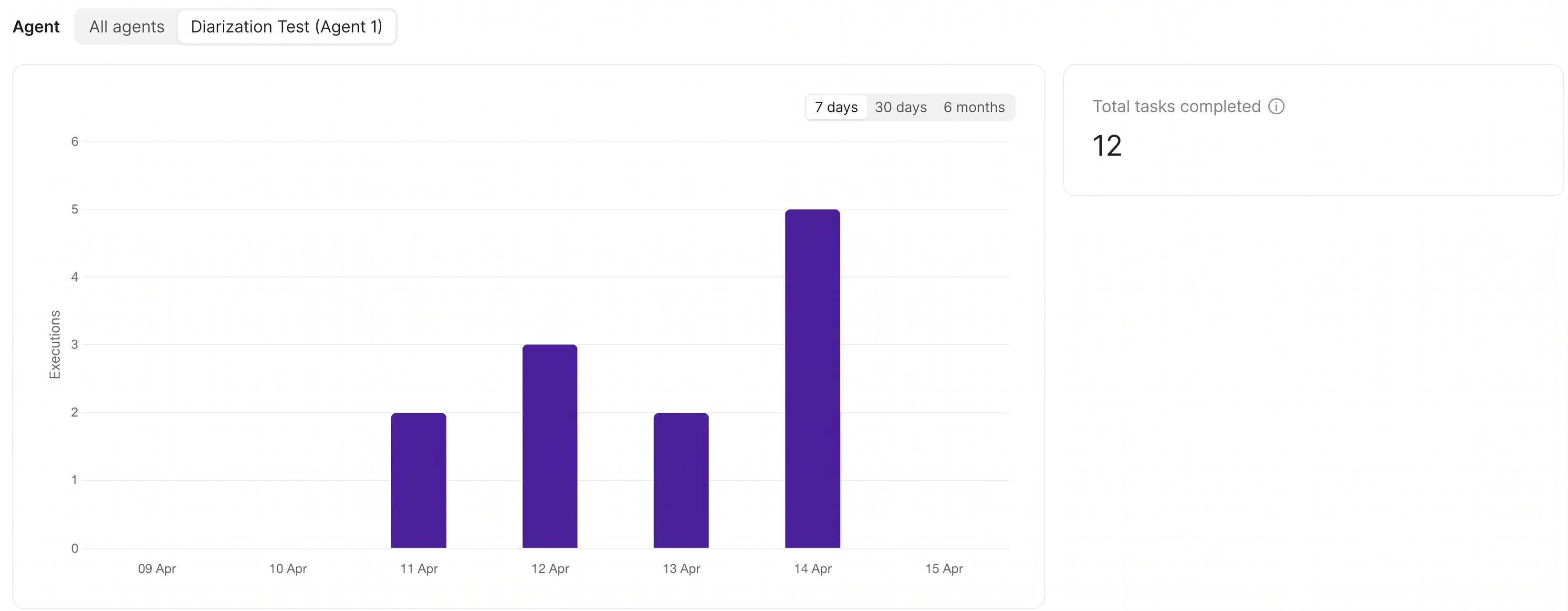
The *Agents* tab in the *Analytics* dashboard provides a detailed view of all [Agents](/platform-documentation/Annotate/automated-labeling/annotate-agents-overview) run in the Project.

<div class="flex justify-center">
  <img src="https://storage.googleapis.com/docs-media.encord.com/static/img/agents-analytics.png" />
</div>

***

## Join Projects in your Workspace

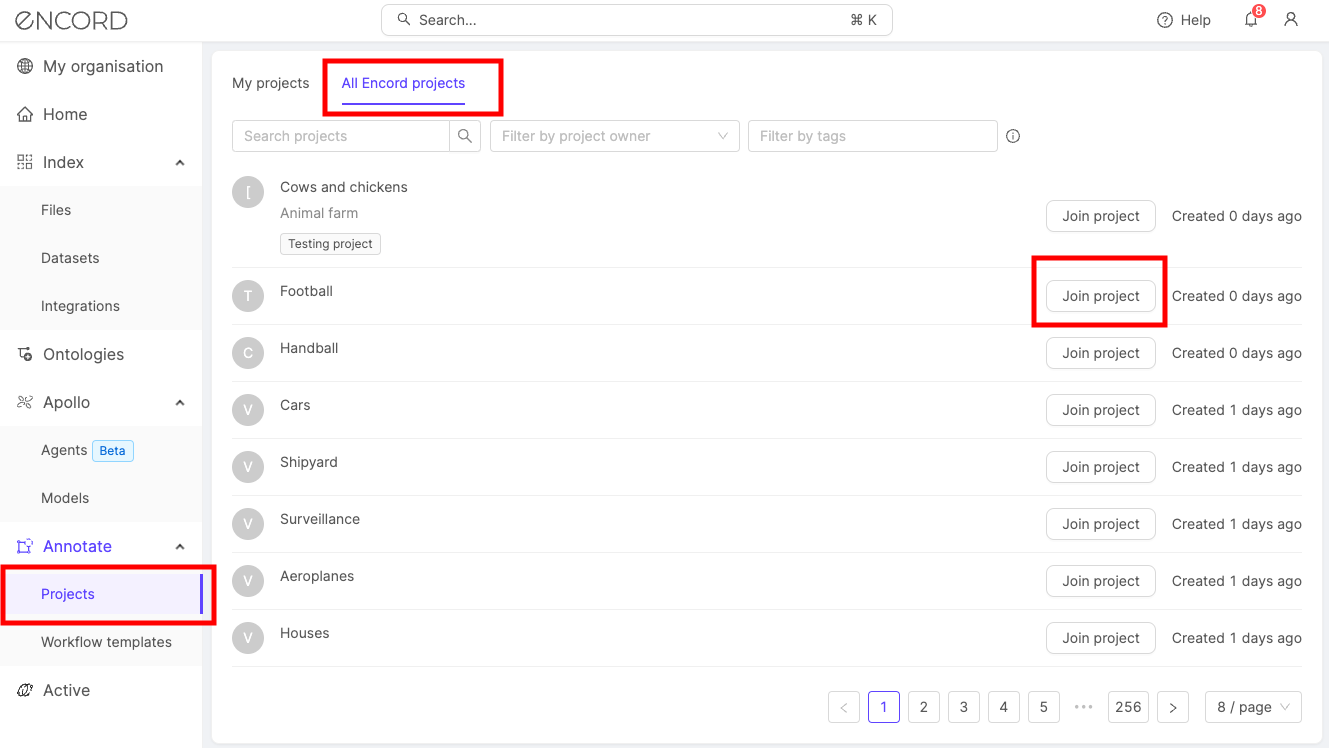
Workspace Admins can search for and join any Projects that exist within the Workspace. This includes Projects that contain no collaborators.

1. Navigate to **Projects** in the Encord platform.
2. Select the *All Encord projects* tab.
3. Find the Project you want to join.
4. Click **Join project** to join the Project.

<div class="flex justify-center">
  <img src="https://storage.googleapis.com/docs-media.encord.com/static/img/admin-join-projects.png" width="700" />
</div>

When a Workspace Admin joins a Project, they are automatically assigned the *Admin* [user role for that Project](/platform-documentation/Annotate/roles-and-permissions#projects).

<Tip>Projects can be filtered by Project owner or [Project tags](/platform-documentation/Annotate/annotate-projects/annotate-project-settings#project-tags).</Tip>

<Tip>See all Projects you belong to by clicking the *Filter by project owner* search bar, and selecting *My projects only*. </Tip>