> ## Documentation Index
> Fetch the complete documentation index at: https://docs.encord.com/llms.txt
> Use this file to discover all available pages before exploring further.
# Consensus Workflows
Consensus, in Encord, provides the ability for one or more reviewers to directly compare the labels on a data unit, generated by 2 or more annotators. Annotators do not see what other annotators have labeled. Reviewers can, depending on the settings configured in a Consensus block, select the best individual labels/classifications on a data unit or for agreement/correctness on their labels across an entire data unit (bulk label selection). In both cases, many annotation branches come in and the reviewer decides on the best annotations (individually or in bulk) and one branch comes out.
So in short, multiple annotators label a data unit, and a reviewer can decide on the best labels individually (**Refine and Review**) or in bulk (**Determine consensus**).
Only ANNOTATE, CONSENSUS, and AGENT nodes can be the first node after the START node in a workflow.
Consensus supports Object labels and Classifications on images, image groups, image sequences, videos, audio files, text files, PDFs, Data Groups (Review and Refine only), and DICOM series.
**Parallelization vs Consensus**
Parallelization assigns different classes to different annotators in parallel. Consensus assigns the same task to multiple annotators independently and compares their results. Use Parallelization to split work by class. Use Consensus to measure agreement.
## Consensus basics
Workflows direct who and how annotations, and reviews of those annotations, are performed on data units. The addition of the *Consensus* and *Archive* blocks brings the ability to get consensus on your annotations.
*Consensus* blocks include an ANNOTATE and REVIEW stage in a single block.
*ANNOTATE* blocks require:
* **# of annotators required for task**: Specify the number of annotators required to label a task (data unit) for the task to move to the REVIEW stage in the Consensus block.
* **Advanced - Allow task reassignment**: Specifies whether, in subsequent blocks, an annotator can annotate a task they have already annotated.
* Add and designate annotators to label the data. This could be from a pool of all annotators (**All**) on a Project or by selectively choosing annotators (**Selective**).
*REVIEW* blocks require:
* Specify the type of review by selecting either **Review and Refine** or **Determine consensus**. *Review and refine* allows reviewers to individually select any of the best labels/classifications on a data unit from any annotator. Reviewers can also edit any **Approved labels** or create new labels on the data unit. *Determine consensus* allows reviewers to select the best labels/classifications on a data unit from 1 annotator (bulk selection) and to determine if there is agreement on the labels/classifications across annotators on the data unit.
* **# of annotators required to agree** (*Determine consensus*): Specify the number of annotators that a reviewer decides have labels that are correct and in agreement on a task.
* **Advanced - Allow task reassignment**: Specifies whether, in subsequent blocks, a reviewer can review a task they have already worked reviewed.
*Archive* blocks provide a location for any task that reviewers deem "not in consensus" or "rejected".
Tasks move through Consensus Projects in the following way:
1. When the number of annotators specified in **# of annotators required for task** label the task, the task moves to REVIEW.
2. Reviewers compare the labels on the task:
* *Review and refine* : Reviewers select the best individual labels/classifications from any annotator across the data unit. Reviewers can edit any *Approved labels* and add new labels to the data unit.
* *Determine consensus* : Reviewers decide on the correctness and annotator agreement specified in **# of annotators required to agree**. The task moves to the next stage based on label correctness and whether consensus is reached.
3. Adding multiple Consensus blocks in sequence, means all labels from all previous Consensus blocks display for the reviewers in each subsequent Consensus block.
Encord provides the following default Consensus Workflow, when creating a Project:
The default Consensus Workflow **Consensus** uses 2 Consensus blocks. The first block uses *Determine consensus* with the second using *Review and Refine*.
When using any Consensus Workflow in a Project, do not forget to add your annotators and reviewers to the ANNOTATE and REVIEW sections. Also, if needed, edit the values for **# of annotators required for task** and **# of annotators required to agree**, for each Consensus block.
## Create a Consensus Project
1. Log in to Encord.
The Encord homepage appears.
2. Go to **Annotate > Projects > Annotation projects**.
The *Annotation projects* page appears.
3. Click the **New annotation project** button.
The *Create new project* page appears.
4. Click the **Load workflow template** button.
The *Load from workflow template* modal appears.
5. Select a Workflow template that uses Consensus blocks from the workflow template list.
*Consensus*, the default Consensus Workflow, appears at the top of the template list.
6. Click **Load template**.
The Workflow template appears in the Project workspace.
7. Specify which type of consensus you want to use from the REVIEW block:
* **Review and refine** (default value)
* **Determine consensus**
8. (Optional) Selectively add your annotators and reviewers to the ANNOTATE and REVIEW sections of the Consensus block.
9. Specify the required value for **# of annotators required for task**.
10. Specify the required value for **# of annotators required to agree** if you selected *Determine consensus*.
11. Specify the **Advanced - Allow task reassignment** for both the *Annotate* and *Review* blocks. The default settings are *Disabled* for *Annotate* blocks and *Enabled* for *Review* blocks.
12. Complete configuration of the Project.
13. Click **Create project**.
The Project appears in the Annotation project list.
## Consensus Advanced
When the default Consensus Workflow template does not suit your requirements, build your own Consensus Workflow template. You can add multiple Consensus, Annotate, Review, and Router blocks to a Workflow.
Here are a couple of examples.
In this Consensus Workflow:
* Total # of annotators: 6
* Total # of reviewers: 2
* **# of annotators required for task**: 4
* **# of annotators required to agree**: 3
The following diagrams follows a task through the Consensus Workflow until the labels on the task are correct and in consensus or incorrect and not in consensus.
In this Consensus Workflow:
Consensus Block:
* Total # of annotators: 6
* Total # of reviewers: 2
* **# of annotators required for task**: 4
* Reviewers see labels from all 4 annotators.
Consensus Block 2:
* Total # of expert annotators: 2
* Total # of expert reviewers: 2
* **# of annotators required for task**: 1
* Expert reviewers see labels from all 5 annotators (4 from Consensus Block 1 and 1 from Consensus Block 2).
The following diagrams follow a task through the Consensus Workflow until the labels on the task are correct and in consensus or incorrect and not in consensus. If consensus happens in the first Consensus block, the task goes directly to Complete.
## Create a Consensus Workflow Template
To create a consensus Workflow template, your template must include one (or more) Consensus block and one Archive block. Consensus blocks can be used with [Annotate](/platform-documentation/Annotate/annotate-projects/annotate-workflows-and-templates#annotate) [Percentage Router](/platform-documentation/Annotate/annotate-projects/annotate-workflows-and-templates#percentage-router) blocks and [Review](/platform-documentation/Annotate/annotate-projects/annotate-workflows-and-templates#review) blocks to build out your Workflow template.
For more information on creating Workflow templates see [our documentation here](/platform-documentation/Annotate/annotate-projects/annotate-workflows-and-templates#creating-workflows).
**To create a Consensus Workflow template:**
1. Log in to Encord.
The Encord homepage appears.
2. Go to **Annotate > Workflow templates**.
The Workflow templates page appears.
3. Click the **New workflow template** button.
The *Create Workflow template* page appears.
4. Click the **Invite collaborators** icon.
The *Workflow Collaborators* dialog appears.
5. Add the required collaborators for the template.
Remember that consensus requires at least 2 annotators for the first Consensus block, and we recommend at least 2 reviewers per Consensus block.
6. Click the **Add stage** icon.
The Add stage dialog appears.
7. Drag and drop at least 1 **Consensus** block and 1 **Archive** block into the template creation workspace.
8. Specify the REVIEW settings for the block (**Review and refine** or **Determine consensus**).
9. Connect the **No Consensus** output of the Consensus block (the final Consensus block if you have more than one Consensus block) to the input of the **Archive** block.
10. Add other blocks to the template as you require.
11. In each block, specify collaborators to perform tasks. You can add all annotators and reviewers as pools (**All**) or you can specify specific annotators and reviewers for each block (**Selective**).
12. Specify a value for **# of annotators required for task** for the *Annotate* portion of the *Consensus* blocks.
**# of annotators required for task** is the number of annotators required to annotate a task (data unit) before the task (data unit) moves to the *Review* stage in the *Consensus* block.
If you use 2 or more Consensus blocks in your workflow, we recommend specifying only 1 annotator for your second and subsequent Consensus blocks. This is because all annotators, and their annotations, from previous blocks appear in the review of subsequent reviews.
12. (**Determine consensus** only) Specify a value for **# of annotators required to agree** for the *Review* stage in the *Consensus* blocks.
**# of annotators required to agree** is the number of annotators required to agree on ALL labels on a data unit before consensus is reached. Reviewers decide if annotators have correctly labeled a data unit and if the annotators are in agreement.
13. Complete configuration of the template.
14. Save the template.
## What do different user roles see?
Certain tabs can only be accessed by specific users roles.
| **Tab** | Annotator | Reviewer\* | Annotator + Reviewer\* | Team Manager | Admin |
| --------- | --------- | ---------- | ---------------------- | ------------ | ----- |
| Summary | ❌ | ❌ | ❌ | ✅ | ✅ |
| Explore | ❌ | ❌ | ❌ | ✅ | ✅ |
| Queue | ✅ | ✅ | ✅ | ✅ | ✅ |
| Workflow | ❌ | ❌ | ❌ | ✅ | ✅ |
| Analytics | ✅ | ✅ | ✅ | ✅ | ✅ |
| Settings | ❌ | ❌ | ❌ | ✅ | ✅ |
### Annotators
When working on consensus Projects, annotators have no changes to their workflow or within the Encord platform. Annotators simply need to annotate the tasks (data units) in their queue.
Annotators do not see the work of other annotators as they annotate their tasks in Consensus Projects.
**Advanced - Allow task reassessment**: When this feature is disabled, annotators CANNOT see this task again as the moves through the workflow. This means they CANNOT annotate a task again, once they have annotated the task. **Disabled** is the default setting.
### Reviewers
When reviewing labels from a REVIEW block on Consensus Projects, reviewers have a new UI when they initiate a task for review.
The only annotator's work/labels that display in audit Review blocks or the Complete block, is the annotator you specify as the "best annotator".
When reviewing and refining labels from a REVIEW and REFINE block, reviewers see all the labels from all annotators.
**Advanced - Allow task reassessment**: When this feature is enabled, reviewers CAN see this task again as the moves through the workflow. This means they CAN review a task multiple times as the task moves through the workflow. **Enabled** is the default setting.
### Annotator & Reviewer
Users with the *Annotator & Reviewer* role can see both the ANNOTATE and REVIEW blocks in a Consensus. As an annotator, the user cannot see the labels from other annotators. As a reviewer the user can view all labels from all annotators (including themselves) because the **Advanced - Allow task reassessment** feature is **Enabled** by default.
**Advanced - Allow task reassessment**: What a user with the *Annotator & Reviewer* role can see or do depends on the block they are in.
* ANNOTATE block: When this feature is enabled, annotators CAN see this task again as the task moves through the workflow. This means they CAN review a task multiple times as the task moves through the workflow. **Disabled** is the default setting.
* REVIEW block: When this feature is enabled, reviewers CAN see this task again as the task moves through the workflow. This means they CAN review a task multiple times as the task moves through the workflow. This also means if the user annotated the task, they can review their own task. **Enabled** is the default setting.
### Admins and Team Managers
Admins and Team Managers can do the following:
* Annotate tasks
* Act as a reviewer on Review tasks
* **View** tasks
* Monitor the entire queue (Annotate and Review tasks). This includes which tasks are in progress in terms of the number of annotators working on a task with the number of annotators required to finish a task.
* Reassign annotation tasks
## Export Labels from Consensus Projects
Consensus Projects export ONLY the labels that come from the annotator's that are marked as "Best" on each data unit by reviewers. This means that only the best labels are exported for your ML training.
**To export labels from Consensus Projects**:
1. Click **Export** while in a Project.
The *Export labels* dialog appears.
2. Specify the following:
* **Format:** Specify the format to export the labels (JSON or COCO).
* **Stage:** Specify the Workflow stage to export the labels from.
* **Generate signed URLs:** Specify whether to generate signed URLs for the data units that have labels.
Enabling this option can significantly increase export times.
* **Save as new version:** Specify to version the labels.
* **Labels to include:** Specify the labels to include. You can export all labels or select specific object or classification labels to export.
3. Click **Export**.
A *Labels export in progress* toast message appears.
## Reopen/Reassign Consensus Annotate tasks
As annotators work through their queue of annotation tasks, each task is "locked" to the annotator that first opened that specific task. The task is no longer visible to other annotators in the Project. In a Project that uses a Consensus Workflow, tasks get locked once multiple annotators (as specified by the number of annotators required to annotate a task in a Consensus block) open a specific task. All annotators must complete the annotation task before the task can move to the Review stage. Admins and Team Managers can reassign/reopen a task. Reopening the task makes the task visible to all annotators in the Project, and any annotator in the Project can then work on the task. Reassigning the task allows Admins or Team Managers to specify the annotator that works on the task.
**To reopen/reassign an Annotate task:**
1. Log in to Encord.
The Encord homepage appears.
2. Go to **Annotate > Projects > Annotate projects**.
The *Annotate projects* page appears.
3. Click a Consensus Project from the Project list.
The *Summary* page for the Project appears.
4. Click the **Annotate** block with the task you want reassigned.
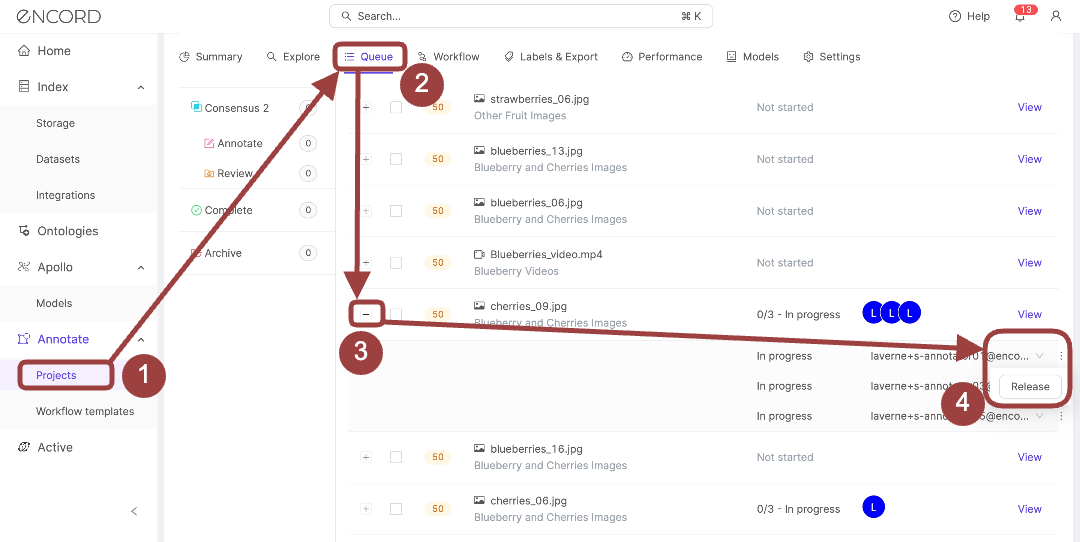
5. Expand the task you want to reassign.
The row expands to display the users currently assigned to the task.
6. To reopen the task to any annotator on the Project:
a. Click the 3 dots icon next to the annotator you want the task reopened from.
The *Reopen* button appears.
b. Click **Reopen**.
The task becomes visible to all annotators in the Annotate queue. Any annotator can then "lock" the task (including the annotator the task was reopened from).
7. To assign a specific annotator to the task:
a. Click the down arrow next to the annotator you want the task reassigned from.
A drop-down menu appears with all annotators available on the Project
b. Click the down arrow next to the user you want changed.
A drop-down menu appears with other annotators available to perform the task.
c. Select the annotator you want the task assigned to.
## Reopen Complete or Archive Consensus Tasks
In Consensus Projects, tasks in the COMPLETE and ARCHIVE blocks CANNOT be reopened.


