> ## Documentation Index
> Fetch the complete documentation index at: https://docs.encord.com/llms.txt
> Use this file to discover all available pages before exploring further.
# User Settings
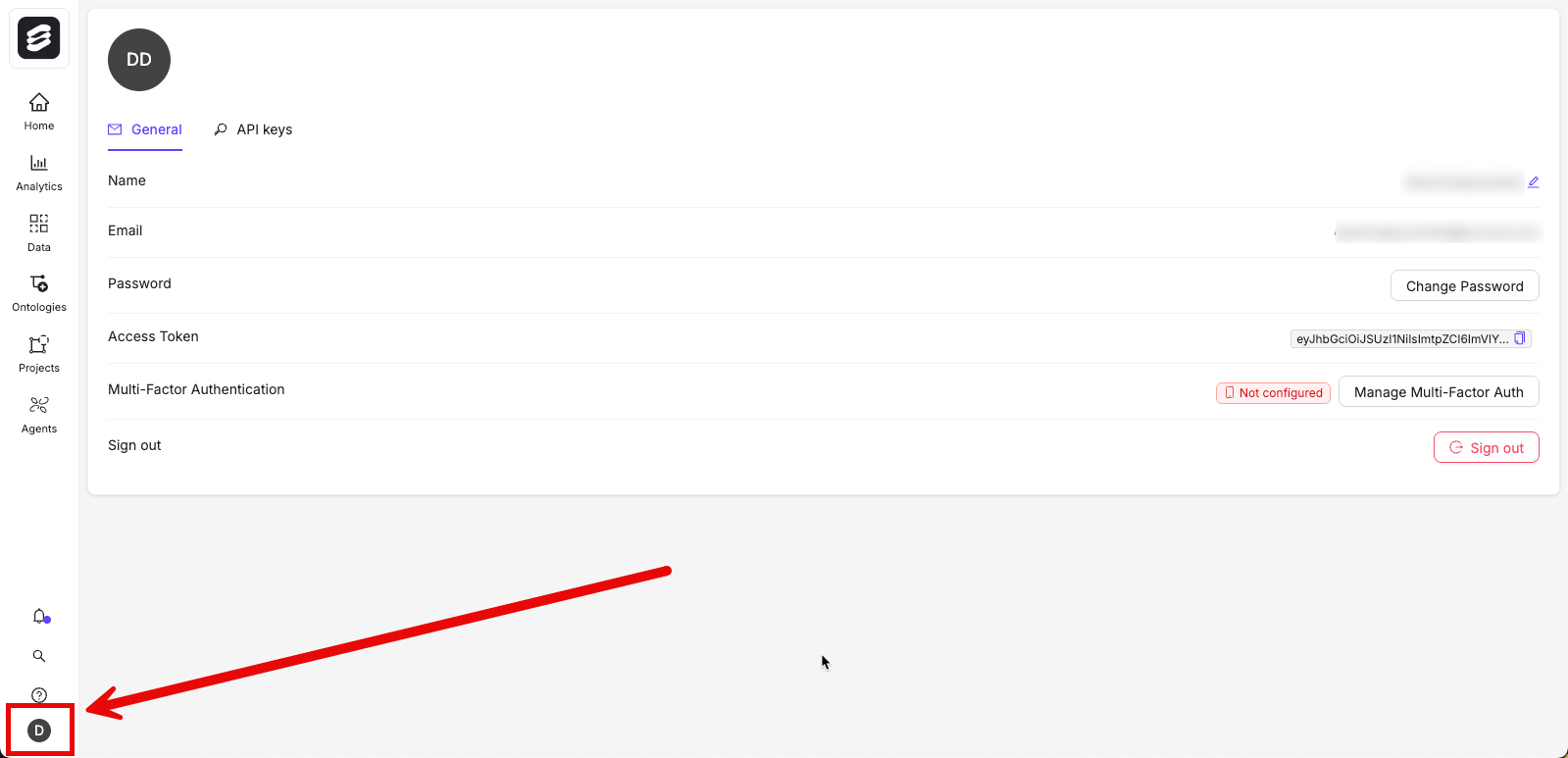
To navigate to user settings, click your user icon in the bottom-left of the Encord platform.
The settings have several tabs:
* **General**: Your user login credentials. Change your password and set up [Multi-Factor Authentication](#multi-factor-authentication) for your Encord user account.
* **[API keys](/platform-documentation/General/general-access-keys)**: creating and managing [SDK](/sdk-documentation/getting-started-sdk/installation-sdk) keys.
## Multi-Factor Authentication
In addition to your login credentials, Encord recommends that you add the alternate SMS verification to receive SMS for OTP while logging in to the Encord platform. You can enroll single or multiple devices for authentication.
1. In the *General* tab, click the **Manage Multi-Factor Auth** button.
The **Enroll new Multi-Factor Authentication** dialog appears.
2. Click one of the following:
* **Authenticator:**
a. To configure an authenticator, sign out from Encord.
b. Log back into Encord.
c. Navigate back to the *General* tab.
d. Click the **Manage Multi-Factor Auth** button.
An *Authenticator* configuration dialog appears.
e. Scan the code using your authenticator app or manually type the string provided into your authenticator app.
f. Type the code provided by your authenticator app into the dialog.
g. Click **Enroll**.
A success dialog appears.
The next time users sign in, users are required to use an authenticator app to sign in to Encord.
* **SMS code:**
a. To configure an SMS code, provide a device name and the phone number that you want to enroll for SMS, and click **Send SMS Code**.
b. On enrolling a device for the first time, you must sign out and sign in again to authenticate your verification request.
c. After signing in again, invoke the *Multi-Factor Authentication* modal again from the *General* tab and input your device name and phone number.
Only 1 number can be added.
d. Click **Send verification code** and solve a CAPTCHA challenge.
e. In the next field that appears, enter the SMS code received on your phone, and click **Verify SMS Code**.
To remove a device, click **Manage Multi-Factor Auth > Remove**. You must log out and log back in to complete the removal process.