> ## Documentation Index
> Fetch the complete documentation index at: https://docs.encord.com/llms.txt
> Use this file to discover all available pages before exploring further.
# Webhooks and Notifications
Webhooks are automated requests that send a JSON payload with information about a Project or task to a specified URL at a designated point in your Project's Workflow. For example, if a webhook is added to the *Complete* stage of a Project, then a JSON payload containing the Project and task ID is sent every time a task reaches the *Complete* stage.
Common use-cases for webhooks include:
* [Automatically exporting labels when they are marked as complete](/platform-documentation/Annotate/annotate-export/annotate-how-to-export-labels#export-labels-to-cloud-storage-recommended).
* Setting up a daily report to track the number of annotation tasks submitted for review each day.
***
## Setting Up Webhooks
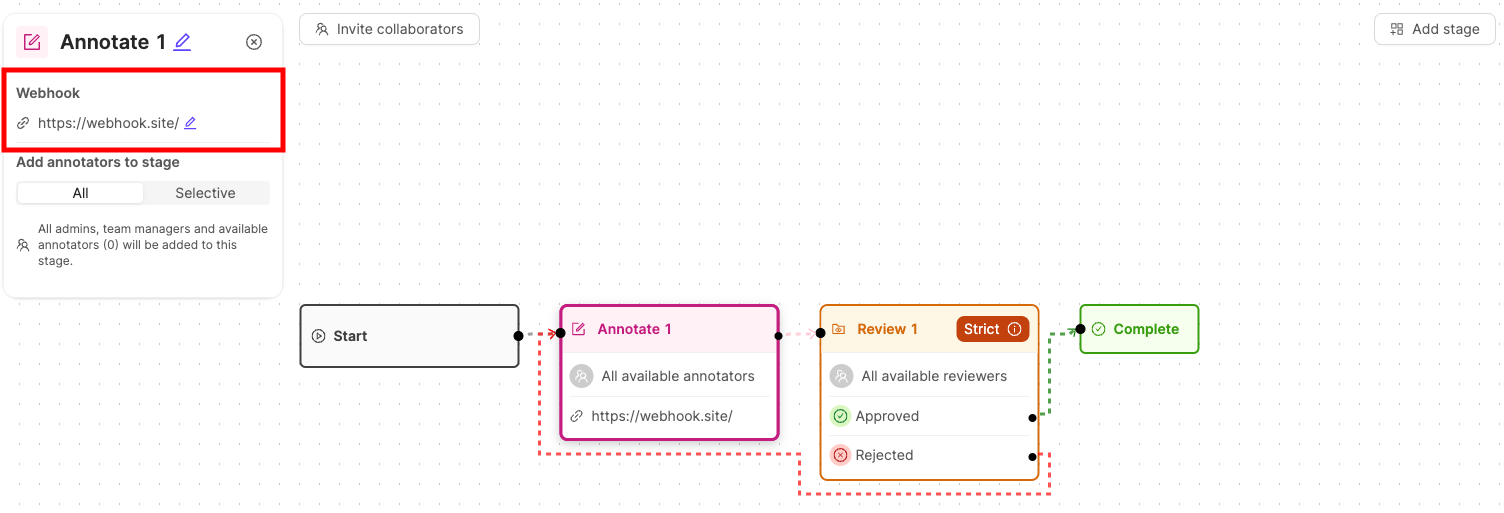
Webhooks can be set up when creating or editing a Workflow. This includes setting up a Workflow while creating a new annotation Project, creating a Workflow template, or editing the Workflow of an existing Project.
Webhooks can only be added to *Annotate* and *Complete* stages. [Webhooks on *Annotate* stages](#task-submitted-payload) trigger when tasks are submitted for review. [Webhooks on *Complete* stages](#task-completed-payload) trigger when a task is completed.
1. With the Workflow open, click the Workflow stage you want to create a webhook for.
A pop-up for to configure the Workflow stage appears.
2. In the pop-up, click the *Edit* symbol under the *Webhook* heading.
3. Enter the URL you want the [JSON payload](#webhook-event-payloads) to be sent to. Press Enter on your keyboard to confirm.
4. Ensure you save your changes.
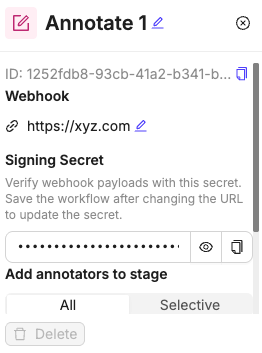
After adding or updating a webhook URL, a unique signing secret is automatically generated for that webhook. This secret appears in the **Signing Secret** section below the URL field and can be used to verify webhook payloads.
***
## Webhook Event Payloads
### Task Submitted Payload
All task submitted events, triggered on the *Annotate* stage, have the following fields:
| Key | Type | Description |
| ------------------------- | --------- | ------------------------------------------------------------------------------------------------- |
| `uid` | `string` | Unique identifier of the event. |
| `version` | `integer` | Major version number to indicate backwards incompatible versions. |
| `source` | `string` | The source of the payload. Is always "Encord". |
| `event_type` | `string` | The event type. `task_submitted_event` is triggered on the *Annotate* stage. |
| `event_created_timestamp` | `string` | A string of the timestamp in the ISO 8601 format. For example `2022-04-13T14:35:11.791161+00:00`. |
| `payload` | `object` | An object containing the Project and label information. |
| `project_hash` | `string` | The unique identifier for the Project. |
| `data_hashes` | `string` | The unique identifiers for the data unit. |
| `label_hashes` | `string` | The unique identifiers for the Label Row. |
Example payload:
```json theme={"dark"}
{
"uid": "687457ce-6489-4891-b7c8-544477d99e41",
"version": 1,
"source": "Encord",
"event_type": "task_submitted_event",
"event_created_timestamp": "2024-03-25T15:18:55.406529+00:00",
"payload": {
"project_hash": "751a3a3e-46b6-4aad-b0b8-19b169f91266",
"data_hashes": [
"f0b012de-5aea-4457-b515-936b0c185771"
],
"label_hashes": [
"fdb9a21f-d9a7-48b5-9dac-dfe3e0e2c57f"
]
}
}
```
### Task Completed Payload
All task completed events, triggered on the *Complete* stage, have the following fields:
| Key | Type | Description |
| ------------------------- | --------- | ------------------------------------------------------------------------------------------------- |
| `uid` | `string` | Unique identifier of the event. |
| `version` | `integer` | Major version number to indicate backwards incompatible versions. |
| `source` | `string` | The source of the payload. Is always "Encord". |
| `event_type` | `string` | The event type. `task_completed_event` is triggered on the *Complete* stage. |
| `event_created_timestamp` | `string` | A string of the timestamp in the ISO 8601 format. For example `2022-04-13T14:35:11.791161+00:00`. |
| `payload` | `object` | An object containing the Project and label information. |
| `label_hash` | `string` | The unique identifier for the Label Row. |
| `project_hash` | `string` | The unique identifier for the Project. |
| `data_hash` | `string` | The unique identifier for the data unit. |
Example payload:
```json theme={"dark"}
{
"uid": "950f9048-bd28-42e7-89cb-2538f27c1695",
"version": 1,
"source": "Encord",
"event_type": "task_completed_event",
"event_created_timestamp": "2024-03-25T15:13:40.456441+00:00",
"payload": {
"label_hash": "c25be5c7-2a7f-4de9-8afd-9e2f72064e84",
"project_hash": "751a3a3e-46b6-4aad-b0b8-19b169f91266",
"data_hash": "f5fb9c39-cbfc-4bf3-8fdb-95ee4da24c14"
}
}
```
***
## Verifying Webhook Signatures
Encord signs every webhook request so you can confirm it genuinely originated from Encord and has not been tampered with.
Verification is optional but recommended for production integrations.
### How it works
Every webhook request includes two headers:
* `X-Encord-Signature` - an HMAC-SHA256 hex digest of the timestamp and request body, formatted as `{timestamp}.{body}`
* `X-Encord-Timestamp` - a Unix timestamp of when the request was sent
### Retrieving your signing secret
Open the [**Annotate**](/platform-documentation/Annotate/annotate-projects/annotate-workflows-and-templates#annotate) or [**Complete**](/platform-documentation/Annotate/annotate-projects/annotate-workflows-and-templates#complete) Workflow node that contains the webhooks and copy the secret from the **Signing Secret** field. Your signing secret is unique to each webhook URL.
A signing secret is only generated when a valid webhook URL is entered. If you change the webhook URL, a new signing secret is generated.
### Managing signing secrets
You can view and copy your signing secret in several ways:
* **In Workflow configuration**: When setting up or editing a webhook in a Workflow stage, the signing secret appears below the URL field with options to show/hide and copy the secret.
* **In webhook management**: From your user settings, you can access all your webhooks and copy their signing secrets using the copy button next to each webhook entry.
Use the show/hide toggle to safely view your signing secret without exposing it to others who might be looking at your screen.
### Verifying the signature
To verify a request, recompute the signature on your server and compare it against
the `X-Encord-Signature` header.
```python theme={"dark"}
import hashlib
import hmac
def verify_encord_webhook(
payload_body: bytes,
signing_secret: str,
encord_signature: str,
encord_timestamp: str,
) -> bool:
message = encord_timestamp.encode() + b"." + payload_body
expected = hmac.new(
signing_secret.encode(),
message,
hashlib.sha256
).hexdigest()
return hmac.compare_digest(expected, encord_signature)
```
If the signatures do not match, discard the request.
### Replay protection
Use the `X-Encord-Timestamp` header to reject requests with a timestamp older than a reasonable threshold (for example, 5 minutes). This prevents replay attacks where a valid request is captured and re-sent.
If no signing secret is configured for a webhook URL, the `X-Encord-Signature` and `X-Encord-Timestamp` headers are not included in the request.
***
## IP Addresses for Webhooks
For teams with advanced security practices, you must add our IP addresses to an approved list to ensure that only trusted **incoming** traffic from our services can reach your webhook endpoints.
US Deployment refers to customers working on Encord's US-hosted instance, rather than simply being located in the United States.
* `34.89.106.119/32`
* `34.142.51.70/32`
* `34.105.9.215/32`
* `34.168.169.190/32`