> ## Documentation Index
> Fetch the complete documentation index at: https://docs.encord.com/llms.txt
> Use this file to discover all available pages before exploring further.
# Interpolation
Interpolation is a process to automatically create instance labels by estimating the location that labels should be created in videos and image sequences. Interpolation uses manual labels as reference points and needs to be run separately for each object instance.
[Object tracking](/platform-documentation/Annotate/automated-labeling/annotate-sam) and interpolation both automatically apply labels.
* Interpolation **applies labels in between existing labels**.
* [Object tracking](/platform-documentation/Annotate/automated-labeling/annotate-sam) uses SAM 2 and applies labels to consecutive frames.
All labels automatically created using interpolation are assigned a [confidence score (α)](/platform-documentation/Annotate/annotate-label-editor#confidence-score) of 99%.
No data is stored on our servers when using interpolation.
***
### Ontologies
| **Ontology shape** | **Interpolation** | **Tracking** |
| ---------------------- | ----------------- | ------------ |
| Bounding box | ✅ | ✅ |
| Rotatable bounding box | ✅ | ✅ |
| Polygon | ✅ | ❌ |
| Polyline | ✅ | ✅ |
| Primitive | ✅ | ✅ |
| Keypoint | ✅ | ✅ |
| Bitmask | ✅ | ❌ |
***
#### Simple Interpolation
The video tutorial below goes through the basics of using interpolation in the Label Editor.
1. Create instance labels on at least two non-consecutive frames.
The more instance labels are manually added throughout the video, the more accurate the resulting interpolation becomes.
2. Click the three dots icon on the instance to be interpolated, and click **Interpolate**.
3. Interpolation is run between the first and last frames the instance is labeled.
#### Keyboard Shortcut
You can use keyboard shortcuts to run interpolation.
1. Click the instance label.
2. Use the Shift + I keyboard shortcut to the run interpolation between the first and last frames the instance is labeled.
### Advanced Interpolation
1. Create instance labels on at least two non-consecutive frames.
Increase the accuracy of interpolated labels by adding more manual instance labels to different frames as references.
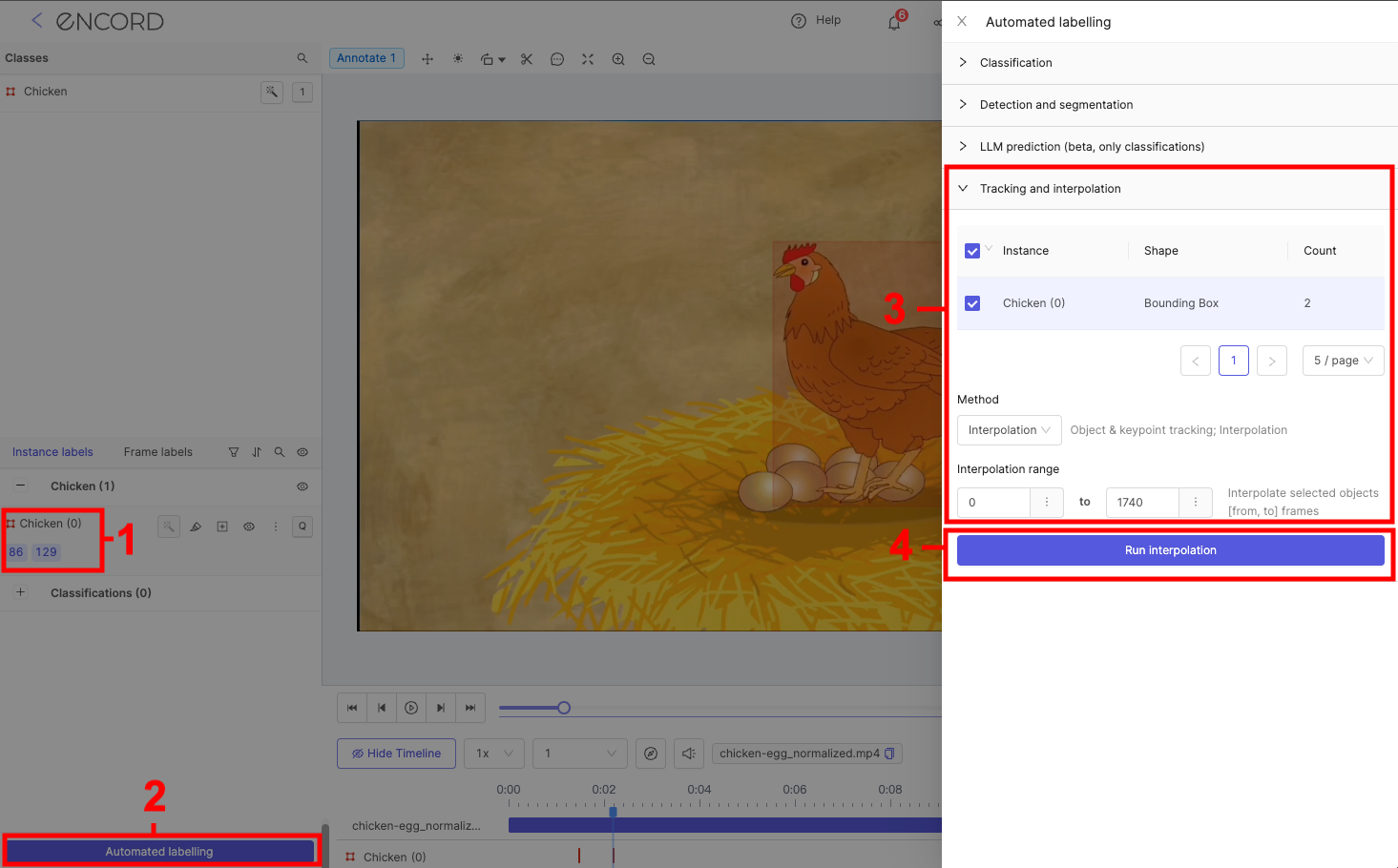
2. Click the **Automated labelling** button in the bottom left corner of the label editor to bring up the options for automated labeling. The *Tracking and interpolation* section is open by default.
3. The *Tracking and interpolation* section is open by default.
* Select *Interpolation* under the *Method* heading.
* Select the object instance(s) you want to interpolate.
* *Interpolation range* specifies the range of frames for interpolation.
Only Workspaces on ['Enterprise' pricing](https://encord.com/pricing/) can interpolate over a range larger than 1000 frames.
4. Click **Run interpolation** to interpolate the selected object instances.
***
### Re-Interpolate
Interpolation results can be improved by manually correcting some interpolated labels, and re-running the interpolation.
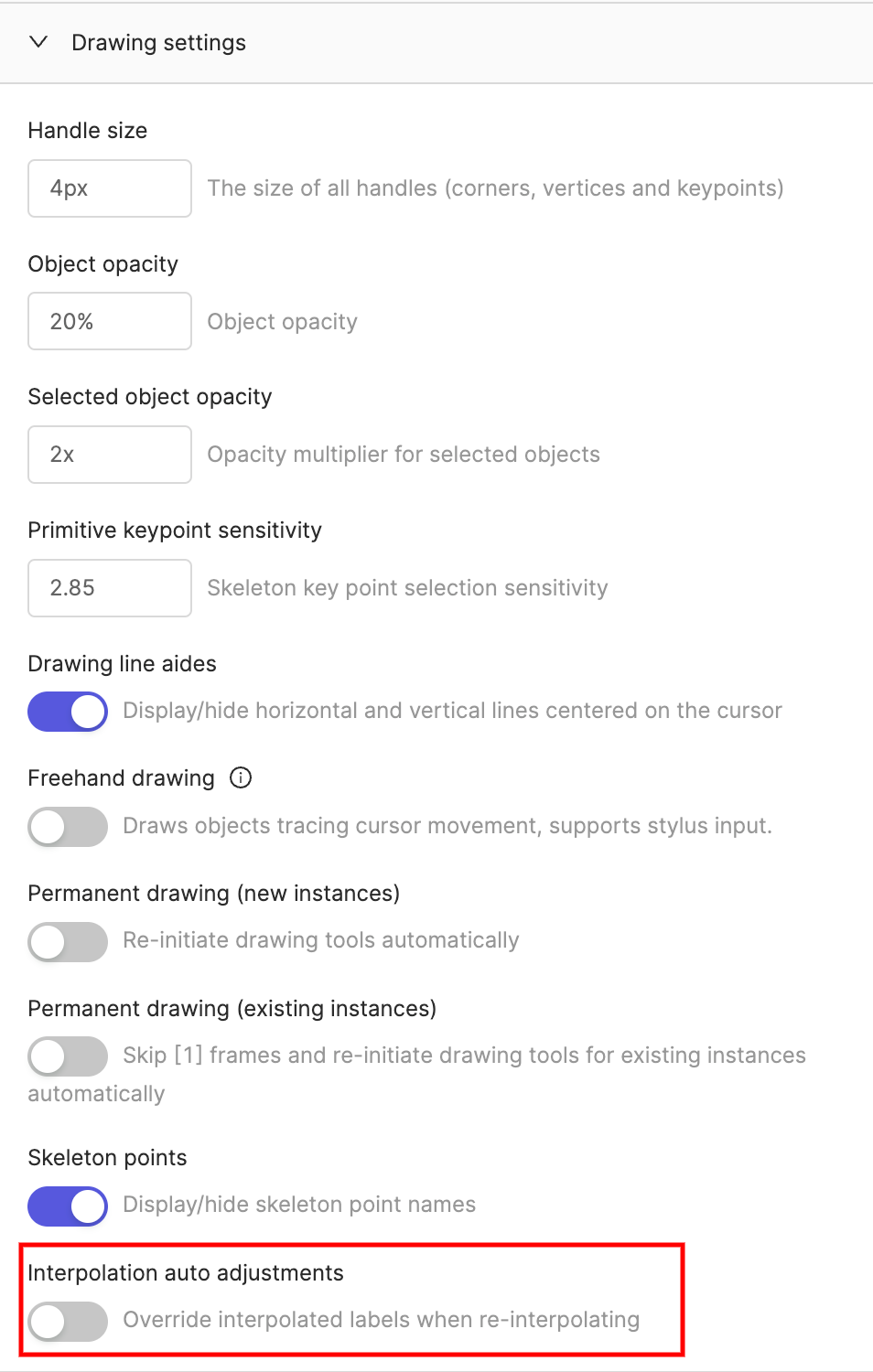
Enable the *Interpolation auto adjustments* toggle in the *Drawing settings* section of the label editor settings. This ensures that only labels with a [confidence score (α)](/platform-documentation/Annotate/annotate-label-editor#confidence-score) less than 100% are overwritten in successive interpolations, while manual labels (α = 100%) are kept and serve as key frames.
***
This process can be repeated any number of times.
All labels created using interpolation are always assigned α = 99%.