> ## Documentation Index
> Fetch the complete documentation index at: https://docs.encord.com/llms.txt
> Use this file to discover all available pages before exploring further.
# Manage Integrations
Only users that are part of a Workspace can create data integrations.
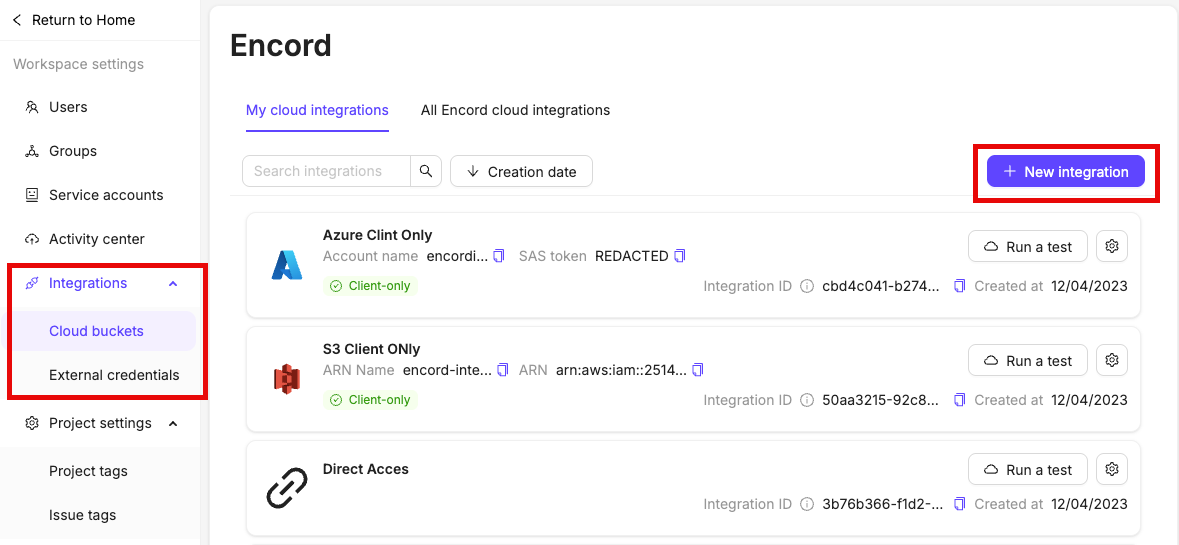
Navigate to [Workspace Settings](/platform-documentation/General/general-workspace-settings#workspace-settings) > Cloud Buckets to view and manage your cloud storage integrations.
## Security
For standard integrations, use a short URL expiry time for the tightest security.
* Encord generates signed URLs dynamically and does not store them. All signed URLs have an expiry time which can be configured by the person who is creating the integration. Encord uses HTTPS/ TLS 1.2 and above to ensure data transport is encrypted.
* Encord uses RBAC which allows only users who have required permissions to access the data. We also have CORS config to provide browser level protection by restricting the domains that can access the signed URLs.
* Encord is SOC 2 compliant.
* For enhanced security, create a [Direct Access integration](/platform-documentation/General/annotate-data-integrations/annotate-direct-access-integration) with *Strict client-only access*. This combination ensures the highest level of data protection: *Strict client-only access* prevents Encord from accessing your data, while Direct Access keeps Encord from signing the URLs, maintaining your data's confidentiality.
## User Roles and Permissions
Integrations have the following user based access controls.
| Permission | Admin | User |
| ----------------------------------- | ----- | ---- |
| View integration | ✅ | ✅ |
| Register data using the integration | ✅ | ❌ |
| Delete integration | ✅ | ❌ |
| Add users | ✅ | ❌ |
***
## User Management
The user who creates the cloud integration becomes its administrator and gains immediate access to use it. Only integration admins can add users to an integration.
Users must be added to a cloud integration before they can use it to register data with Encord.
### Add Users
**Add individual users to an integration**:
1. Click the **Add or remove users** button on the integration.
A dialog appears.
2. Ensure the *Invite* tab is selected.
3. Ensure the *Individual* tab is selected
4. Type the email addresses of the users you want to share the integration with and press Enter on your keyboard to confirm.
5. Select the integration user role you want to assign to the users.
6. Click **Add**.
**Add user groups to an integration**:
1. Click the **Add or remove users** button on the integration.
A dialog appears.
2. Ensure the *Invite* tab is selected.
3. Click the *Groups* tab.
4. Select a user group you want to add to the integration
5. Select the integration user role you want to assign to all users in the group.
6. Click **Add**.
### Remove Users
Individuals with the Admin user role can only be removed from the integration from a Workspace Admin.

**To remove individual users from an integration**:
1. Click the **Add or remove users** button on the integration.
A dialog appears.
2. Select the *Manage* tab.
3. Ensure the *Individuals* tab is selected.
4. Click the delete icon next to the user you want to remove from the integration.

**To remove a user group from an integration**:
1. Click the **Add or remove users** button on the integration.
A dialog appears.
2. Select the *Manage* tab.
3. Select the *Groups* tab.
4. Click the delete icon next to the user group you want to remove from the integration.

***
## Strict Client-only Access
*Strict client-only access* allows Encord to sign URLs without temporarily processing information on our servers. *Strict client-only access* is available for all types of private cloud integrations, including [Direct access](/platform-documentation/General/annotate-data-integrations/annotate-direct-access-integration).
There are two main consequences of making an integration client-only access:
1. Specific server-side features (data conversion and cloud-synced folders) **DO NOT** work. This includes features such as:
* [Cloud-synced Folders](/platform-documentation/Curate/add-files/index-register-cloud-data-cloud-sync)
* [Image groups](/platform-documentation/General/general-supported-data#image-groups) & [image sequences](/platform-documentation/General/general-supported-data#image-sequences).
* [Re-encoding videos](/platform-documentation/General/general-supported-data#re-encode-videos).
* [Segment-anything model (SAM)](/platform-documentation/Annotate/automated-labeling/annotate-sam).
2. Metadata must be specified for all data in the [JSON file when adding data to a dataset](/platform-documentation/Curate/add-files/index-register-cloud-data#json-format). The [metadata section](#metadata) shows how to specify the metadata.
### Enabling Strict Client-Only Access
Strict client-only access is enabled by checking the **Strict client-only access, server-side media features will not be available** checkbox in the *Advanced settings* section when creating an integration.

A green tick and the words *Client-only access* are visible on all client-only access integrations.

### Metadata
* Organizations with strict data compliance requirements that prevent Encord from temporarily processing data on our servers.
* Use cases where customers want to provide their own video metadata to ensure the highest level of accuracy for frame-aligned annotations.
### Video Metadata
The JSON format allows you to specify `videoMetadata` for video files. `videoMetadata` is essential information used by the Label Editor and is crucial for aligning annotations to the correct frame.
When the `videometadata` flag is included in the [JSON file](/platform-documentation/Curate/add-files/index-register-cloud-data#json-format), we directly use the supplied metadata without performing any additional validation, and do not store the file on our servers. To guarantee accurate labels, it is crucial that the metadata you provide is accurate.
`videoMetadata` must be specified when a [Strict client-only access](/platform-documentation/General/annotate-data-integrations#strict-client-only-access) integration is used. In all other cases `videoMetadata` is optional.
Encord assumes the `videoMetadata` is correct and our servers do not download or pre-process your data. This is particularly useful for customers with strict data compliance concerns.
`videoMetadata` is distinct from `clientMetadata`. `videoMetadata` is required for videos when using *Strict client-only access*, while `clientMetadata` is optional and can be included for all types of data.
One way to find the required metadata is shown below. Run the following commands in your terminal.
* `ffmpeg -i 'video_title.mp4'` to retrieve fps, duration, width, and height:
* `ls -l 'video_title.mp4'` to retrieve the file size:
```json theme={"dark"}
{
"videos": [
{
"objectUrl": "video_file.mp4",
"videoMetadata": {
"fps": 23.98,
"duration": 29.09,
"width": 1280,
"height": 720,
"file_size": 5468354,
"mime_type": "video/mp4"
}
}
]
}
```
* **fps**: Frames per second.
* **duration**: Duration of the video (in seconds).
* **width / height**: Dimensions of the video (in pixels).
* **file\_size**: The size of the file (in bytes).
* **mime\_type**: Specifies the file type extension according to the MIME standard.
### Image Metadata
The JSON format allows you to specify `imageMetadata` for image files. `imageMetadata` contains essential information used by the Label Editor and is crucial for aligning annotations to the correct image properties.
When the `imageMetadata` flag is present in the JSON file, we directly use the supplied metadata without performing any additional validation and do not store the file on our servers. To guarantee accurate labels, it is crucial that the metadata you provide is accurate.
`imageMetadata` must be specified when a [Strict client-only access](/platform-documentation/General/annotate-data-integrations#strict-client-only-access) integration is used. In all other cases, `imageMetadata` is optional.
```json theme={"dark"}
{
"images": [
{
"objectUrl": "s3://my_image.jpg",
"imageMetadata": {
"mimeType": "image/jpg",
"fileSize": 124,
"width": 640,
"height": 480
}
}
]
}
```
* **width / height**: Dimensions of the video (in pixels).
* **file\_size**: The size of the file (in bytes).
* **mime\_type**: Specifies the file type extension according to the MIME standard.
### Audio Metadata
The JSON format allows you to specify `audioMetadata` for audio files. `audioMetadata` contains essential information used by the Label Editor and is crucial for aligning annotations to the correct audio properties.
When the `audioMetadata` flag is present in the JSON file, we directly use the supplied metadata without performing any additional validation and do not store the file on our servers. To guarantee accurate labels, it is crucial that the metadata you provide is accurate.
`audioMetadata` must be specified when a [Strict client-only access](/platform-documentation/General/annotate-data-integrations#strict-client-only-access) integration is used. In all other cases, `audioMetadata` is optional.
```json theme={"dark"}
{
"audio": [
{
"objectUrl": "https://encord-integration.s3.eu-west-2.amazonaws.com/videos/audio_file_001.mp3",
"audioMetadata": {
"duration": 23.02,
"file_size": 2900000,
"mime_type": "audio/mp3",
"sample_rate": 44100,
"bit_depth": 24,
"codec": "mp3",
"num_channels": 2
}
}
]
}
```
* **duration**: Length of the audio file (in seconds).
* **file\_size**: The size of the file (in bytes).
* **mime\_type**: Specifies the file type extension according to the MIME standard.
* **sample\_rate**: The number of samples per second in the audio file (in Hz).
* **bit\_depth**: The number of bits per sample, representing audio resolution.
* **codec**: The format used to encode the audio (e.g., "mp3").
* **num\_channels**: The number of audio channels (e.g., 1 for mono, 2 for stereo).
### DICOM and NIfTI Metadata
Encord does not currently support Strict Client-only Access for NIfTI files.
Using Strict Client-only Access with DICOM files in Encord requires using the following script with `dicom_metadata` in a JSON file.
```python upload_dicom_strict_client_only_access.py theme={"dark"}
import json
import os
from typing import List, Any
from encord import EncordUserClient, Project
import dotenv
from encord.orm.dataset import LongPollingStatus
from encord.orm.storage import CustomerProvidedDicomSeriesDicomFileMetadata, DataUploadDicomSeriesDicomFile, \
DataUploadItems, DataUploadDicomSeries
import json
from typing import List, Dict, Optional
def clean_dicom_metadata(metadata: Dict[str, Any]) -> Dict[str, Optional[Dict]]:
"""
Clean DICOM metadata by converting string 'None' to actual None values
and ensuring all values are either dicts or None.
"""
cleaned = {}
for tag_key, tag_value in metadata.items():
if tag_value == 'None' or tag_value is None:
cleaned[tag_key] = None
elif isinstance(tag_value, dict):
cleaned[tag_key] = tag_value
else:
# For any other type, set to None
cleaned[tag_key] = None
return cleaned
def load_dicom_series_from_json(json_path: str) -> List[DataUploadDicomSeries]:
"""
Load DICOM series data from JSON and convert to DataUploadDicomSeries objects.
Args:
json_path: Path to the JSON file containing DICOM series data
Returns:
List of DataUploadDicomSeries objects
"""
with open(json_path, 'r') as f:
data = json.load(f)
series_list = []
for series in data.get('dicom_series', []):
# Extract series title
series_title = series.get('title')
# Process metadata for this series
metadata = None
if 'dicom_metadata' in series and series['dicom_metadata']:
cleaned_tags = clean_dicom_metadata(series['dicom_metadata'])
metadata = CustomerProvidedDicomSeriesDicomFileMetadata(
tags=cleaned_tags
)
# Collect all DICOM files for this series
dicom_files = []
for key, value in series.items():
if key.startswith('objectUrl_'):
# Extract file index from key
file_index = key.replace('objectUrl_', '')
# Create individual file title
file_title = f"{series_title}_file_{file_index}" if series_title else f"file_{file_index}"
# Create the DICOM file object
dicom_file = DataUploadDicomSeriesDicomFile(
url=value,
title=file_title,
dicom_metadata=metadata
)
dicom_files.append(dicom_file)
# Create the series object with all its files
if dicom_files: # Only create series if it has files
dicom_series = DataUploadDicomSeries(
dicom_files=dicom_files,
title=series_title,
client_metadata={}, # Add any custom metadata here if needed
external_file_type="DICOM"
)
series_list.append(dicom_series)
return series_list
dotenv.load_dotenv()
SSH_PATH = "/Users/chris-encord/ssh-private-key.txt" # Replace with the file path to your SSH private key
FOLDER_HASH = "00000000-0000-0000-0000-000000000000" # Replace with the unique hash for the destination Folder
INTEGRATION_HASH = "00000000-0000-0000-0000-000000000000" # Replace with the unique hash for the integration
JSON_FILE_PATH = "/Users/chris-encord/dicom_to_upload.json" # Replace with file path to the JSON file
#Authenticate using the path to your private key
client = EncordUserClient.create_with_ssh_private_key(ssh_private_key_path=SSH_PATH)
storage_folder = client.get_storage_folder(FOLDER_HASH)
# Specify the integration you want to use by replacing with the integration title
integrations = client.get_cloud_integrations(filter_integration_uuids=[INTEGRATION_HASH])
integration = integrations[0].id
dicom_series_for_upload = load_dicom_series_from_json(JSON_FILE_PATH)
# Initiate cloud data registration to the storage folder
upload_job_id = storage_folder.add_private_data_to_folder_start(
integration_id=integration, private_files=DataUploadItems(dicom_series=dicom_series_for_upload), ignore_errors=True
)
# timeout_seconds determines how long the code waits after initiating upload before checking the upload status
res = storage_folder.add_private_data_to_folder_get_result(upload_job_id, timeout_seconds=30)
print(f"Execution result: {res}")
if res.status == LongPollingStatus.PENDING:
print("Upload is still in progress, try again later!")
elif res.status == LongPollingStatus.DONE:
print("Upload completed")
if res.unit_errors:
print("The following URLs failed to upload:")
for e in res.unit_errors:
print(e.object_urls)
else:
print(f"Upload failed: {res.errors}")
```
```json dicom_to_upload.json theme={"dark"}
{
"dicom_series": [
{
"title": "Series01",
"objectUrl_0": "https://storage.googleapis.com/gcp-strict-client-access/dicom/MR.1.2.246.352.221.576299240410465369217801204063372607904.dcm",
"dicom_metadata": {
"00280030": {
"vr": "DS",
"Value": [
1.0,
1.0
]
},
"00281050": {
"vr": "DS",
"Value": [
179.0
]
},
"00280008": "None",
"00209116": "None",
"00181164": "None",
"00280004": {
"vr": "CS",
"Value": [
"MONOCHROME2"
]
},
"00281051": {
"vr": "DS",
"Value": [
359.0
]
},
"00200037": {
"vr": "DS",
"Value": [
-0.0,
1.0,
0.0,
-0.0,
-0.0,
-1.0
]
},
"52009229": "None",
"00100020": {
"vr": "LO",
"Value": [
"fc065_fmri_140207"
]
},
"00280010": {
"vr": "US",
"Value": [
256
]
},
"00289110": "None",
"00200013": {
"vr": "IS",
"Value": [
1
]
},
"0020000D": {
"vr": "UI",
"Value": [
"1.2.840.113619.6.283.4.679947340.8065.1391798290.307"
]
},
"00181114": "None",
"00200032": {
"vr": "DS",
"Value": [
100.96,
-140.977,
153.398
]
},
"00080018": {
"vr": "UI",
"Value": [
"1.2.840.113619.2.283.6945.3146400.16119.1391477777.667"
]
},
"52009230": "None",
"00280011": {
"vr": "US",
"Value": [
256
]
},
"00209113": "None",
"00180050": {
"vr": "DS",
"Value": [
1.2
]
},
"0020000E": {
"vr": "UI",
"Value": [
"1.2.840.113619.2.283.6945.3146400.21673.1391477673.97"
]
}
}
}
]
}
```
***
## Custom Signed URL Expiration Time
A custom signed URL expiration time allows you to set the duration that an integration's pre-signed URL remains valid.
Custom signed URL expiration times are only available for AWS, GCP, and OTC integrations.
Shorter signed URL expiration times are more secure, but can negatively impact the annotation and review experiences in the Label Editor. Ensure that the URL expiration time exceeds the amount of time that files from the integration take to annotate and review. The default value for signed URL expiration times when creating an integration is 1 week.
### Setting Custom Signed URL Expiration Times
To set up a custom signed URL expiration time for a new integration:
1. Click the *Custom signed URL integration time* checkbox in the *Advanced settings* when setting up your GCP, AWS, or OTC integration.
2. Set the duration for which pre-signed URLs should remain valid. We recommend configuring the URL expiration time to exceed the time required to annotate and review files from the integration in the Label Editor.
### Edit Custom Signed URL Expiration Times
Custom signed URL expiration times are only available for AWS, GCP, and OTC integrations. For Azure integrations,[expired SAS tokens must be updated regularly](/platform-documentation/General/annotate-data-integrations/annotate-azure-blob-integration#updating-expired-account-level-sas-tokens).
To change the custom signed URL expiration time for an existing integration:
1. Click the three dots icon on your integration.
2. Select **Update Signed Url Expiration**.
3. Set the duration for which pre-signed URLs should remain valid. We recommend configuring the URL expiration time to exceed the time required to annotate and review files from the integration in the Label Editor.
***
## View and Join Integrations in Your Workspace
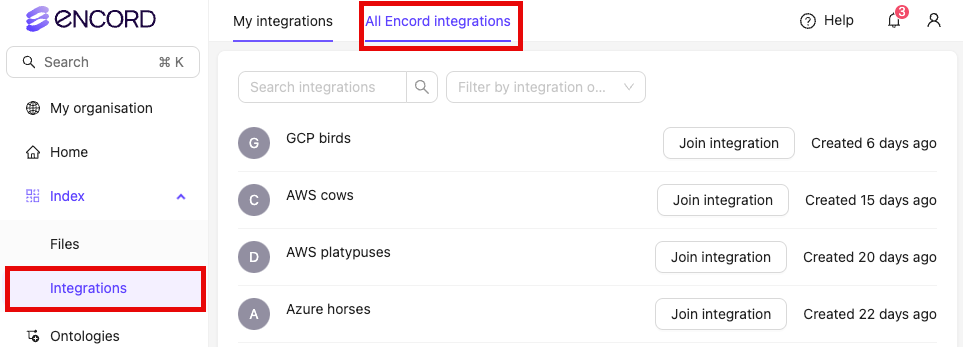
Workspace Admins can search for and join any [data integration](/platform-documentation/General/annotate-data-integrations) that exists within the Workspace.
**To search and join integrations**:
1. Navigate to the *Integrations* of the Encord platform.
2. Click **All Encord integrations**.
3. Click **Join integration** to join the integration.
* Integrations can be filtered by the owner of the integration.
* See all integrations you belong to by clicking the *Filter by* search bar, and selecting *My integrations only*.
When a Workspace Admin joins an integration, they are automatically assigned the *Admin* [user role for that integration](/platform-documentation/General/annotate-data-integrations#user-roles-and-permissions).
Integrations can ONLY be deleted by the creator of the integration. Even admins cannot delete an integration if they did not create the integration.
***
## Fix Buffering Issues
A number of factors determine how fast remote content renders and displays in a web browser:
* [Geographical distance from host bucket](#geographical-distance-from-host).
* [Local internet speed](#local-internet-speed).
* Use of a [Virtual Private Network (VPN)](#vpns).
* The [bitrate of the video](#high-bitrates-in-videos) file being requested.
While these factors are outside of Encord's influence, we have put together a set of common issues when loading data from private clouds, along with possible solutions to improve your user experience.
You can see the speed that a video downloads at the bottom of the 'editor pane' in the Label Editor on Encord's platform. The speed also displays the download speed required to display a video without buffering.
### Geographical distance from host
The physical distance between you and the server hosting your data affects how quickly content is accessed. For example, hosting an Amazon S3 bucket in the EU (London) eu-west-2 region may cause latency for users in India or Brazil due to the long travel distance for the data.
 To fix the issue, make sure that users always connect to their closest server. This reduces the time it takes for data to travel from one place to another. Setting this up, differs between cloud storage providers.
 ### Caching Header
Caching MUST be enabled on the parent folder containing the objects you want to label. This is done by [setting a cache-control header](https://docs.aws.amazon.com/AmazonCloudFront/latest/DeveloperGuide/Expiration.html#ExpirationAddingHeadersInS3). If you do not set a cache-control header on all objects, this can lead to data loading slowly on our platform.
### Multi-Region Access Points
AWS allows you to set up [Multi-Region Access Points](https://aws.amazon.com/s3/features/multi-region-access-points/) that provides a single global end point to access a replicated dataset spanning multiple S3 buckets. This means that users all around the world are always connected to their closest server when accessing content from an S3 bucket.
To make this work in Encord:
1. Set up Multi-Region Access Point on Amazon S3. Their step-by-step guide can be found [here](https://aws.amazon.com/getting-started/hands-on/getting-started-with-amazon-s3-multi-region-access-points/).
2. Integrate your Multi-Region Access Point with Encord. The process is documented [here](/platform-documentation/General/annotate-data-integrations#create-a-multi-region-access-point-integration).
3. Add data using the Multi-Region Access Point integration. When specifying which files to register in your JSON file, make sure to use the ARN of the Multi-Region Access Point followed by the object name, instead of the object URL, as documented [here](/platform-documentation/Curate/add-files/index-register-cloud-data#when-using-a-multi-region-access-point).
* You can check your latency to Google Cloud regions [here](https://www.gcping.com), and the latency between different regions [here](https://lookerstudio.google.com/reporting/fc733b10-9744-4a72-a502-92290f608571/page/70YCB) to assess the connection speed to your GCP bucket.
We recommend using the ['Premium' network service tier](https://cloud.google.com/network-tiers#tab1) if you experience buffering issues while using data stored on GCP. This ensures a high-performing network experience with a global footprint.
### Local Internet Speed
Test your internet connection to make sure it is fast enough to download your video from cloud storage without buffering. Consistently low internet speeds might mean your provider isn't providing you with high enough internet speeds to load large quantities of data from your cloud storage.
You can see the speed that a video downloads at the bottom of the 'editor pane' in the Label Editor on Encord's platform. The speed also displays the download speed required to display a video without buffering.
### VPNs
VPNs can slow down your connection by requiring the data travel through the VPN's server before arriving to you.
We recommend turning off your VPN when using Encord's platform, if you are experiencing buffering issues.
### High Bitrates in Videos
Videos vary widely in frame rate, compression, definition, and size. The most important factor in determining how quickly a remote video loads is its bitrate. A higher bitrate requires more data to load per second of video.
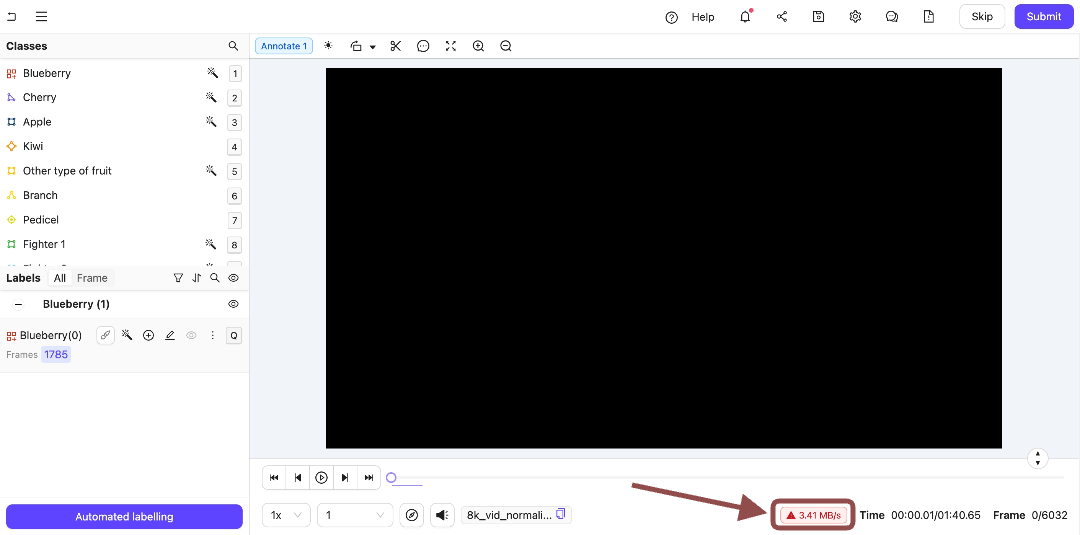
To make sure videos load and display quickly in the Label Editor:
1. A Tasker's download speed from private cloud storage has to be at least 3-4 times the video bitrate.
2. Have enough keyframes to ensure smooth frame-by-frame navigation (roughly every 50 frames for high-resolution videos).
Lowering a video's bitrate reduces the time it takes to load from your cloud storage. This can be achieved using tools such as FFmpeg. See our documentation on [resizing videos](/platform-documentation/General/general-supported-data#resizing-videos) for more information.
Lowering the bitrate involves decreasing the video quality and is only suitable for customers not reliant on high-quality videos.
### Updating Terraform Configuration
This section only applies when using a Terraform cloud integration.
If you configure your integration manually (for example, setting CORS policies in the AWS or GCP console) and then later apply a Terraform script, the script can overwrite your manual changes. This may cause your integration to stop working. Always ensure your Terraform configuration file includes all necessary settings, especially for CORS policies.
### Caching Header
Caching MUST be enabled on the parent folder containing the objects you want to label. This is done by [setting a cache-control header](https://docs.aws.amazon.com/AmazonCloudFront/latest/DeveloperGuide/Expiration.html#ExpirationAddingHeadersInS3). If you do not set a cache-control header on all objects, this can lead to data loading slowly on our platform.
### Multi-Region Access Points
AWS allows you to set up [Multi-Region Access Points](https://aws.amazon.com/s3/features/multi-region-access-points/) that provides a single global end point to access a replicated dataset spanning multiple S3 buckets. This means that users all around the world are always connected to their closest server when accessing content from an S3 bucket.
To make this work in Encord:
1. Set up Multi-Region Access Point on Amazon S3. Their step-by-step guide can be found [here](https://aws.amazon.com/getting-started/hands-on/getting-started-with-amazon-s3-multi-region-access-points/).
2. Integrate your Multi-Region Access Point with Encord. The process is documented [here](/platform-documentation/General/annotate-data-integrations#create-a-multi-region-access-point-integration).
3. Add data using the Multi-Region Access Point integration. When specifying which files to register in your JSON file, make sure to use the ARN of the Multi-Region Access Point followed by the object name, instead of the object URL, as documented [here](/platform-documentation/Curate/add-files/index-register-cloud-data#when-using-a-multi-region-access-point).
* You can check your latency to Google Cloud regions [here](https://www.gcping.com), and the latency between different regions [here](https://lookerstudio.google.com/reporting/fc733b10-9744-4a72-a502-92290f608571/page/70YCB) to assess the connection speed to your GCP bucket.
We recommend using the ['Premium' network service tier](https://cloud.google.com/network-tiers#tab1) if you experience buffering issues while using data stored on GCP. This ensures a high-performing network experience with a global footprint.
### Local Internet Speed
Test your internet connection to make sure it is fast enough to download your video from cloud storage without buffering. Consistently low internet speeds might mean your provider isn't providing you with high enough internet speeds to load large quantities of data from your cloud storage.
You can see the speed that a video downloads at the bottom of the 'editor pane' in the Label Editor on Encord's platform. The speed also displays the download speed required to display a video without buffering.
### VPNs
VPNs can slow down your connection by requiring the data travel through the VPN's server before arriving to you.
We recommend turning off your VPN when using Encord's platform, if you are experiencing buffering issues.
### High Bitrates in Videos
Videos vary widely in frame rate, compression, definition, and size. The most important factor in determining how quickly a remote video loads is its bitrate. A higher bitrate requires more data to load per second of video.

To make sure videos load and display quickly in the Label Editor:
1. A Tasker's download speed from private cloud storage has to be at least 3-4 times the video bitrate.
2. Have enough keyframes to ensure smooth frame-by-frame navigation (roughly every 50 frames for high-resolution videos).
Lowering a video's bitrate reduces the time it takes to load from your cloud storage. This can be achieved using tools such as FFmpeg. See our documentation on [resizing videos](/platform-documentation/General/general-supported-data#resizing-videos) for more information.
Lowering the bitrate involves decreasing the video quality and is only suitable for customers not reliant on high-quality videos.
### Updating Terraform Configuration
This section only applies when using a Terraform cloud integration.
If you configure your integration manually (for example, setting CORS policies in the AWS or GCP console) and then later apply a Terraform script, the script can overwrite your manual changes. This may cause your integration to stop working. Always ensure your Terraform configuration file includes all necessary settings, especially for CORS policies.