> ## Documentation Index
> Fetch the complete documentation index at: https://docs.encord.com/llms.txt
> Use this file to discover all available pages before exploring further.
# CoreWeave
The following steps outline how to create a CoreWeave integration in Encord.
## Step 1: Create a Bucket in CoreWeave
1. Log in to the [CoreWeave Console](https://console.coreweave.com/login).
2. Navigate to **Object Storage** > **Buckets**.
3. Click **Create Bucket**.
4. Provide a unique bucket name.
5. Select the zone/region for your bucket (for example, `us-east-1`).
6. Click **Create** to finalize the bucket.
You need the bucket url and zone, but they can be accessed later.
## Step 2: Create an Access Key in CoreWeave
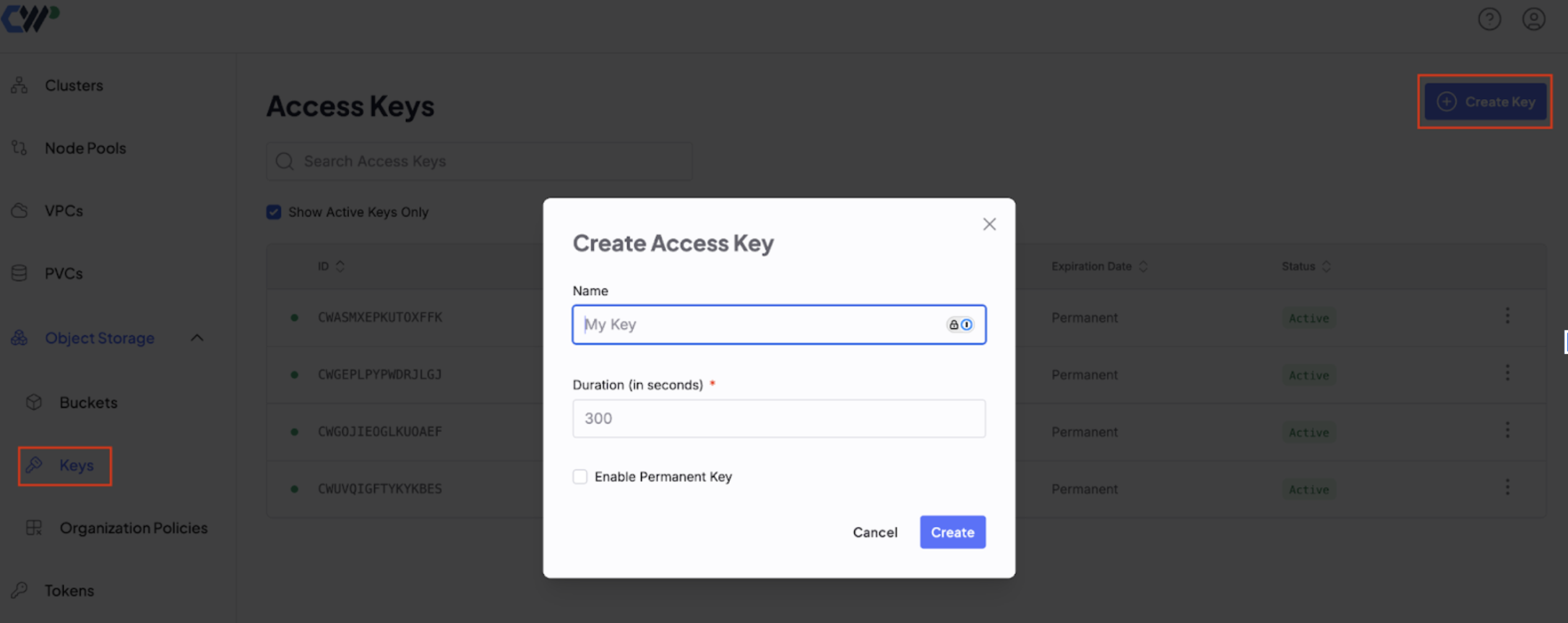
1. Go to **Object Storage** > **Keys** in the CoreWeave Console.
2. Click **Create Access Key**.
3. Copy the *Access Key ID* and *Secret Access Key*. They are required for your integration with Encord.
Store the *Secret Access Key* securely, as CoreWeave does not display it again.
## Step 3: Ensure the Key Has the Right Permissions
1. Go to **Object Storage** > **Organization Policies**, in the CoreWeave Console
2. Click **Create Policy**.
3. Specify the following for the policy:
* Choose the principal associated with the Access Key.
* 'Actions': Select `s3:GetObject`.
* 'Resources': Select the object you just made for Encord to use.
Bucket policies cannot be applied using the GUI. You can apply this policy using the S3 API or SDK. You can apply organization policies in the org which may be sufficient depending on your existing policies. Read about CoreWeave’s policies in their [documentation](https://docs.coreweave.com/docs/products/storage/object-storage/auth-access/policies).
## Step 4: Set Up the Integration
1. Navigate to [Workspace Settings](/platform-documentation/General/general-workspace-settings#workspace-settings) > Cloud Buckets and click **+New integration**.
2. Select **CoreWeave**.
3. Give your integration a meaningful name.
4. Enter CoreWeave Credentials.
* The Access key can be found in the **Keys** tab under **Object Storage** in CoreWeave.
* The url and zone can be found in the **Buckets** tab under **Object Storage** in CoreWeave.
5. Click **Create**.
Test the connection to verify your integration works as expected.
## Step 5: Test the Integration
Click the **Run a test** button on the integration. The following errors can appear:
| Error | Description |
| ----------------- | ------------------------------------------------------------------------------ |
| Connection failed | Verify your Access Key, Secret Key, Bucket Name, and Endpoint URL are correct. |
| Permission denied | Ensure the Access Key has `s3:GetObject` permissions. |
| Region errors | Make sure the endpoint matches the bucket region. |