> ## Documentation Index
> Fetch the complete documentation index at: https://docs.encord.com/llms.txt
> Use this file to discover all available pages before exploring further.
# SDK Access Keys
Access keys provide a secure way to [authenticate](/sdk-documentation/general-sdk/authentication-sdk) with the Encord SDK.
## Workspace Access Keys (Recommended)
Service Account Access keys are tied to the Workspace they are created in and grant access to all resources that the Service Account has access to within the Workspace.
Admins can create 1 Service Account per Workspace. Contact us at [support@encord.com](mailto:support@encord.com) if you need more than 1 Service Account.
Only Encord Admins (not Project Admins) can create Service Accounts in Encord.
**To create a Service Account:**
1. Go to **Workspace Settings > Service Accounts**.
The *Service Accounts* page appears.

2. Click **Create service account**.

3. Provide a meaningful name for the service account. The name provided is appended into the email address used by the service account.
4. Provide a meaningful description for the service account.
5. Click **Create service account**.
A new service account appears in the Service Account list.
6. Click into the service account.

7. Click **New API key**.

8. Type a meaningful title for the key.
9. Click **Generate key pair**
10. Click **Add API key**.
A file downloads to your computer containing the key.

11. Return to the **Service Accounts** page.
12. Apply a role to the Service Account:
* **Admin:** Executive privileges over Workspaces such as adding and removing users, and the ability to view all Projects.
* **Member:** No administrative privileges over Workspaces. Can only view Projects they create, or have been invited to.
***
## User-Level Access Keys
User-level Access Keys are tied to the user and grant access to the same resources that user can access in the Workspace. When the user is removed from the Workspace, the Access Key stops working.
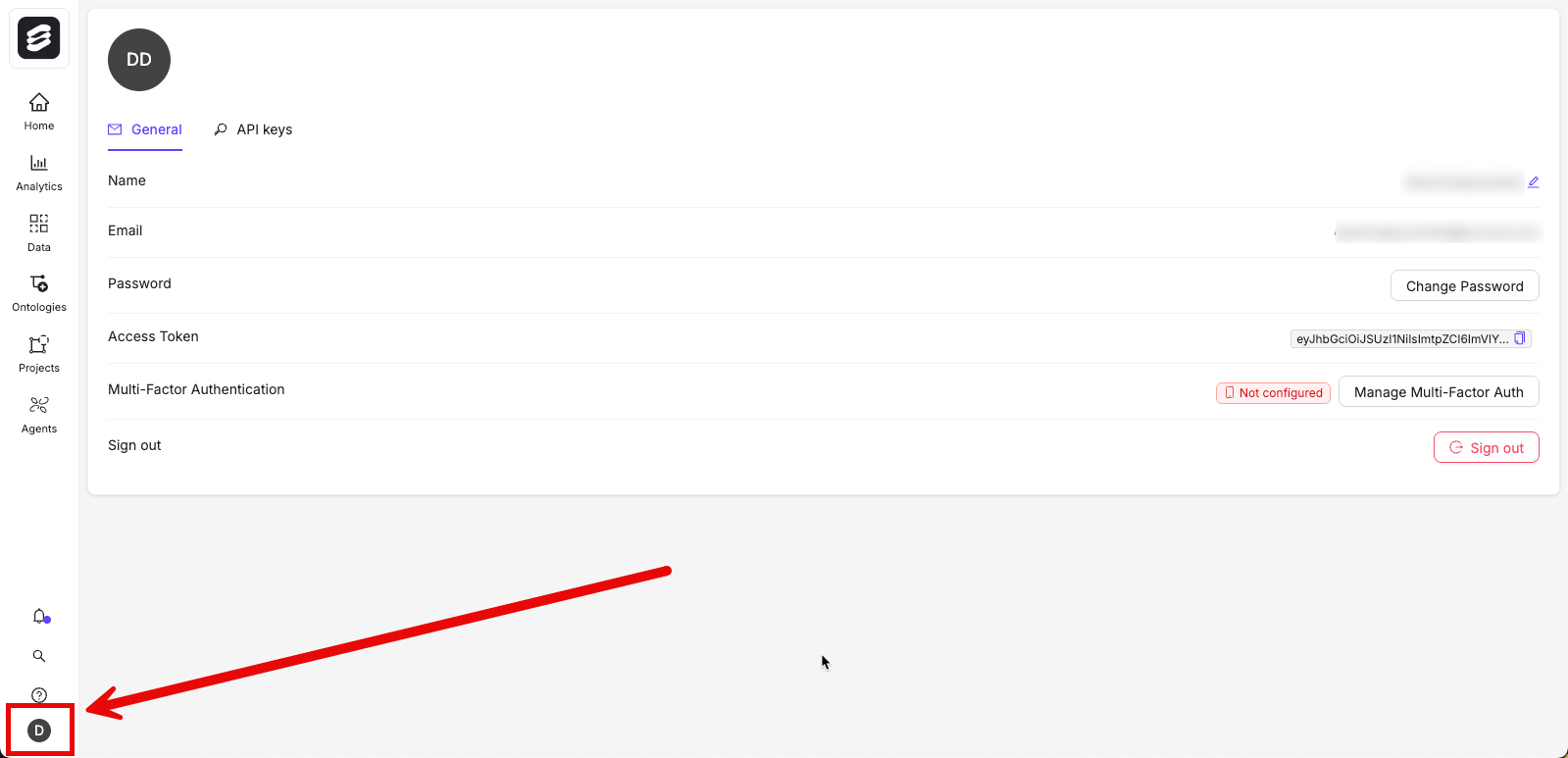
1. Click the user icon in the bottom-left corner of the UI.
2. Select **User settings**.
3. Click the **API keys** tab.
4. Click the **New Key** button to add or generate a new key.
5. Give the key a meaningful name.
6. Click **Generate key pair** to generate a new Access Key pair.
The public key field is automatically populated, and a `.txt` containing your corresponding private key is downloaded.
7. Click **Add API key** to add your key.
The key is now listed in the *API keys* section along with an ID that serves as a unique identifier.
Key names do not have to be unique, but the keys themselves do. Attempting to upload a duplicate key results in an error.
***
## Using Terminal / Powershell
We strongly recommend using the Encord UI to generate Access Keys.
Follow these steps to generate a public-private key pair using an encryption library. Encryption libraries are part of most major operating systems, therefore you can generate this key pair using the appropriate terminal for your OS:
* **Linux/macOS**: the default terminal
* **Windows 10 & Server 2019/2022**: Powershell
To generate a public-private key pair:
1. Open Terminal or Powershell.
2. Run the following command:
```
$ ssh-keygen -t ed25519
```
3. Press enter to accept the default file location or modify as required:
```bash Mac theme={"dark"}
> Enter a file in which to save the key (/Users/YOU/.ssh/id_ALGORITHM): [Modify / Press ENTER]
```
```bash Windows theme={"dark"}
> Enter a file in which to save the key (C:\Users\YOU/.ssh/id_ALGORITHM): [Modify / Press ENTER]
```
```bash Linux theme={"dark"}
> Enter a file in which to save the key (/home/YOU/.ssh/id_ALGORITHM): [Modify / Press ENTER]
```
4. \[**IMPORTANT**] Leave the passphrase blank:
```
> Enter passphrase (empty for no passphrase): [Press ENTER]
> Enter same passphrase again: [Press ENTER]
```
Ensure that the private key you have generated is not protected by a passphrase. Password-protected private keys cannot be [authenticated in Encord](#authenticate-with-your-private-key). All private keys [generated on the Encord platform](#generating-keys-in-encord-recommended) are not password-protected by default.
You should now have two files:
* `/path/to/your/key/id_ALGORITHM` contains your private key (which you should keep secure);
* `/path/to/your/key/id_ALGORITHM.pub` contains your public key (usually in a file ending in *.pub*).
The next step is to add your public key to Encord. To add your public key to Encord:
1. Copy the contents of the public key file. For that, execute:
```
$ cat /path/to/your/key/id_ALGORITHM.pub
# Then select and copy the contents of the id_ALGORITHM.pub file
# displayed in the terminal to your clipboard
```
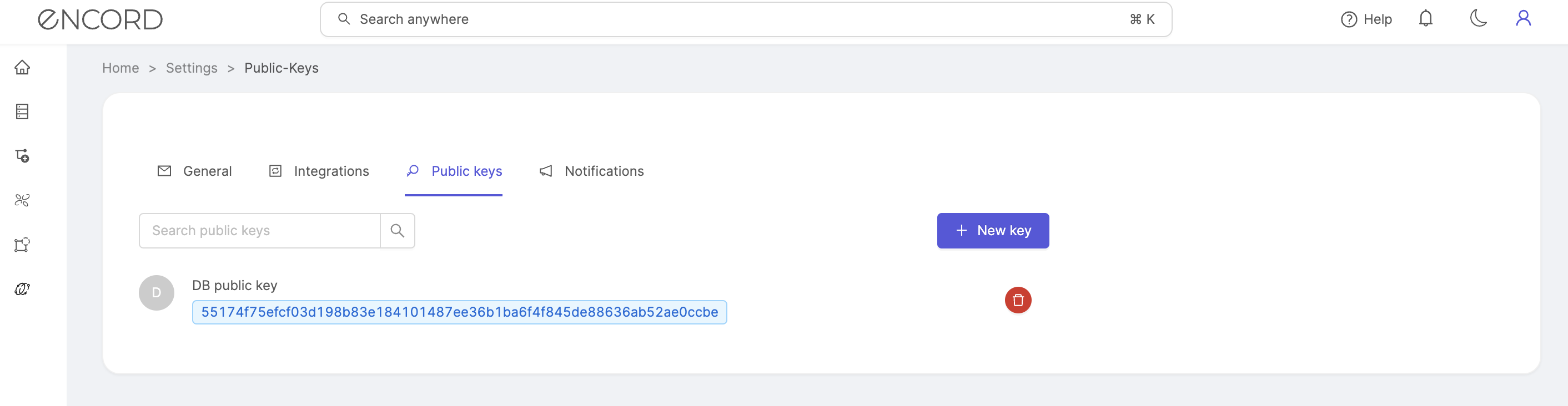
2. Navigate to the 'API keys' section of the user settings to create, register and manage your public keys.
3. Enter a title for your public key in the first field, and paste your public key in the second field. The **Create** button becomes available once both fields have been populated.
4. Click **Create** to add your public key to Encord. It is listed showing the key's name, and a signature that serves as a unique identifier.