> ## Documentation Index
> Fetch the complete documentation index at: https://docs.encord.com/llms.txt
> Use this file to discover all available pages before exploring further.
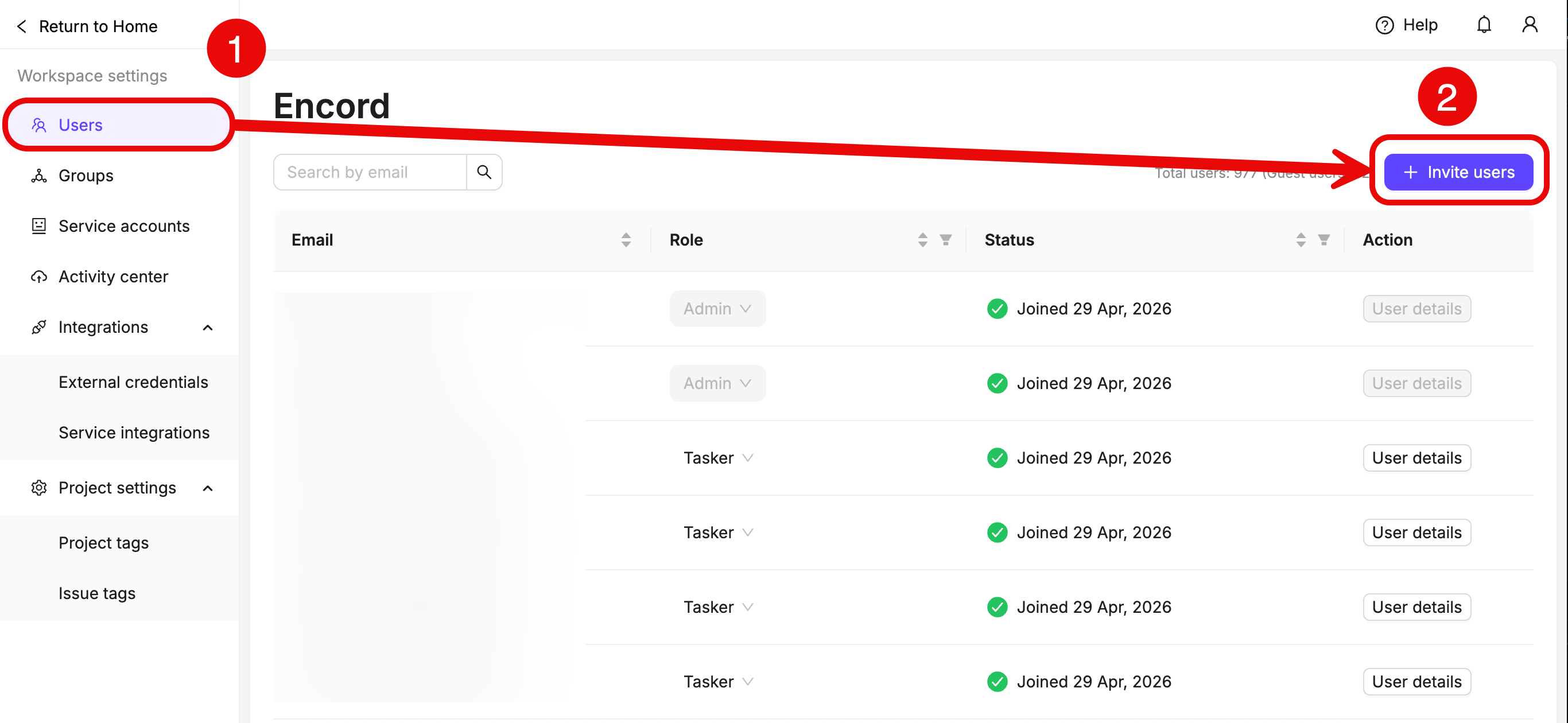
# Workspace Settings
Your Workspace's settings can be accessed by navigating to **My workspace** / **Workspace Settings**.
Workspace settings—including user management—can only be managed through the UI, NOT using the SDK.
**To access Workspace settings:**
1. Click the drop-down at the top of the page after logging in to the Encord Platform.
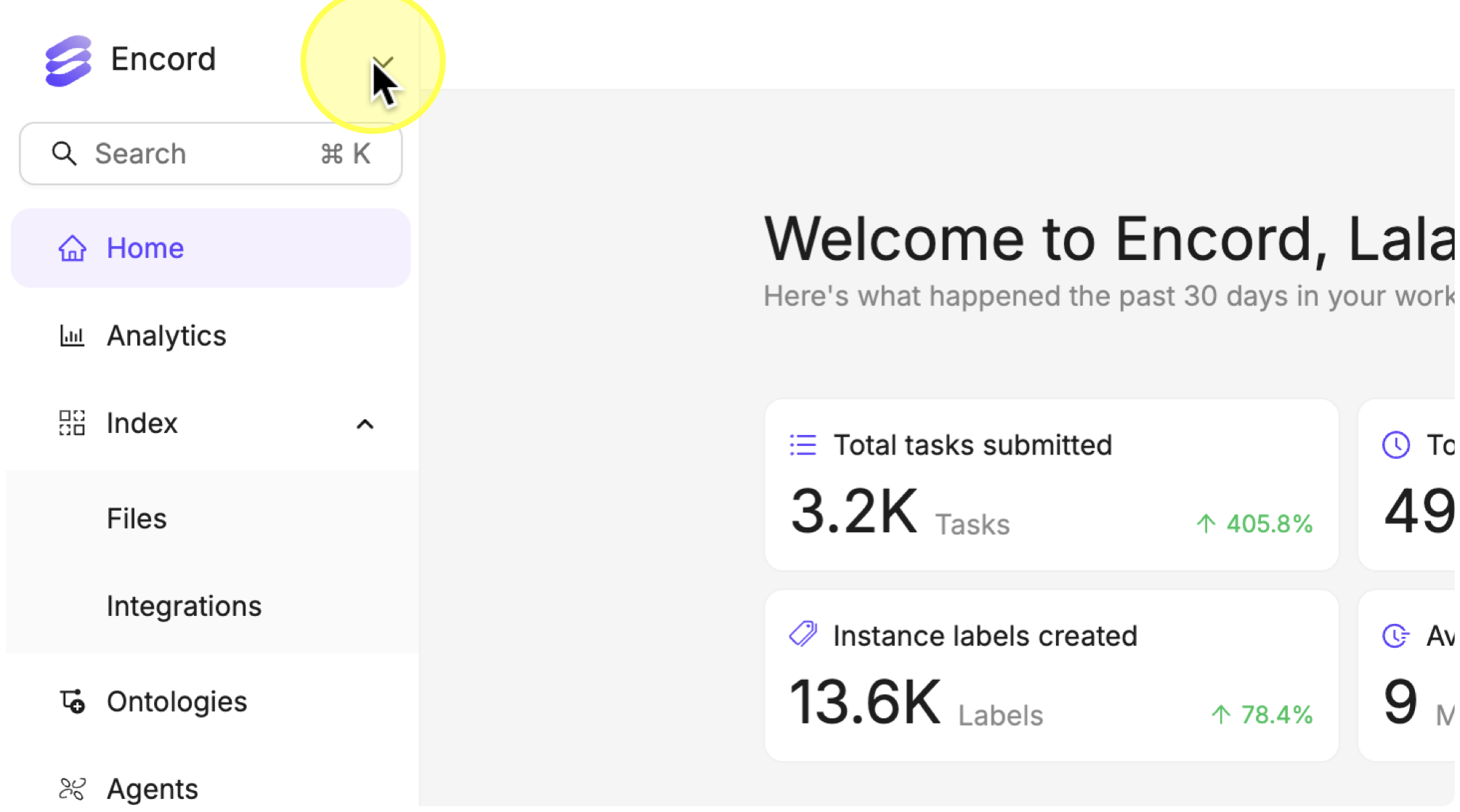
2. Select the Workspace you want to work with under *Workspaces*.
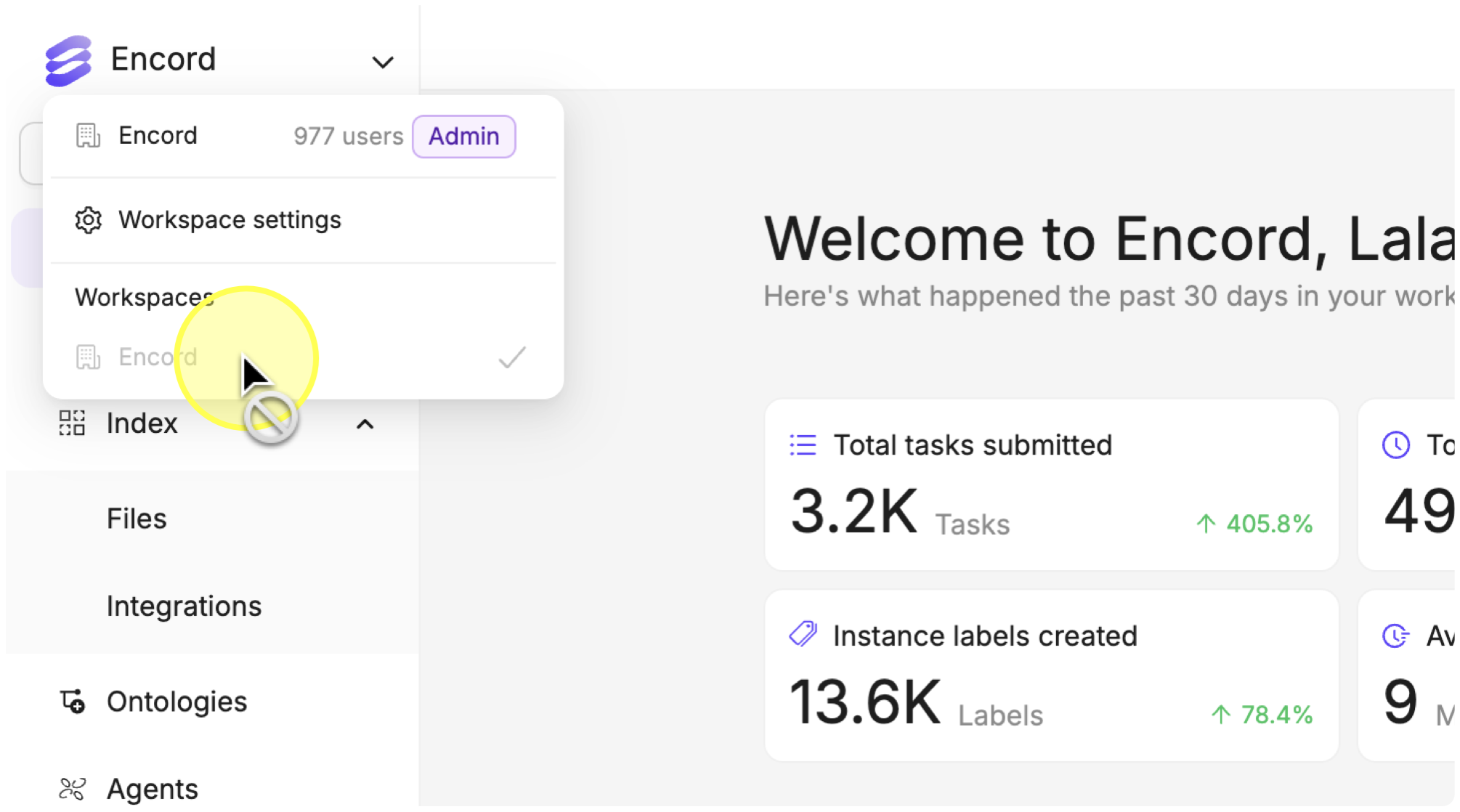
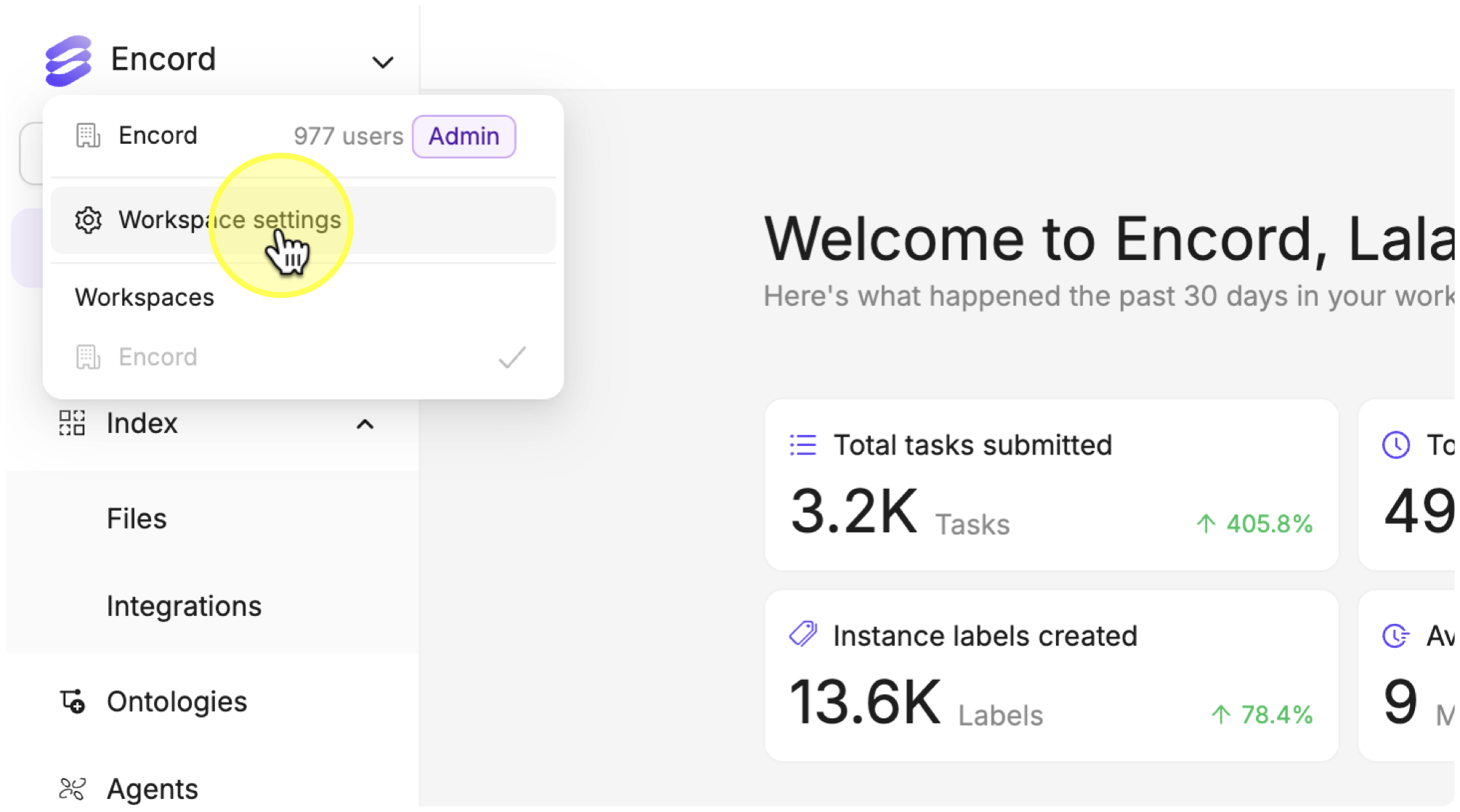
3. Click **Workspace settings**.
The *Workspace setings* page appears.
## Users
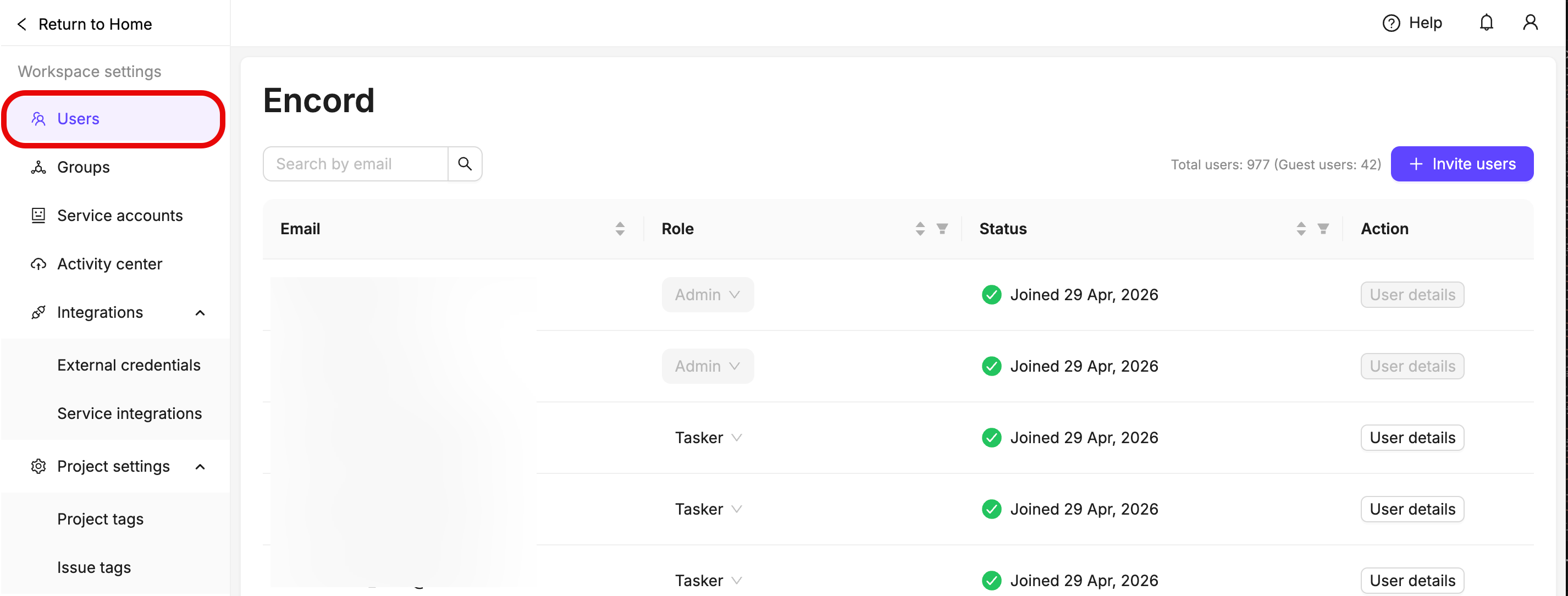
The **Users** tab of your Workspace settings provides an overview of all your Workspace's users and their user roles.
### User Roles
Workspaces have several kinds of users. The following table outlines permissions for all user roles.
| Permissions | **Admin** | **Workforce Manager** | **Member** | **Tasker** |
| ------------------------------------------------------ | :-------: | :-------------------: | :--------: | :--------: |
| Add and remove users | ✅ | (Only Taskers) | ❌ | ❌ |
| View all Projects, Datasets, and Ontologies | ✅ | ❌ | ❌ | ❌ |
| Create Projects, Datasets, and Ontologies | ✅ | ✅ | ✅ | ❌ |
| Access Projects, Datasets, and Ontologies (if invited) | ✅ | ✅ | ✅ | ✅ |
| Create user groups | ✅ | ✅ | ❌ | ❌ |
| Can see other Workspace members | ✅ | ✅ | ✅ | ❌ |
In addition to having a user role within the Workspace, all users have distinct roles in [Projects](/platform-documentation/Annotate/roles-and-permissions#projects), [Datasets](/platform-documentation/Annotate/roles-and-permissions#datasets), and [Ontologies](https://docs.encord.com/platform-documentation/Annotate/roles-and-permissions#ontologies).
### Adding and Removing Users
Only Workspace Admins and Workforce managers have the ability to add users to, or remove users from, the Workspace.
Users belonging to your Workspace are managed on the *Users* tab of your Workspace settings dashboard. The *Users* tab displays by default when you navigate to your Workspace. All users belonging to your Workspace are listed on the *Users* tab.
**To invite new users to your Workspace:**
1. Click the drop-down at the top of the page after logging in to the Encord Platform.

2. Select the Workspace you want to work with under *Workspaces*.

3. Click **Workspace settings**.
The *Workspace setings* page appears.

4. Click the **+ Invite users** button.
A dialog appears.
5. Type the email addresses of the users you want to invite.
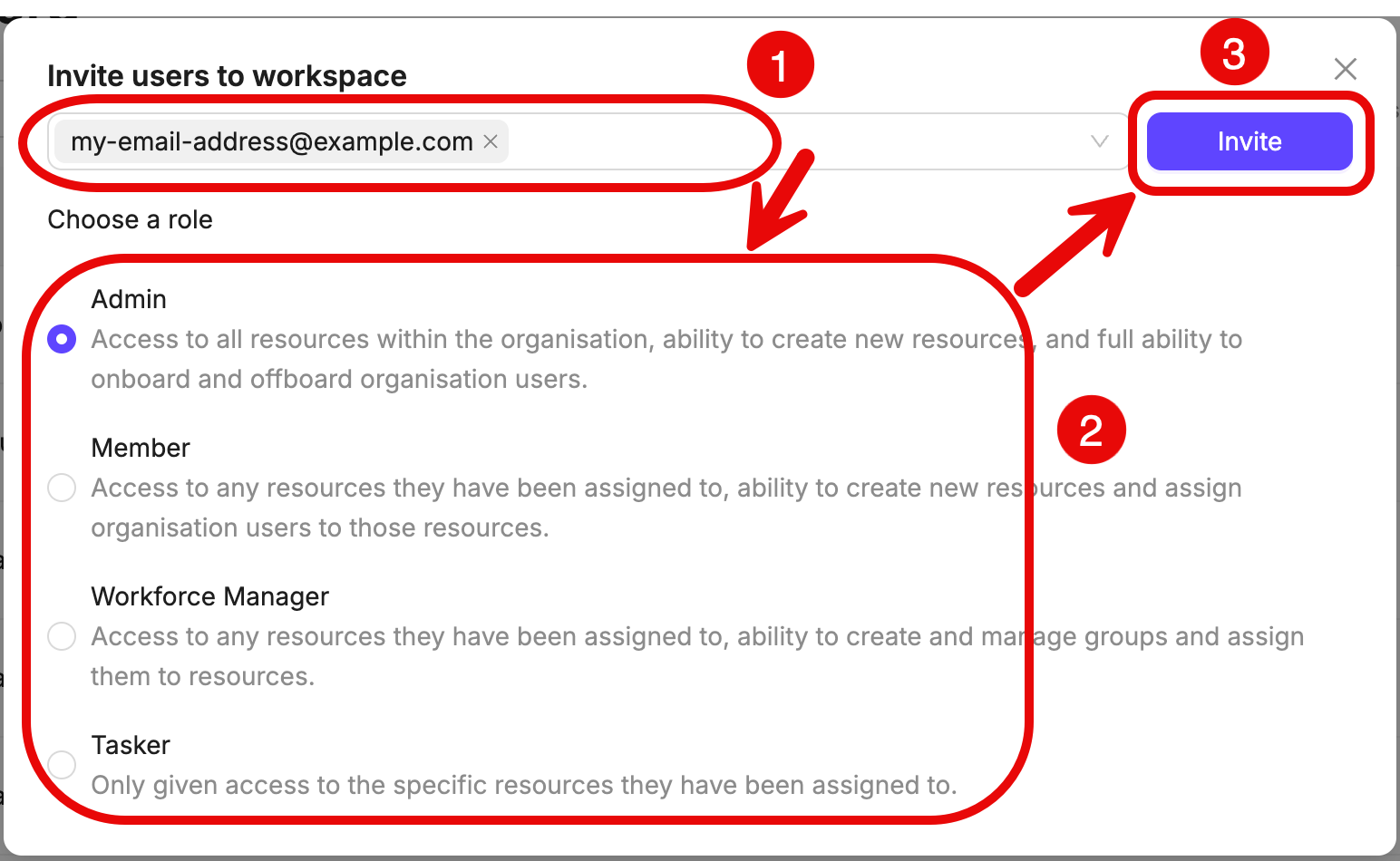
6. Press ENTER.
7. Select the role you want the users to have.
8. Click **Invite** to invite the users to your Workspace.
The user appears in the User list.
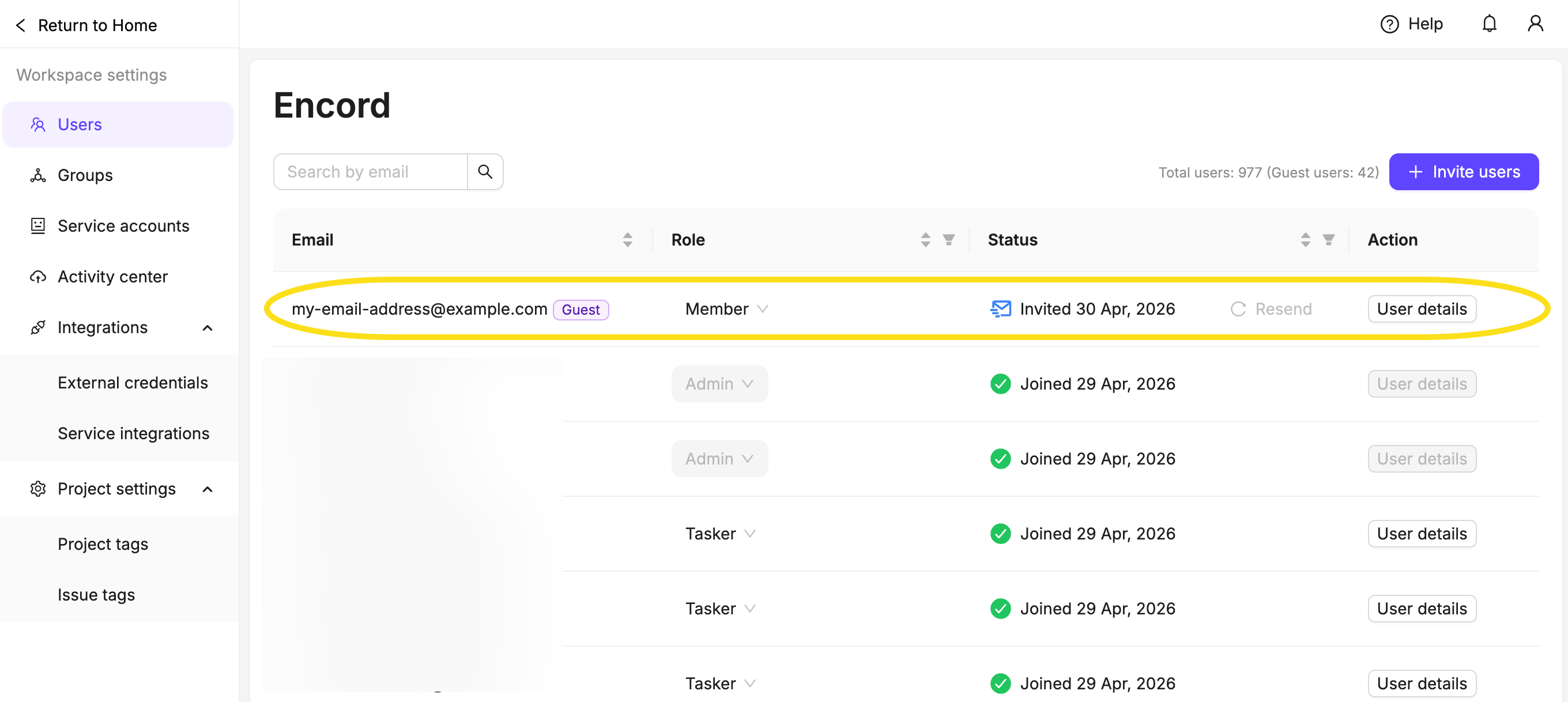
Users can accept invitations from the email link or a notification on their Encord home screen. The email link always takes them to the Encord login page, regardless of whether they have an existing account.
Invitations that have not been accepted by the invitee can be resent by clicking the **Resend** button in the **Status** column.
**To remove users from your Workspace or revoke pending invitations:**
1. Click the drop-down at the top of the page after logging in to the Encord Platform.

2. Select the Workspace you want to work with under *Workspaces*.

3. Click **Workspace settings**.
The *Workspace setings* page appears.

4. Search for the user you want to remove from your Workspace.
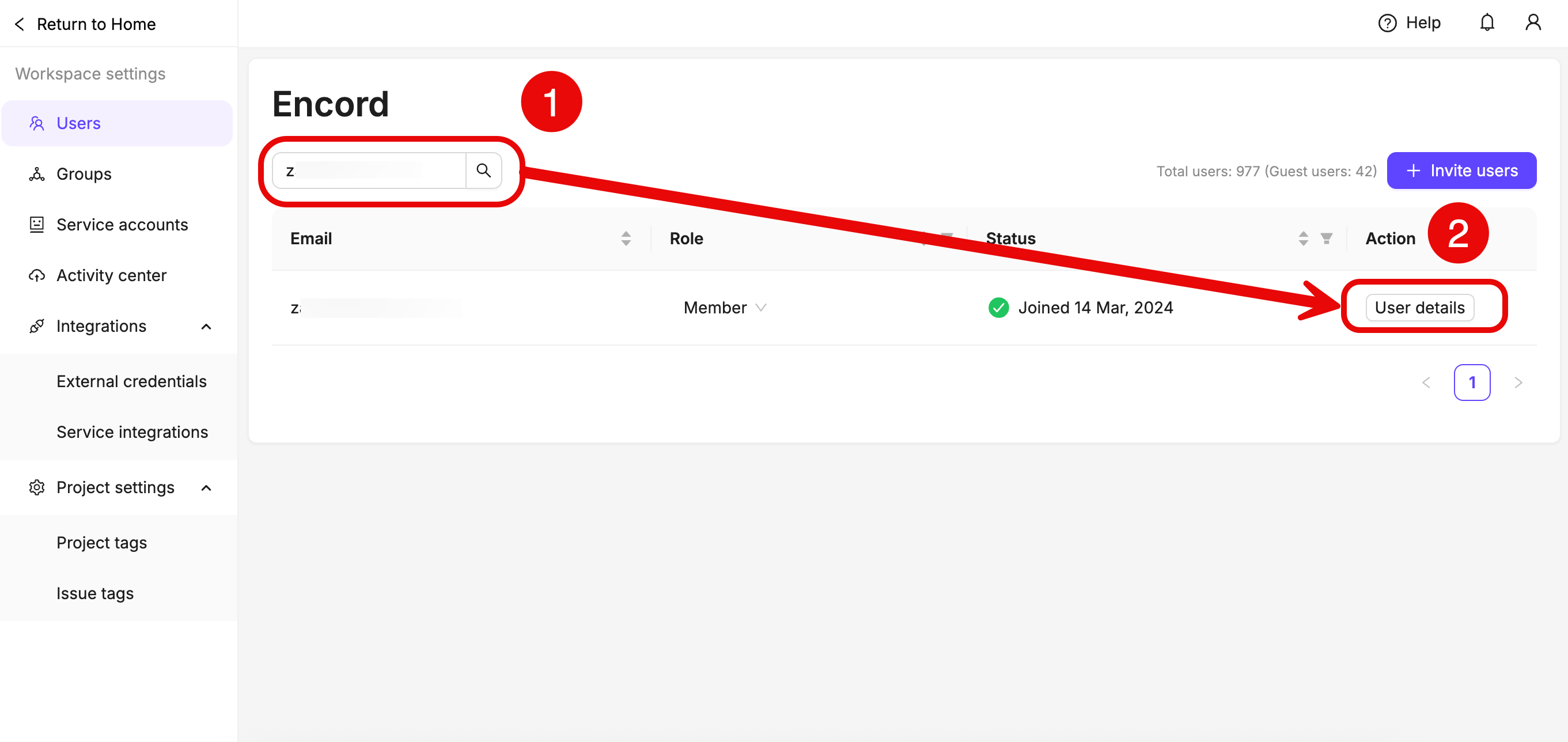
5. Click **User details**.
A dialog appears.
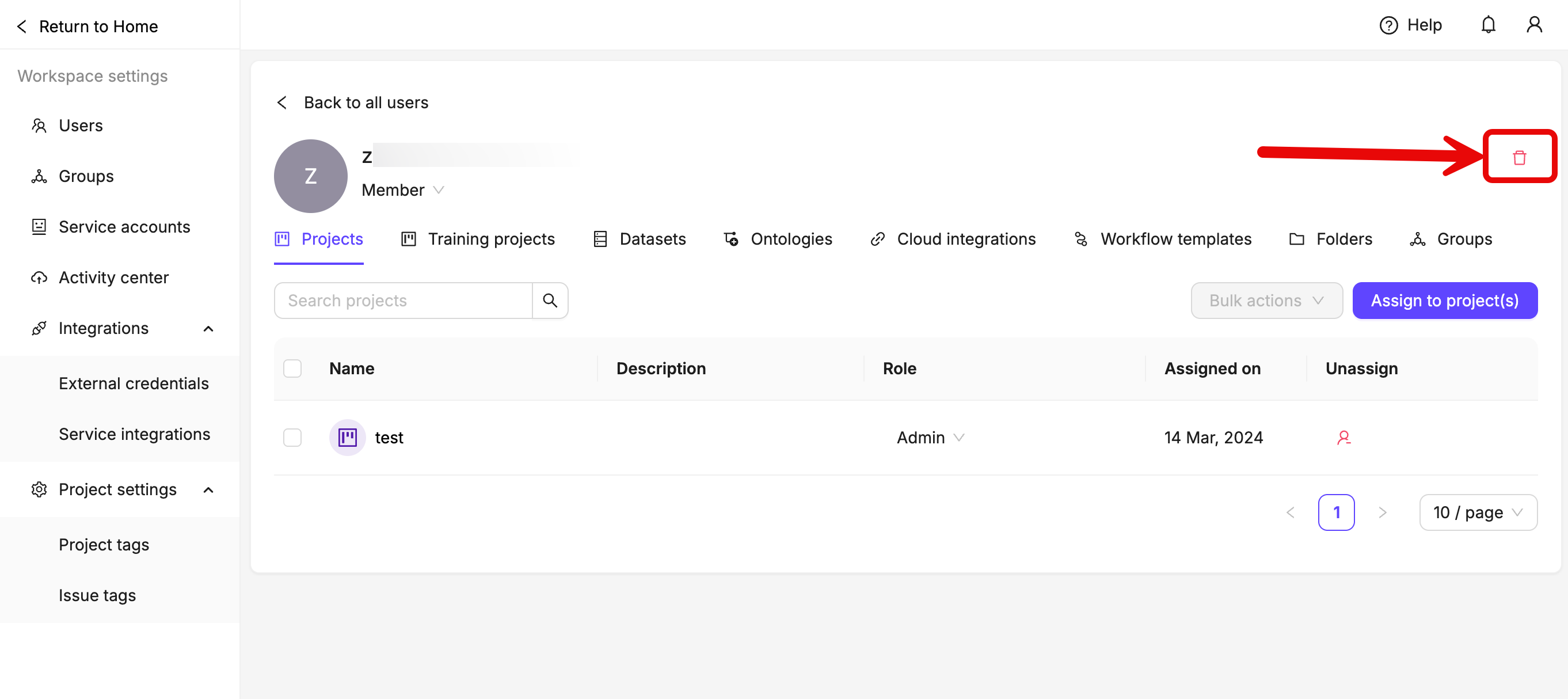
6. Click the **Delete** icon.
If the user being removed is the sole Admin for any Projects or Datasets within the Workspace, you are prompted to select a replacement user from within your Workspace.
Admins cannot be removed from a Workspace. To remove an Admin from your Workspace, contact [support@encord.com](mailto:support@encord.com).
### Accepting Invites
When a user is invited to join a Workspace, they need to accept the invitation sent to their email in order to join.
1. Open the Email.
2. Click **Accept invite**.
3. If you have not registered with Encord before, set up a password and add your name.
4. Accept the invitation to the Workspace.
The user has now joined the Workspace. Any Projects the user was added to appear in their list of Projects.
### Status
The user's status shows the status of the invitation to your Workspace. Users can have the following status:
* **Invited**: Shows the date the user was invited to your Workspace. The invitation is pending.
* **Declined**: Shows the date the user declined the invitation to join your Workspace.
* **Joined**: Shows the date the user joined your Workspace.
### Changing User Roles
Only Workspace admins can change user roles in your Workspace.
The roles of Workspace Admins cannot be changed. To change the user role of an Admin, or to remove them from the Workspace, contact [support@encord.com](mailto:support@encord.com).
**To change a user's role within the workspace**:
1. Click the drop-down at the top of the page after logging in to the Encord Platform.

2. Select the Workspace you want to work with under *Workspaces*.

3. Click **Workspace settings**.
The *Workspace setings* page appears.

4. Search for the user you want to change the user role for.
5. Click the user role dropdown of the user.
6. Select the role you want the user to have.
**To change a user's role for a resource**:
1. Click the drop-down at the top of the page after logging in to the Encord Platform.

2. Select the Workspace you want to work with under *Workspaces*.

3. Click **Workspace settings**.
The *Workspace setings* page appears.

4. Click **User details** in the **Action** column for the user.
5. Click the user's current role in the Role column, then select the new role you want to assign for the resource.
Click **Change role** from the **Bulk actions** dropdown to change a user's role in multiple Projects at once.
### Assigning Users
Users can be assigned to various resources even before the users accepts their invitation to join your Workspace.
1. Click **Settings** in the **My workspace** section.
The Workspace settings page appears with the *Users* tab selected.
2. Click **User details** in the **Action** column for the user you want to assign.
3. Select the resource you want to assign a user to by clicking the relevant tab.
4. Click the **Assign to** button. Different resources have different resource names on the button.
5. Select all the resources you want to assign the user to from the list. Use the search bar to search for a specific resource if necessary.
6. Click **Select a role**.
7. Select a role for the user. The role is assigned for all selected resources.
8. Click **Assign to annotation projects** to assign the user to your selected Projects.
**To remove users from resources**:
1. Click **Settings** in the **My workspace** section.
The Workspace settings page appears with the *Users* tab selected.
2. Click **User details** in the **Action** column for the user you want to remove.
3. Select the resource you want to remove the user from by clicking the relevant tab.
4. Click the red icon in the **Remove** column of the resource you want to remove the user from.
Select **Remove user** from the **Bulk actions** dropdown to remove users from multiple Projects at once.
***
## Groups
Groups are collections of members that are grouped together, allowing them to be added to Projects, Datasets, and Ontologies collectively. User groups are managed on the *Groups* tab of your Workspace settings's dashboard.
Only Workspace admins and [Workforce Managers](https://docs.encord.com/platform-documentation/Annotate/annotate-settings-general#workforce-manager) can create user groups.
### Group Managers and Members
The group managers feature is in BETA. To gain access to the group manager functionality, contact [support](mailto:support@encord.com).
User groups consist of **members**, **group managers**, or users who hold both roles.
| Role | Permissions |
| -------------------- | --------------------------------------------------------------------------------------------------------------------------------------------------------------------------------------------- |
| **Workspace Admins** | Can manage all groups and assign group managers. |
| **Group Managers** | Can add or remove users from their own groups but cannot manage other groups. If the group is added to a Project, the group manager does not automatically inherit the group's assigned role. |
| **Members** | Can be part of a group but cannot see who the group managers are. |
Group managers are useful for overseeing workforces. They can add or remove users from their assigned group without taking on the same user role as their workforce when the group is added to a Project. This allows for flexible team management without unnecessary role restrictions.
Only *Internal* Workspace members can be assigned as group managers.
### Create Groups
To create a Group:
1. Click the drop-down at the top of the page after logging in to the Encord Platform.

2. Select the Workspace you want to work with under *Workspaces*.

3. Click **Workspace settings**.
The *Workspace setings* page appears.

4. Click **Groups**.
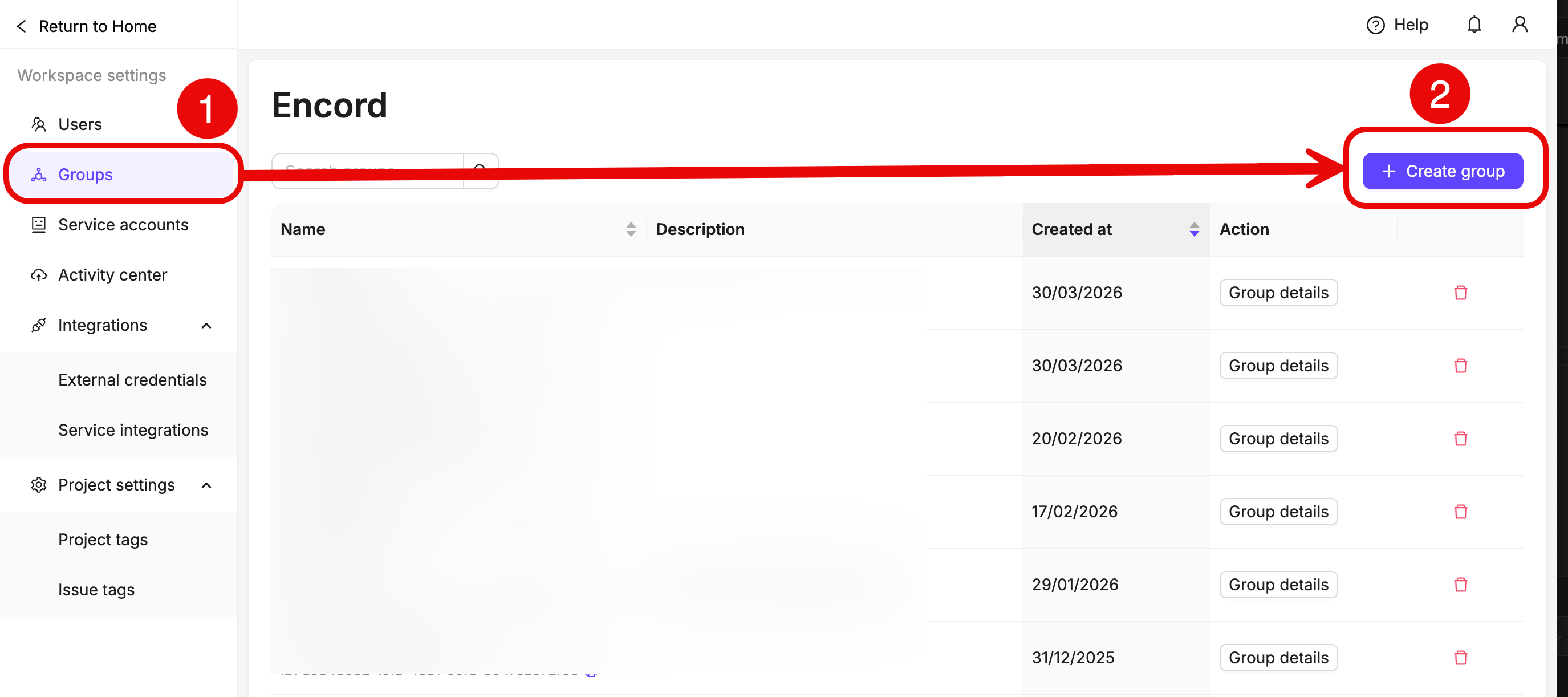
5. Click **+ Create group**.
A dialog appears.
6. Give your group a meaningful name and description.
7. Search for and select group members to be included in the group.
8. Click **Add** to add the selected members to the group. Users can be removed by clicking the delete icon next to the user.
9. Click **Next**.
10. Search for and select group managers to be included in the group.
11. Click **Add** to add the selected managers to the group. Group managers can be removed by Workspace admins by clicking the delete icon next to the user.
12. Click **Create group** to create the user group.
### Edit and Delete User Groups
Groups can be edited and deleted on the *Users* tab of your Workspace settings.
**To add users to an existing user group:**
1. Click the drop-down at the top of the page after logging in to the Encord Platform.

2. Select the Workspace you want to work with under *Workspaces*.

3. Click **Workspace settings**.
The *Workspace setings* page appears.

4. Navigate to the *Groups* tab of your Workspace settings.
5. Click **Edit** next to the name of the group.
A dialog appears.
6. Search for and select users to add to the group.
7. Click **Add**.
**To delete users from a user group**:
1. Click the drop-down at the top of the page after logging in to the Encord Platform.

2. Select the Workspace you want to work with under *Workspaces*.

3. Click **Workspace settings**.
The *Workspace setings* page appears.

4. Navigate to the *Groups* tab of your Workspace settings.
5. Click **Edit** next to the name of the group.
A dialog appears.
6. Click the delete icon next to the user.
**To delete a user group:**
1. Click the drop-down at the top of the page after logging in to the Encord Platform.

2. Select the Workspace you want to work with under *Workspaces*.

3. Click **Workspace settings**.
The *Workspace setings* page appears.

4. Navigate to the *Groups* tab of your Workspace settings.
5. Click **Edit** next to the name of the group.
A dialog appears.
6. Click the **Delete group** button.
***
## Project Tags
Project tags serve as a labeling system that helps to categorize, group, and filter Projects within your Workspace. Project tags are created and managed in the *Project tags* tab of the Workspace's dashboard.
Project tags are [applied to Projects on the Project level](/platform-documentation/Annotate/annotate-projects/annotate-project-settings#project-tags), not from your Workspace dashboard.
The *Project tags* tab is only visible to Workspace Admins, and only Workspace Admins can create Project tags.
**Create Project Tags**
Project tags must be created before they can be [added to a Project](/platform-documentation/Annotate/annotate-projects/annotate-project-settings#project-tags).
1. Click the drop-down at the top of the page after logging in to the Encord Platform.

2. Select the Workspace you want to work with under *Workspaces*.

3. Click **Workspace settings**.
The *Workspace setings* page appears.

4. Click **Project tags**.

5. Click **+ New project tag** on the *Project tags* tab.
6. Give the new Project tag a name.
7. Press Enter to create the tag.
All Project tag names must be unique.
**Sort Project Tags**
You can sort Project tags using the *Name*, *Last used by*, *Created by*, and *Projects* columns. Click the sort buttons up to 3 times for various sort options (ascending, descending, and unsorted).
**View Projects with Project tags**
You can directly view the Projects with specific tags by sorting and filtering the Project tags.
**Edit Project Tags**
Double-click a Project tag to change its name. Press Enter to confirm your selection.
**Delete Project Tags**
To delete a Project tag, click **x** on the Project tag. Deleting a Project tag removes it from all Projects in your Workspace.
***
## Issue Tags
Issue tags serve as a labeling system that helps to categorize, group, and filter issues within Projects. Issue tags are created and managed in the *Issue tags* tab of the Workspace's dashboard.
Issue tags are [applied to Projects on the Project level](/platform-documentation/Annotate/annotate-projects/annotate-project-settings#issue-tags), not from your Workspace dashboard.
The *Issue tags* tab is only visible to Workspace Admins. Only Workspace Admins can create Issue tags in this menu. Project admins can create issue tags [within a Project](/platform-documentation/Annotate/annotate-projects/annotate-project-settings#issue-tags).
A complete walkthrough of all things Issues and Comments related can be found [here](https://docs.encord.com/end-to-end/Features/issues-e2e).
**Create Issue Tags**
Issue tags must be created before they can be [added to a Project](/platform-documentation/Annotate/annotate-projects/annotate-project-settings#issue-tags).
1. Click the drop-down at the top of the page after logging in to the Encord Platform.

2. Select the Workspace you want to work with under *Workspaces*.

3. Click **Workspace settings**.
The *Workspace setings* page appears.

4. Click **Issue tags**.

5. Click **+ New issue tag** on the *Issue tags* tab.
6. Give the new Issue tag a meaningful name.
7. Press Enter to create the tag.
All Issue tag names must be unique.
**Edit Issue Tags**
To edit an Issue Tag, double-click the Issue Tag. When you are done, press Enter to confirm your changes.
**Delete Issue Tags**
To delete an Issue Tag, click **x** on the Issue tag. Deleting an Issue tag removes it from all Projects in your Workspace.
***
## Activity Center
The *Activity Center* tab monitors your Workspace's activity, providing a detailed view of completed jobs and the users who performed them. The list can be filtered by job type and by job status.
Click the **refresh** button to display the most recent jobs and ensure you are viewing the latest activity.
### What Activity Can I Track?
The Activity Center displays various job types and their progress. Below is a summary of the available job types:
| **Job Type** | **Description** |
| -------------- | ------------------------------------------------------------------- |
| Data import | Uploading and registering data into the platform. |
| Model training | Training a machine learning model using the provided Dataset. |
| Label import | Importing labels from external sources for use in annotation tasks. |
In addition to tracking job types, the status column indicates the progress of each job:
* **Processing**: The job is in progress.
* **Success**: The job completed successfully.
* **Error**: An issue occurred processing the job and the job did not complete.
### Actions
The *Action* column displays available actions for each job. For example, in a `Data Import` job, you can click **View folder** to access the storage folder where the data was uploaded. The *Action* column allows you to view error details when a job results in an error.


