> ## Documentation Index
> Fetch the complete documentation index at: https://docs.encord.com/llms.txt
> Use this file to discover all available pages before exploring further.
# 2. Set up your Workspace
## Users
The **Users** tab of your [Workspace settings](/platform-documentation/General/general-workspace-settings) provides an overview of all your Workspace's users and their user roles.
### User Roles
Workspaces have several kinds of users. The following table outlines permissions for all user roles.
| Permissions | **Admin** | **Member** | **Workforce Manager** | **Tasker** |
| ------------------------------------------------------ | :-------: | :--------: | :-------------------: | :--------: |
| Add and remove users | ✅ | ❌ | (Only Taskers) | ❌ |
| View all Projects, Datasets, and Ontologies | ✅ | ❌ | ❌ | ❌ |
| Create Projects, Datasets, and Ontologies | ✅ | ✅ | ✅ | ❌ |
| Access Projects, Datasets, and Ontologies (if invited) | ✅ | ✅ | ✅ | ✅ |
| Create user groups | ✅ | ❌ | ✅ | ❌ |
In addition to having a user role within the Workspace, all users have distinct roles in [Projects](/platform-documentation/Annotate/roles-and-permissions#projects), [Datasets](/platform-documentation/Annotate/roles-and-permissions#datasets), and [Ontologies](https://docs.encord.com/platform-documentation/Annotate/roles-and-permissions#ontologies).
### Adding and Removing Users
Only Workspace Admins and Workforce managers have the ability to add users to, or remove users from, the Workspace.
Users belonging to your Workspace are managed on the *Users* tab of your Workspace settings dashboard. The *Users* tab displays by default when you navigate to your Workspace. All users belonging to your Workspace are listed on the *Users* tab.
**To invite new users to your Workspace:**
1. Click **Settings** in the **My workspace** section.
The Workspace settings page appears with the *Users* tab selected.
2. Click the **+ Invite users** button.
A dialog appears
3. Type the email addresses of the users you want to invite.
4. Press ENTER.
5. Select the role you want the users to have.
6. Click **Add** to invite the users to your Workspace.
Users accept invitations by clicking the email link. The link redirects users to the Encord login page, regardless of whether the user has an existing Encord account.
Invitations that have not been accepted by the invitee can be resent by clicking the **Resend** button in the **Status** column.
**To remove users from your Workspace or revoke pending invitations:**
1. Click **Settings** in the **My workspace** section.
The Workspace settings page appears with the *Users* tab selected.
2. Search for the user you want to remove from your Workspace.
3. Click **User details**
4. Click **Remove user**.
If the user being removed is the sole Admin for any Projects or Datasets within the Workspace, you are prompted to select a replacement user from within your Workspace.
Admins cannot be removed from a Workspace. To remove an Admin from your Workspace, contact [support@encord.com](mailto:support@encord.com).
### Status
The user's status shows the status of the invitation to your Workspace. Users can have the following status:
* **Invited**: Shows the date the user was invited to your Workspace. The invitation is pending.
* **Declined**: Shows the date the user declined the invitation to join your Workspace.
* **Joined**: Shows the date the user joined your Workspace.
### Changing User Roles
Only Workspace admins can change user roles in your Workspace.
The roles of Workspace Admins cannot be changed. To change the user role of an Admin, or to remove them from the Workspace, contact [support@encord.com](mailto:support@encord.com).
**To change a user's role within the workspace**:
1. Click **Settings** in the **My workspace** section.
The Workspace settings page appears with the *Users* tab selected.
2. Search for the user you want to change the user role for.
3. Click the user role dropdown of the user.
4. Select the role you want the user to have.
**To change a user's role for a resource**:
1. Click **Settings** in the **My workspace** section.
The Workspace settings page appears with the *Users* tab selected.
2. Click **User details** in the **Action** column for the user.
3. Click the user's current role in the Role column, then select the new role you want to assign for the resource.
Click **Change role** from the **Bulk actions** dropdown to change a user's role in multiple Projects at once.
***
## User Groups
User groups are collections of members that are grouped together, allowing them to be added to Projects, Datasets, and Ontologies collectively. User groups are managed on the *Groups* tab of your Workspace settings's dashboard.
Only Workspace admins and [Workforce Managers](/platform-documentation/Annotate/annotate-settings-general#workforce-manager) can create user groups.
### Group Managers and Members
User groups consist of **members**, **group managers**, or users who hold both roles.
| Role | Permissions |
| -------------------- | --------------------------------------------------------------------------------------------------------------------------------------------------------------------------------------------- |
| **Workspace Admins** | Can manage all groups and assign group managers. |
| **Group Managers** | Can add or remove users from their own groups but cannot manage other groups. If the group is added to a Project, the group manager does not automatically inherit the group's assigned role. |
| **Members** | Can be part of a group but cannot see who the group managers are. |
Group managers are useful for overseeing workforces. They can add or remove users from their assigned group without taking on the same user role as their workforce when the group is added to a Project. This allows for flexible team management without unnecessary role restrictions.
### Create User Groups
To create a user group:
1. Click **Settings** in the **My workspace** section.
The Workspace settings page appears with the *Users* tab selected.
2. Navigate to the *Groups* tab of your Workspace settings.
3. Click **+ Create group**.
A dialog appears.
4. Give your group a meaningful name and description.
5. Search for and select group members to be included in the group.
6. Click **Add** to add the selected members to the group. Users can be removed by clicking the delete icon next to the user.
7. Click **Next**.
8. Search for and select group managers to be included in the group.
9. Click **Add** to add the selected managers to the group. Group managers can be removed by Workspace admins by clicking the delete icon next to the user.
10. Click **Create group** to create the user group.
Groups can be edited and deleted on the *Groups* tab of your Workspace settings.
**To add users to an existing user group:**
1. Click **Settings** in the **My workspace** section.
The Workspace settings page appears with the *Users* tab selected.
2. Navigate to the *Groups* tab of your Workspace settings.
3. Click **Edit** next to the name of the group.
A dialog appears.
4. Search for and select users to add to the group.
5. Click **Add**.
**To delete users from a user group**:
1. Click **Settings** in the **My workspace** section.
The Workspace settings page appears with the *Users* tab selected.
2. Navigate to the *Groups* tab of your Workspace settings.
3. Click **Edit** next to the name of the group.
A dialog appears.
4. Click the delete icon next to the user.
**To delete a user group:**
1. Click **Settings** in the **My workspace** section.
The Workspace settings page appears with the *Users* tab selected.
2. Navigate to the *Groups* tab of your Workspace settings.
3. Click **Edit** next to the name of the group.
A dialog appears.
4. Click the **Delete group** button.
### Add Project Tags
Project tags serve as a labeling system that helps to categorize, group, and filter Projects within your Workspace. Project tags are created and managed in the *Project tags* tab of the Workspace's dashboard.
Project tags are [applied to Projects on the Project level](/platform-documentation/Annotate/annotate-projects/annotate-project-settings#project-tags), not from your Workspace dashboard.
The *Project tags* tab is only visible to Workspace Admins, and only Workspace Admins can create Project tags.
Project tags must be created before they can be [added to a Project](/platform-documentation/Annotate/annotate-projects/annotate-project-settings#project-tags).
**To create Project Tags**:
1. Click **+ New project tag** on the *Project tags* tab.
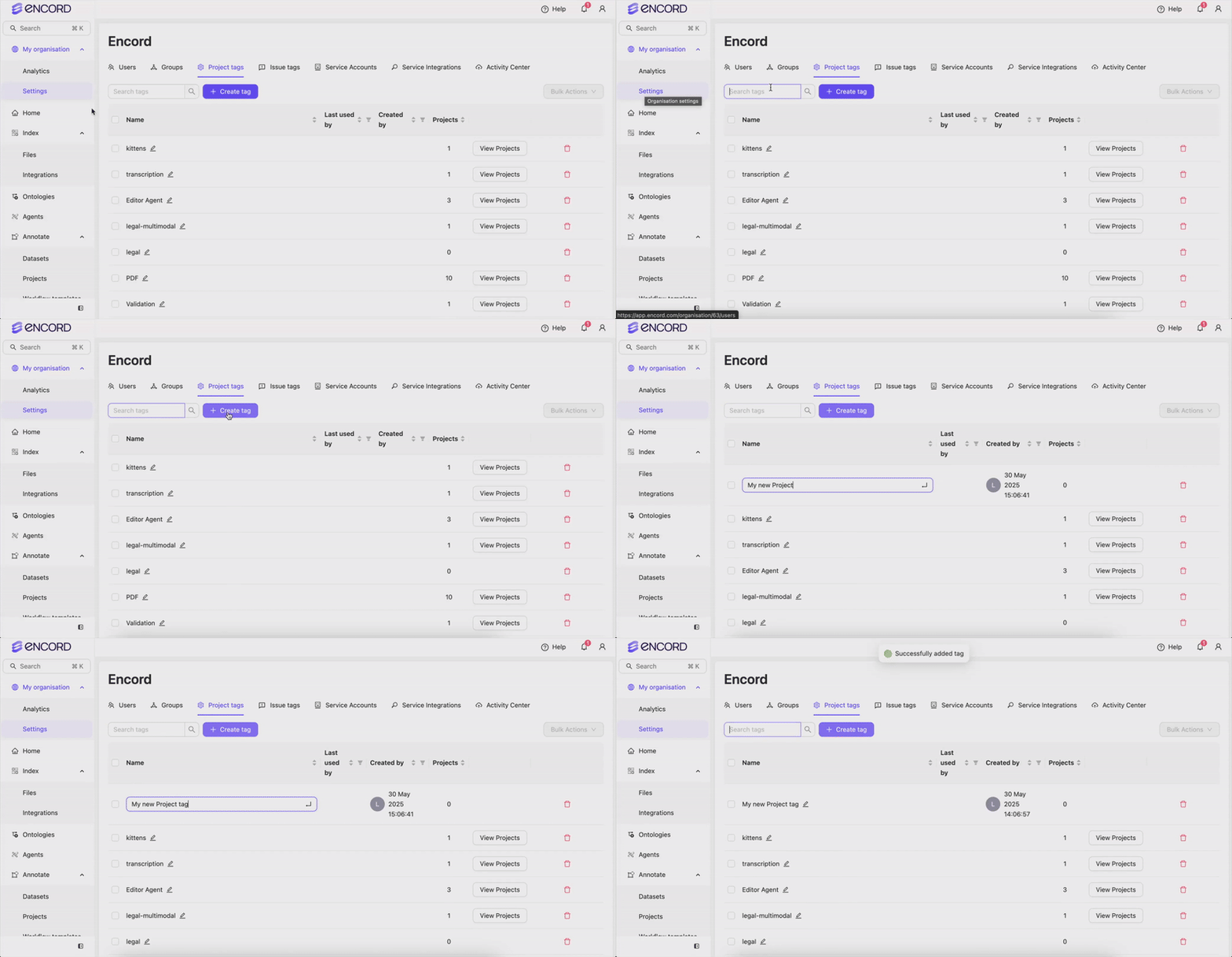
2. Give the new Project tag a name.
3. Press Enter to create the tag.
All Project tag names must be unique.
### Add Issue Tags
Issue tags serve as a labeling system that helps to categorize, group, and filter issue within Project and Projects themselves within your Workspace. Issue tags are created and managed in the *Issue tags* tab of the Workspace's dashboard.
Issue tags are [applied to Projects on the Project level](/platform-documentation/Annotate/annotate-projects/annotate-project-settings#project-tags), not from your Workspace dashboard.
The *Issue tags* tab is only visible to Workspace Admins. Only Workspace Admins can create Issue tags in this menu. Project admins can create issue tags [within a Project](/platform-documentation/Annotate/annotate-projects/annotate-project-settings#issue-tags).
Issue tags must be created before they can be [added to a Project](/platform-documentation/Annotate/annotate-projects/annotate-project-settings#issue-tags).
**To create Issue Tags**:
1. Click **+ New issue tag** on the *Issue tags* tab.
2. Give the Issue tag a meaningful name.
3. Press Enter to create the tag.
All Issue tag names must be unique.


