> ## Documentation Index
> Fetch the complete documentation index at: https://docs.encord.com/llms.txt
> Use this file to discover all available pages before exploring further.
# Issues and Comments
Issues and comments provide a way to communicate with Annotators, Reviewers, Annotators & Reviewers, Team Managers, and Admins within Annotation projects and Active projects.
Issues and Comments are supported across Annotate and Active, meaning [issues created in Annotate](/platform-documentation/Annotate/annotate-label-editor/annotate-label-editor-review#issues-and-comments) can be seen in Active, and issues create in Active can be seen in Annotate.
## Add comments in Active
Issues and comments in Active can be added to individual frames within a Project or to all frames within a Collection.
1. Log in to the Encord platform.
The Encord UI appears.
2. Click **Active**.
The Active home page appears with all available Projects appearing in the home page.
If no Projects appear on the Active home page, import a Project from Annotate.
3. Click a Project.
The Project workspace appears with the *Explorer* page displaying.
4. Filter, sort, and search for the frame/image you want to add comments to.
5. Mouseover the image you want to add a comment to.
A few actionable icons appear.
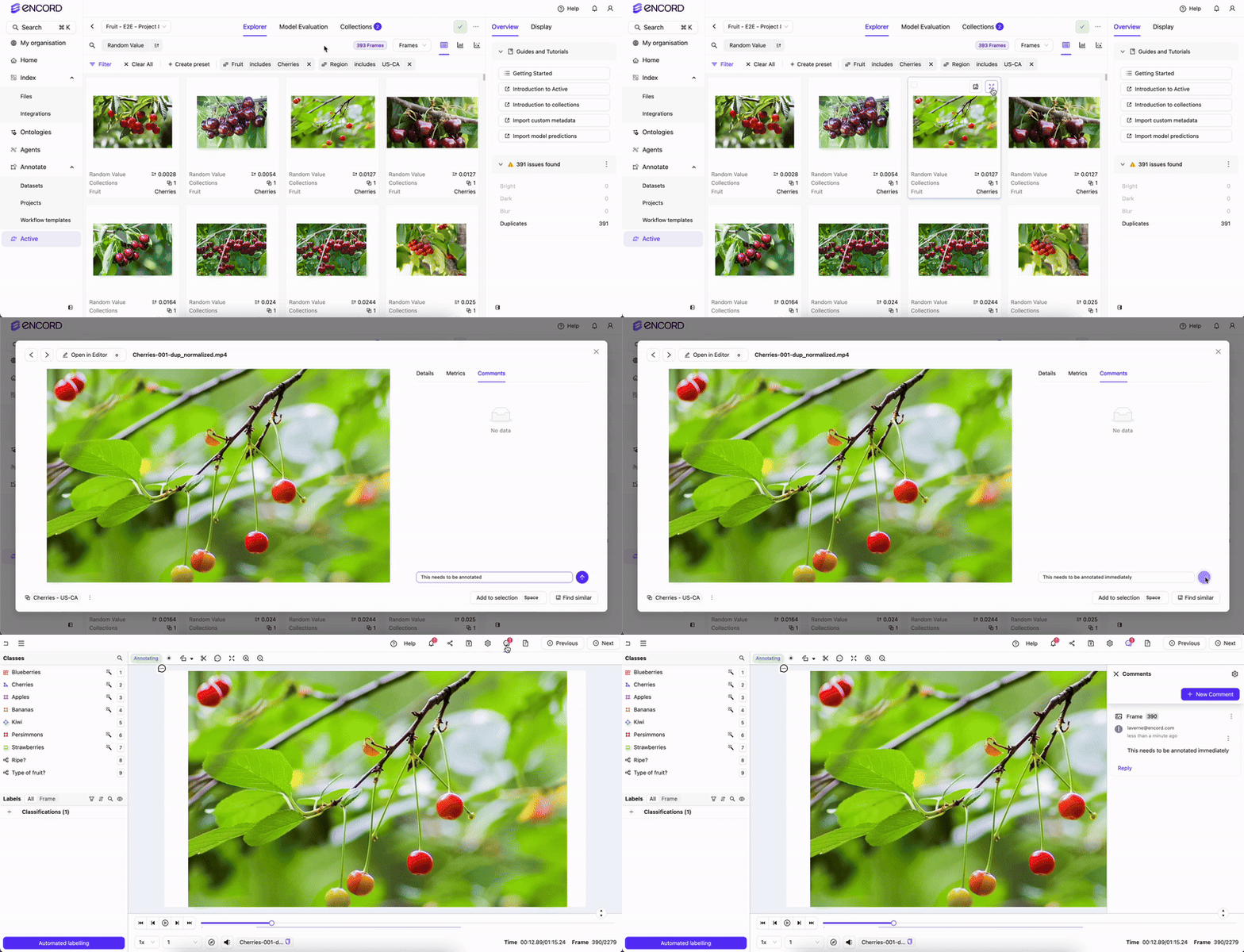
6. Click the Expand image icon.
A larger view of the image appears.
7. Click **Comments**.
The *Comments* tab appears.
8. Provide a comment.
9. Add/remove the frame/image to/from a Collection.
10. View the frame/image in Annotate.
11. Perform a similarity search on the image/frame.
12. Add comments to other frames/images as needed.
13. Add those frames/images to the Collection.
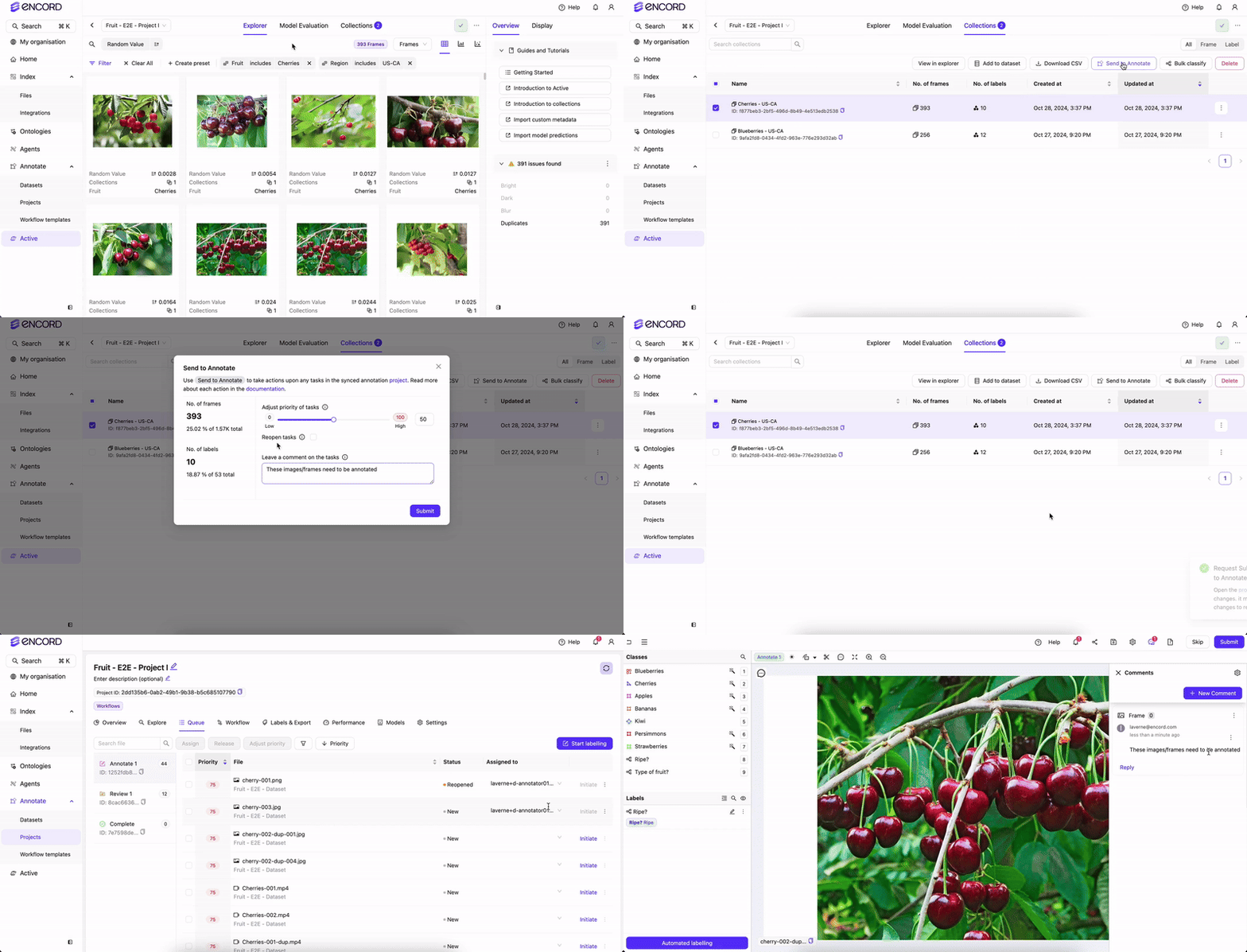
Comments made when sending a Collection to Annotate appear in every frame in a Collection.
1. Log in to the Encord platform.
The Encord UI appears.
2. Click **Active**.
The Active home page appears with all available Projects appearing in the home page.
If no Projects appear on the Active home page, import a Project from Annotate
3. Click a Project.
The Project workspace appears with the *Explorer* page displaying.
4. [Create a Collection](/platform-documentation/Curate/curation-basics#collections).
## View Annotate Issues in Active
To view issues created in Annotate, you must sync the Annotate Project data to Active.
1. Log in to the Encord platform.
The Encord UI appears.
2. Click **Active**.
The Active home page appears with all available Projects appearing in the home page.
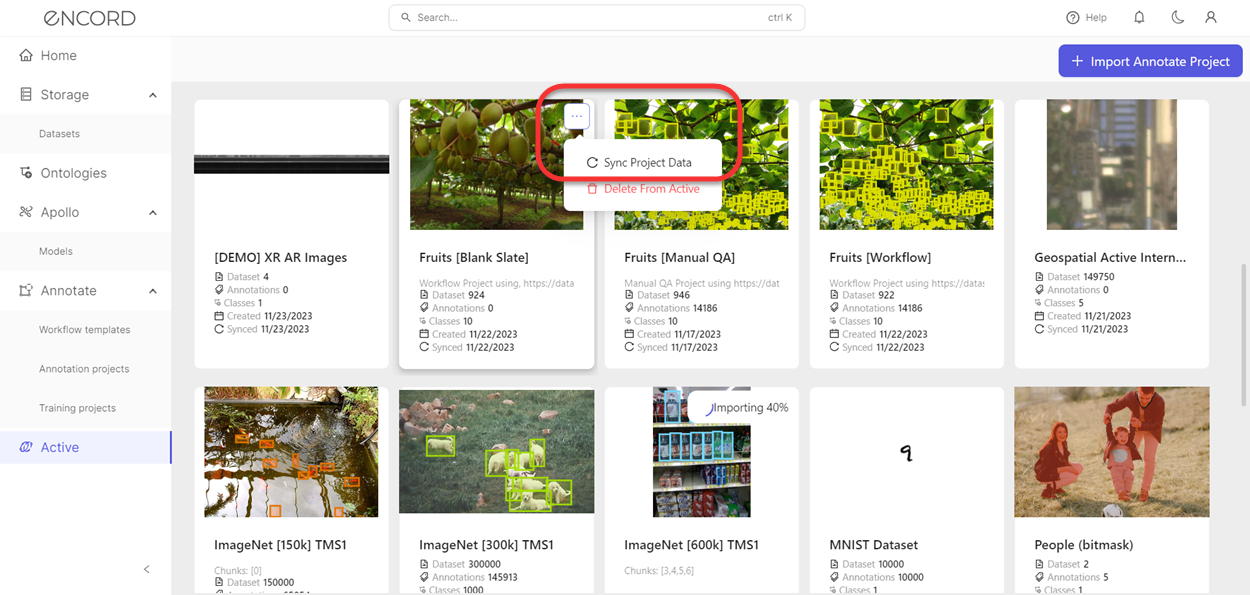
3. Mouseover the Project.
The More **...** icon appears.
4. Click the More **...** icon.
A menu appears.
5. Click **Sync Project Data**.
All the Annotate Project data (including comments) syncs to the Project in Active.