> ## Documentation Index
> Fetch the complete documentation index at: https://docs.encord.com/llms.txt
> Use this file to discover all available pages before exploring further.
# Compare Model Performance
You have trained your model, and now you are ready to see how it performs. It is time to perform a cycle of the Active model optimization workflow.
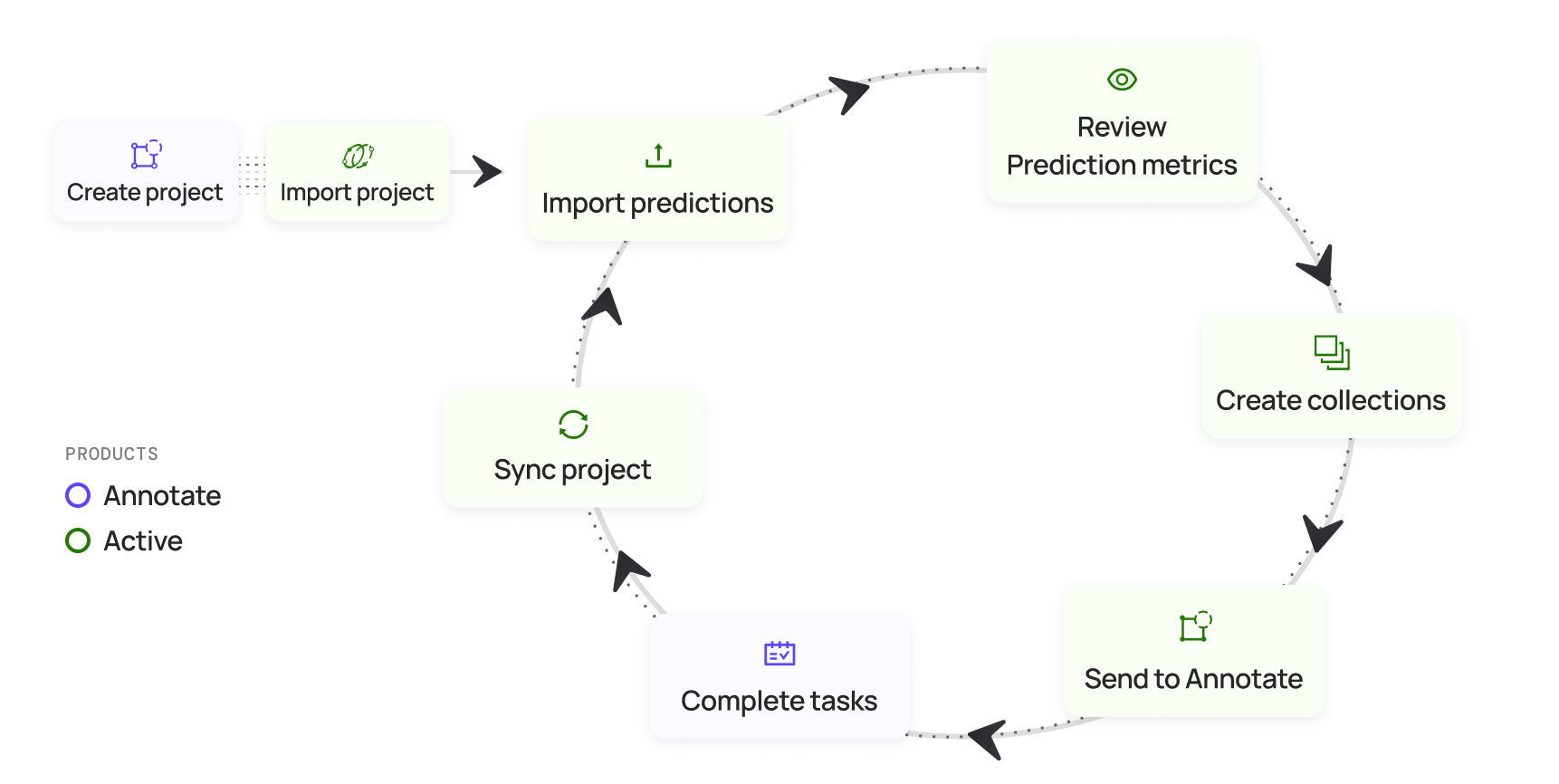
Now you want to compare your model's performance before using Encord (or maybe after running a number of data curation and label validation cycles). Active supports doing direct model prediction performance comparison from within your Active Project.
This process assumes you have already imported your model's predictions in to Active at least twice.
1. Navigate to **Projects**
2. Open the **Explore** tab.
3. Click **Model Evaluation**.
The *Model Evaluation* page appears with *Summary* displaying.
4. Select an entry from the dropdown under **Prediction Set** under *Overview*.
5. Select an entry from the dropdown under **Compare against** under *Overview*.
6. Click through the various entries on the left side of the Model Evaluation page to view the comparison.
7. Add more data and start the data curation, label validation, and model optimization cycles until the model reaches a performance level that you require.
This process assumes you are just getting started with Encord. You have not trained your model yet. You are using Encord to prepare your data for annotation, annotating your data, labeling your data, validating your labels, fixing any label issues, then training your model.
1. Navigate to **Projects**
2. Open the **Explore** tab.
3. Click **Model Evaluation**.
The *Model Evaluation* page appears with *Summary* displaying.
4. [Import a Prediction Set](/platform-documentation/Validation/active-how-to/active-import-model-predictions-cloud).
5. \[Perform data curation on your Project in Active]\(/platform-documentation/Validation/validation-tutorials/validation-
use-cases#data-cleansingcuration).
6. Label and review your data in Annotate.
7. Sync the Active Project with the updated Annotate Project.
8. Perform label validation on your updated and synced Project.
9. Send the Project to Annotate.
10. Label and review your data in Annotate.
11. Retrain your model using the curated and validated data/labels.
12. Click the Active Project.
The Project opens on the *Explorer*.
13. Click **Model Evaluation**.
The *Model Evaluation* page appears.
14. [Import the updated Prediction Set](/platform-documentation/Validation/active-how-to/active-import-model-predictions-cloud).
15. Select an entry from the dropdown under **Prediction Set** under *Overview*.
16. Select an entry from the dropdown under **Compare against** under *Overview*.
17. Click through the various entries on the left side of the Model Evaluation page to view the comparison.
18. Add more data and start the data curation, label validation, and model optimization cycles until the model reaches a performance level that you require.