> ## Documentation Index
> Fetch the complete documentation index at: https://docs.encord.com/llms.txt
> Use this file to discover all available pages before exploring further.
# Images
The following video goes through the basics of annotating images in the Label Editor.
Encord provides comprehensive support for image annotation. With the image editor, you can:
* Label using any annotation type such as bounding boxes, rotatable boxes, polygons, polylines, keypoints, and primitives.
* Create frame-level & object classifications.
* Object detection and instance segmentation.
* Reduce manual annotations with automation (e.g., importing model predictions) features.
***
## Task Management
Before we get into the details of the label editor and making annotations, a quick note about scheduling annotation work. Annotation is done in the annotation phase of the task management system. In order to ensure annotation work is saved properly, it's crucial that each labeling task is properly assigned to an annotator, annotators always access the task through the *Queue* tab in the Task Management System, and only the assigned annotator works on any given task at any given time.
***
## Annotation types
Objects are annotated using bounding boxes, polygons, polylines, keypoints or primitives. Frames are annotated using classifications. Instantiating objects or classifications in the image editor generates a *UUID* that uniquely identifies that label in the frame.
Labels can be assigned with static classifications as defined in the specified [Ontology](/platform-documentation/Annotate/annotate-ontologies/annotate-ontologies). Static classifications define the global properties of an object (e.g., the butterfly is of type red admiral and is orange).
You can read more about automation for image annotation here.
***
### Bounding box
Creating a bounding box requires an [Ontology](/platform-documentation/Annotate/annotate-ontologies/annotate-ontologies) with a bounding box annotation type. Instantiate a new bounding box label by clicking on the specified class in the 'Classes' menu, or by using the specified hotkey (e.g., 1, 2, 3).
Bounding box labels can be assigned with static classifications should they be defined in your [Ontology](/platform-documentation/Annotate/annotate-ontologies/annotate-ontologies):
* Highlight an object by clicking on it in the editor canvas or by clicking on the *Plus* icon or start/end frame in the range overview for the specified bounding box
* Assign a classifications by clicking on the relevant buttons or using the set hotkeys (for example q, u).
***
### Rotatable box
Traditional bounding boxes are great for annotating objects that appear in horizontal or vertical orientation, however, their accuracy may be limited when it comes to annotating objects at an angle. In such cases, use rotatable boxes to produce more accurate annotations.
Creating a rotatable bounding box requires an [Ontology](/platform-documentation/Annotate/annotate-ontologies/annotate-ontologies) with a rotatable box annotation type.Instantiate a new rotatable box label by clicking on the specified class in the 'Classes' menu or using the specified hotkey. Resize rotatable boxes like normal bounding boxes, and then grab the rotation handle to adjust the position until you're satisfied with the annotation's accuracy, as below.
Rotatable boxes can be assigned static classifications should they be defined in your Ontology,\
and you can [export the labels as usual](/platform-documentation/Annotate/annotate-export/annotate-how-to-export-labels).
***
### Polygon
Polygons are often necessary if you want to train your applications on the tightest object boundaries. Creating a polygon requires an [Ontology](/platform-documentation/Annotate/annotate-ontologies/annotate-ontologies) with a polygon annotation type. Enable or disable free-hand drawing mode by pressing d on your keyboard. Polygon coarseness for polygons drawn free-hand is set in the 'Settings' drawer in the *Drawing settings* drop-down. Instantiate a new polygon label by clicking on the specified class in the 'Classes' menu or using the specified hotkey (e.g., 1, 2, 3).
A polygon can be closed by double-clicking anywhere on the canvas. Doing so will "snap" creating an edge between the last vertex to the first vertex drawn.
You can create a polygon using SAM 2, by placing vertices, or by using the polygon brush (F).
Polygon labels can be assigned static classifications should they be defined in your [Ontology](/platform-documentation/Annotate/annotate-ontologies/annotate-ontologies):
* Highlight an object by clicking on it in the editor canvas or by clicking on the **+** icon or start/end frame in the range overview for the specified polygon
* Assign a classifications by clicking on the relevant buttons or using the set hotkeys (for example q, u)
***
### Polyline
Creating a polyline requires an [Ontology](/platform-documentation/Annotate/annotate-ontologies/annotate-ontologies) with a polyline annotation type. Enable or disable free-hand drawing mode by pressing d on your keyboard. Polyline coarseness for polylines drawn free-hand is set in the 'Settings' drawer in the *Drawing settings* drop-down. Instantiate a new polyline label by clicking on the specified class in the 'Classes' menu or using the specified hotkey (e.g., 1, 2, 3).
When free-hand drawing is off, each mouse click places a point on the polyline. A polyline needs at least two points. Double-click anywhere on the canvas to finish, but note that the double-click doesn't add a point or affect the shape. If only one point is placed, the polyline is canceled. Make sure to click at least twice before double-clicking to complete the shape.
Polyline labels can be assigned with static classifications should they be defined in your [Ontology](/platform-documentation/Annotate/annotate-ontologies/annotate-ontologies):
* Highlight an object by clicking on it in the editor canvas or by clicking on the *Plus* icon or start/end frame in the range overview for the specified polyline
* Assign a classification by clicking on the relevant buttons or using the set hotkeys (for example q, u)
***
### Keypoint
Creating a keypoint requires an [Ontology](/platform-documentation/Annotate/annotate-ontologies/annotate-ontologies) with a keypoint annotation type. Instantiate a new keypoint label by clicking on the specified class in the 'Classes' menu or using the specified\
hotkey (e.g., 1, 2, 3).
Keypoints labels can be assigned with static classifications should they be defined in your [Ontology](/platform-documentation/Annotate/annotate-ontologies/annotate-ontologies):
* Highlight an object by clicking on it in the editor canvas or by clicking on the *Plus* icon or start/end frame in the range overview for the specified keypoint
* Assign classifications by clicking on the relevant buttons or using the set hotkeys (for example q, u)
***
### Primitives
Creating a [primitive](/platform-documentation/Annotate/annotate-ontologies/annotate-working-with-ontologies#object-primitives) requires an [Ontology](/platform-documentation/Annotate/annotate-ontologies/annotate-ontologies) with a primitive annotation\
type. Use primitives to templatize shapes (e.g., 3D cuboids, pose estimation skeletons) commonly\
used by your annotation team.
Instantiate a new primitive label by clicking on the specified class in the 'Classes' menu or using the specified hotkey (e.g., 1, 2, 3).
Object primitives allow you to define properties of edges defined in your template as visible, occluded, or invisible. Toggle the edge property settings for a primitive by highlighting the primitive and clicking the *Show controls* button.
Primitive labels can be assigned with static classifications should they be defined in your [Ontology](/platform-documentation/Annotate/annotate-ontologies/annotate-ontologies):
* Highlight an object by clicking on it in the editor canvas or by clicking on the *Plus* icon or start/end frame in the range overview for the specified primitive
* Assign classifications by clicking on the relevant buttons or using the set hotkeys (for example q, u)
***
### Segmentation masks / Bitmasks
Bitmasks allows you to create labels using a brush tool to select parts of an image. This can be useful when creating labels for vessel outlines, or labeling topologically separate regions belonging to the same frame classification.
When creating a bitmask, the process continues until you press the ENTER or ESC key. This allows you to easily create complex bitmask labels without interruption.
Creating a bitmask segmentation requires an Ontology with the *Bitmask* annotation type.
[Existing Bitmask labels can be updated](#updating-bitmask-labels) using the [brush tool](#brush-tool), [threshold brush](#threshold-brush), and [eraser](#eraser) tools.
#### Brush tool
When you select your bitmask annotation type, the brush tool is selected by default. You can adjust the size of the Bitmask brush tool using the slider in the Bitmask popup, as seen in the screenshot above.
The brush tool can be selected by clicking the brush icon, or by pressing f on your keyboard while the popup is open.
When your label is ready, click **Apply label**, or press Enter.
#### Panoptic mode
Panoptic settings allow you to determine how different bitmasks interact with other bitmasks, polygons, and SAM created labels.
Use panoptic *Exclude* mode to automatically exclude existing bitmasks from new segmentations. This prevents overlapping labels and ensures clean, non-overlapping annotations.
Panoptic mode only works with bitmask annotations and is automatically applied when using manual label creation.
* **None**: Overlapping bitmasks are allowed. The bitmask overlaps with existing bitmasks, polygons, and SAM created labels.
* **Exclude**: Areas already covered by a bitmask are excluded from the bitmasks, polygons, and SAM created labels.
* **Overwrite**: Areas already covered by a bitmask are overwritten by the new bitmasks, polygons, and SAM created labels.
#### Thresholding
The *Thresholding* tool enables you to set a threshold that determines the parts of the image or frame that is labeled by the Bitmask. Consequently, only the parts of the image falling within th predefined range are labeled upon selection with the *Thresholding* tool, ensuring precise and targeted labeling.
When *Thresholding* is enabled, a mask covering the parts of the image that fall above the set threshold appears on the slice. This allows you to preview which parts of the image are labeled when a Bitmask label is applied. The mask color can be changed by clicking the circle icon.
The eyedropper tool enables you to pick a color or intensity value directly from the image.
Three different kinds of threshold can be selected using a dropdown:
* **Intensity**: Only pixels within the set intensity value range are labeled.
* **RGB**: Only pixels within the set [red, green, and blue](https://en.wikipedia.org/wiki/RGB_color_model) range are labeled. The range for each color can be set separately.
* **HSV**: Only pixels within the set [hue, saturation, and value](https://learn.leighcotnoir.com/artspeak/elements-color/hue-value-saturation/) range are labeled.
When your label is ready, click **Apply label**, or press Enter.
#### Eraser
The *Eraser* tool allows you to erase parts, or the entirety of your Bitmask selection if the **Apply label** button has not been clicked yet.
To select the threshold brush, click the eraser icon, or press h on your keyboard while the popup is open.
#### Combine bitmasks on an image/frame
Combining bitmasks on an image or frame allows you to label objects that are split/separated in the image/video frame.
When creating a bitmask, the process continues until you press the ENTER or ESC key. This allows you to easily create complex bitmask labels without interruption.
**To combine two or more bitmasks on an image / video frame:**
1. Hold SHIFT.
2. Click the bitmasks you want to combine in the Label Editor workspace.
3. Right-click (on Mac press Cmd).
A menu appears.
4. Select **Combine bitmasks into**.
The bitmasks are now a single bitmask.
#### Bitmask overlap management
It is possible to prevent a Bitmask label from being overlapped by subsequent Bitmasks after the label is created. Use the toggle in the *Labels* section of the Label Editor to set the overlap behavior.
Choose between the following settings:
 * **Can be drawn over** - If the Bitmask is drawn over, any part of the image beneath the existing Bitmask that falls within the specified threshold range is included in the next label.
 * **Cannot be drawn over** - No part of the image covered by this Bitmask is included in any other Bitmask labels.
 * **Must be drawn over** - If the Bitmask is drawn over, any part of the Bitmask label is included in the new Bitmask, regardless of threshold values set.
The **Must be drawn over** setting for *Bitmask overlap* is only available to select customers. Contact [support@encord.com](mailto:support@encord.com) for more information.
#### Updating bitmask labels
To update a bitmask label:
1. Click the bitmask label you want to edit.
2. Select either the [brush](#brush-tool), [threshold brush](#threshold-brush), or [eraser](#eraser) tool and make your changes.
3. Press Enter or click the **Update label** button in the bitmask popup.
#### Moving bitmasks
Bitmask labels can be moved to another location after being created.
1. Click the bitmask label you want to move.
2. Click and drag the bitmask to the desired location.
3. Release the bitmask to confirm the new location.
* **Must be drawn over** - If the Bitmask is drawn over, any part of the Bitmask label is included in the new Bitmask, regardless of threshold values set.
The **Must be drawn over** setting for *Bitmask overlap* is only available to select customers. Contact [support@encord.com](mailto:support@encord.com) for more information.
#### Updating bitmask labels
To update a bitmask label:
1. Click the bitmask label you want to edit.
2. Select either the [brush](#brush-tool), [threshold brush](#threshold-brush), or [eraser](#eraser) tool and make your changes.
3. Press Enter or click the **Update label** button in the bitmask popup.
#### Moving bitmasks
Bitmask labels can be moved to another location after being created.
1. Click the bitmask label you want to move.
2. Click and drag the bitmask to the desired location.
3. Release the bitmask to confirm the new location.
 ***
### Frame classification
Creating frame classification(s) requires an [Ontology](/platform-documentation/Annotate/annotate-ontologies/annotate-ontologies) with a classification annotation type. Frame-level classifications consider the frame as a whole, not any given object's localization. Instantiate a frame-level classification label by clicking on the specified class in the 'Classes' menu or using the specified hotkey (e.g., 1, 2, 3).
Encord currently supports radio, checklist, and free-form text input classification types. Edit existing classification labels by clicking on the **+** icon for the specified label.
***
### Frame classification
Creating frame classification(s) requires an [Ontology](/platform-documentation/Annotate/annotate-ontologies/annotate-ontologies) with a classification annotation type. Frame-level classifications consider the frame as a whole, not any given object's localization. Instantiate a frame-level classification label by clicking on the specified class in the 'Classes' menu or using the specified hotkey (e.g., 1, 2, 3).
Encord currently supports radio, checklist, and free-form text input classification types. Edit existing classification labels by clicking on the **+** icon for the specified label.
1. Create a frame classification from ontology 2. Edit a classification
### Linking object instances
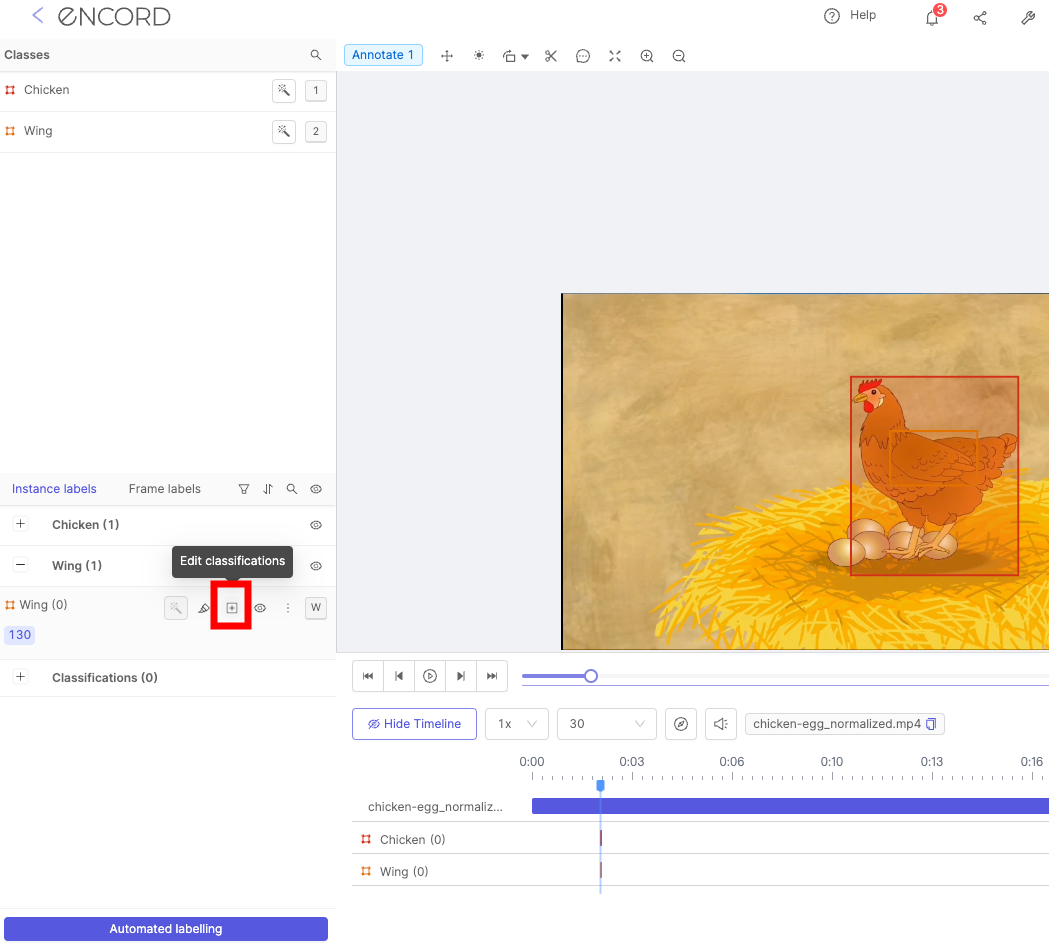
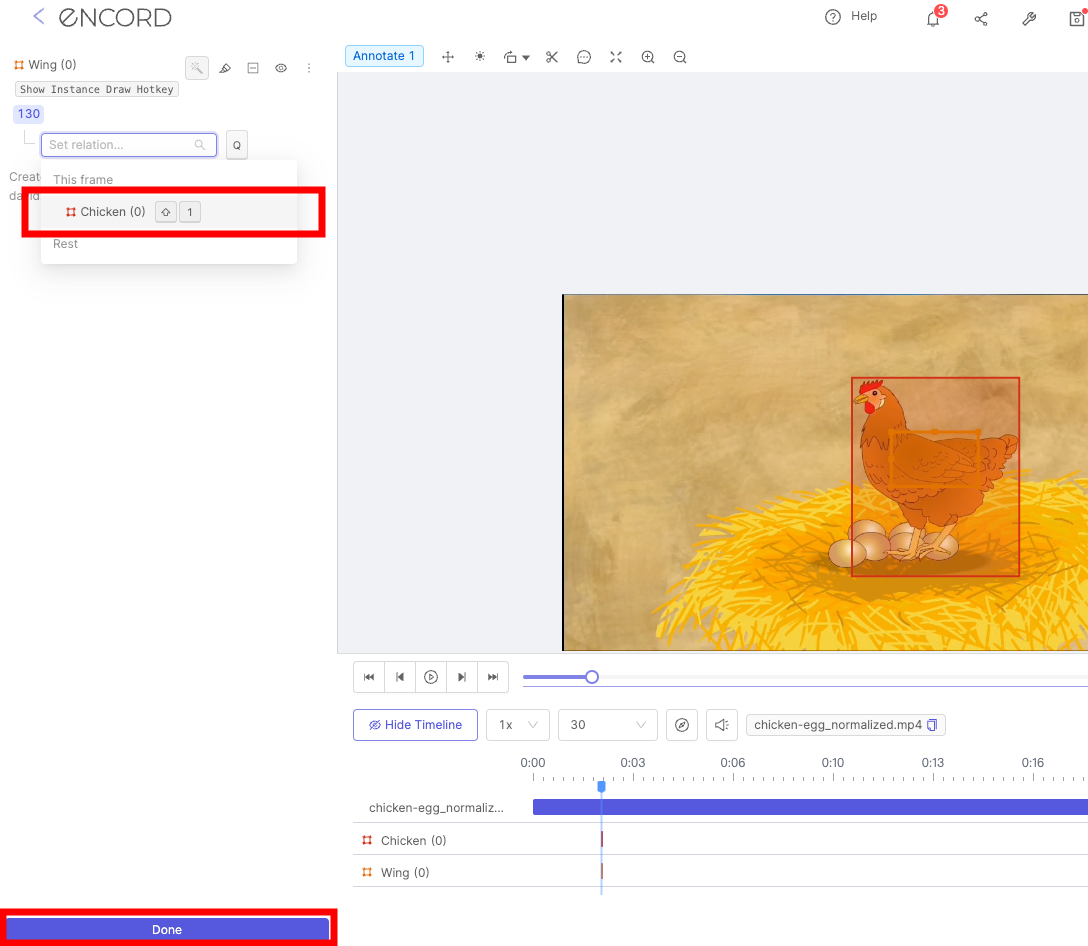
Object instances are linked using *Relation* attributes, which are set up in the Ontology. See our [documentation on *Relation* attributes](/platform-documentation/Annotate/annotate-ontologies/annotate-ontologies#relation-attributes) to learn more.
1. Create both instance labels. In this example a chicken and its wing have been labeled using bounding boxes.
2. Click the *Edit classifications* button for the object with the *Relation* attribute. In the example this object is the wing, as seen below.
 3. Click the *Set relation...* bar and select the instance you want to link the selected instance to. In our example the chicken and the wing appear on the same frame, and therefore appear under the *This frame* heading. Instances in different frames will appear under the heading *Rest*.
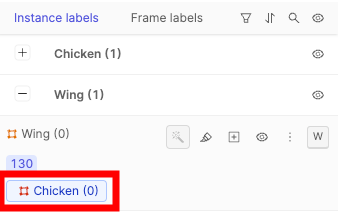
 4. Click **Done**. The instances are now linked. This is shown in the *Instance labels* section with the name of the linked instance being displayed.
 ***
## Automation
### Import model predictions
Encord's [Python SDK](/sdk-documentation/getting-started-sdk/installation-sdk) & APIs allow you to import model predictions programmatically. Importing model predictions helps to pre-annotate your data to save annotation costs.
***
### Automated labeling
See our documentation on automated labeling [here](/platform-documentation/Annotate/automated-labeling).
***
## Automation
### Import model predictions
Encord's [Python SDK](/sdk-documentation/getting-started-sdk/installation-sdk) & APIs allow you to import model predictions programmatically. Importing model predictions helps to pre-annotate your data to save annotation costs.
***
### Automated labeling
See our documentation on automated labeling [here](/platform-documentation/Annotate/automated-labeling).


