> ## Documentation Index
> Fetch the complete documentation index at: https://docs.encord.com/llms.txt
> Use this file to discover all available pages before exploring further.
# Task Queue
The *Queue* tab in an Encord Annotate Project gives you a centralized view of all tasks across every Workflow stage. Use it to assign tasks to annotators and reviewers, set priorities, apply filters, and start labeling or reviewing work — all without leaving the Project dashboard.
The order of data units (tasks) with the same priority in the Task Queue is completely random. However, each user sees the same random order of tasks.
***
## Queue Layout by Role
The *Queue* tab adapts based on the logged-in user's role.
### Queue (Admin, Team Manager)
* **A** — The list of Workflow stages shows the number of data units currently in each stage. Click a stage to view its task queue.
* **B** — Shows the task's priority number. Tasks are listed in descending order of priority by default.
* **C** — Search, sort, and filter the list of data units by *Dataset*, *Assignee*, *Data Type*, *Status*, or *Issue Status*.
* **D** — Shows the task's Status (New, Reopened, Skipped). For tasks that have moved through previous stages, an info icon appears next to the status badge. Hover over the icon to see details about the previous stage, including the stage name, who performed the action, and when it occurred.
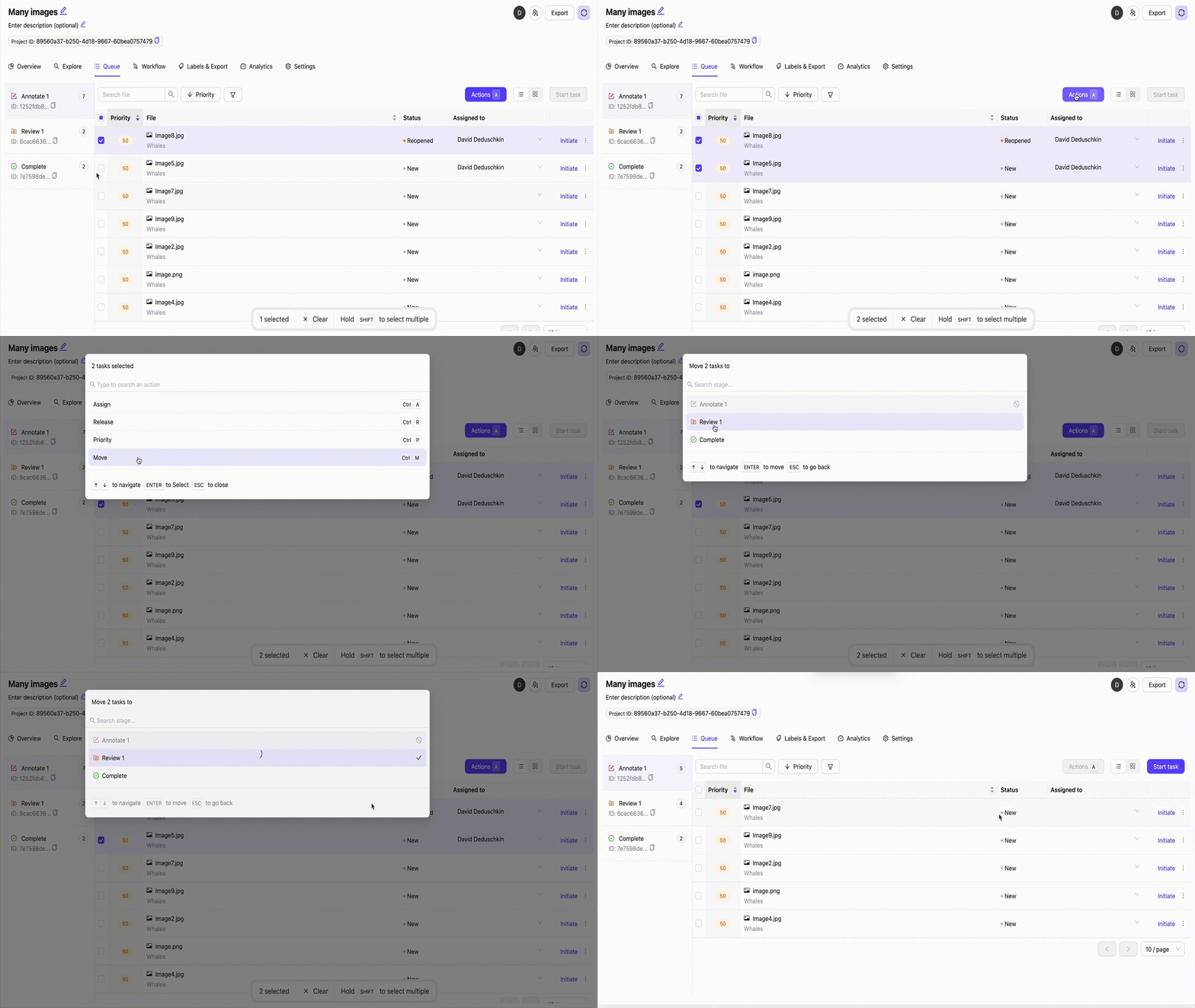
* **E** — Task Actions. Assign or release selected tasks, adjust priority, or move tasks to a different Workflow stage.
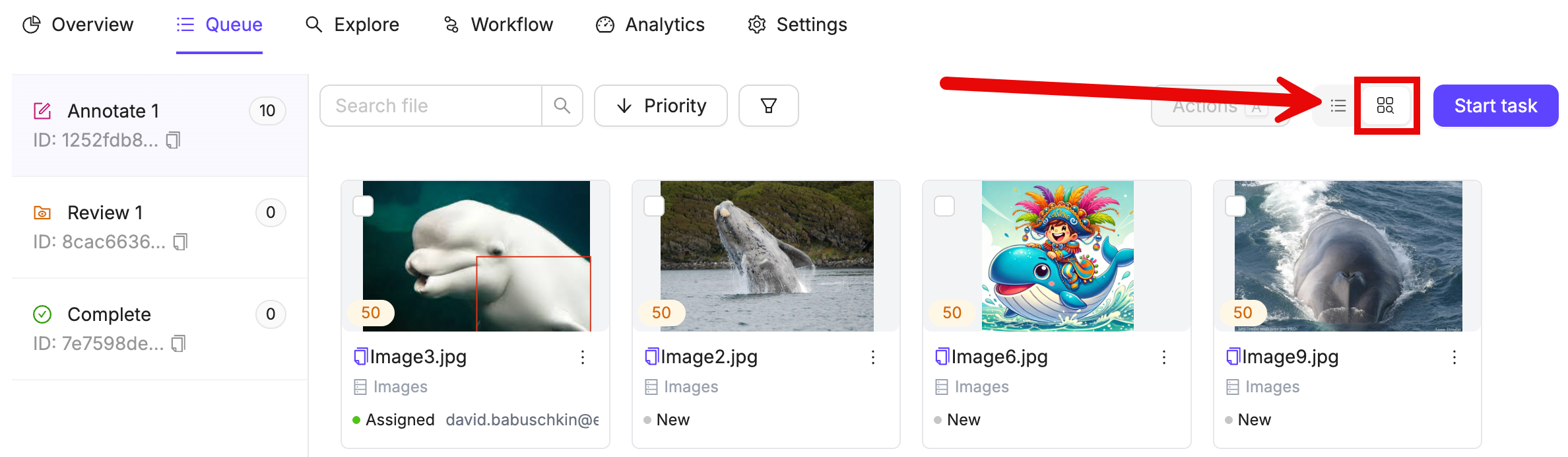
* **F** — Switch between List and Explorer view.
* **G** — Use the **Start task** button to begin labeling or reviewing a task.
* **H** — Click the **Initiate** button to open a specific task in the Label Editor.
The *Queue* tab lists tasks in the same order they appear in the Label Editor.
### Queue (Annotator)
Annotators only see tasks in the *Annotate* stage that are assigned to them. They cannot view tasks in the Review stage or tasks assigned to other users.
### Queue (Reviewer)
Reviewers only see tasks in the *Review* stage that are assigned to them. They cannot view tasks in the Annotate stage or tasks assigned to other users.
### Queue (Annotator + Reviewer)
Users with the *Annotator + Reviewer* role can see both the *Annotate* and *Review* tabs in the Queue. They are limited to tasks assigned to them in each respective stage.
***
## Paused Agent Indicator
When any Agent stage in your Workflow is paused, the **Queue** tab displays an information icon next to its name. This indicator alerts you that tasks in paused Agent stages do not execute automatically until the Agents are unpaused.
Click the information icon to see which Agent stages are paused and need attention.
***
## Agent Stages
When viewing an Agent stage, the Queue displays additional controls and status information for Workflow agents.
**Agent Status Banner**
For Agent stages, a status banner appears above the task list showing the agent name and icon (click to view detailed agent configuration), a status indicator showing whether the agent is Live (green) or Paused (orange), and control buttons that Admins and Team Managers can use to pause/resume agents or view agent settings.
**Agent Controls**
Only Workspace and Project Admins and Team Managers can control agent execution.
| Action | How |
| --------------------- | ---------------------------------------------------------------------- |
| Pause agent | Click **Pause** to stop automatic processing |
| Resume agent | Click **Go live** to resume automatic processing |
| Manual task execution | Navigate to paused agent stage → find **Pending** task → click **Run** |
| Retry failed task | Find **Failed** task → click **Retry** |
Use manual execution when testing agent configurations or troubleshooting specific data units before resuming live processing.
**Agent Execution Status**
For Projects using Agents in their Workflow, tasks display execution status badges showing the current state of automated processing:
| Status | Description |
| ---------- | ------------------------------------------------------------------------- |
| Pending | The agent execution is queued and waiting to start. |
| Dispatched | The agent execution has been assigned to a worker. |
| Running | The agent is currently processing the task. |
| Succeeded | The agent execution completed successfully. |
| Failed | The agent execution encountered an error and failed to complete. |
| Timed out | The agent execution exceeded the maximum allowed time and was terminated. |
| Canceled | The agent execution was manually canceled before completion. |
**Retry Failed Tasks**
You can retry tasks that failed or timed out by selecting one or more affected tasks in the Queue, then clicking Retry failed to re-run the agent on those tasks. The system will attempt to execute the Agent again on the selected tasks.
The Retry failed button is only available for Agent stages with catalog agents and only appears when you have selected tasks that failed or timed out.
**Moving Agent Tasks**
When moving agent tasks to the next stage, the system skips tasks that are currently running or dispatched (they remain in the current stage), only moving tasks that are not actively being processed. A confirmation dialog will show how many tasks are moved and how many are skipped.
Tasks that are currently running or dispatched cannot be moved and remain in their current stage until execution completes.
***
## Queue View Options
The Queue offers different view modes to help you work with tasks more effectively:
* **List view** — The default tabular view showing tasks in a structured list format
* **Grid view** — A visual grid layout for browsing tasks and labels
* **Visual Queue** — An enhanced visual interface for task management (when available)
Use the view switcher in the top-right corner of the Queue to change between available options.
Visual Queue availability varies based on your Project settings and enabled features. Some Projects may only show the List and Grid view options.
***
## Filters and Sorting
**Filters**
| Filter | Description |
| ---------------- | -------------------------------------------------------------------------------------------------------------------------------- |
| Dataset | Show only data units belonging to the selected Dataset(s). |
| Assignees | Show tasks assigned to a specific user. |
| Last Actioned By | Show tasks last actioned by the selected user. |
| Data Type | Show data units of a specific type (image, video, audio, etc.). |
| Issue Status | Show tasks with *Resolved* or *Unresolved* issues. |
| Object Count | Filter tasks by the number of labeled objects they contain (when available). |
| Execution Status | Show agent tasks by their execution status (Pending, Running, Failed, etc.). Available only in Agent stages with catalog agents. |
**Sort by**
Click **Sort by** next to the filter button to sort the queue by:
* Task priority, or alphabetically by data unit name
* Object count (when available)
* Ascending or descending order
The default sort is descending order of task priority.
Object count filtering and sorting are available based on your organization's feature access.
Use the keyboard shortcut S to open the sort dropdown, or Ctrl + O to quickly toggle between ascending and descending order.
***
## Task Status
The task Status indicates what actions have previously been taken on a task. For tasks that have moved through previous Workflow stages, an info icon appears next to the status badge. Hover over the icon to see details about the previous stage, including the stage name, who performed the action, and when it occurred.
| Status | Description |
| -------- | ------------------------------------------------------------------------------------------------ |
| New | The task has not been worked on since being added to the Project. |
| Reopened | The task was rejected during Review and has been returned for re-labeling. |
| Skipped | The task was skipped by one or more annotators. |
| Pending | (Agent stages only) The task is queued for agent processing. |
| Paused | (Agent stages only) The task is waiting for Agent processing, but the Agent is currently paused. |
| Failed | (Agent stages only) Agent execution failed and the task needs to be retried. |
The previous stage information helps you track task history and understand the workflow progression for each data unit.
***
## Task Actions
### View a Task
You can open any task from the Queue in view-only mode without assigning it to yourself.
To edit labels while viewing a task, click **Edit** or use Ctrl + E. When finished, click **Save and return to view** to return to view mode.
### Assign Tasks
Only Workspace and Project Admins and Team Managers can assign tasks.
Select one or more tasks in the Queue and use the **Task Actions** menu to assign them to a specific annotator or reviewer. Assigned tasks appear in the assignee's personal Queue view.
To release an assignment, select the tasks and choose **Release** from the Task Actions menu.
### Move Tasks
Only Workspace and Project Admins and Team Managers can move tasks.
You can move selected tasks from their current stage directly to any other stage in the Workflow.
* Moving tasks skips all intermediate Workflow stages, placing them immediately into the selected stage.
* All labels (objects and classifications) are automatically approved when tasks move to a COMPLETE stage.
* Webhooks do not fire when tasks are moved this way.
* Tasks cannot be moved into Consensus stages.
* Tasks in a Consensus Annotate block cannot be moved to Consensus Review blocks.
* The following analytics do not apply to moved tasks: `Labels created`, `Approved labels`, `Rejected labels`.
* Agent configuration controls are disabled when a Workflow stage has queued tasks. You must move tasks to another stage before changing the agent configuration.
### Set Task Priority
Only Workspace and Project Admins and Team Managers can set task priority.
Select tasks in the Queue and use the **Task Actions** menu to assign a priority number. Higher priority numbers cause tasks to appear earlier in the queue. Tasks with the same priority are displayed in random order.
***
## Agent Configuration Protection
When a Workflow stage contains queued tasks, agent configuration controls are disabled to prevent disruption of active processing.
If you need to modify an agent configuration for a stage that has tasks:
1. Navigate to the Queue and select the stage containing the tasks
2. Move the tasks to another stage using the **Task Actions** menu
3. Return to the Workflow editor to modify the agent configuration
4. Move the tasks back to the stage if needed
This protection ensures that tasks are not left in an inconsistent state when agent configurations change.
***
## Starting Annotation or Review
To begin working on tasks directly from the Queue:
1. Navigate to the relevant Workflow stage using the stage list on the left.
2. Click **Start task** to pick up the next available task, or click **Initiate** next to a specific task to open it directly.
3. The task opens in the Label Editor.
Use the **Start task** button for a faster, queue-driven workflow. Use **Initiate** when you need to open a specific task by name.
***
## Related Pages