

Integrations
Integrations have the following user based access controls.Projects
The table below illustrates the role-based access control for various Project actions available to different user types.Contact support to gain access to the Viewer role for your Projects.
Viewers on Workflow projects can access the Explore tab in read-only mode. They can browse grid, analytics, and embeddings views and apply existing filters, but cannot create or modify collections, filter presets, or prediction sets, and cannot perform bulk actions. Viewers can still post comments and raise issues. The Explore tab remains inaccessible for all roles on ManualQA projects.
Consensus
Certain tabs can only be accessed by specific users roles.When Show peer annotations is enabled on a Consensus annotation nodes, peer annotators (all subtasks after the first) cannot initiate their task until the first annotator completes theirs. This restriction applies to all roles (annotators, collaborators, and admins) and is not role-based. The first annotator’s Initiate button is never affected by this restriction. Once the first annotator completes their subtask, the Initiate button becomes available to all peer annotators. Hovering over a disabled peer Initiate button displays the tooltip: “The first annotation must be completed before peer annotations can be initiated”.
Ontologies
The user who created the Ontology is granted admin privileges, which gives full control over the Ontology including adding other team members as viewers and admins. Add and manage users in the Team pane of the Settings tab of the Ontology. The following table summarizes user based access control for each role.Workflows
Datasets
Collaborator permissions can be set in the Team section of the Dataset Settings.Data Curation
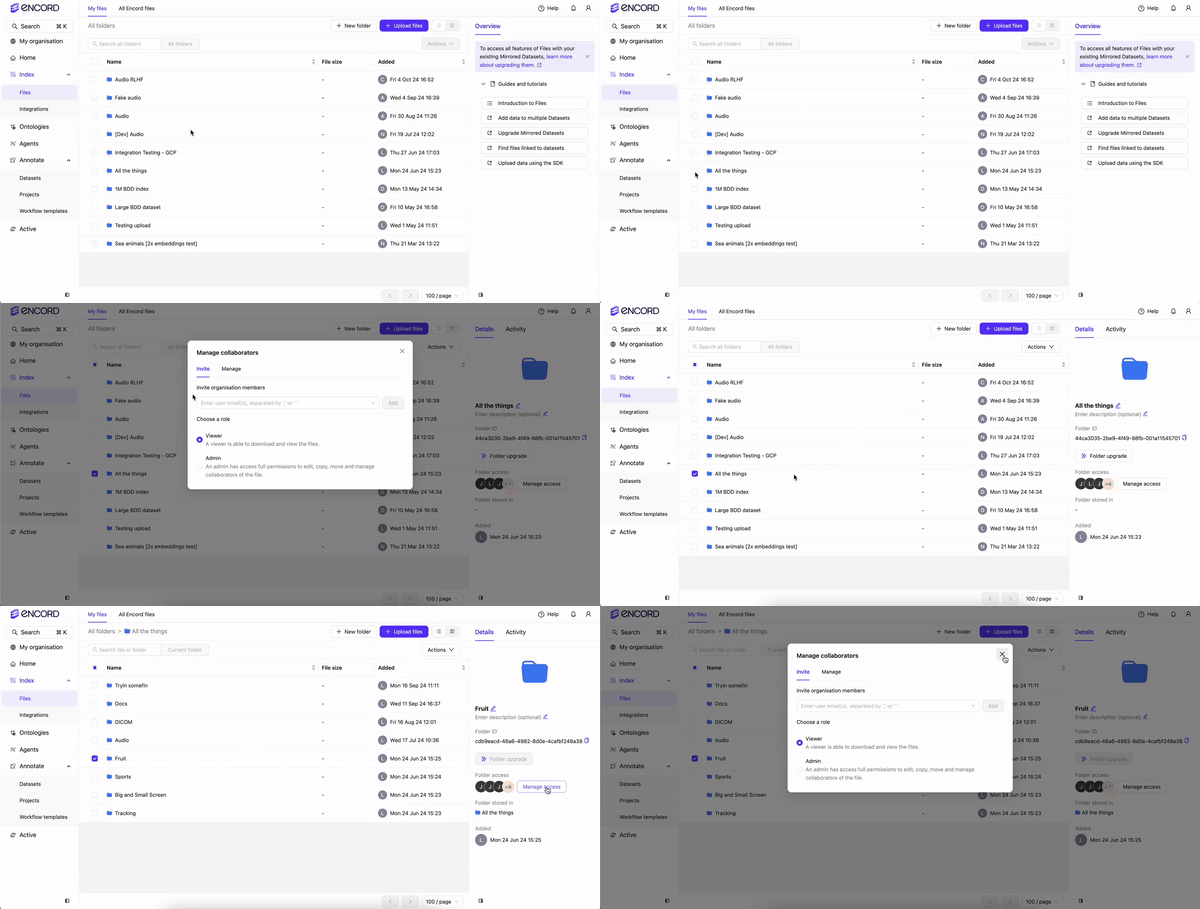
User permissions for Folders are configured by selecting a Folder in Files. Click Manage access after selecting a Folder to add or remove users from the Folder.Only users that are a part of your Workspace settings can be added to your Folders.
Project Explorer (Explore Tab)
Users with the Viewer role on Workflow projects can now access the Explore tab and browse the Project Explorer in read-only mode. Viewers can use the grid, analytics, and embeddings views and apply existing filters, but Encord hides all mutation affordances for Viewers. The following actions are not available to Viewers in the Explorer:- Bulk actions (priority changes, bulk classify, change class, delete labels, export CSV)
- Collection management (create, edit, delete, convert, send to annotate, bulk classify, add to dataset)
- Adding or removing items from collections in the item preview (collection tags remain visible)
- Filter preset management (create, edit, delete, save) and the
Alt+Pkeyboard shortcut - The Manage button for prediction sets (import/delete)
The Explore tab remains inaccessible for all roles on ManualQA projects. Team Managers see the Explore tab in the project navigation but land on the statistics fallback view — this is pre-existing behavior and is unchanged.
Label Queue
The following actions are available in the Label Queue. Per-row task management actions in the three-dot (⋯) menu are restricted by role.Assign is available for annotation and review stages only. Consensus-annotation rows are coordinator tasks assigned per subtask and do not offer the per-row Assign action.
Bulk Actions
In list and grid views, the Actions button appears in the floating selection toolbar only after you select one or more tasks. In explorer view, the Actions button remains in the top bar regardless of selection state. The floating selection toolbar displays items in this order: N selected · Clear · Select all · Actions. Hover over Select all to see the tip for range selection usingShift-click.