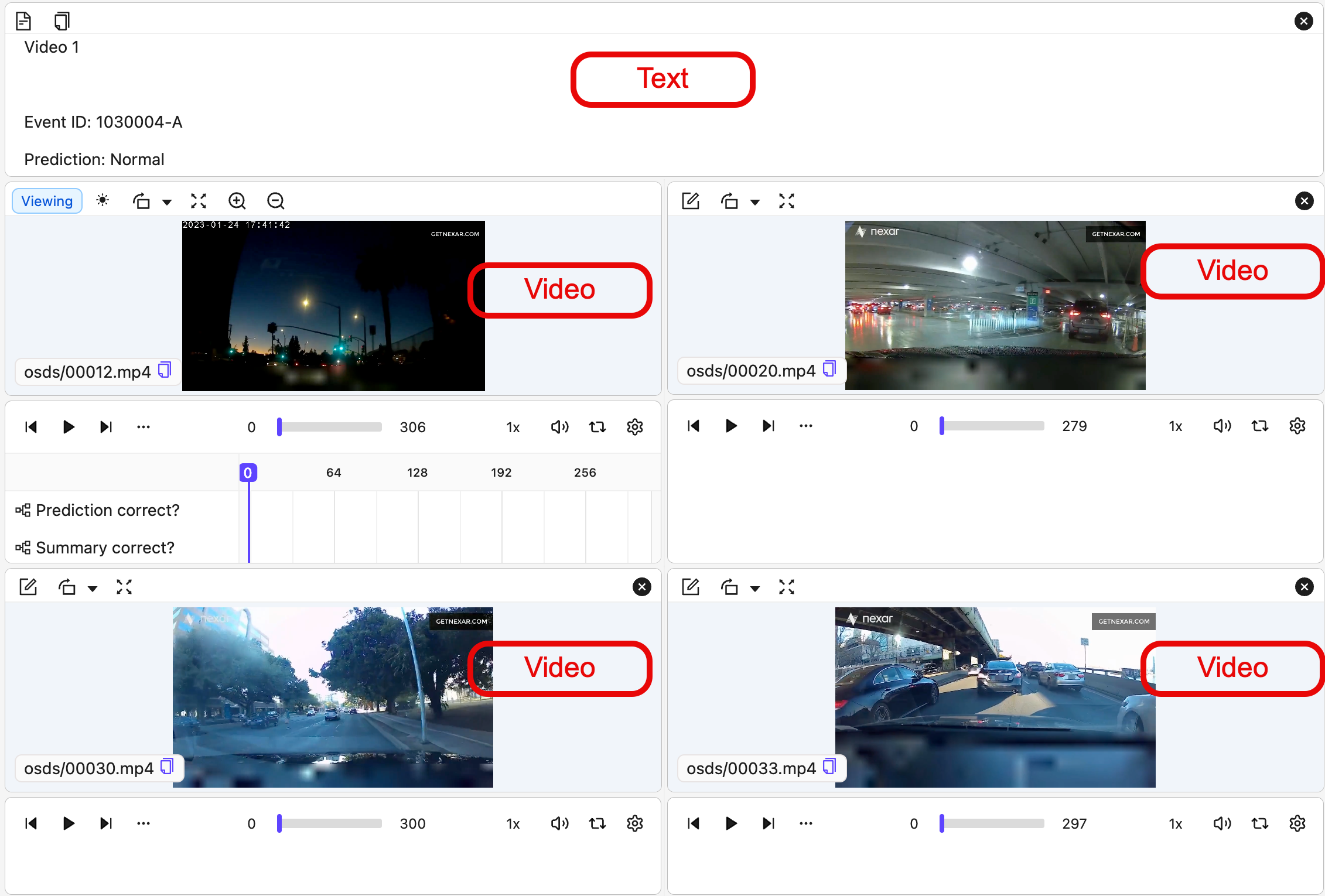
“Data Grouping” (Data Groups) allows you to allocate individual files to groups so that they are more easily annotated and reviewed. This allows you to unlock multi-tile and multi-modal functionality. Basically, Data Groups are like image groups in Encord, except that Data Groups can include any data type (images, videos, audio files, text files, PDFs) AND that data groups support default and custom layouts for annotation and review.
You can use Data Groups in non-Consensus Projects and Consensus Projects with Review & Refine nodes. Determine Consensus nodes are not yet supported.
  • For an end-to-end example of how you can use Data Groups, go here.
  • For instructions on exporting labels go here.

Create Data Groups

Each of the code examples does the following:
  1. Specifies the data units to add to a Data Group.
  2. Creates the Data Groups and specifies the layout in the Label Editor.
Each example create multiple Data Groups. To create a single data group, replace create_data_groups with create_data_group.
  1. Adds the Data Groups to a Dataset.
  2. Adds the Dataset to a Project.

Data Group - Grid (Default)

Grid Data Groups allow you to arrange multiple data units in a fixed, ordered grid within the Label Editor. The order of the data units in the group determines their visual arrangement in the grid.
The Grid layout can display up to 12 data units. Attempting to create a Data Group with more than 12 data units results in an error.
3 data unit Data Group Grid 12 data unit Data Group Grid Requirements To display data units in a grid layout, you need:
  • A list of data unit UUIDs in the exact order they should appear in the grid.
  • A call to DataGroupGrid(…) when creating the data group:
Example
Data Group - Grid

from uuid import UUID
from typing import List

from encord.constants.enums import DataType
from encord.objects.metadata import DataGroupMetadata
from encord.orm.storage import DataGroupGrid, StorageItemType
from encord.user_client import EncordUserClient

# --- Configuration ---
SSH_PATH = "/Users/chris-encord/ssh-private-key.txt"  # Replace with the file path to your access key
FOLDER_ID = "00000000-0000-0000-0000-000000000000"  # Replace with the Folder ID
DATASET_ID = "00000000-0000-0000-0000-000000000000"  # Replace with the Dataset ID
PROJECT_ID = "00000000-0000-0000-0000-000000000000"  # Replace with the Project ID

# --- Connect to Encord ---
user_client: EncordUserClient = EncordUserClient.create_with_ssh_private_key(
    ssh_private_key_path=SSH_PATH,
    # For US platform users use "https://api.us.encord.com"
    domain="https://api.encord.com",
)

folder = user_client.get_storage_folder(FOLDER_ID)

created_group_uuids = folder.create_data_groups(
    [
        DataGroupGrid(
            name="group-grid-001",
            layout_contents=[
                UUID("00000000-0000-0000-0000-000000000000"),
                UUID("11111111-1111-1111-1111-111111111111"),
                UUID("22222222-2222-2222-2222-222222222222"),
                UUID("33333333-3333-3333-3333-333333333333"),
            ],
            client_metadata={"key": "value"},
        ),
        DataGroupGrid(
            name="group-grid-002",
            layout_contents=[
                UUID("44444444-4444-4444-4444-444444444444"),
                UUID("55555555-5555-5555-5555-555555555555"),
                UUID("66666666-6666-6666-6666-666666666666"),
                UUID("77777777-7777-7777-7777-777777777777"),
            ],
            client_metadata={"key": "value"},
        ),
        DataGroupGrid(
            name="group-grid-003",
            layout_contents=[
                UUID("88888888-8888-8888-8888-888888888888"),
                UUID("99999999-9999-9999-9999-999999999999"),
                UUID("12312312-3123-1231-2312-312312312312"),
                UUID("45645645-6456-4564-5645-645645645645"),
            ],
            client_metadata={"key": "value"},
        ),
    ]
)

print("✅ Created groups:", created_group_uuids)


# --- Add all the data groups in a folder to a dataset ---
group_items = folder.list_items(item_types=[StorageItemType.GROUP])
d = user_client.get_dataset(DATASET_ID)
d.link_items([item.uuid for item in group_items])

# --- Retrieve and inspect data group label rows ---
p = user_client.get_project(PROJECT_ID)
rows = p.list_label_rows_v2(include_children=True)

for row in rows:
    if row.data_type == DataType.GROUP:
        row.initialise_labels()
        assert isinstance(row.metadata, DataGroupMetadata)
        print(row.metadata.children)

Data Group - Carousel/List

The order of data units in a Data Group determines how they are arranged in the Label Editor. In the carousel/list layout, a scrollable panel on the left shows all data units in the Data Group, while the currently selected data unit appears in the main editor view. Requirements To display data units in a grid layout, you need:
  • A list of data unit UUIDs in the exact order they should appear in the grid.
  • A call to DataGroupCarousel(...) when creating the data group:
Example
Data Group - Carousel

from uuid import UUID
from typing import List

from encord.constants.enums import DataType
from encord.objects.metadata import DataGroupMetadata
from encord.orm.storage import DataGroupCarousel, StorageItemType
from encord.user_client import EncordUserClient

# --- Configuration ---
SSH_PATH = "/Users/chris-encord/ssh-private-key.txt"  # Replace with the file path to your access key
FOLDER_ID = "00000000-0000-0000-0000-000000000000"  # Replace with the Folder ID
DATASET_ID = "00000000-0000-0000-0000-000000000000"  # Replace with the Dataset ID
PROJECT_ID = "00000000-0000-0000-0000-000000000000"  # Replace with the Project ID

# --- Connect to Encord ---
user_client: EncordUserClient = EncordUserClient.create_with_ssh_private_key(
    ssh_private_key_path=SSH_PATH,
    # For US platform users use "https://api.us.encord.com"
    domain="https://api.encord.com",
)

folder = user_client.get_storage_folder(FOLDER_ID)

created_group_uuids = folder.create_data_groups(
    [
        DataGroupCarousel(
            name="group-carousel-001",
            layout_contents=[
                UUID("00000000-0000-0000-0000-000000000000"),
                UUID("11111111-1111-1111-1111-111111111111"),
                UUID("22222222-2222-2222-2222-222222222222"),
                UUID("33333333-3333-3333-3333-333333333333"),
            ],
            client_metadata={"key": "value"},
        ),
        DataGroupCarousel(
            name="group-carousel-002",
            layout_contents=[
                UUID("44444444-4444-4444-4444-444444444444"),
                UUID("55555555-5555-5555-5555-555555555555"),
                UUID("66666666-6666-6666-6666-666666666666"),
                UUID("77777777-7777-7777-7777-777777777777"),
            ],
            client_metadata={"key": "value"},
        ),
        DataGroupCarousel(
            name="group-carousel-003",
            layout_contents=[
                UUID("88888888-8888-8888-8888-888888888888"),
                UUID("99999999-9999-9999-9999-999999999999"),
                UUID("12312312-3123-1231-2312-312312312312"),
                UUID("45645645-6456-4564-5645-645645645645"),
            ],
            client_metadata={"key": "value"},
        ),
    ]
)

print("✅ Created carousel groups:", created_group_uuids)

# --- Add all the data groups in a folder to a dataset ---
group_items = folder.list_items(item_types=[StorageItemType.GROUP])
d = user_client.get_dataset(DATASET_ID)
d.link_items([item.uuid for item in group_items])

# --- Retrieve and inspect data group label rows ---
p = user_client.get_project(PROJECT_ID)
rows = p.list_label_rows_v2(include_children=True)

for row in rows:
    if row.data_type == DataType.GROUP:
        row.initialise_labels()
        assert isinstance(row.metadata, DataGroupMetadata)
        print(row.metadata.children)

Data Group - Custom

Custom Data Groups give you full control over how multiple data units are arranged in the Label Editor. Unlike grid or carousel layouts (which use ordered lists of UUIDs), custom layouts use keys:
  • Map keys to data unit UUIDs.
  • Build a layout tree that references those keys and defines:
    • Split direction (“row” or “column”)
    • Space split (“splitPercentage”)
    • Where each tile (data unit) appears in the Label Editor
Requirements To create a custom Data Group layout, you must provide:
  • A layout tree (layout):
  • A nested structure of:
    • Container nodes with:
    • “direction”: “row” or “column”
    • “first” and “second”: child nodes
    • “splitPercentage”: how much space goes to “first” vs “second”
  • Data unit tiles with:
    • “type”: “data_unit”
    • “key”: a string key referencing a data unit
    • A mapping from keys to data unit UUIDs (layout_contents):
  • A dictionary of:
    • “[key]” > UUID(“[data_unit_id]”)
    • (Optional) Tile settings (settings): For example, to make a tile read-only: tile_settings["instructions"]["is_read_only"] = True
How custom layouts work A custom layout combines the following:
ItemNotes
KeysSymbolic names for data unitsInstead of a list, you define a mapping:
uuids = {
    "instructions": UUID("..."),
    "top-left": UUID("..."),
    "top-right": UUID("..."),
    "bottom-left": UUID("..."),
    "bottom-right": UUID("..."),
}
Each key identifies a tile in the layout.
Layout treeHow the screen is split. Containers control how space is split. Keys control what appears in that space.

A layout is a structure consisting of:
  • Data unit tiles (leaf nodes):
{"type": "data_unit", "key": "top-left"}
  • Containers (internal nodes):
{
    "direction": "row",          # or "column"
    "first": {...},              # child node
    "second": {...},             # child node
    "splitPercentage": 50,       # % of space given to "first"
}
SettingsOptional tile behavior. For example, to make an “instructions” tile read-only:
settings = {
    "tile_settings": {
        "instructions": {"is_read_only": True},
    }
}
A simple layout: left panel (instructions) and right panel (image).Simple Custom Layout
Data Group - 2-panel split
from uuid import UUID

from encord.constants.enums import DataType
from encord.objects.metadata import DataGroupMetadata
from encord.orm.storage import DataGroupCustom, StorageItemType
from encord.user_client import EncordUserClient

# --- Configuration ---
SSH_PATH = "/Users/chris-encord/ssh-private-key.txt"  # Replace with the file path to your access key
FOLDER_ID = "00000000-0000-0000-0000-000000000000"  # Replace with the Folder ID
DATASET_ID = "00000000-0000-0000-0000-000000000000"  # Replace with the Dataset ID
PROJECT_ID = "00000000-0000-0000-0000-000000000000"  # Replace with the Project ID

# --- Connect to Encord ---
user_client: EncordUserClient = EncordUserClient.create_with_ssh_private_key(
    ssh_private_key_path=SSH_PATH,
    # For US platform users use "https://api.us.encord.com"
    domain="https://api.encord.com",
)

folder = user_client.get_storage_folder(FOLDER_ID)

layout = {
    "direction": "row",
    "first": {"type": "data_unit", "key": "instructions"},
    "second": {"type": "data_unit", "key": "image"},
    "splitPercentage": 30,  # 30% for "instructions", 70% for "image"
}

layout_contents = {
    "instructions": UUID("00000000-0000-0000-0000-000000000000"),
    "image": UUID("11111111-1111-1111-1111-111111111111"),
}

settings = {
    "tile_settings": {
        "instructions": {"is_read_only": True},
    }
}

group = folder.create_data_group(
    DataGroupCustom(
        name="example-custom-group",
        layout=layout,
        layout_contents=layout_contents,
        client_metadata={"key": "value"},
        settings=settings,
    )
)

Get Data Group Data units

Use the following to get the data units that comprise a Data Group.

from encord import EncordUserClient

SSH_PATH="/Users/chris-encord/ssh-private-key.txt" # Replace with the file path to your SSH private key
DATA_GROUP_ID="00000000-0000-0000-0000-000000000000" # Replace with the file ID for the Data Group

# Initialize the SDK client
user_client: EncordUserClient = EncordUserClient.create_with_ssh_private_key(
    ssh_private_key_path=SSH_PATH,
    # For US platform users use "https://api.us.encord.com"
    domain="https://api.encord.com",
)

# Fetch the Data Group as a storage item
data_group_item = user_client.get_storage_item(DATA_GROUP_ID)

print(f"Data Group: {data_group_item.name} ({data_group_item.uuid})")

for item in data_group_item.get_child_items():
    print(f"- UUID: {item.uuid}, Name: {item.name}")

Get Data Group Information

Use the following script to view:
  • Group layout contents
  • Group layout
  • Group layout settings
Data Group Summary
from encord import EncordUserClient
from encord.orm.storage import StorageItemType

# --- Configuration ---
SSH_PATH = "/Users/chris-encord/ssh-private-key.txt"  # Replace with the file path to your access key
FOLDER_ID = "b95caa81-931a-4da9-b784-64037699f9fc"  # Replace with the Folder ID

# --- Connect to Encord ---
user_client: EncordUserClient = EncordUserClient.create_with_ssh_private_key(
    ssh_private_key_path=SSH_PATH,
    # For US platform users use "https://api.us.encord.com"
    domain="https://api.encord.com",
)

folder = user_client.get_storage_folder(FOLDER_ID)

first_group = list(folder.list_items(item_types=[StorageItemType.GROUP]))[0]
summary = first_group.get_summary()
assert summary.data_group is not None
print(summary.data_group.layout_contents)
print(summary.data_group.layout)
print(summary.data_group.layout_settings)