

Why do this?
Quick way to get going with Encord using cloud data. If you are a little more tech savvy, register your cloud data using Cloud-synced Folders.Pros and Cons
| Pros | Cons |
|---|---|
|
|
Import/Register Data
We’re going to register our dataset of fruit by connecting the cloud storage directly to a Cloud-synced Folder. The dataset is a mixture of images and videos of the following types of fruit:- Apples
- Bananas
- Blueberries
- Cherries
- Kiwi
- Persimmons
- Strawberries
Create Integration
Download Data
Download and extract the contents of Fruit-images-videos.zip file.
Import Data to Cloud Storage
Import the contents of
Fruit-images-videos.zip into your cloud storage.Create Cloud-synced Folder
Syncing the data registers the data in Encord. You data stays in your cloud storage.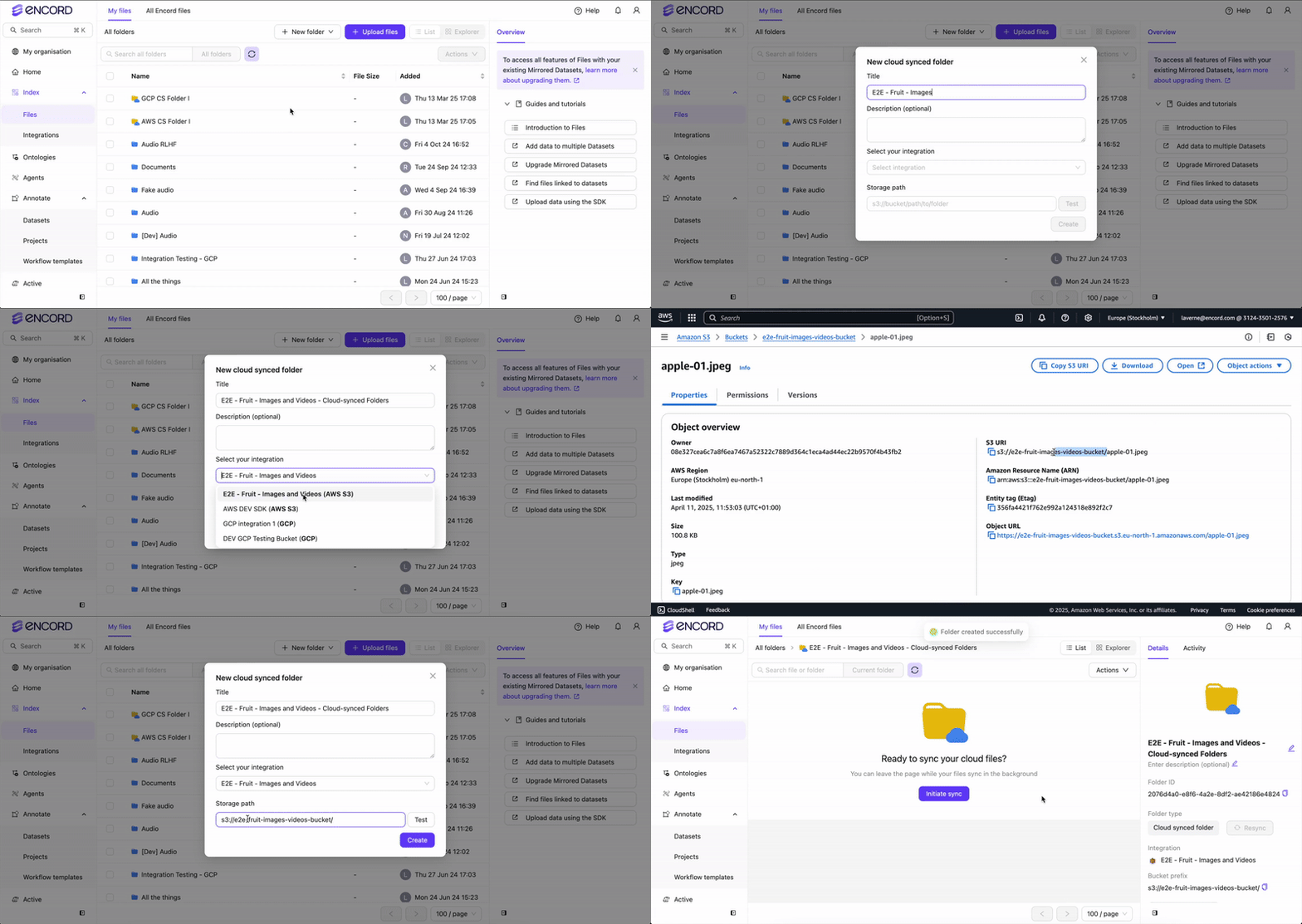
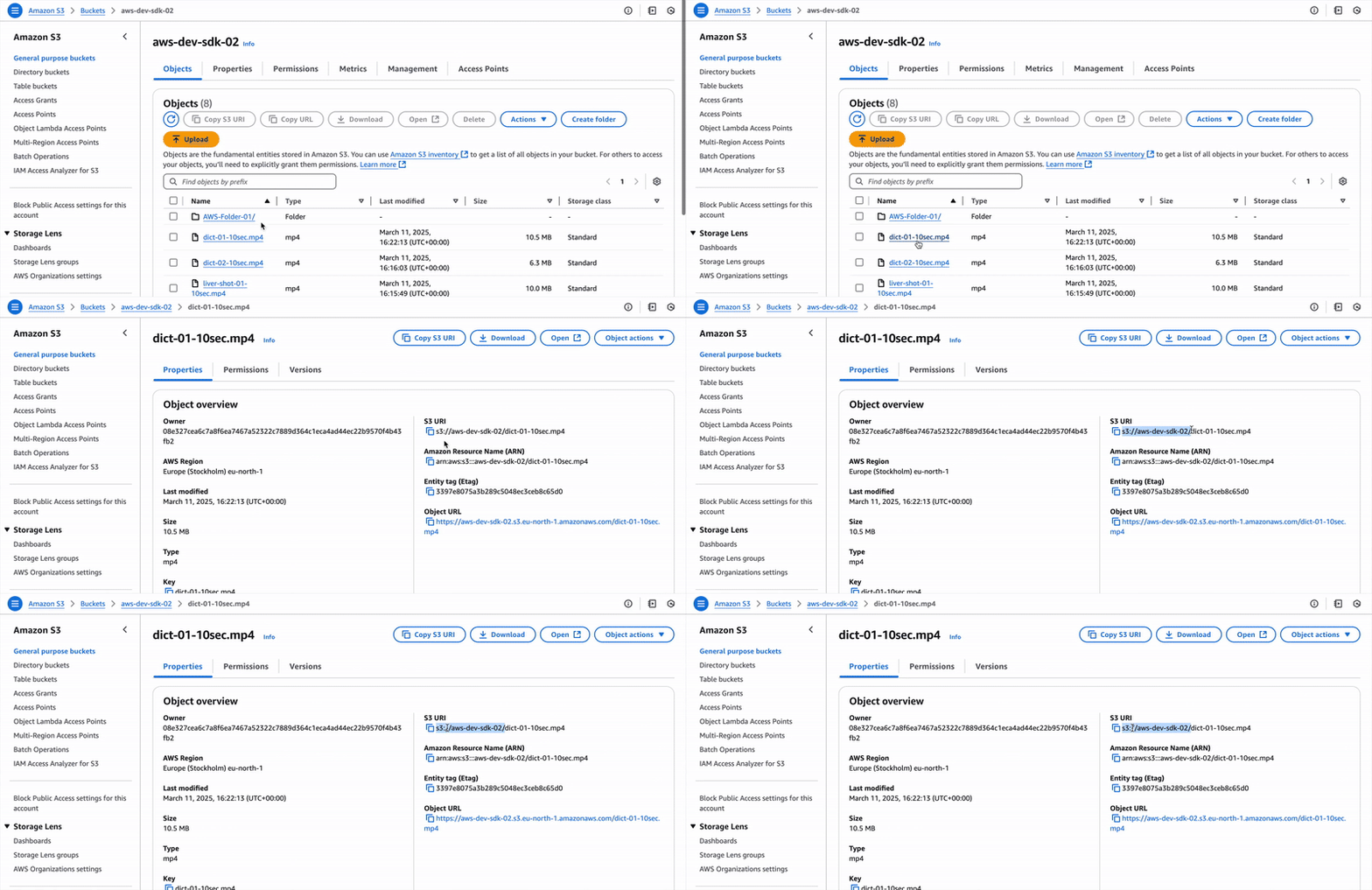 GCP
GCP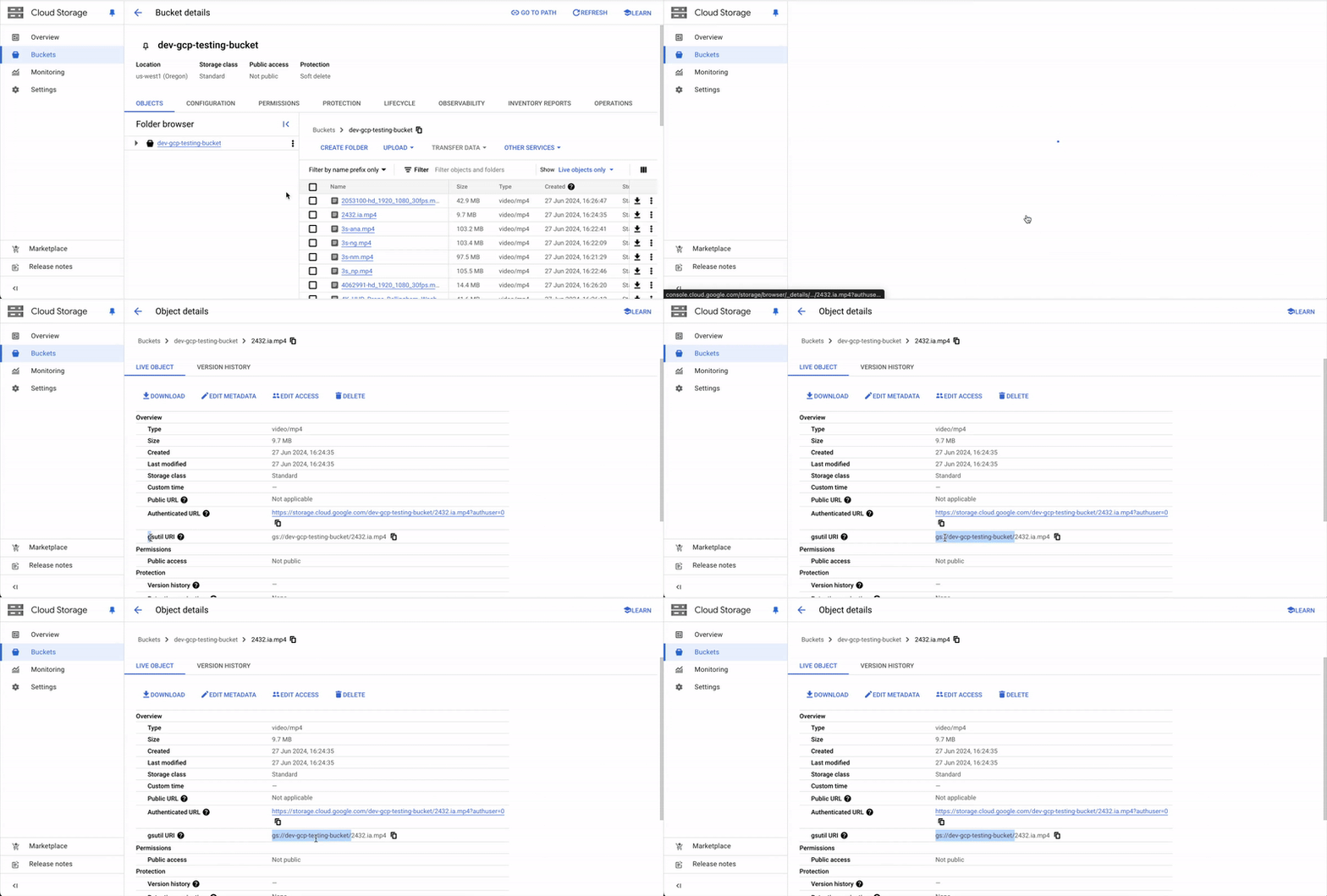
- Go to Index > Files.
- Click New folder > Cloud-synced folder. The New Cloud-synced folder dialog appears.
-
Provide the following:
- Title:
E2E - Fruit - Images and Videos - Cloud-synced Folders. - Description: OPTIONAL - Provide a meaningful description for the Cloud-synced folder.
- Select your integration: Select the integration to use from the drop down.
- Storage path: Specify the storage/file path to your cloud storage. For example:
gs://encord-gcp-bucket/CloudSync/ors3://encord-aws-bucket/CloudSync.
- Title:
- Click Test to verify that Encord can communicate with your cloud storage.
- Click Create. The page for the new Cloud-synced folder appears.
Find Storage Path
Finding the Storage path for your folder or object varies across Cloud Storage platforms.AWSGCPSync Data Between Encord and Cloud Storage
-
Go to Index > Files > E2E - Fruit - Images and Videos - Cloud-synced Folders.
The Cloud-synced folder page appears.
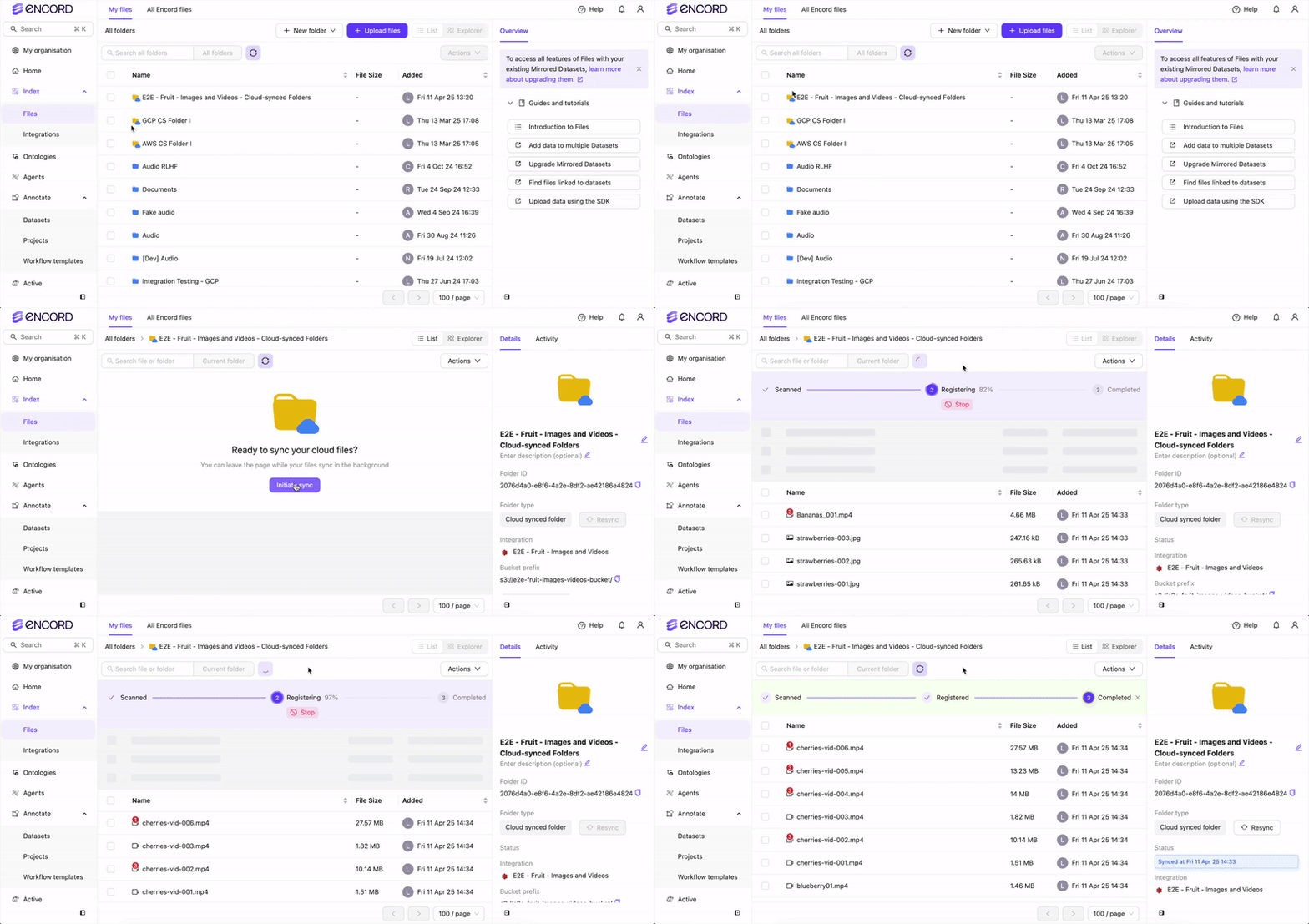
- Click Initiate sync. The sync between the folder and your cloud storage begins.

Create Project
Once all the videos are re-encoded you are ready to create an Annotate Project. Once you create a Project and you and your team are ready to begin annotating the data.Performing ANY of these tasks results in creating the Project 


E2E Fruit Project to annotate.- The Ontology is the same for ALL tasks.
- The Workflow varies depending on the task.
Create Project - UI
Create Projects (Ontologies, Workflows, and Projects) using the Encord UI.
Create Project - SDK
Create Projects (Ontologies, Workflows, and Projects) using the SDK.
Create Consensus Project - UI
Create Consensus Projects (Ontologies, Workflows, and Projects) using the UI.
Create Consensus Project - SDK
Create Consensus Projects (Ontologies, Workflows, and Projects) using the UI.
Create Project - Import Labels
Create Projects (Ontologies, Workflows, and Projects) for use with your own labels.
Create Project - Import Predictions
Create Projects (Ontologies, Workflows, and Projects) for use with your own model predictions.
Create Project - Task Agents
Create Projects (Ontologies, Workflows, and Projects) for use with Task Agents.