

- Automatically exporting labels when they are marked as complete.
- Setting up a daily report to track the number of annotation tasks submitted for review each day.
Setting Up Webhooks
Webhooks can be set up when creating or editing a Workflow. This includes setting up a Workflow while creating a new annotation Project, creating a Workflow template, or editing the Workflow of an existing Project.Webhooks can only be added to Annotate and Complete stages. Webhooks on Annotate stages trigger when tasks are submitted for review. Webhooks on Complete stages trigger when a task is completed.
- With the Workflow open, click the Workflow stage you want to create a webhook for. A pop-up for to configure the Workflow stage appears.
- In the pop-up, click the Edit symbol under the Webhook heading.
- Enter the URL you want the JSON payload to be sent to. Press Enter on your keyboard to confirm.
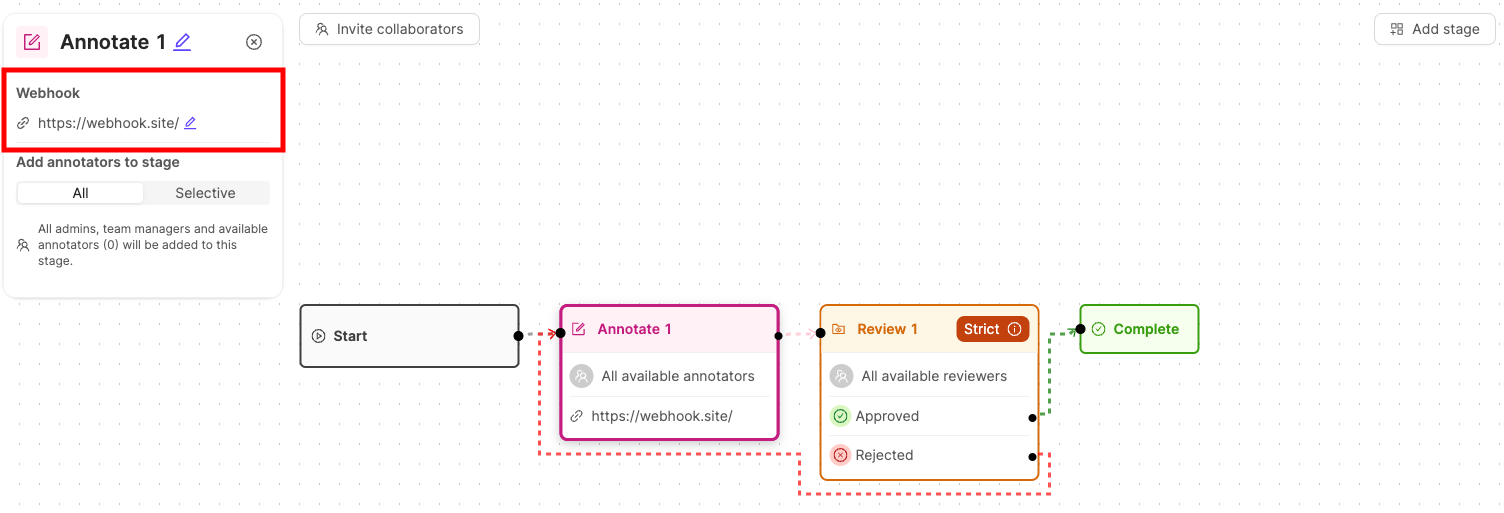
- Ensure you save your changes.
After adding or updating a webhook URL, a signing secret is automatically generated for that webhook. This secret appears in the Signing Secret section below the URL field and can be used to verify webhook payloads. If the URL changes you need to fetch the secret again.
Webhook Event Payloads
Task Submitted Payload
All task submitted events, triggered on the Annotate stage, have the following fields:
Example payload:
Task Completed Payload
All task completed events, triggered on the Complete stage, have the following fields:
Example payload:
Delivery and Retries
Encord sends each webhook as an HTTPPOST request with a JSON body as soon as the event occurs. If a delivery fails for a temporary reason, Encord retries it automatically.
Responding to a webhook
To acknowledge a webhook, your endpoint must:- Accept the connection within 15 seconds.
- Return an HTTP
200 OKresponse within 180 seconds.
Retry schedule
Encord makes up to 4 delivery attempts for each event: the original attempt plus 3 retries. The wait between retries doubles each time.
Retries are processed in batches every 5 minutes, so each retry can arrive up to 5 minutes later than the minimum shown above. In practice, all retries for an event are complete within about 15 to 30 minutes of the first failed attempt.
If all 4 attempts fail, Encord stops retrying and the event is not resent.
Which failures are retried
Encord retries a delivery when:- Your endpoint does not accept the connection within 15 seconds, or does not respond within 180 seconds (timeout).
- Your endpoint returns
429 Too Many Requests. - Your endpoint returns
502 Bad Gateway.
Best practices
- Respond quickly and process in the background. Return
200as soon as you receive and (optionally) verify the request, then do any slow work, such as exporting labels, asynchronously. A handler that takes longer than 180 seconds is treated as a timeout and the event is sent again. - Expect duplicates. Encord delivers webhooks at least once. The same event can arrive more than once, for example when your endpoint processed a request but responded after the timeout, or when an event is retried and is also configured to go to more than one webhook URL. Use the
uidfield of the payload to detect and ignore events you have already processed. - Do not rely on ordering. A retried event can arrive after events that occurred later. Use
event_created_timestampif your integration needs to order events. - Return exactly
200. Encord expects a200 OKresponse. Don’t rely on other success codes such as201or204. - Reconcile periodically. Events that fail all 4 attempts are not resent. For critical integrations, run a periodic check (for example, using the Encord SDK) to catch any tasks your endpoint missed.
Task-ready notifications for Agent stages follow the same delivery and retry rules. In addition, Encord sends a new notification every 5 minutes for as long as the stage still has work waiting.
Verifying Webhook Signatures
Encord signs every webhook request so you can confirm it genuinely originated from Encord and has not been tampered with.Verification is optional but recommended for production integrations.
How it works
Every webhook request includes two headers:X-Encord-Signature- an HMAC-SHA256 hex digest of the timestamp and request body, formatted as{timestamp}.{body}X-Encord-Timestamp- a Unix timestamp of when the request was sent
Retrieving your signing secret
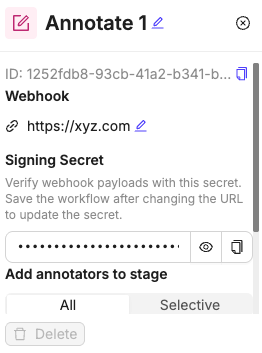
A signing secret is only generated when a valid webhook URL is entered. If the URL changes you need to fetch the secret again.
Managing signing secrets
You can view and copy your signing secret in several ways:- In Workflow configuration: When setting up or editing a webhook in a Workflow stage, the signing secret appears below the URL field with options to show/hide and copy the secret.
- In webhook management: From your user settings, you can access all your webhooks and copy their signing secrets using the copy button next to each webhook entry.
Verifying the signature
To verify a request, recompute the signature on your server and compare it against theX-Encord-Signature header.
Replay protection
Use theX-Encord-Timestamp header to reject requests with a timestamp older than a reasonable threshold (for example, 5 minutes). This prevents replay attacks where a valid request is captured and re-sent.
If no signing secret is configured for a webhook URL, the
X-Encord-Signature and X-Encord-Timestamp headers are not included in the request.IP Addresses for Webhooks
For teams with advanced security practices, you must add our IP addresses to an approved list to ensure that only trusted incoming traffic from our services can reach your webhook endpoints.- Default Deployment (EMEA)
- US Deployments
34.89.106.119/3234.142.51.70/32