Cloud-synced folders automatically stay in sync with connected cloud storage, regularly updating to ensure all new and existing files are available in Encord without manual intervention. Registering your cloud data using Cloud-synced folders provides you with a very quick way of getting up and running.
Custom Metadata needs to be uploaded separately if you use this method to register your data with Encord.

File Support and Limits

  • Cloud-synced folders support images, videos, PDFs, text, HTML, and audio files.
Image groups, image sequences, and DICOM series are not currently supported by Cloud-synced folders.
  • A single cloud synced folder can contain a maximum of 10 million files.

Register Cloud Data using Cloud-synced Folders

1. Create an Integration

At least one data integration is required to register cloud data to Encord. Encord can integrate with the following cloud service providers:

2. Create a Cloud-synced Folder

You cannot change URI after folder creation.
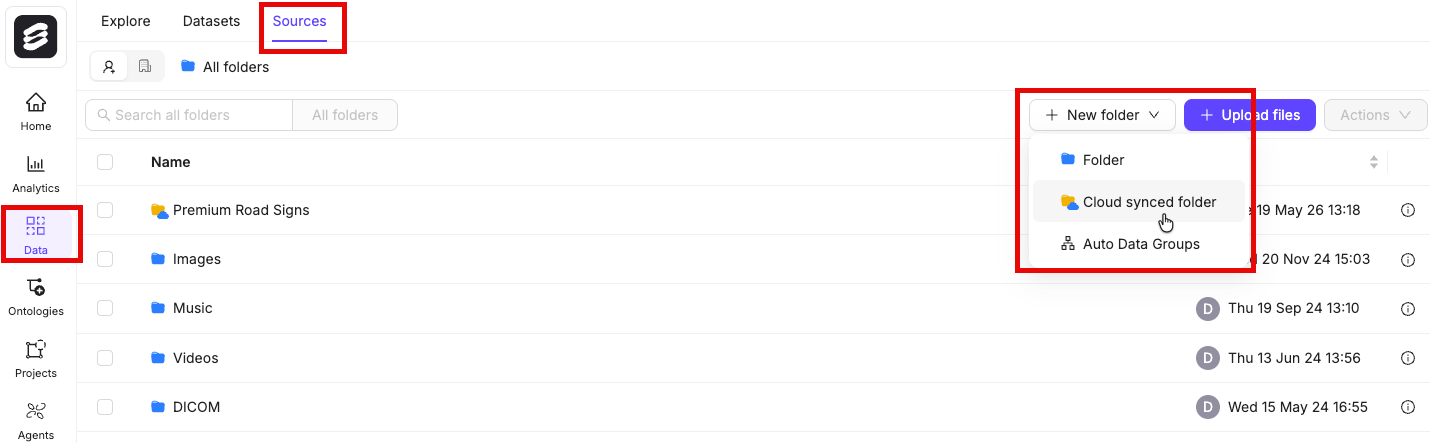
  1. Go to Data > Files & Folders.
  2. Click New folder > Cloud-synced folder. The New Cloud-synced folder dialog appears.
  1. Provide the following:
    • Title: Provide a meaningful name for the Cloud-synced folder.
    • Description: OPTIONAL - Provide a meaningful description for the Cloud-synced folder.
    • Select your integration: Select the integration to use from the drop down.
    • Storage path: Specify the storage/file path to your cloud storage. For example: gs://encord-gcp-bucket/CloudSync/ or s3://encord-aws-bucket/CloudSync.
    • Automatically sync data: Automatically syncs data from your cloud storage to Encord once every 24 hours.
    • Metadata ingestion: Enable this toggle to import custom metadata files from your cloud storage. Set your sidecar suffix (default is .metadata.json). Any file matching that suffix is treated as metadata for its paired data file and does not appear as a separate item in your folder.
  2. Click Create. The page for the new Cloud-synced folder appears.

Find Storage Path

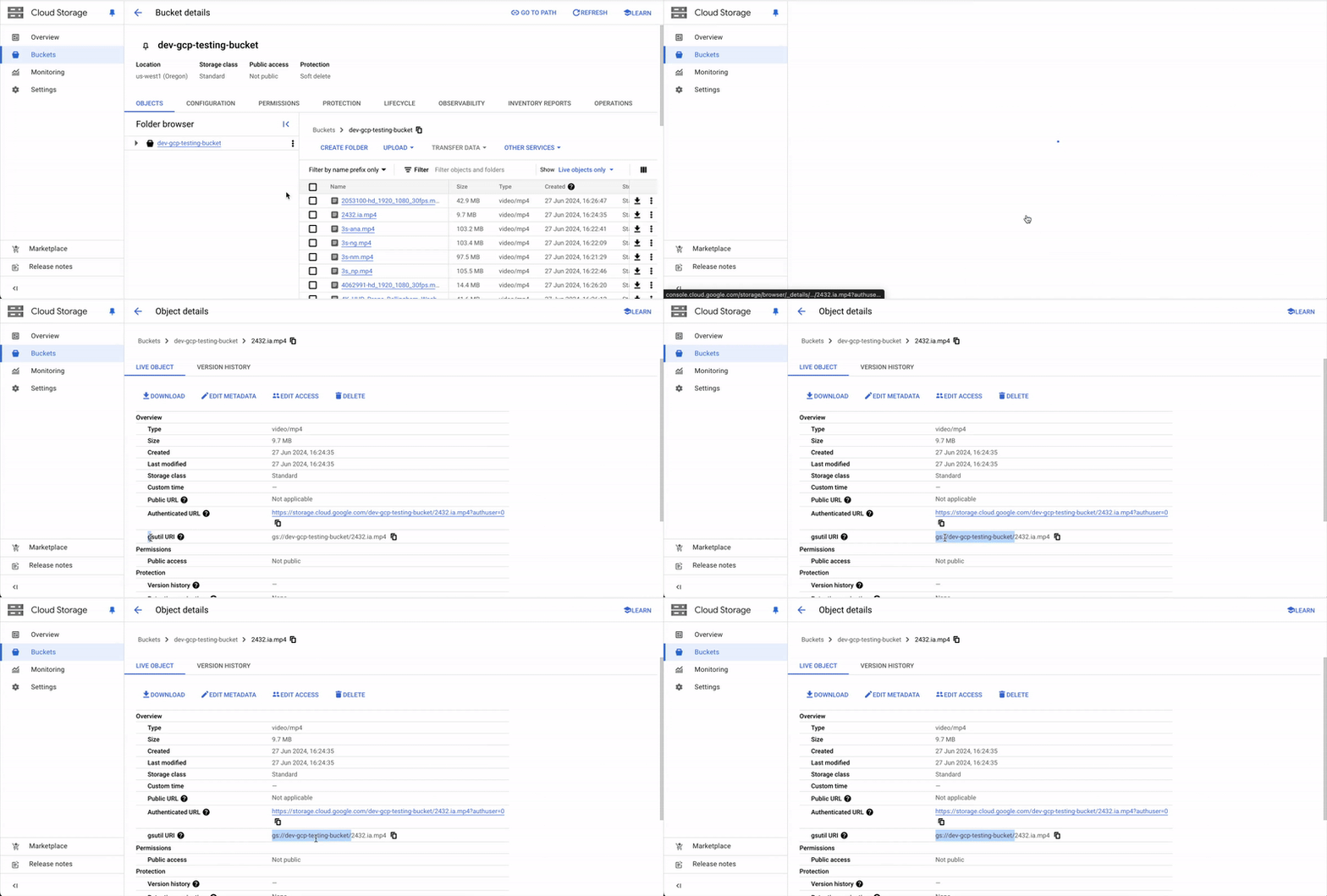
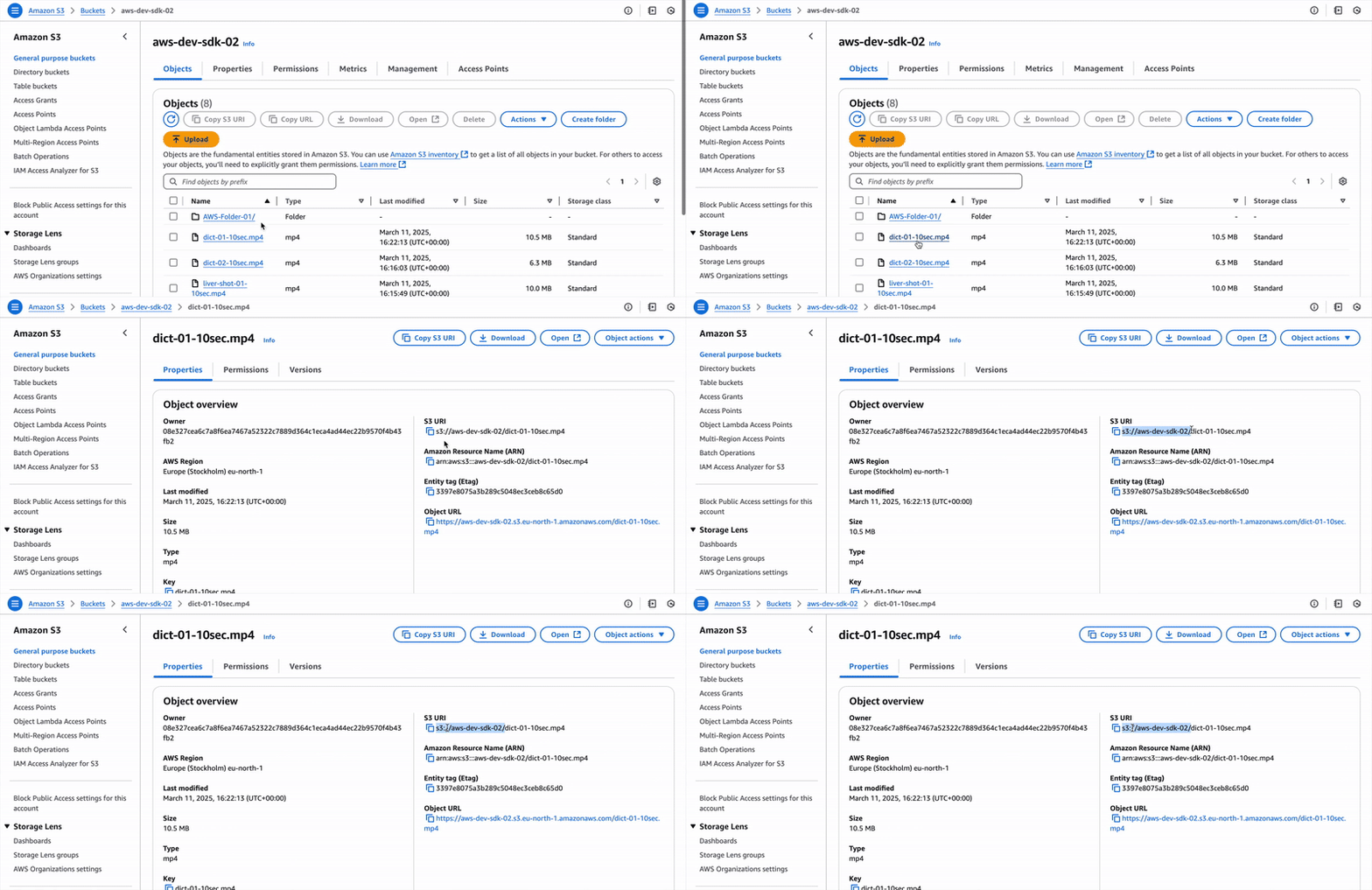
Finding the Storage path for your folder or object varies across Cloud Storage platforms. AWS Find AWS storage path GCP Find GCP storage path
3. Sync Data Between Encord and Cloud Storage

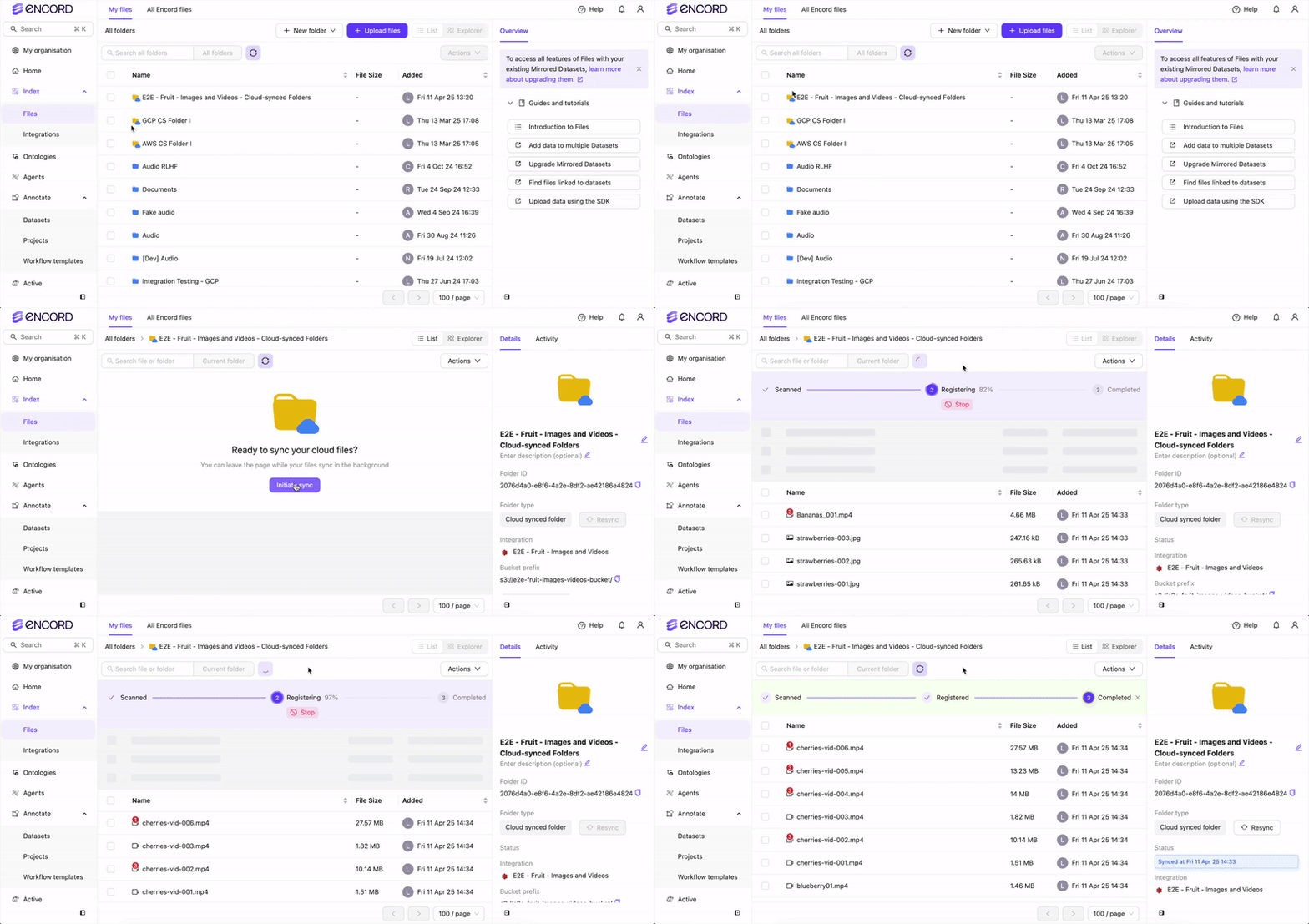
  1. Go to Data > Files & Folders. The Cloud-synced folder page appears. Sync your Data
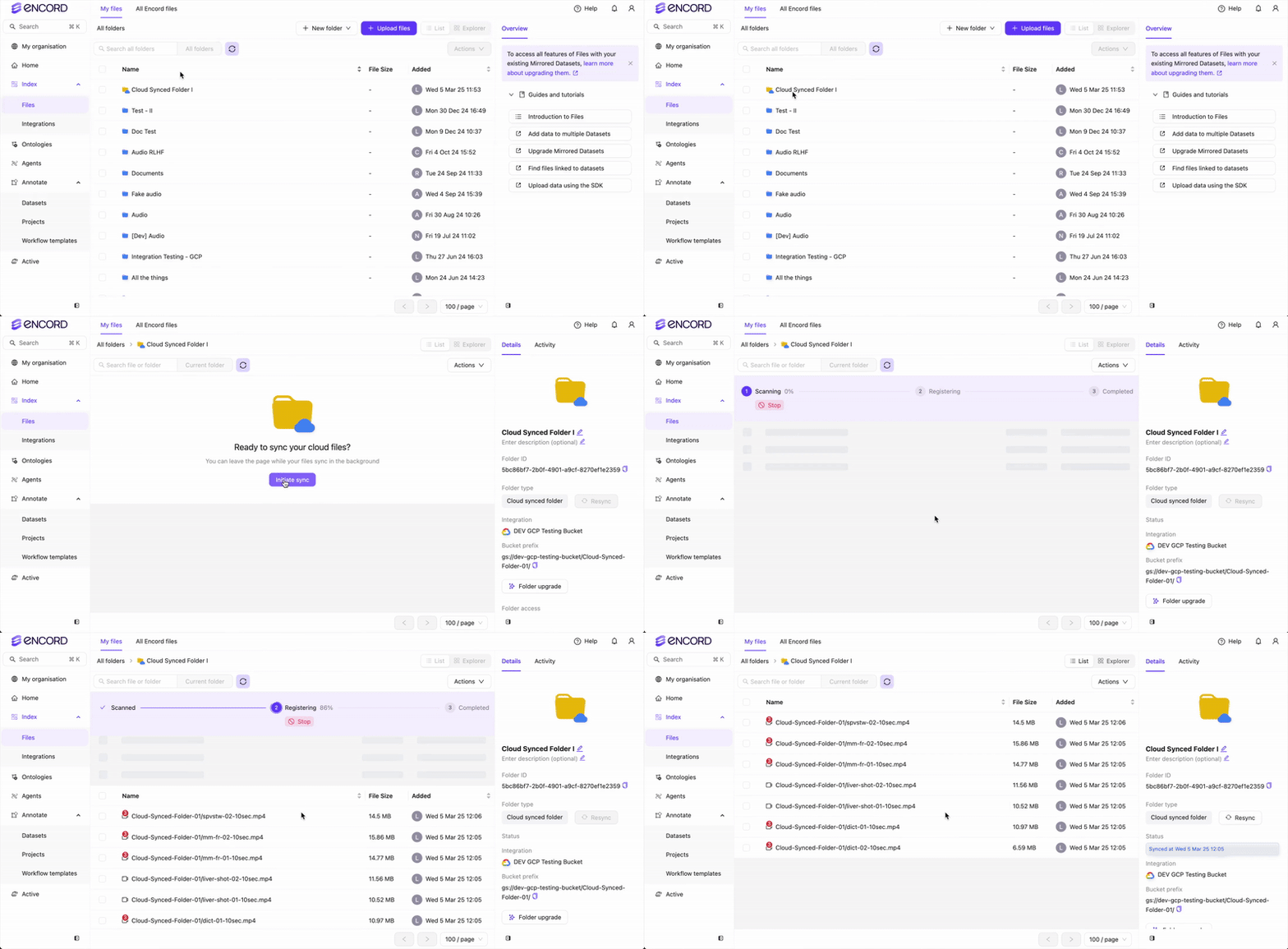
  2. Click into your cloud-synced folder. Sync your Data
  3. Click Initiate sync. The sync between the folder and your cloud storage begins.

Resync Data Between Encord and Cloud Storage

As you add or remove data from your cloud storage you need to resync the Cloud-synced folder with your cloud storage to keep it up to date. There are two ways to resync your data. You can perform a manual refresh OR turn ON the auto refresh feature. Both manual and automatic resyncing of your data to your Cloud-synced folder scans your bucket for any changes. New files in your cloud storage import to your Cloud-synced folder. Deleted files in your cloud storage are soft deleted in your Cloud-synced folder.
Soft deleted means that the data is not removed physically but is no longer visible to users. Soft deleted data is still available in any Projects where the data resides. Labels can be exported from soft deleted data.
You can monitor the status and progress of resyncs from the Activity tab for the Folder.

Automatic Refresh

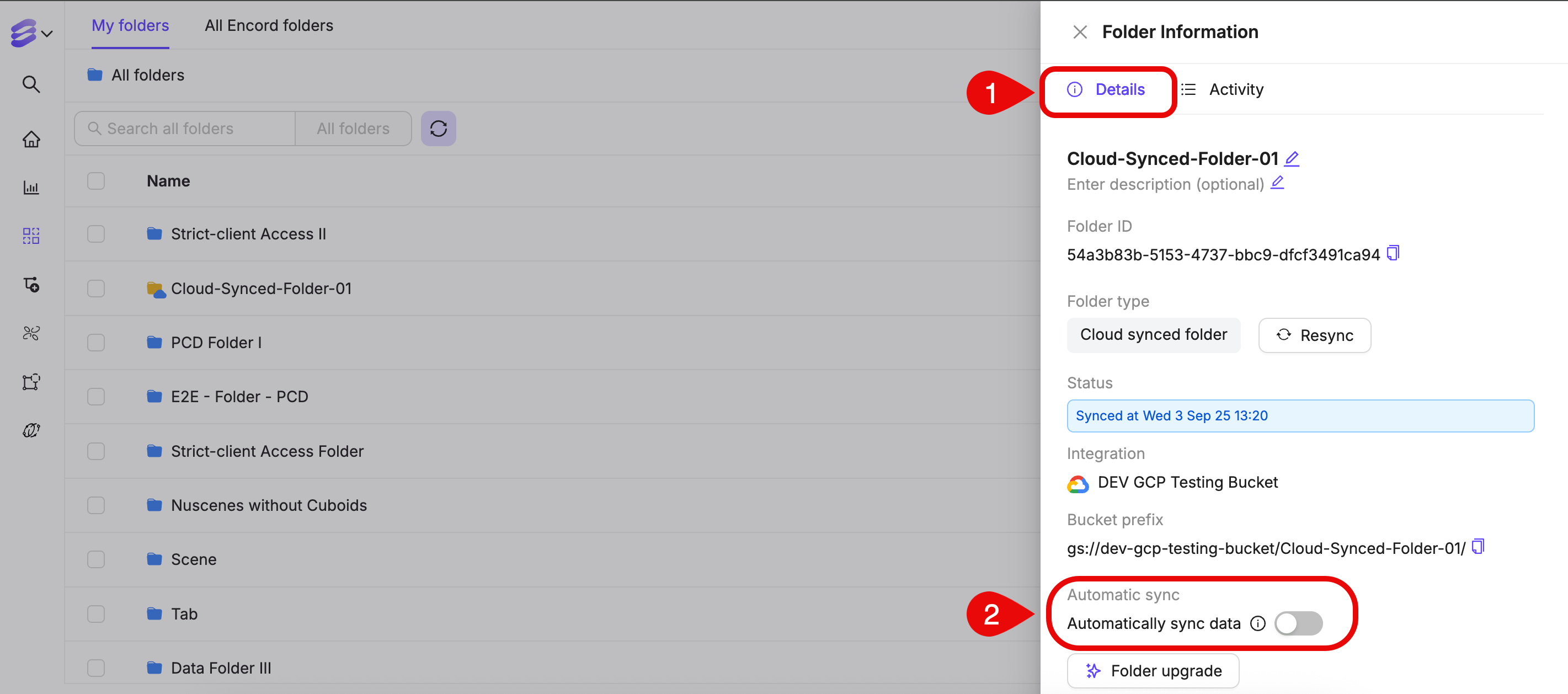
Automatic refreshes occur once every 24 hours. Manual refreshes do not impact the schedule for automatic refreshes. You can turn automatic sync ON/OFF when creating a Cloud-synced folder or from the Details tab for the folder. Folder Info Auto sync Folder Details

Manual Refresh

  1. Go to Data > Explore.
  2. Click the info bubble on the Cloud-synced folder you want to resync.
  3. Click Resync. The resync between the folder and your cloud storage begins.
Folder Info

Label Ingestion Configuration

When you enable label ingestion for a Cloud-synced folder, Encord pairs each data file with a sidecar label file and ingests the labels as annotations against a chosen ontology. You can configure label ingestion when creating a folder or by editing an existing folder’s settings.

Input Formats

Encord supports two input formats for label ingestion:
  • Encord (JSON sidecars) — pairs each data file with a JSON sidecar file using a configurable filename suffix.
  • YOLO (.txt sidecars) — pairs each data file with a YOLO-format .txt sidecar file using file path patterns, and maps YOLO class numbers to ontology classes.
The input format cannot be changed after label ingestion is enabled on a folder.

Encord (JSON Sidecars)

When using the Encord format, configure the Sidecar suffix field. Encord pairs each data file with a label file that shares the same name plus the suffix you specify. For example, with the default suffix, image001.jpg pairs with image001.jpg.encord.json. The suffix must be between 1 and 128 characters.

YOLO (.txt Sidecars)

When using the YOLO format, configure the following fields:

Image and Label File Patterns

Use the Image file pattern and Label file pattern fields to define how Encord pairs image files with their corresponding YOLO label files. Both patterns use a shared {name} placeholder as the capture group — the value matched by {name} in the image pattern must match the value in the label pattern for the two files to be paired. Both patterns must use the same placeholders.

External ID Namespace

The External ID namespace field determines which namespace Encord reads class numbers from when mapping YOLO class numbers to ontology classes. Encord automatically selects a namespace when you choose an ontology — it prefers a namespace named YOLO (case-insensitive), or falls back to the first available namespace alphabetically. You can unlock the namespace selector to choose a different namespace if needed.
If the selected ontology has no external IDs on its classes, the namespace selector is unavailable and class numbers must be entered manually in the class map.

Class Number Mapping

The Class numbers editor maps each YOLO class number to an ontology class. Encord pre-fills class numbers from the external IDs on the selected ontology’s classes under the chosen namespace. You can override individual entries by unlocking the relevant row. The following ontology object shapes are supported for YOLO label ingestion:
  • Bounding box
  • Polygon
  • Rotatable bounding box
At least one class must be mapped to a YOLO class number. Each YOLO class number can only map to one ontology class. Class numbers must be non-negative integers.
If the selected ontology has no bounding-box, polygon, or rotatable-box objects, Encord displays a warning and you must select a different ontology.

FAQ

What happens to the data hash of a file when replacing files? For example, if we submit a labeling task to an Encord Project, associated with an image (a data hash on Encord) stored in an integrated S3 bucket. What happens when we update/replace that image in the S3 bucket using the same name? Does the data hash (and thus the associated labeling task) now automatically point to the new image? The data hash is tied to the storage item record, not the file contents. This means replacing an image in S3 at the same path does not affect it or the associated labeling task. Encord generates signed URLs dynamically from the stored S3 path, so the updated file is served automatically with no action needed on the Encord side. However, if S3 object versioning is enabled on your bucket, the signed URL may still resolve to the original version rather than the replacement.