

- Determine consensus: Reviewers in these blocks are responsible for ensuring that labels made by one or more annotators are correct across an entire data unit. This allows for bulk label selection across a data unit.

- Review and refine: Reviewers can select and edit the best specific label on an object or frame, from one or more annotators.

Determine Consensus
Reviewers on Consensus Projects have a different goal from Reviewers on other types of Encord Projects. Reviewers on Consensus Projects review ALL the labels on a data unit, made by a specified number of annotators. The reviewers then make a decision on whether there is agreement/consensus on ALL the labels on a task (data unit). If the reviewer decides that ALL the labels on a data unit are correct/in agreement, the reviewer selects the annotators that are in agreement and clicks Consensus reached. If the reviewer decides that there is no agreement on the labels or that the labels are incorrect, the reviewer clicks No Consensus. Currently, Object labels and Classifications are supported for consensus review on all data unit types. Data units are images, image groups, image sequences, videos, and DICOM series. To review labels on a Consensus Project:- Log in to Encord. Your review task queue appears for the latest Project you are assigned for review.
- Go to Annotate > Projects > Annotate projects. The Annotate projects page appears displaying a list of Projects you are assigned to review.
- Click a Consensus Project. The Project opens with the Review populated with review tasks.
- Click Initiate on a task. The Reviewing page appears.
- Review the labels from each annotator.
Determine Consensus in Encord is based on Consensus for ALL labels on a data unit. A data unit being an image, an image group, an image sequence, a video, or a DICOM series. Encord Consensus is not granular to the label itself (yet). This means reviewers must ensure ALL labels on a data unit are in consensus before deciding consensus is reached.


- If the labels are correct:


- Click No consensus if the labels are not correct OR if not enough of the annotators have labeled the data unit correctly.
Review and Refine Consensus Labels
Reviewers working in the Review and Refine block can see all labels from all annotators from a Consensus block. The reviewer is able to select the best labels from each object on a data unit and edit those labels or they can create new labels for the data unit. The Review and Refine page is different for single images and all other data units. When reviewing and refining single images, expand each user to display their labels and decide on the best labels. When reviewing and refining videos, image groups, image sequences, and DICOM series, a timeline appears under the data unit. Use the timeline to speed up reviewing and refining all the labels on the data unit. In the Annotator labels section, click Approve classifications with total agreement to approve classifications on which all annotators agree. Classifications with only partial agreement are not approved.Review and Refine with a Form Layout
For tasks that use a Form Layout, each classification field displays the distinct answers submitted by annotators. Hover over an answer and click its approve control to copy it to the main consensus branch. Once you approve an answer, the other answers for that field become unavailable until you hover over the approved answer and revert it. The summary above the form shows N of M fields resolved, where the total includes the classification fields visible on the current form path. Approving an answer can reveal conditional fields and increase the total; reverting it can hide those fields again. Click Approve all agreed answers to approve every classification on which all annotators agree without changing fields where their answers differ. Click Bulk revert to pending to revert all approved answers and instances in the task at once, then click Revert all to confirm. Labels that you added while editing approved labels are deleted instead of moved to pending. Object fields display a read-only table of instances from every annotator. Hover over an instance to approve or revert it independently. To change approved labels or add labels directly to the main branch, click Edit approved labels.Enhanced By-Label View
When using the By label view in Review and Refine mode, you’ll notice several improvements designed to streamline your workflow:- Organized display: Classifications appear before objects in the label list, making it easier to review different types of annotations in a logical order.
- Hover-based visibility controls: Eye icons for showing and hiding labels appear only when you hover over label rows, reducing visual clutter while keeping controls accessible.
- Group-level visibility: Toggle visibility for entire groups of related labels at once, or control individual annotations within each group.
Use the show-hide labels buttons, workspace settings, and the drag and select in the workspace to speed up your approved label selection and review process.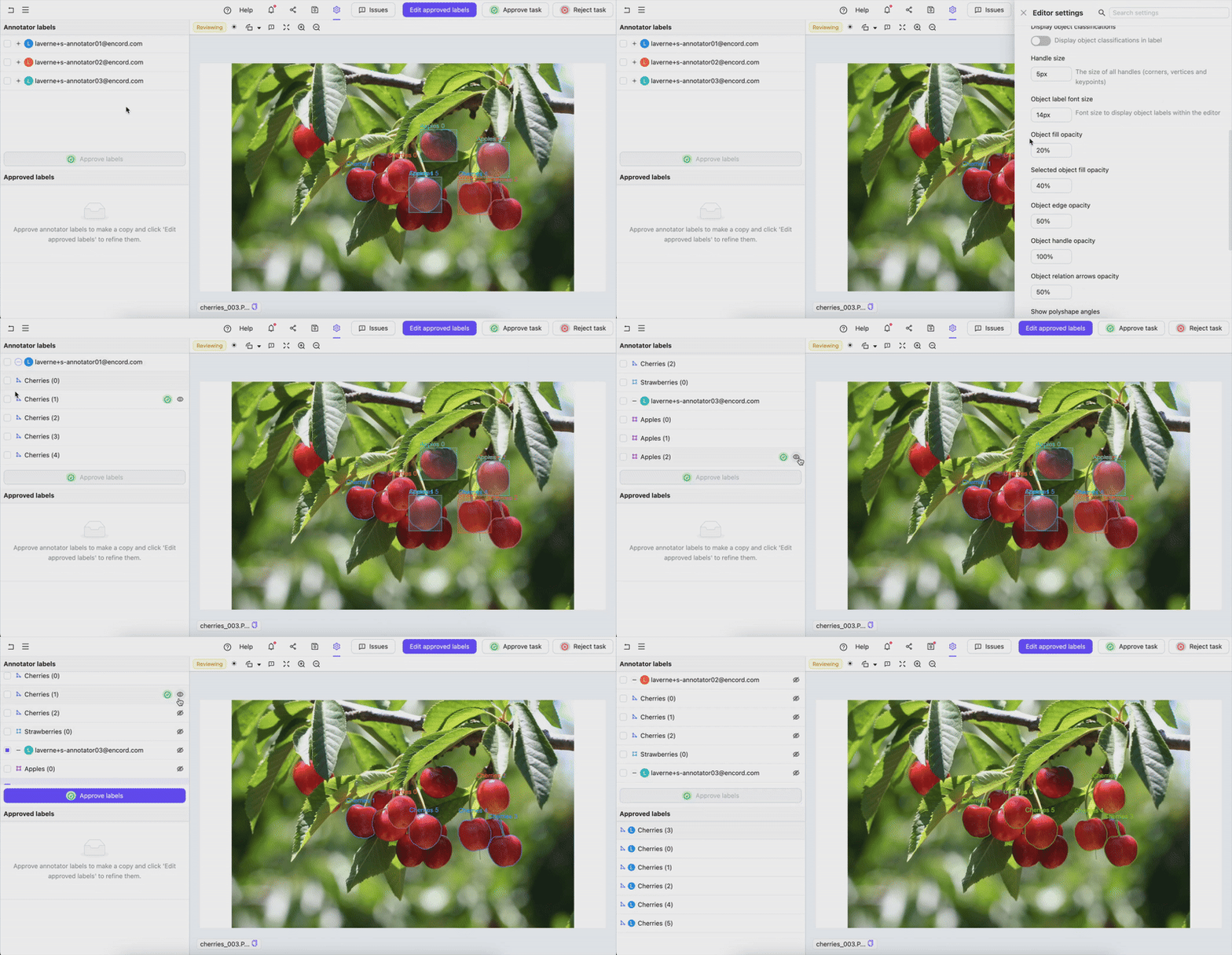
- Log in to Encord. Your review and refine task queue appears for the latest Project you are assigned for review and refinement.
- Go to Annotate > Projects > Annotate projects. The Annotate projects page appears displaying a list of Projects you are assigned to review and refine.
- Click a Consensus Project. The Project opens with Review and Refine populated with tasks.
- Click Initiate on a task. The Review and refine page appears.
- Review and refine the labels on each data unit.
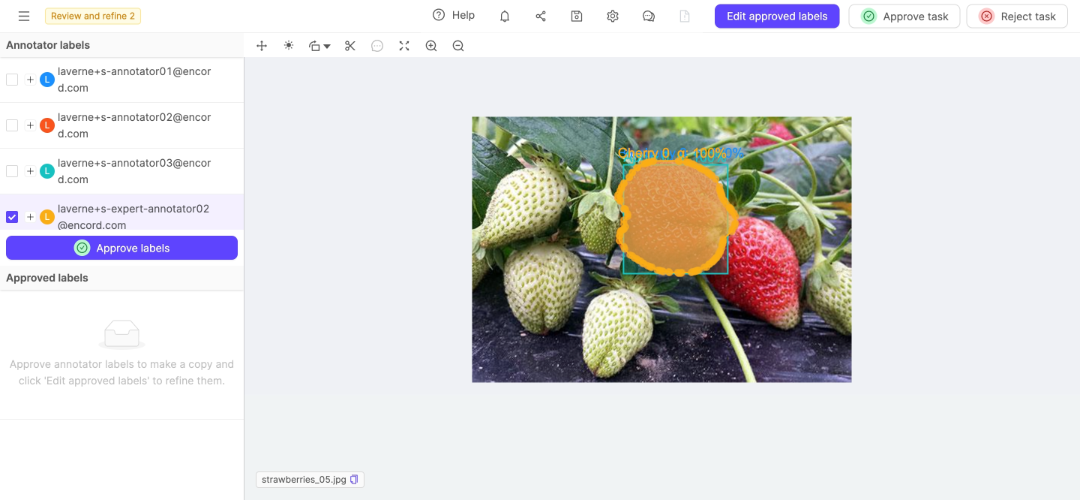

- Click Edit approved labels to add new labels to the data unit or modify existing approved labels.
When editing approved labels, any changes you make are preserved even if you later revert the approval of those labels. This allows you to refine labels and maintain your edits throughout the review process.
- Select the best labels for each object on the data unit.
- Click Approve labels or press N. The labels appear in the Approved labels list.
- Select a label from the Approved labels list.
- Click Edit approved labels if the labels need to be adjusted.
- Click Approve task or press Shift + N after selecting, refining, and creating the labels needed for the data unit.
- Click Reject task or press Shift + B if the labels on the data unit cannot be added or corrected so the labels on the data unit meet your needs.
Frame and Tile Navigation
When reviewing consensus Projects with videos, image sequences, or Data Groups containing multiple tiles, the left sidebar displays frame numbers and tile names for each annotation. This helps you quickly identify where annotations are located and navigate to specific frames or tiles.Frame numbers and tile names are displayed for annotations on videos, image sequences, DICOM series, and Data Groups with multiple tiles. Single images and image groups show only the annotation details.
- Click on any frame number to jump directly to that frame in the corresponding tile
- Frame ranges are displayed as individual numbers (for single frames) or ranges (for multi-frame annotations)
- Time stamps are shown instead of frame numbers when enabled in Project settings
- Tile names appear as badges next to frame information
- Clicking a frame number automatically switches to the correct tile if needed
- Each annotation shows which tile it belongs to, making it easier to review multi-tile data units
Group-Level Classifications
When reviewing tasks that contain Data Groups and certain types of data units (image groups, image sequences, videos, or DICOM series), you may encounter group-level classifications. Group-level classifications are classifications that apply to the entire Data Group instead of specific frames or tiles. Group-level classifications are displayed with a Global icon to distinguish them from frame-specific or tile-specific classifications.Group-level classifications are handled differently during consensus review. When approving a group-level classification from one annotator, any conflicting group-level classifications from other annotators for the same feature are automatically disabled to prevent conflicts.
Advanced - Allow task reassessment
This feature is available in both the ANNOTATE and REVIEW blocks. It determines whether users can act on tasks they have already annotated or reviewed as those tasks progress through the workflow. Users with the Annotator & Reviewer role can access both blocks in a Consensus.- In the ANNOTATE block, they cannot see other annotators’ labels.
- In the REVIEW block, they can view all labels (including their own) because this feature is enabled by default.